tencent cloud

Tencent Cloud Organization

Product Introduction
Overview
Concepts
Purchase Guide
Operation Guide
Console Overview
Organization Settings
Department Management
Member Account Management
Member Finance Management
Member Access Management
Resource Management
Member Audit
Identity Center Management
API Documentation
History
Introduction
API Category
Making API Requests
Organization Settings APIs
Department and Member Management APIs
ListOrganizationIdentity
Unified Member Login APIs
Organization Service Management APIs
Organization Management Policy APIs
Resource Sharing APIs
Identity Center Management APIs
Identity Center User Management APIs
Identity Center User Group Management APIs
Identity Center Management SCIM Synchronization APIs
Identity Center Single Sign-On Management APIs
Identity Center Permission Configuration Management APIs
Identity Center Multi-Account Authorization Management APIs
Identity Center Sub-User Synchronization Management APIs
Data Types
Error Codes
TCO API 2018-12-25
Related Agreement
Statement of Tencent Cloud Customers’ Tencent Cloud Organization
FAQs
Concept
Basic
Operation
Glossary

Login as a Tencent Cloud Sub-Account

PDF
포커스 모드
폰트 크기
마지막 업데이트 시간: 2025-07-09 17:16:02
This document provides an example showing how to create a CAM sub-account (user1) with the same name as an Identity Center user (user1) in a member account (member_1) by configuring CAM user synchronization.
The sub-account created through CAM user synchronization is granted with no permissions. You should grant permissions to the user in the CAM console for the member account.
If you need to preset permissions through the Identity Center, see Configure CAM Role Synchronization.

Directions

Step 1: Inputting Enterprise Employee Information

Input enterprise employee information into User Management of the Identity Center by creating identity center users. Manual creation and SCIM synchronization are supported. The following example shows creating a user manually:
1. Log in to TCO > Identity Center.
2. In the left sidebar, select User Management > Users and then click Create User.
3. On the Create User page, configure basic information of a user. For detailed operations, see Creating a User.
Note:
In this example, the username is set to user1.

Step 2: Configuring CAM User Synchronization

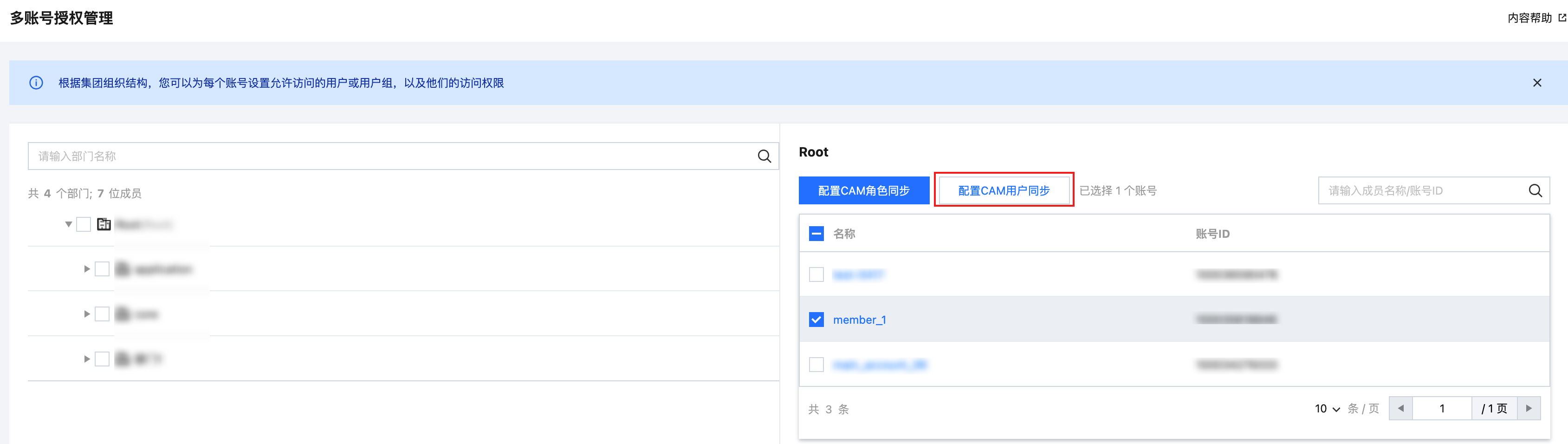
1. In the left sidebar, click CAM Synchronization > Multi-Account Authorization Management.
2. On the Multi-Account Authorization Management page, select a target account.
Note:
In this example, a member account (member_1) is selected.
3. Click Configure CAM User Synchronization.


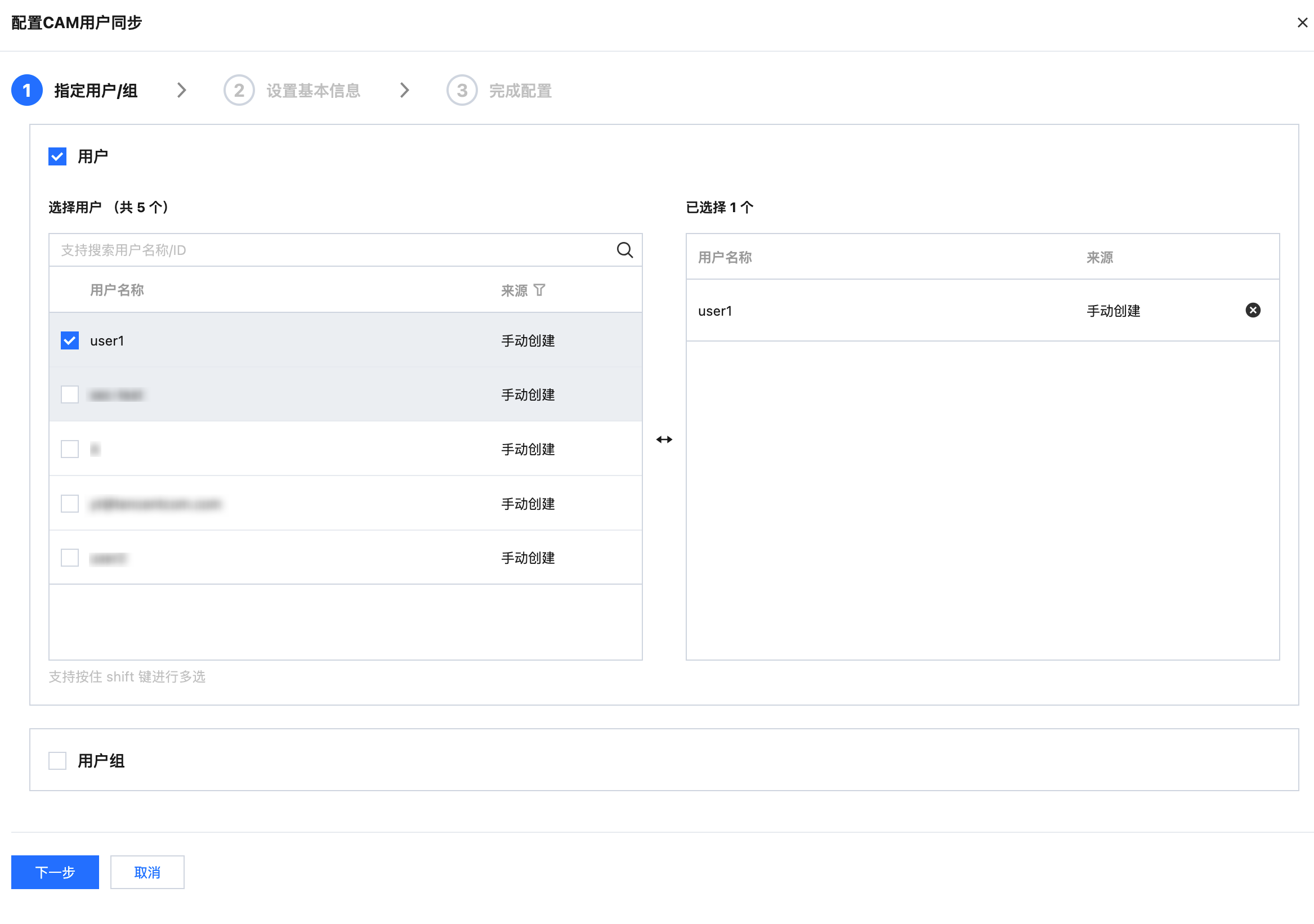
4. On the Configure CAM User Synchronization page, select a target user or user group and then click Next.
Note:
In this example, an Identity Center user (user1) is selected.

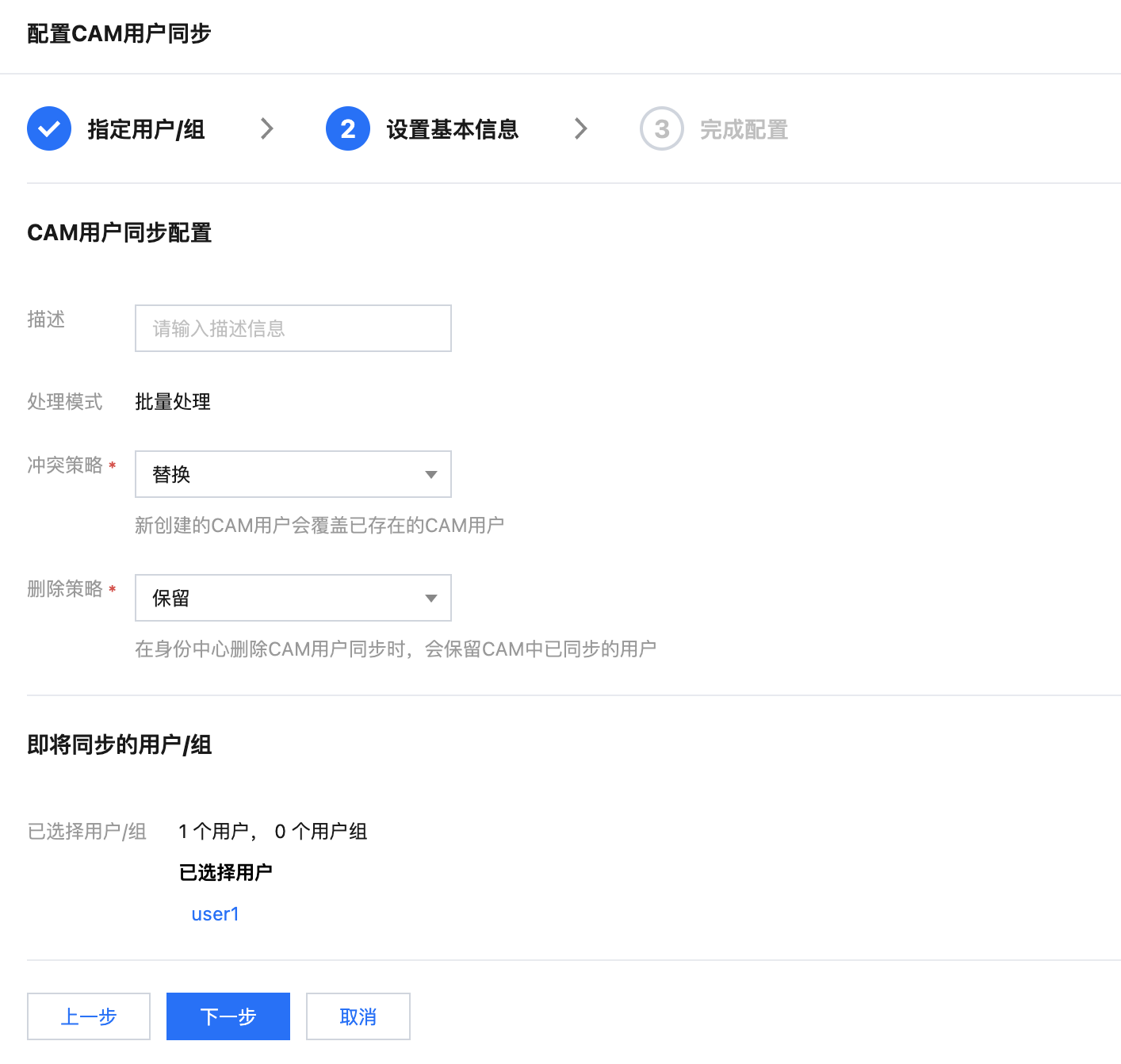
5. Configure basic information. For details of the basic information, see Configure CAM User Synchronization. After inputting the information, click Next.

6. Click Submit. After a successful configuration message is displayed, click Complete.
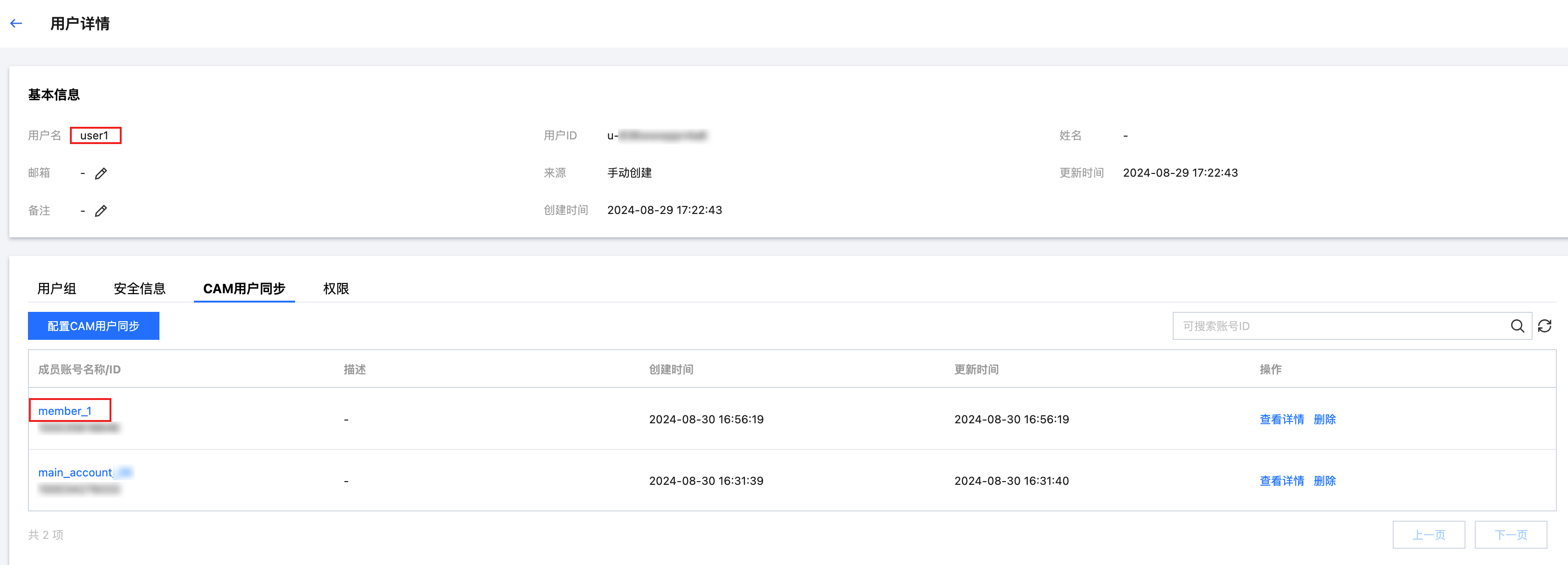
7. After the configuration is completed, you can view the user synchronization list through the following methods:
Click CAM Synchronization > User Synchronization Management.

Or click User Management > Users, enter the user details page of user1, and then select the CAM User Synchronization tab.


Effect in CAM

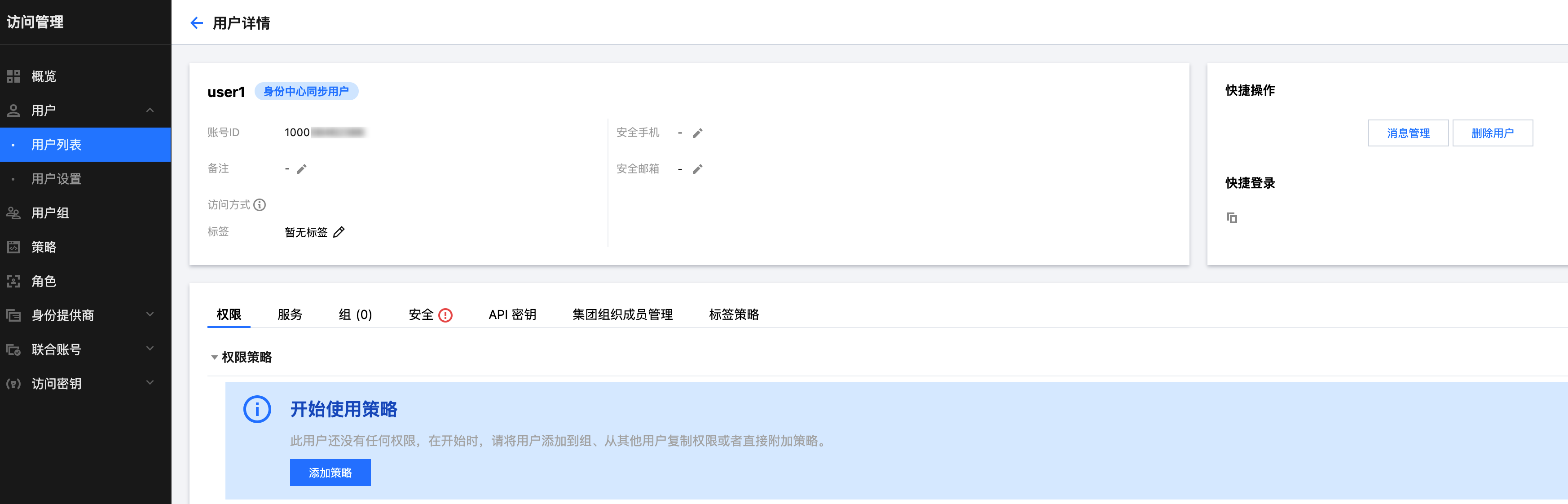
1. After the configuration is completed, the system will create a CAM sub-user (user1) with the same name as the Identity Center user (user1) in the member account (member_1) through synchronization.
Note:
The user type in CAM is Users Synchronized from Identity Center.


2. You can click the target username to view associated policies.
Note:
The sub-user created through synchronization has no permissions. You should configure permission policies for the user (user1) in CAM.


Step 3: Logging In as a Sub-Account

Obtaining a User Login URL
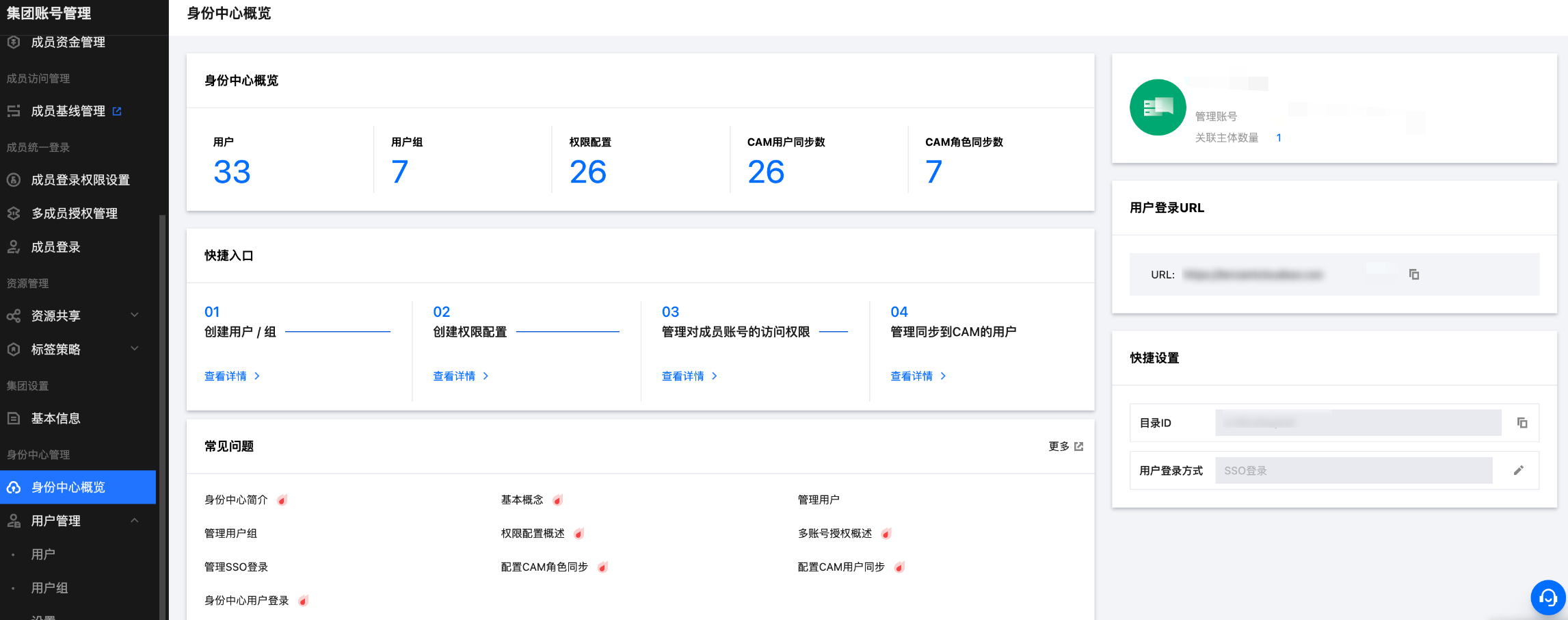
1. In the left sidebar, click Identity Center Overview.
2. On the right side of the overview page, view or copy the user login URL.


Accessing the User URL in the Browser
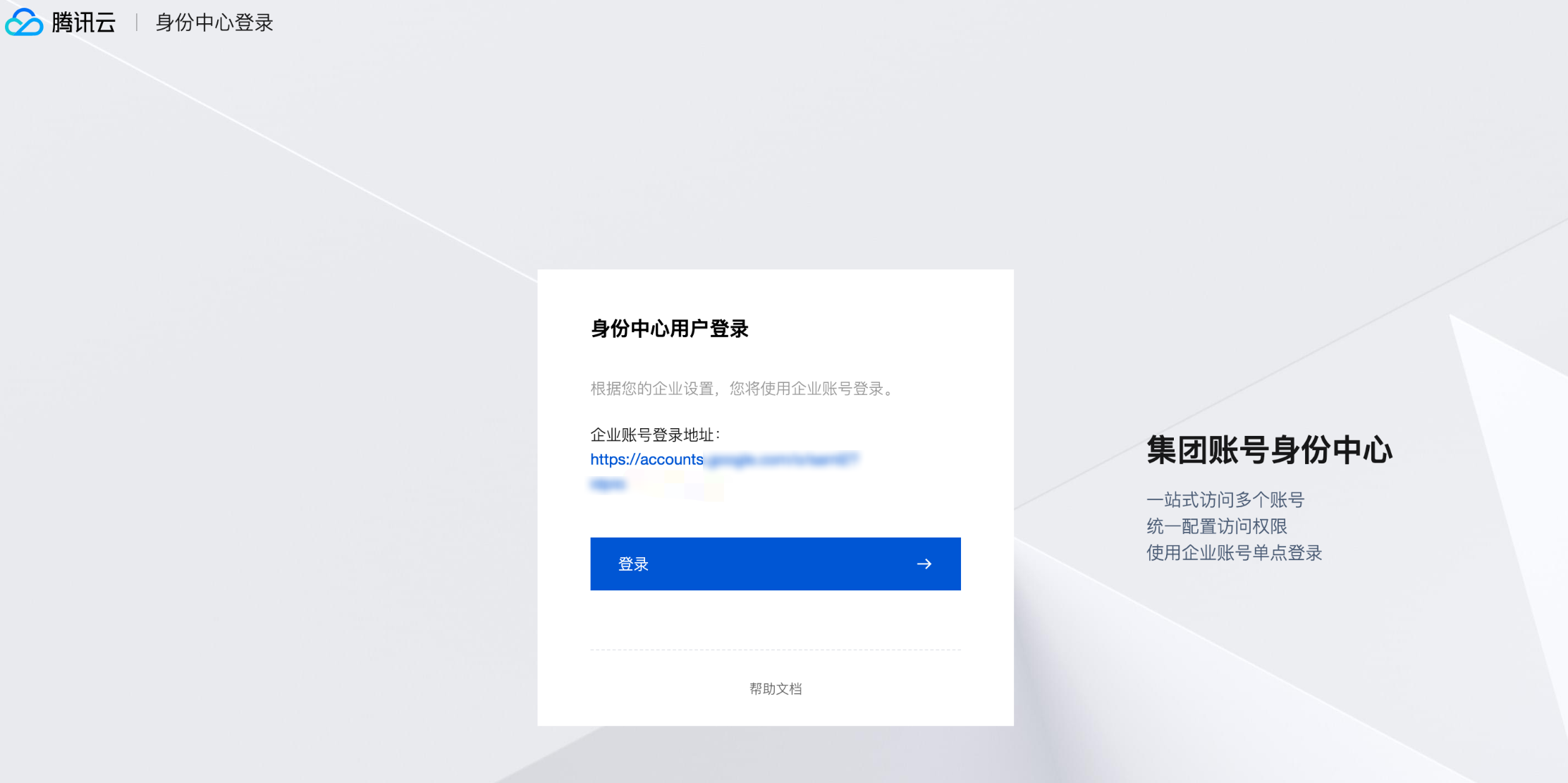
1. On the Identity Center login page, click Login. This example uses SSO login method.
Note:
Currently supported username password login and SSO login. For specific login methods, see Identity Center User Login.


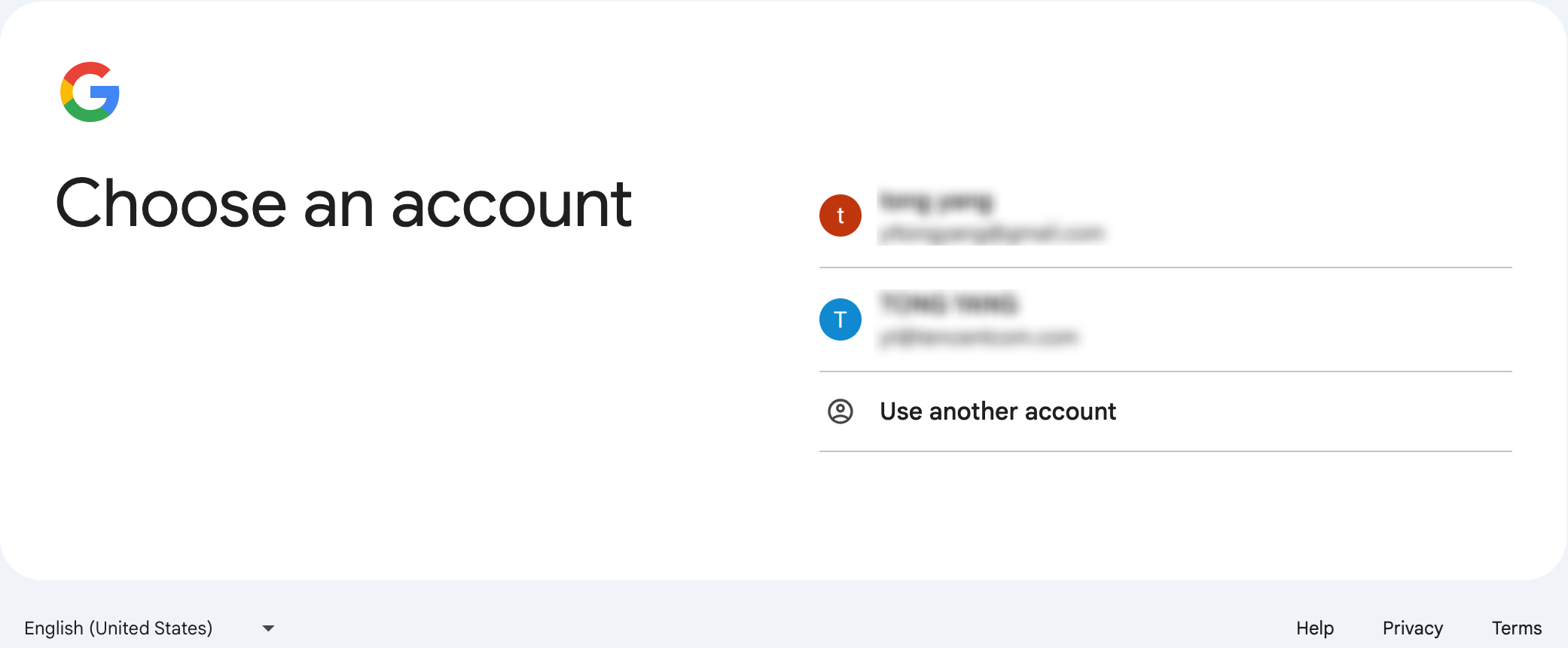
2. The system will automatically redirect to the login page of an enterprise Identity Provider (IdP). Google IdP is used in this example.

3. After verification is passed, click the Login as CAM User tab and select a member account (member_1) for login.


도움말 및 지원

문제 해결에 도움이 되었나요?

피드백