Feature Overview
For files already existing in the Bucket, you can create tasks to perform file processing operations.
Note:
When initiating a file processing task, be sure to enter the complete file name and file format; otherwise, the system will be unable to recognize the format or process the file.
When using file processing, please first confirm the relevant limitations and Region. For details, see Usage Limitations. File Decompression
The file decompression feature supports decompressing multiple archive formats.
Operation Steps
2. In the left sidebar, click Bucket Management to go to the Bucket Management page.
3. Click the Bucket Name or Manage in the right operation bar to go to the corresponding Bucket page.
4. In the left sidebar, select Tasks and Workflows > Task Management, and select the File Processing tab at the top of the page.
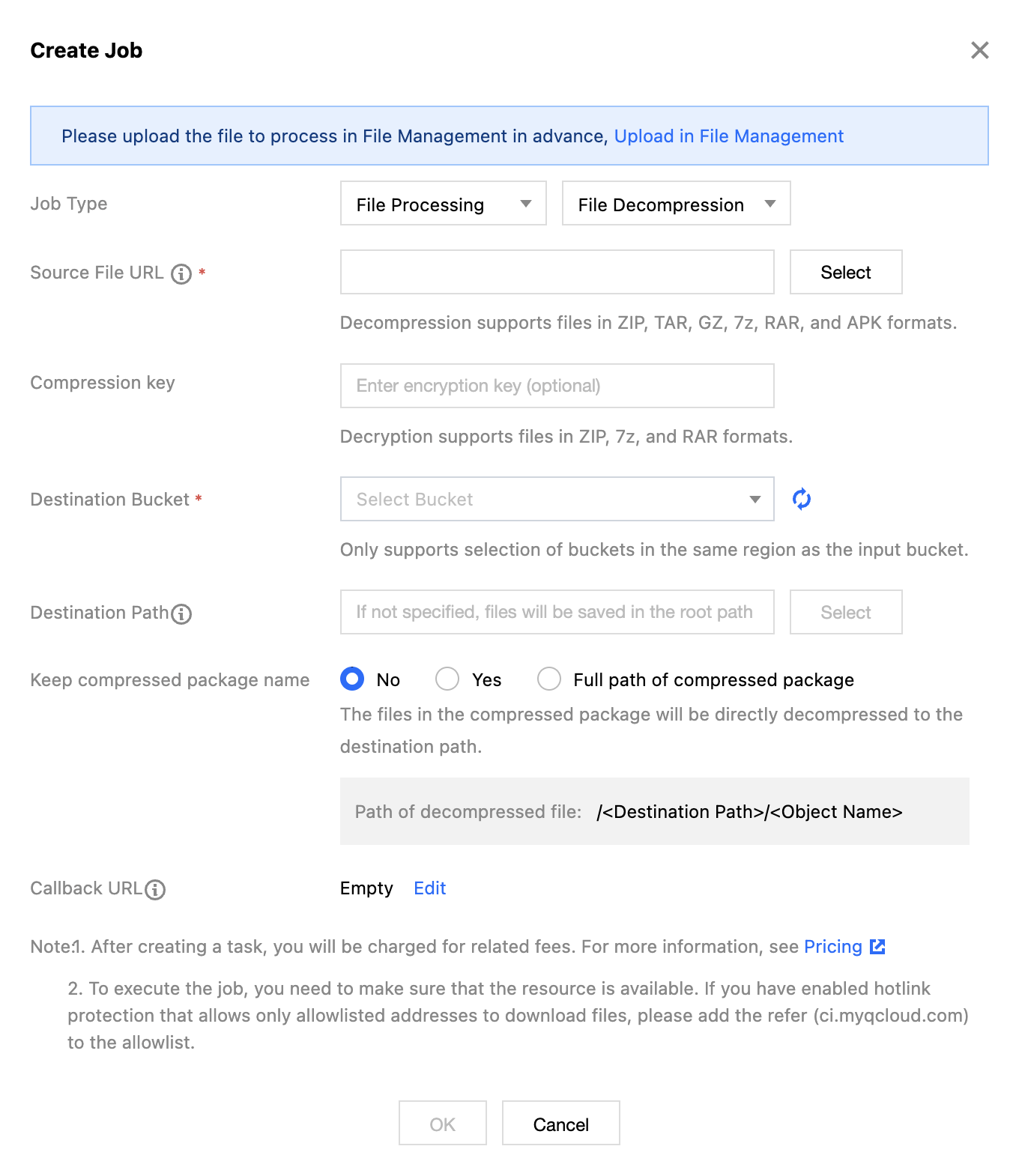
5. Select File Decompression for the task type, click Create Task, configure the following settings, and then click OK.
Task Type: Select File Processing - File Decompression.
Source file path: Enter or select the path of the file to be processed. Note that the file path must not begin or end with /.
Decryption Key: Enter the password to decompress encrypted archives. Currently, only zip, 7zip, and rar formats are supported for decryption.
Target Bucket: The Bucket where decompressed files are saved. Only Buckets in the same Region that have the file processing service enabled are supported.
Target path: The specific path where decompressed files are saved. If not specified, the files will be saved by default in the root path of the target Bucket.
Retain Archive Name: Specifies whether to retain the name of the archive for the decompressed file directory. The options are as follows:
No: Decompressed files will be saved directly under the target path (without retaining the archive name);
Yes: Decompressed files will be saved under the target path in a directory named after the archive;
Retain full archive path: Decompressed files will be saved under the target path in a directory named after the full archive path (including the archive name).
Callback URL: The callback address information bound to the Queue. For details, see Queues and Callbacks. Multi-file Packaging and Compression
Operation Steps
2. In the left sidebar, click Bucket Management to go to the Bucket Management page.
3. Click the Bucket Name or Manage in the right operation bar to go to the corresponding Bucket page.
4. In the left sidebar, select Tasks and Workflows > Task Management, and then select the File Processing tab at the top of the page.
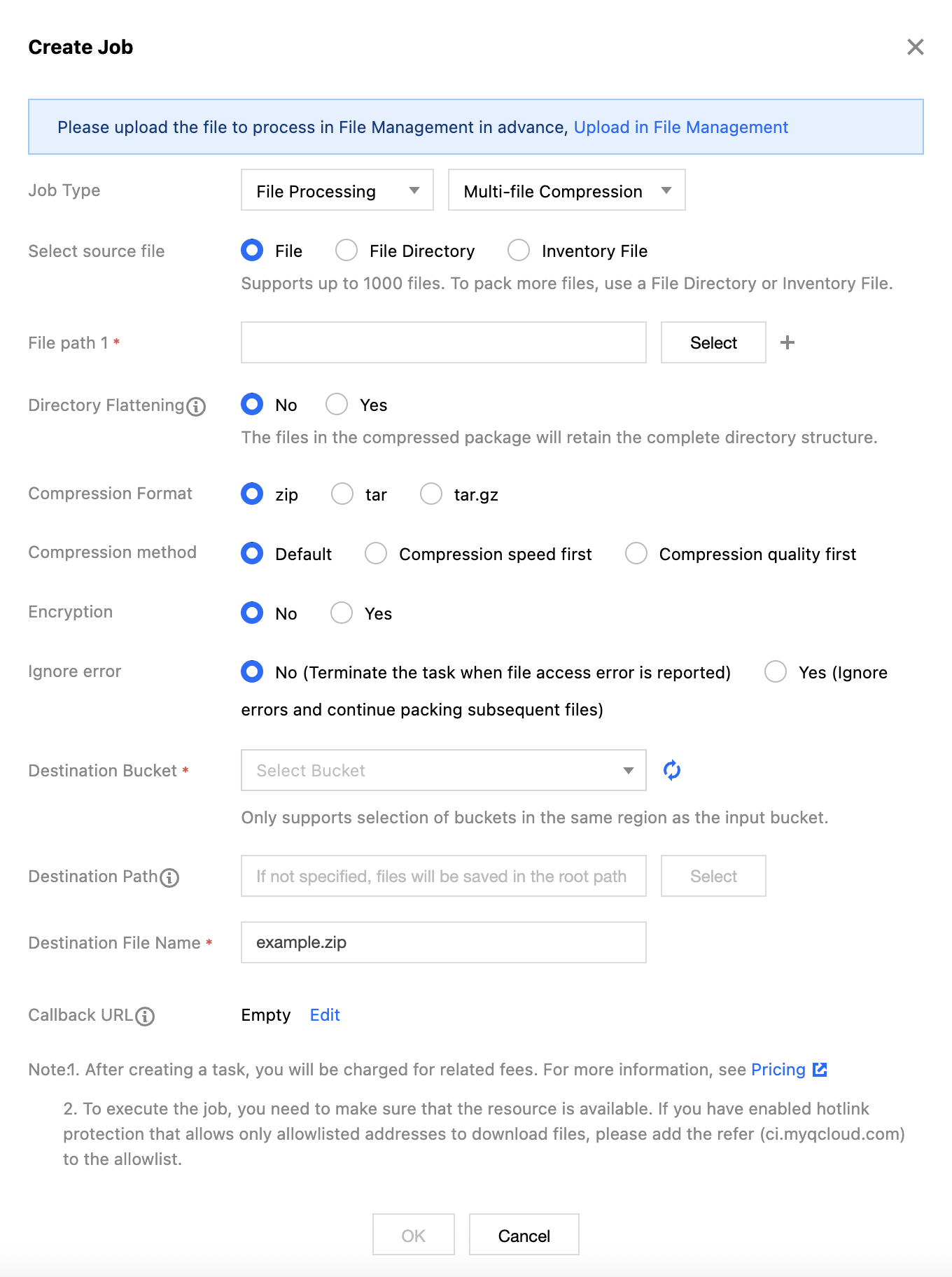
5. Select the task type as Multi-file Packaging and Compression, click Create Task, configure according to the following configuration item descriptions, and then click OK.
Task Type: Select File Processing - Multi-file Packaging and Compression.
Select source files: The following three methods are supported for file packaging and compression:
Files: Manually select multiple files in the Bucket for packaging and compression. In this mode, you need to set the file path.
File directory: Manually select a directory in the Bucket to package and compress the entire directory. In this mode, you need to set the file directory.
URL list file: Organize the list of files to be packaged into a CSV manifest file, save the manifest file to a Bucket, and then select the manifest file in the Bucket to package and compress the files listed. In this mode, you need to set the manifest file.
Directory Flattening: When directory flattening is enabled, the source directory structure is removed. For example, the source file URL is https://example.com/source/123/test.mp4, where the path of the source file is source/123/test.mp4.
If flattening is enabled, the file in the compressed package will be test.mp4.
If flattening is not enabled, the file in the compressed package will be source/123/test.mp4.
Note:
If directory flattening is enabled, files with the same name in different directories will be automatically overwritten in the compressed package, keeping only one copy.
Compression Type: Supports compression into three formats: zip, tar, and tar.gz.
Compression Method: Supports configuring the compression effect.
Default: Moderate compression speed and file size.
Speed Priority: Shorter compression time, but relatively larger compressed file size.
Quality Priority: Longer compression time, but smaller compressed file size.
Encryption: Supports encryption during compression. Encryption is only supported when the target format is zip.
Target Bucket: The Bucket where decompressed files are saved. Only Buckets in the same Region that have the file processing service enabled are supported.
Target path: The specific path where decompressed files are saved. If not specified, the files will be saved by default in the root path of the target Bucket.
Target file name: The file name of the packaged and compressed file.
Callback URL: The callback address for receiving task results. The callback URL is bound to the Queue. For details, see Queues and Callbacks. Hash computation
File hash computation provides calculation operations for multiple hash algorithms and supports automatically adding the results to the file's custom header attributes after hash value calculation is completed.
Operation Steps
2. In the left sidebar, click Bucket Management to go to the Bucket Management page.
3. Click the Bucket Name or Manage in the right operation bar to go to the corresponding Bucket page.
4. In the left sidebar, select Tasks and Workflows > Task Management, and select the File Processing tab at the top of the page.
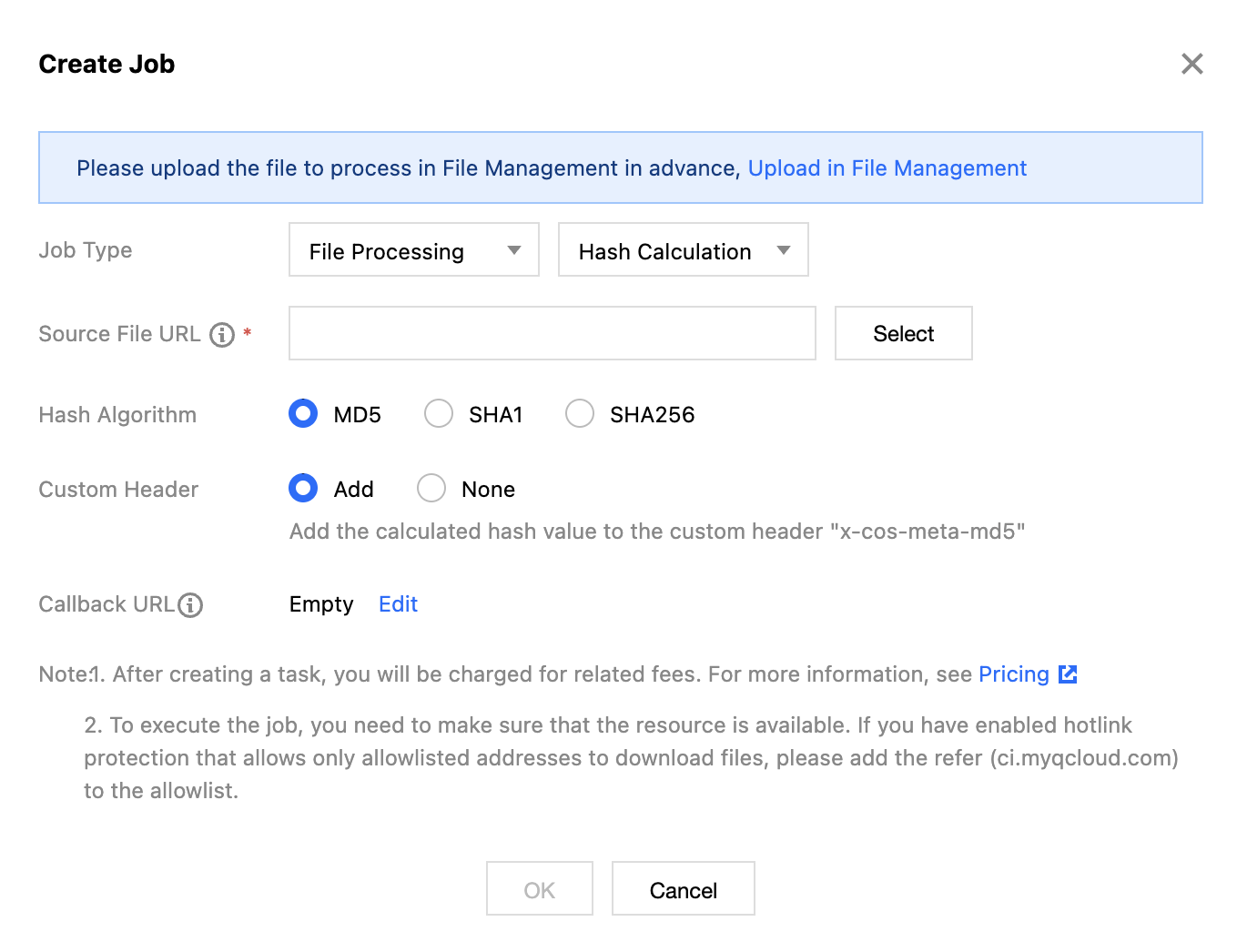
5. Select Hash Value Calculation as the task type, click Create Task, configure according to the following settings, and then click OK.
Task Type: Select File Processing - Hash Value Calculation.
Source file path: Enter or select the path of the file to be processed. Note that the file path must not begin or end with /.
Hash Algorithm: Supports three hash algorithms: MD5, SHA1, and SHA256.
Custom Header: Can choose to automatically add to the custom header after the hash value calculation is completed.
Callback URL: The callback address information bound to the Queue. For details, see Queues and Callbacks.