tencent cloud

eKYC

Release Notes and Announcements
Release Notes
Product Announcements
Product Introduction
Overview
Strengths
Use Cases
Purchase Guide
Billing Overview
Purchase Method
Payment Overdue
Refund
Integration Guide
Getting Started
Selfie Verification (Pure API)
Selfie Verification (Mobile HTML5)
Selfie Verification (App SDK)
Identity Verification (Mobile HTML5)
Identity Verification (App SDK)
Other Guide
API Documentation
History
Introduction
API Category
Making API Requests
Selfie Verification (Pure API) APIs
Selfie Verification (App SDK) APIs
Identity Verification (App SDK) APIs
Identity Verification(Mobile HTML5) APIs
AI Face Shield (Pure API) APIs
Other APIs
Data Types
Error Codes
FAQs
Contact Us
Glossary
eKYC Policy
Privacy Policy
Data Processing And Security Agreement
Service Level Agreement

Android Custom Capabilities

PDF
Focus Mode
Font Size
Last updated: 2026-02-11 16:08:46
This document introduces the custom capabilities of the eKYC SDK (global edition).

I. Custom UI

Customizing layout

The eKYC SDK supports customizing the UI, primarily by configuring parameters using the AuthUiConfig settings. The UI layout can be customized by specifying the Layout resId.
The general method of use is as follows:
AuthUiConfig authConfig = new AuthUiConfig();
authUiConfig.setAuthLayoutResId(R.layout.demo_huiyan_fragment_authing);
authUiConfig.setAuthCircleCorrectColor(resources.getColor(R.color.demo_blue));
huiYanOsConfig.setAuthUiConfig(authUiConfig);
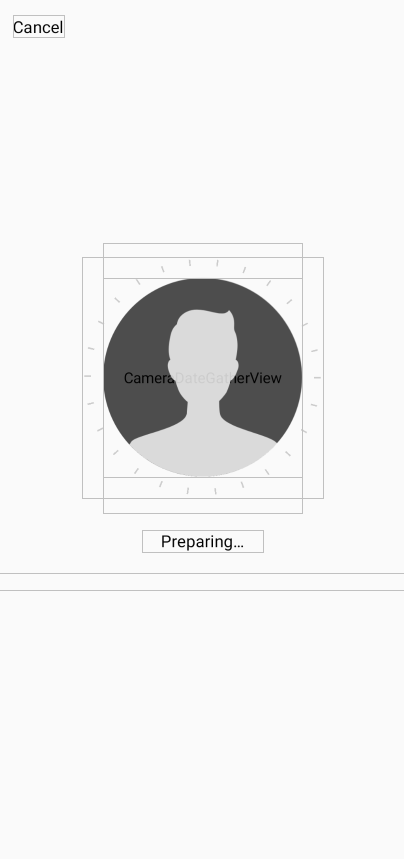
The layout shown in the following figure is the default layout.


The default layout is shown in the figure above. The positions of all controls in the figure can be adjusted by modifying the Layout.xml file. For specific details, please refer to the demo_huiyan_fragment_authing.XML file in the demo.
Note:
In the file demo_huiyan_fragment_authing.xml, please do not modify the ViewType and the corresponding android:id values, as they are involved in binding interface events.
The default layout provided here is as follows:
<?xml version="1.0" encoding="utf-8"?>
<com.tencent.could.huiyansdk.view.HuiYanReflectLayout xmlns:android="http://schemas.android.com/apk/res/android"
xmlns:app="http://schemas.android.com/apk/res-auto"
android:id="@+id/txy_auth_layout_bg"
android:layout_width="match_parent"
android:layout_height="match_parent">

<!-- The cancel button. -->
<TextView
android:id="@+id/txy_cancel_txt_btn"
android:text="@string/txy_cancel"
android:layout_width="wrap_content"
android:layout_height="wrap_content"
app:layout_constraintStart_toStartOf="parent"
app:layout_constraintTop_toTopOf="parent"
android:textColor="@color/txy_black"
android:textSize="@dimen/txy_tips_extra_text_size"
android:layout_marginTop="@dimen/txy_title_margin_top"
android:layout_marginStart="@dimen/txy_protocol_margin_size"
/>

<!-- The countdown display control element. -->
<TextView
android:id="@+id/txy_count_down_txt_view"
android:text="@string/txy_count_down_txt"
app:layout_constraintTop_toTopOf="parent"
app:layout_constraintEnd_toEndOf="parent"
android:textSize="@dimen/txy_tips_extra_text_size"
android:textColor="@color/txy_black"
android:layout_width="wrap_content"
android:layout_height="wrap_content"
android:layout_marginTop="@dimen/txy_title_margin_top"
android:layout_marginRight="@dimen/txy_protocol_margin_size"
android:visibility="gone"
/>

<!-- If the preview interface of the camera supports 720P resolution, the value of "height" in the code will be automatically multiplied by 1.3. -->
<com.tencent.could.huiyansdk.view.CameraDateGatherView
android:id="@+id/txy_camera_gather_view"
android:layout_width="@dimen/txy_auth_head_size"
android:layout_height="@dimen/txy_auth_head_default_height"
android:background="@android:color/transparent"
android:layout_marginBottom="@dimen/txy_auth_view_move"
app:layout_constraintBottom_toBottomOf="parent"
app:layout_constraintEnd_toEndOf="parent"
app:layout_constraintStart_toStartOf="parent"
app:layout_constraintTop_toTopOf="parent" />

<!-- The common background, a circular shape with vertical lines. -->
<com.tencent.could.huiyansdk.view.CommonAuthBackView
android:id="@+id/txy_auth_common_background_views"
android:layout_width="@dimen/txy_auth_circle_size"
android:layout_height="@dimen/txy_auth_circle_size"
android:layout_marginBottom="@dimen/txy_auth_view_move"
app:layout_constraintBottom_toBottomOf="parent"
app:layout_constraintEnd_toEndOf="parent"
app:layout_constraintStart_toStartOf="parent"
app:layout_constraintTop_toTopOf="parent"
/>

<!-- The profile picture displayed. -->
<ImageView
android:id="@+id/txy_camera_prepare_img"
app:srcCompat="@drawable/txy_prepare_face_head_white"
android:layout_width="@dimen/txy_auth_head_size"
android:layout_height="@dimen/txy_auth_head_size"
android:layout_marginBottom="@dimen/txy_auth_view_move"
app:layout_constraintTop_toTopOf="parent"
app:layout_constraintBottom_toBottomOf="parent"
app:layout_constraintEnd_toEndOf="parent"
app:layout_constraintStart_toStartOf="parent" />

<!-- The animated front View. -->
<com.tencent.could.huiyansdk.view.LoadingFrontAnimatorView
android:id="@+id/txy_auth_loading_front_animator_view"
android:visibility="gone"
app:layout_constraintTop_toTopOf="parent"
app:layout_constraintBottom_toBottomOf="parent"
app:layout_constraintEnd_toEndOf="parent"
app:layout_constraintStart_toStartOf="parent"
android:layout_marginBottom="@dimen/txy_auth_view_move"
android:layout_width="@dimen/txy_auth_head_size"
android:layout_height="@dimen/txy_auth_head_size"
/>

<!-- Display interface for prompt messages. -->
<TextView
android:id="@+id/txy_auth_feed_back_txt"
app:layout_constraintTop_toBottomOf="@id/txy_auth_common_background_views"
app:layout_constraintStart_toStartOf="parent"
app:layout_constraintEnd_toEndOf="parent"
android:textColor="@color/txy_black"
android:layout_marginTop="@dimen/txy_protocol_line_space"
android:text="@string/txy_face_preparing3"
android:textSize="@dimen/txy_tips_text_size"
android:paddingHorizontal="@dimen/txy_title_margin_top"
android:gravity="center_horizontal"
android:layout_width="wrap_content"
android:layout_height="wrap_content"/>

<!-- The control for displaying additional warning messages. -->
<TextView
android:id="@+id/txy_auth_feed_back_extra_tip_txt"
android:textSize="@dimen/txy_tips_extra_text_size"
android:textColor="@color/txy_black"
android:layout_width="match_parent"
android:layout_height="wrap_content"
android:gravity="center_horizontal"
android:paddingHorizontal="@dimen/txy_title_margin_top"
app:layout_constraintStart_toStartOf="parent"
app:layout_constraintEnd_toEndOf="parent"
android:layout_marginTop="20dp"
app:layout_constraintTop_toBottomOf="@id/txy_auth_feed_back_txt"
/>

</com.tencent.could.huiyansdk.view.HuiYanReflectLayout>

Binding Events to Custom Layouts

In the previous section, creation of custom UI layouts has been described. This section will focus on how to bind events to the controls that are added to these custom layouts, in order to meet your various needs during actual use.
When the identity verification interface is created, the “onMainViewCreate(View authView)” method of “HuiYanAuthEventCallBack” will be called. When the identity verification interface is about to be destroyed, the “onMainViewDestroy()” method will be called back, allowing you to customize the handling logic according to the corresponding lifecycle stage.
// Configure the callback monitoring for key events associated with eKYC.
HuiYanOsApi.setAuthEventCallBack(new HuiYanAuthEventCallBack() {
@Override
public void onAuthTipsEvent(HuiYanAuthTipsEvent tipsEvent) {
Log.e(TAG, "current is : " + tipsEvent);
}

@Override
public void onMainViewCreate(View authView) {
if (authView == null) {
return;
}
// Obtain the custom controls that have been added, and register the custom events associated with them.
Button findBtn = authView.findViewById(R.id.add_view_offer_button);
if (findBtn != null) {
findBtn.setOnClickListener(view -> {
Log.e(TAG, "click test button!");
});
}
}

@Override
public void onMainViewDestroy() {
Log.e(TAG, "onMainViewDestroy");
}
});
Based on the callback mechanisms of “onMainViewCreate” and “onMainViewDestroy,” you can complete the event binding for any newly added UI controls to achieve the desired effects.

II. Custom Prompt and Language

Customizing prompt

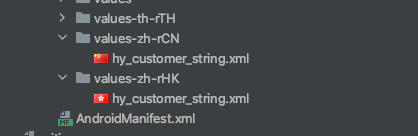
If you want to modify a prompt or add a language file, follow the instructions below. The eKYC SDK provides a translation file hy_customer_string.xml , which contains all the configuration text files that can be modified externally by the SDK.
1. Open the main module (the module that integrates the SDK) of the project.
2. Add the hy_customer_string.xml file to the corresponding language folder.
3. Modify the text content that needs to be customized.
4. After packaging, the modified content will automatically replace the original text.


Add New Languages

To add a new language to the file, you need to perform the following two steps:
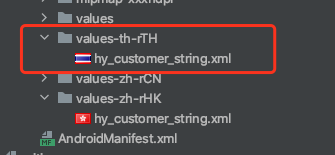
1. Add a folder for the corresponding language within the main module (the module that integrates the SDK) project.
2. Copy hy_customer_string.xml to the folder corresponding to the target language, and modify the value content accordingly.


3. Simply specify the corresponding language code in the code (taking Thai as an example).
huiYanOsConfig.setLanguageStyle(LanguageStyle.CUSTOMIZE_LANGUAGE);
huiYanOsConfig.setLanguageCode("th-TH");

III.Enhance Mode/Plus Mode

Liveness face comparison offers two advanced security modes: Enhance Mode and Plus Mode. These modes enhance the security of liveness detection by combining device-based risk control technologies. To enable these modes, corresponding settings must be made during both the SDK configuration process and the token acquisition phase.
SDK configuration requirements
Whether in Enhance Mode or Plus Mode, it is necessary to enable device-based risk control functionality within the SDK and configure the corresponding risk control license file.
// Set the device risk control license file (which must be placed in the assets directory).
huiYanOsConfig.setRiskLicense("turing.lic");
// Enable the device-based risk control capabilities.
huiYanOsConfig.setOpenCheckRiskMode(true);
Note:
The device-based risk control license is a separate file from the identity verification authorization license. It must be applied for separately.
Token acquisition configuration
When calling the “GetFaceIdTokenIntl” API to obtain the business token, it is necessary to specify whether to use the Enhance mode or the Plus mode by setting the “SdkVersion” parameter.
Enhance mode: Set the corresponding “SdkVersion” value.
Plus mode: Set the corresponding “SdkVersion” value.
For the specific values of “SdkVersion,” please refer to the GetFaceIdTokenIntl API Documentation.
Steps to enable the mode
1. Set the corresponding “SdkVersion” parameter when obtaining the Token.
2. Enable device-based risk control functionality in the SDK configuration.
3. Input the configured Token when calling the “startHuiYanAuth” method.
4. The SDK will automatically enable the appropriate security level based on the information contained in the Token.
Note:
Please ensure that the settings for both SDK configuration and Token acquisition are exactly identical; otherwise, the mode may not be enabled.

IV.FAQs

1.After integrating SDK, why the error “Invoke-customs are only supported starting with Android O (–min-api 26)” occurs. The following configuration needs to be added to the “build.gradle” file:
// Java version supports 1.8.
compileOptions {
sourceCompatibility JavaVersion.VERSION_1_8
targetCompatibility JavaVersion.VERSION_1_8
}
2.If the integrator uses AndResGuard’s obfuscation tool, obfuscation configuration can be added accordingly.
// for HuiYanSDK
"R.string.ocr_*",
"R.string.rst_*",
"R.string.net_*",
"R.string.msg_*",
"R.string.fl_*",
3.For certain devices running older versions of Android X, errors such as “android.content.res.Resources$NotFoundException: from XML type XML resource ID #0x7f0800c3” may occur. In such cases, consider adding dependencies for vector graphics.
// Vector graphics from earlier versions.
implementation 'androidx.vectordrawable:vectordrawable:1.1.0'
4.Android Support: If the following error occurs on devices running lower versions of Android (6.0 and below):
android.content.res.Resources$NotFoundException: File res/drawable/$txy_face_id_logo__0.xml from color state list resource ID #0x7f070001
at android.content.res.Resources.loadColorStateListForCookie(Resources.java:2800)
at android.content.res.Resources.loadColorStateList(Resources.java:2749)
at android.content.res.TypedArray.getColor(TypedArray.java:441)
at android.content.res.XResources$XTypedArray.getColor(XResources.java:1286)
at android.support.v4.content.res.TypedArrayUtils.getNamedColor(TypedArrayUtils.java:124)
at android.support.graphics.drawable.VectorDrawableCompat$VFullPath.updateStateFromTypedArray(VectorDrawableCompat.java:1746)
at android.support.graphics.drawable.VectorDrawableCompat$VFullPath.inflate(VectorDrawableCompat.java:1712)
at android.support.graphics.drawable.VectorDrawableCompat.inflateInternal(VectorDrawableCompat.java:743)
at android.support.graphics.drawable.VectorDrawableCompat.inflate(VectorDrawableCompat.java:631)
at android.support.graphics.drawable.VectorDrawableCompat.createFromXmlInner(VectorDrawableCompat.java:590)
at android.support.v7.widget.AppCompatDrawableManager$VdcInflateDelegate.createFromXmlInner(AppCompatDrawableManager.java:775)
It is necessary to update the support dependency to the latest version 28.0.0.
implementation 'com.android.support:appcompat-v7:28.0.0'
// Component libraries that are compatible with older versions of vector graphics.
implementation 'com.android.support:support-vector-drawable:28.0.0'
implementation 'com.android.support:animated-vector-drawable:28.0.0'
Appendix: Android Language Code
Here are some language codes for Android for your reference.
Code
Corresponding country or region
af-ZA
Afrikaans - South Africa
sq-AL
Albanian - Albania
ar-DZ
Arabic - Algeria
ar-BH
Arabic - Bahrain
ar-EG
Arabic - Egypt
ar-IQ
Arabic - Iraq
ar-JO
Arabic - Jordan
ar-KW
Arabic - Kuwait
ar-LB
Arabic - Lebanon
ar-LY
Arabic - Libya
ar-MA
Arabic - Morocco
ar-OM
Arabic - Oman
ar-QA
Arabic - Qatar
eu-ES
Basque - Basque
be-BY
Belarusian - Belarus
bg-BG
Bulgarian - Bulgaria
ca-ES
Catalan - Catalonia
zh-HK
Chinese - Hong Kong (China)
zh-MO
Chinese - Macau (China)
zh-CN
Chinese - China
zh-SG
Chinese - Singapore
zh-TW
Chinese - Taiwan (China)
zh-CHS
Chinese (Simplified)
zh-CHT
Chinese (Traditional)
hr-HR
Croatian - Croatia
cs-CZ
Czech - Czech Republic
da-DK
Danish - Denmark
div-MV
Dhivehi - Maldives
nl-BE
Dutch - Belgium
nl-NL
Dutch - Netherlands
en-AU
English - Australia
en-CA
English - Canada
en-ZA
English - South Africa
en-PH
English - Republic of Philippines
en-NZ
English - New Zealand
en-GB
English - United Kingdom
en-US
English - United States
fa-IR
Persian-Kingdom of Iran
fi-FI
Finnish - Finland
fr-FR
French - France
fr-BE
French - Belgium
fr-MC
French - Monaco
fr-CH
French - Switzerland
gl-ES
Galician - Galicia
ka-GE
Georgian - Georgia
de-DE
German - Germany
de-LU
German - Luxembourg
de-CH
German - Switzerland
el-GR
Greek - Greece
gu-IN
Gujarati - India
he-IL
Hebrew - Israel
hi-IN
Hindi - Indian
hu-HU
Hungarian - Hungary
is-IS
Icelandic - Iceland
it-IT
Italian - Italy
ja-JP
Japanese - Japan
kk-KZ
Kazakh - Kazakhstan
kn-IN
Kannada - Indian
ko-KR
Korean - Korea
lv-LV
Latvian - Latvia
lt-LT
Lithuanian - Lithuania
ms-BN
Malay - Brunei
ms-MY
Malay - Malaysia
mr-IN
Marathi - Indian
mn-MN
Mongolian - Mongolia
nn-NO
Norwegian (Nynorsk) - Norway
pl-PL
Polish - Poland
pt-BR
Portuguese - Brazil
pt-PT
Portuguese - Portugal
ro-RO
Romanian - Romania
sa-IN
Sanskrit - India
ru-RU
Russian - Russia
sk-SK
Slovak - Slovakia
es-AR
Spanish - Argentina
es-ES
Spanish - Spain
sv-SE
Swedish - Sweden
th-TH
Thai - Thailand
tr-TR
Turkish - Turkey
uk-UA
Ukrainian - Ukraine
ur-PK
Urdu- Pakistan
vi-VN
Vietnamese - Vietnam

Help and Support

Was this page helpful?

Help us improve! Rate your documentation experience in 5 mins.

Feedback