This document describes how to modify parameters and view parameter modifications in the console.
Notes
To ensure instance stability, only some parameters can be modified in the console. These parameters are displayed on the Parameter Settings tab.
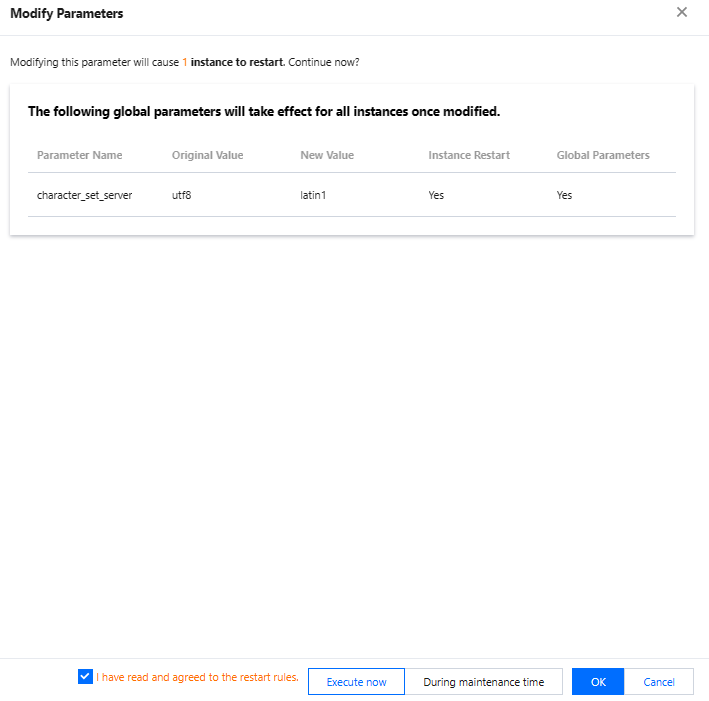
If the modified parameter requires instance restart to take effect, the system will ask you if you want to restart. We recommend that you do so during off-peak hours and ensure that your application has a reconnection mechanism.
Parameter task: You can query the details of parameter modification tasks in the task list.
Parameter modification tasks that haven't been executed yet can be canceled.
If a cluster already has an ongoing parameter modification task, modifying parameters again will fail.
Global parameters can be modified only on a read-write instance. Once modified, they will be applied to all instances in the cluster. Session parameters can be set in individual instances in the cluster.
Modifying one parameter
1. Log in to the TDSQL-C for MySQL console, find the target cluster in the cluster list, and click the cluster ID to enter the cluster management page. 2. On the cluster management page, click the Parameter Settings tab, select the target instance ID (global parameters can be modified only on a read-write instance and will take effect for the entire cluster once configured, while session parameters can be set in individual instances).
Note:
TDSQL-C for MySQL provides the Global Parameters field to help you quickly distinguish between parameters that take effect for the entire cluster and that can be set separately for different instances. Once configured, values of global parameters will take effect for all instances in the cluster, while values of session parameters will only apply to the target instance and can be synced to other instances.
3. Find the target parameter in the parameter list and click in the Current Value column. Note:
You can quickly find the target parameter in the search box on the right of the Parameter Settings tab.
4. Enter the target parameter value as prompted in the Acceptable Values column and click to save the change. You can also click to discard the change. Note:
If theicon is displayed before a parameter value, the parameter supports two value types: integer and formula. After the parameter is set based on a formula, the value will change automatically along with specifications such as CPU and memory (you can only modify numeric variables in a formula; for more information, see Parameter Formula).
5. Click . In the pop-up window, confirm that everything is correct, set Execution Time, and click OK.
Execution Time: If Execute now is selected, modification will be triggered immediately upon confirmation.
If During maintenance time is selected, the parameter will be modified within the maintenance time of the instance. For more information, see Modifying Instance Maintenance Time. Note:
When you confirm the parameter modification, the system will ask you whether to restart the database instance. You can select Execute now or During maintenance time.
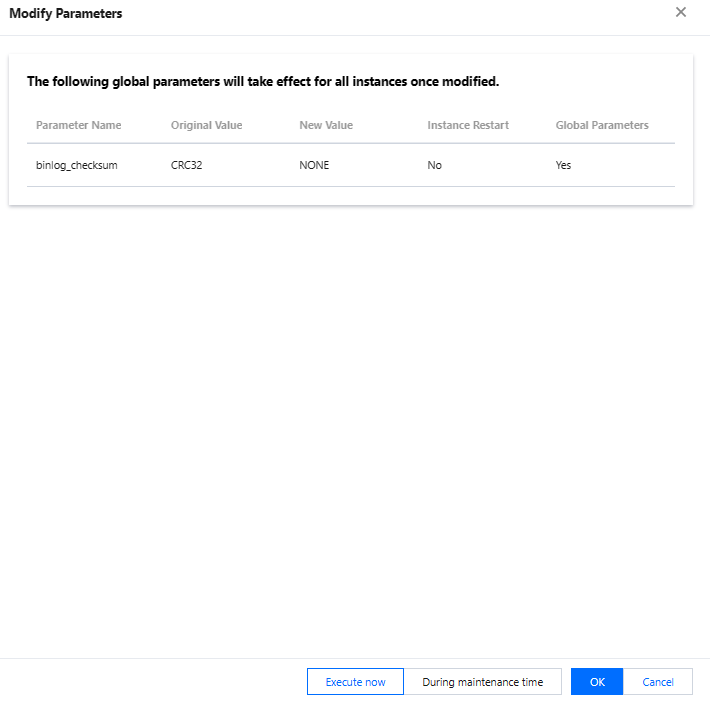
The page displayed when you modify a parameter that doesn't involve restart is as follows:
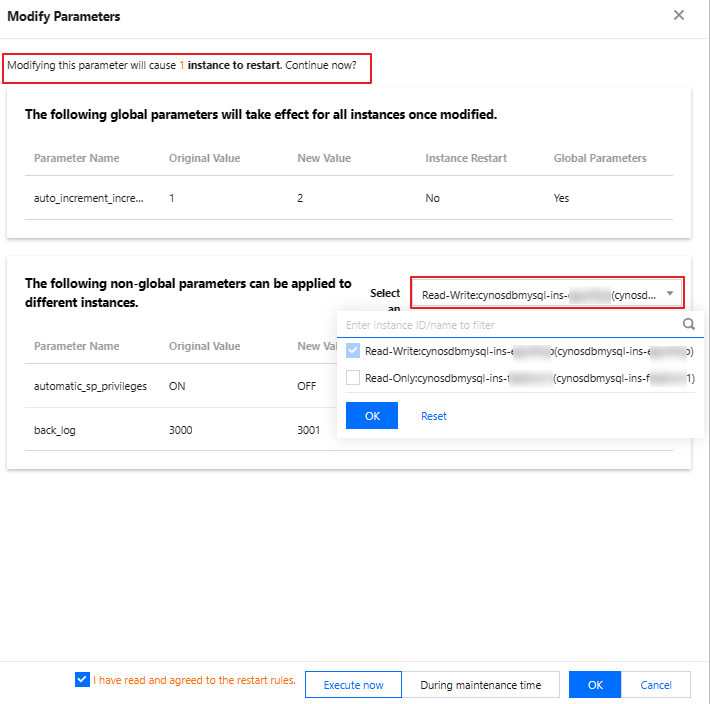
The page displayed when you modify a parameter that involves restart is as follows:
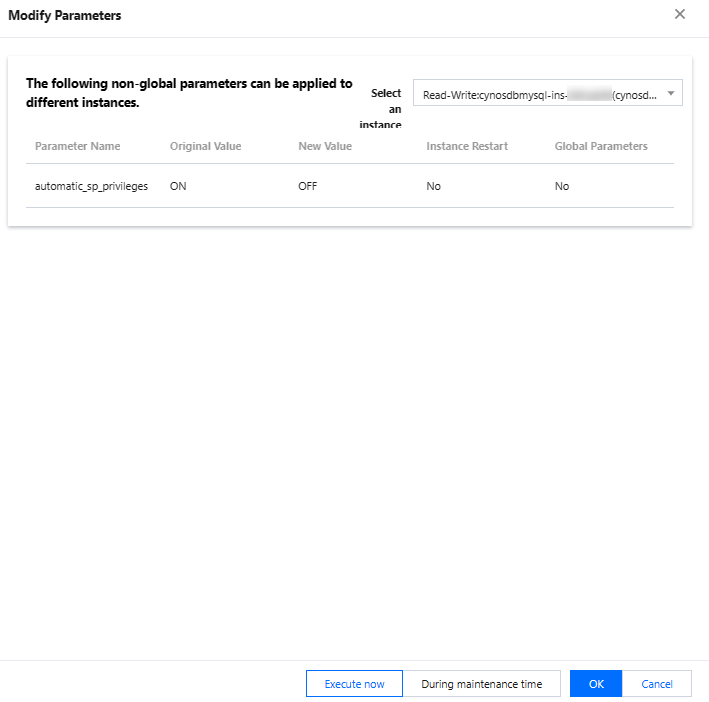
If the modified parameter is local, the system will ask you whether to sync its value to other instances.
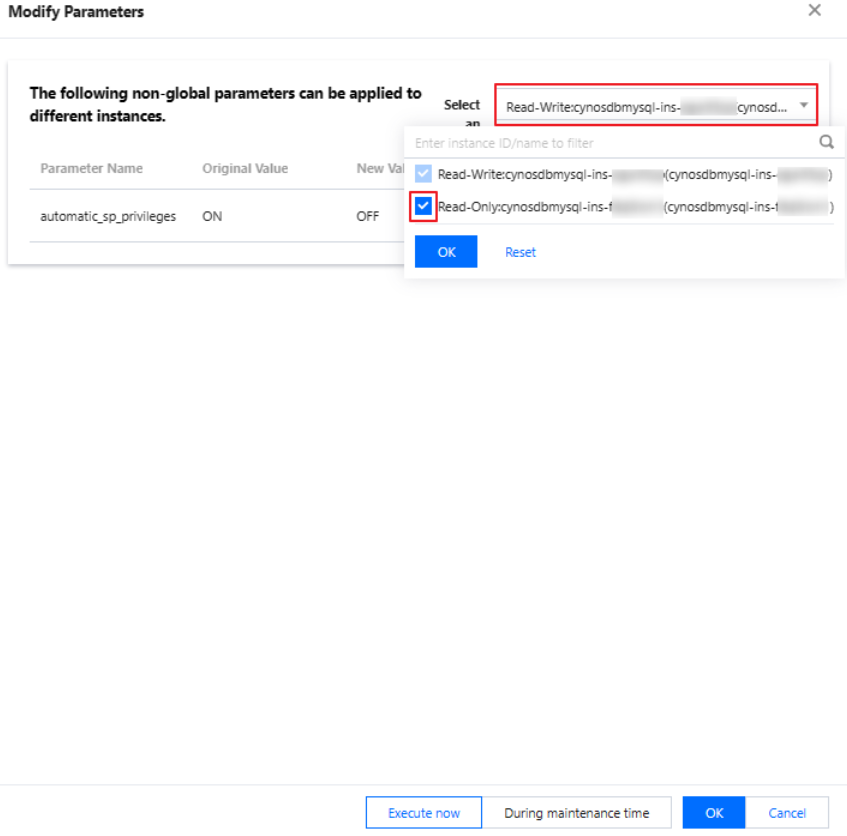
You can also select the target instance ID in the drop-down list to sync the value to it.
Batch modifying parameters
1. Log in to the TDSQL-C for MySQL console, find the target cluster in the cluster list, and click the cluster ID to enter the cluster management page. 2. On the cluster management page, click the Parameter Settings tab, select the target instance ID (global parameters can be modified only on a read-write instance and will take effect for the entire cluster once configured, while session parameters can be set in individual instances).
3. Click Modify Parameters.
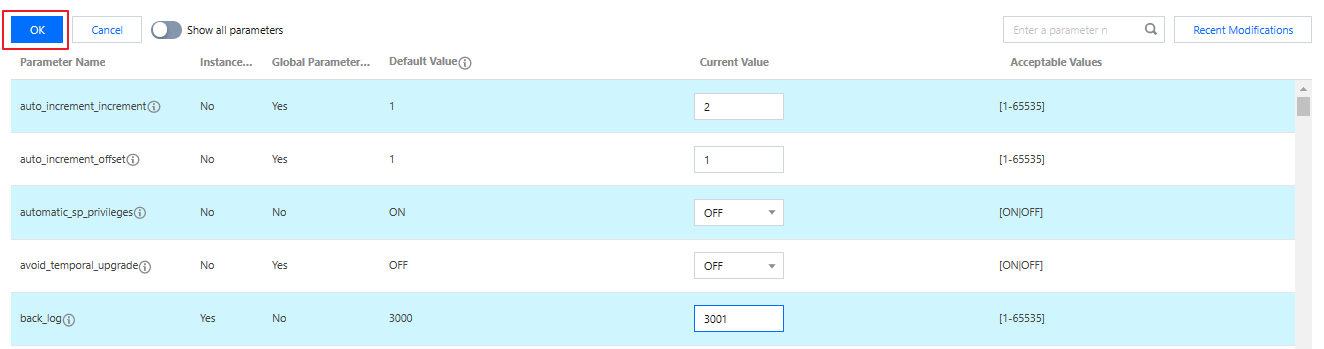
4. Find the target parameters and modify their values in the Current Value column. After confirming that everything is correct, click OK.
5. In the pop-up window, the system will ask you whether to restart the database instance. If there are session parameters involved, you can choose whether to sync them to other instances. After confirming that everything is correct, select Execute now or During maintenance time and click OK.
Modifying parameters by importing a parameter template
1. Log in to the TDSQL-C for MySQL console, find the target cluster in the cluster list, and click the cluster ID to enter the cluster management page. 2. On the cluster management page, click the Parameter Settings tab, select the target instance ID, and click Import from Template.
3. In the pop-up window, select a parameter template and click OK.
4. After confirming that everything is correct, click OK in the top-left corner.
5. In the pop-up window, the system will ask you whether to restart the database instance. If there are session parameters involved, you can choose whether to sync them to other instances. After confirming that everything is correct, select Execute now or During maintenance time and click OK.
Modifying parameters by importing a parameter configuration file
Note:
You cannot import formulas from a parameter configuration file.
1. Log in to the TDSQL-C for MySQL console, find the target cluster in the cluster list, and click the cluster ID to enter the cluster management page. 2. On the cluster management page, click the Parameter Settings tab, select the target instance ID, and click Import Parameters.
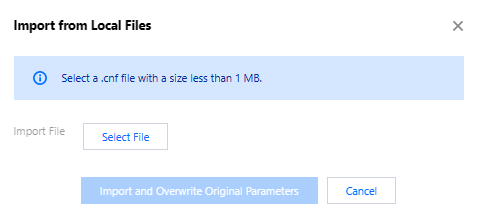
3. In the pop-up window, select the file to be uploaded and click Import and Overwrite Original Parameters.
4. After confirming that everything is correct, click OK in the top-left corner.
5. In the pop-up window, the system will ask you whether to restart the database instance. If there are session parameters involved, you can choose whether to sync them to other instances. After confirming that everything is correct, select Execute now or During maintenance time and click OK.
Exporting the parameter configuration as a file
Note:
Currently, when you export a parameter configuration file, formula-based parameter values will be automatically converted into integer values for export.
1. Log in to the TDSQL-C for MySQL console, find the target cluster in the cluster list, and click the cluster ID to enter the cluster management page. 2. On the cluster management page, click the Parameter Settings tab, select the target instance ID, click Export Parameters, and the exported file will be directly saved to the local file system.
Querying parameter modifications
1. Log in to the TDSQL-C for MySQL console, find the target cluster in the cluster list, and click the cluster ID to enter the cluster management page. 2. On the cluster management page, select the Parameter Settings tab and click Recent Modifications on the right.
3. On the page redirected to, you can select the target instance ID on the right to view the following fields of parameter modifications: Parameter Name, Original Value, New Value, Modification Status, and Modification Time.
Related APIs
|
| This API (ModifyClusterParam) is used to modify cluster parameters. |
| This API (ModifyInstanceParam) is used to modify instance parameters. |
| This API (DescribeInstanceParams) is used to query the instance parameter list. |
| This API (DescribeClusterParams) is used to query cluster parameters. |