TDSQL-C for MySQL supports both automatic and manual backups. Snapshot backups are enabled by default for automatic backups, while logical backups need to be enabled manually. You can also set backup policies for automatic backups to achieve long-term backup retention and ensure data security.
Upon cluster creation, TDSQL-C for MySQL generates data backups (automatic snapshot backups) based on factors such as log generation rate and write volume. By default, a backup is performed once per day. If the write volume exceeds 4 GB and more than 24 hours have passed since the last backup, a backup is triggered immediately. You can also enable automatic logical backups on the backup management page according to your business needs, and configure the retention period for automatic logical backups.
This document describes how to configure automatic backup in the console.
Note:
To ensure the stability of the backup system, the current system allows initiating a backup only once per hour.
If your cluster storage space usage exceeds 2TB, it is not recommended to use logical backup due to the risk of backup failure.
Note
Automatic backup files cannot be deleted manually. You can control their lifecycle by setting the Automatic Backup Retention in the automatic backup settings, which effectively achieves deletion by removing expired backups based on the configured retention duration.
You can view the Backup Time field in the data backup list to determine the exact time point of the data image in a backup file.
Directions
Automatic Snapshot Backup Settings
2. Select a region at the top and proceed according to the actually used view mode.
Click the target cluster in the cluster list on the left to enter the cluster management page.
Find the target cluster in the cluster list and click the Cluster ID or Manage in the Operation column to enter the cluster management page.
3. On the cluster management page, select the Backup Management tab and click Auto-Backup Settings.
4. In the pop-up window, configure the following items and click OK.
Configuration 1: Snapshot Backup
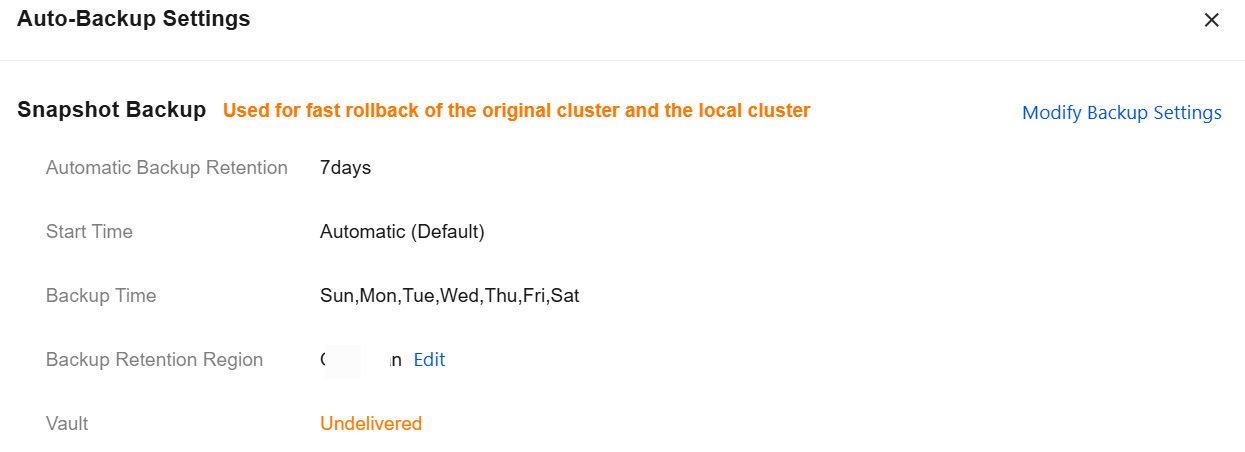
Under Snapshot Backup, you can view the current configuration policy of the cluster. Click Modify Backup Settings to make changes. The configurations and their descriptions are listed in the following table.
|
Start Time | Start time for automatic snapshot backups. The default option is: Automatic (Default), meaning the system determines the start time, and you cannot specify the start time. Alternatively, you can specify a time range from the dropdown, such as 00:00 - 02:00. |
Backup Frequency | Select the backup frequency. By week. High-frequency backup: If the start time is "Automatic (Default)", you can set the backup frequency to high-frequency backup and select the backup cycle in hours. Note: If the backup cycle is selected in hours, all backups on a given day except the first one will expire after 24 hours. |
Backup Cycle | If the backup frequency is set to "By week": you can select from Monday to Sunday. At least one day must be selected. Multiple selections are allowed. If the backup frequency is set to "High-frequency backup": you can select to Back up every 6, 8, or 12 hours. |
Store to Vault | If this option is enabled, automatic snapshot backups will be delivered to the backup vault for storage. For details on the backup vault, see Backup Vault. |
Select Vault | If "Store to Vault" is enabled, you can select the target backup vault for storage. |
Automatic Backup Retention | Set the data backup retention period. Value range: 7 - 1830 days. The value cannot exceed the binlog backup retention period of the current cluster. |
Configuration 2: Logical Backup
If you only need to configure snapshot backup for automatic backups, you do not need to enable and configure logical backup. If you need to enable and configure logical backup, see the steps below.
Enabling Automatic Logical Backup
2. Select a region at the top and proceed according to the actually used view mode.
Click the target cluster in the cluster list on the left to enter the cluster management page.
Find the target cluster in the cluster list and click the Cluster ID or Manage in the Operation column to enter the cluster management page.
3. On the cluster management page, select the Backup Management tab and click Auto-Backup Settings.
4. Under Logical Backup, click Enable and Set.
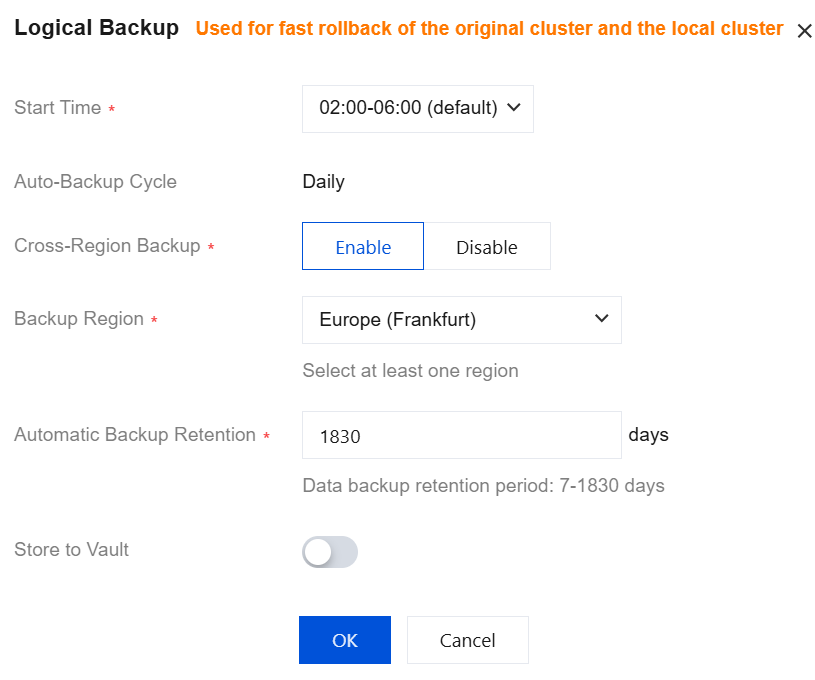
5. In the pop-up window, configure the following items and click OK.
|
Start Time | Establish the automatic logical backup's daily commencement time, set by default from 02:00 to 06:00. |
Auto-Backup Cycle | Default is Daily. Note: The current version only supports an automatic backup cycle of daily. Due to logical backup speed limitations, the backup cycle for some larger data volume clusters is expected to extend to more than a day (if the logical backup for that day is not completed, the next automatic logical backup will not occur until the day after this logical backup is completed). |
Cross-Region Backup | Indicate if the cross-region backup should be enabled. Once enabled, automatic logical backup files can be saved to other regions. For detailed instructions, see Cross-Region Backup. If not enabled, the default region for automatic logical backup retention is the current cluster's region. |
Backup Region | When enabling Cross-Region Backup, you can select up to three regions for backup storage. |
Automatic Backup Retention | Backups can be retained from 7 to 1,830 days. |
Store to Vault | If this option is enabled, automatic logical backups will be delivered to the backup vault for storage. For details on the backup vault, see Backup Vault. |
Select Vault | If "Store to Vault" is enabled, you can select the target backup vault for storage. |
6. Once enabled and set up successfully, click OK in the lower right corner to complete the logical backup settings.
7. You can also modify the backup settings or disable the backup settings.
Modify Backup Settings: You can change the start time and adjust cross-region backup settings (modify the region for cross-region backup, and enable or disable cross-region backup capability)
Disable Backup Settings: Supports disabling the cross-region backup feature of logical backup and automatic logical backup. Once disabled, backup files will be retained until the end of the backup cycle.
8. The file name of an automatic logical backup is automatically generated. You can click the edit icon after the alias in the backup list to set and modify it.
The settings window is as follows: Related APIs
|
| This API (DescribeBackupConfig) is used to obtain the backup configuration information of the specified cluster, including the full backup time window and the backup file retention period. |
| This API (ModifyBackupConfig) is used to modify the backup configuration of the specified cluster. |