tencent cloud

TDSQL-C for MySQL

Release Notes and Announcements
Release Notes
Product Announcements
Beginner's Guide
Product Introduction
Overview
Strengths
Use Cases
Architecture
Product Specifications
Instance Types
Product Feature List
Database Versions
Regions and AZs
Common Concepts
Use Limits
Suggestions on Usage Specifications
Kernel Features
Kernel Overview
Kernel Version Release Notes
Optimized Kernel Version
Functionality Features
Performance Features
Security Features
Stability Feature
Analysis Engine Features
Inspection and Repair of Kernel Issues
Purchase Guide
Billing Overview
Product Pricing
Creating Cluster
Specification Adjustment Description
Renewal
Payment Overdue
Refund
Change from Pay-as-You-Go to Yearly/Monthly Subscription
Change from Pay-as-You-Go to Serverless Billing
Value-Added Services Billing Overview
Viewing Billing Statements
Getting Started
Database Audit
Overview
Viewing Audit Instance List
Enabling Audit Service
Viewing Audit Logs
Log Shipping
Post-Event Alarm Configuration
Modifying Audit Rule
Modifying Audit Service
Disabling Audit Service
Audit Rule Template
Viewing Audit Task
Authorizing Sub-User to Use Database Audit
Serverless Service
Serverless Introduction
Creating and Managing a Serverless Cluster
Elastic Scaling Management Tool
Serverless Resource Pack
Multi-AZ Deployment
Configuration Change
FAQs
Serverless Cost Estimator
Operation Guide
Operation Overview
Switching Cluster Page View in Console
Database Connection
Instance Management
Configuration Adjustment
Instance Mode Management
Cluster Management
Scaling Instance
Database Proxy
Account Management
Database Management
Database Management Tool
Parameter Configuration
Multi-AZ Deployment
GD
Backup and Restoration
Operation Log
Data Migration
Parallel Query
Columnar Storage Index (CSI)
Analysis Engine
Database Security and Encryption
Monitoring and Alarms
Basic SQL Operations
Connecting to TDSQL-C for MySQL Through SCF
Tag
Practical Tutorial
Classified Protection Practice for Database Audit of TDSQL-C for MySQL
Upgrading Database Version from MySQL 5.7 to 8.0 Through DTS
Usage Instructions for TDSQL-C MySQL
New Version of Console
Implementing Multiple RO Groups with Multiple Database Proxy Connection Addresses
Strengths of Database Proxy
Selecting Billing Mode for Storage Space
Creating Remote Disaster Recovery by DTS
Creating VPC for Cluster
Data Rollback
Solution to High CPU Utilization
How to Authorize Sub-Users to View Monitoring Data
White Paper
Security White Paper
Performance White Paper
Troubleshooting
Connection Issues
Performance Issues
API Documentation
History
Introduction
API Category
Making API Requests
Instance APIs
Multi-Availability Zone APIs
Other APIs
Audit APIs
Database Proxy APIs
Backup and Recovery APIs
Parameter Management APIs
Billing APIs
serverless APIs
Resource Package APIs
Account APIs
Performance Analysis APIs
Data Types
Error Codes
FAQs
Basic Concepts
Purchase and Billing
Compatibility and Format
Connection and Network
Features
Console Operations
Database and Table
Performance and Log
Database Audit
Between TDSQL-C for MySQL and TencentDB for MySQL
Service Agreement
Service Level Agreement
Terms of Service
TDSQL-C Policy
Privacy Policy
Data Privacy and Security Agreement
General References
Standards and Certifications
Glossary
Contact Us

Creating Dashboard to View Monitoring Data

PDF
Focus Mode
Font Size
Last updated: 2025-12-29 14:22:58
This document describes how to create a Tencent Cloud Observability Platform (TCOP) dashboard to view monitoring data.

Directions

1. Log in to the TCOP console.
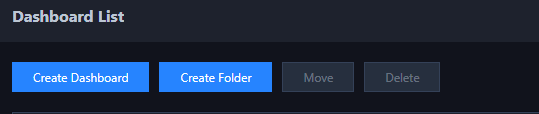
2. On the left sidebar, select Dashboard > Dashboard List.
3. Below the dashboard list, click Create Dashboard.


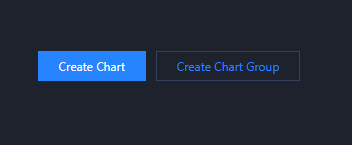
4. In the pop-up window, select Create Chart, or select Create Chart Group and then click Create Chart in the created chart group.


5. On the chart editing page, configure the following parameters and click Save in the top-right corner.
Parameter
Description
Select Product
Select Tencent Cloud services.
Metric
Select TencentDB > TDSQL-C > MySQL and select the target monitoring metric.
Filter
Select a filter to extract the data that meets the conditions for display on the chart. You can add multiple filters, and the chart displays only the data meeting all of them. Data can be filtered by instance, tag, and template variable.
Group by
Select a tag to aggregate and display data by group (optional).
Comparison
You can select day-over-day (compared with the same period yesterday), week-over-week (compared with the same period last week), and custom dates for comparison.
Alias
Enter the legend alias.
Enable Sorting
After it is enabled, you can set a sorting rule.
Sorting Rule
You can select the maximum, minimum, average, or sum value and specify whether to display items in ascending or descending order.
Displayed Quantity
Set the number of instances to be displayed.
6. After the configuration is saved successfully, you can view the monitoring data of the metric selected during chart creation.
Note:
This method is used to create a chart for a single monitoring metric. To create charts for multiple metrics, simply repeat the above steps.

Help and Support

Was this page helpful?

Help us improve! Rate your documentation experience in 5 mins.

Feedback