プライバシーポリシー
データ処理とセキュリティ契約
/data1/test_data directory:cd /data1mkdir -p test_datacp userdata/test.csv test_data
/data1/test_data.
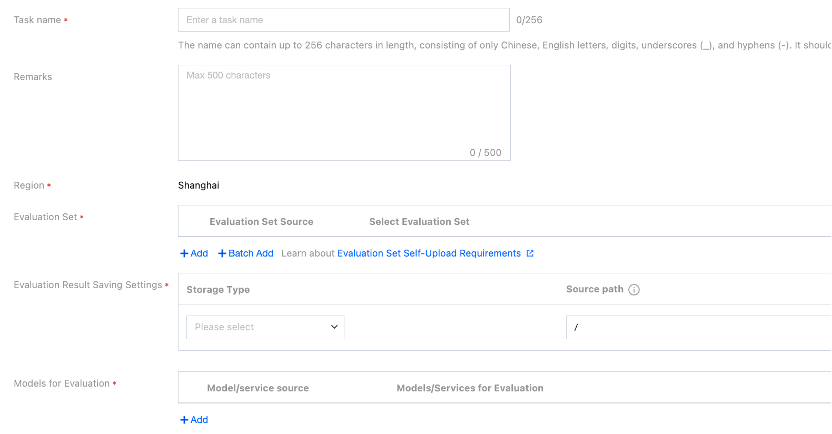
Parameter | Description |
Task Name | Name of a manual evaluation task. You can enter it based on the rules according to the interface prompts. |
Remarks | Add remarks to a task as needed. |
Region | Services under the same account are isolated by region. The value of the Region field is automatically entered based on the region you selected on the service list page. |
Evaluation Set | You can select the directory where the CFS instance and evaluation data set are located (CFS/GooseFSx/data sources). If you select a data source, you need to choose Platform Management > Data Source Management to create a data source. Note: The data source mount permissions are divided into read-only and read-write. For a data source for which you need to output training results, you can set its mount permission to read-write. If you select CFS or GooseFSx, you can select the directory where the CFS instance and the evaluation data set are located. Only the JSONL and CSV formats are supported, and the content contains 2 columns, namely, prompt and answer respectively. You can select a built-in evaluation set and enable quick evaluation with one click. |
Save Evaluation Results | You can set the storage path to the directory where the CFS instance and the evaluation data set are located (CFS/GooseFSx/data sources). If you select a data source, you need to choose Platform Management > Data Source Management to create a data source. Note: The data source mount permissions are divided into read-only and read-write. For a data source for which you need to output training results, you can set its mount permission to read-write. If you select CFS or GooseFSx, you need to select the CFS instance or GooseFSx instance from the drop-down list and enter the data source directory to be mounted by the platform. |
Select the Model to Be Evaluated | Two sources of models to be evaluated are supported: Select Model: Select a built-in LLM. Select a model from training tasks. For example, you can select a training task in the current region and then the checkpoint of the task. Select a model from CFS, GooseFSx, or data sources: If you select a data source, you need to choose Platform Management > Data Source Management to create a data source. Note: The data source mount permissions are divided into read-only and read-write. For a data source for which you need to output training results, you can set its mount permission to read-write. If you select CFS or GooseFSx, you need to select the CFS instance or GooseFSx instance from the drop-down list and enter the data source directory to be mounted by the platform. Select Service: Select a service from the Online Services module of TI-ONE. Enter the address of a third-party service for evaluation. You can configure parameters, including inference hyperparameters, startup parameters, and performance parameters. Configure inference hyperparameters as follows: repetition_penalty: controls the repetition penalty. max_tokens: controls the maximum length of the output text. temperature: A higher temperature makes outputs more random; a lower temperature makes outputs more focused and deterministic. top_p and top_k: control the diversity of the output text. Higher values produce more diverse outputs. It is recommended to configure only 1 of the temperature, top_p, and top_k parameters. do_sample: specifies the sampling method for model inference. When this parameter is set to true, the sample method is used; when this parameter is set to false, the greedy search method is used, and the top_p, top_k, temperature, and repetition_penalty parameters do not take effect. Configure startup parameters: For details, see Service Deployment Parameter Configuration Guide. MAX_MODEL_LEN is the default parameter of the platform, which specifies the maximum number of tokens a model can process in a single inference operation. Its default value is 8192 on the platform. If you set this parameter to a very high value upon startup, GPU out-of-memory or performance degradation issues may occur. You can adjust this value appropriately based on task requirements. Configure performance parameters: MAX_CONCURRENCY and MAX_RETRY_PER_QUERY are the default parameters of the platform. MAX_CONCURRENCY indicates the maximum number of requests that can be sent to a model simultaneously during evaluation. Setting this value too low may cause the throughput of a model to decrease and lead to a long evaluation time, while setting this value too high may cause GPU out-of-memory or request timeout issues. Its default value is 24 on the platform. You can adjust this value appropriately based on task requirements. MAX_RETRY_PER_QUERY indicates the maximum number of retries for each piece of data when an exception occurs in requesting the inference service, such as the request timeout or network failure. If the value is 0, no retry is performed (default value: 0). You can adjust this value appropriately based on task requirements. |
Billing Mode | You can select pay-as-you-go or yearly/monthly subscription (resource group): (A) In pay-as-you-go mode, you do not need to purchase a resource group in advance. Fees are charged based on the CVM instance specifications on which the service depends. When the service is started, fees for the first two hours are frozen. After that, fees are charged hourly based on the number of running instances. (B) In yearly/monthly subscription (resource group) mode, you can use the resource group deployment service purchased from the Resource Group Management module, and computing resource fees are already paid when the resource group is purchased. Therefore, no fees need to be charged when the service is started. |
Resource Group | If you select the yearly/monthly subscription (resource group) mode, you can select a resource group from the Resource Group Management module. |
フィードバック