tencent cloud

Tencent Effect SDK

Release Notes and Announcements
Release Notes
Tencent Effect SDK V3.5 Version Released
Tencent Effects SDK V3.0 Version Related API and Material Changes
Product Introduction
Overview
Features
Basic Concepts
Strengths
Use Cases
Purchase Guide
Pricing Overview
Purchase Guide
Payment Overdue and Refund
Tutorial
Demos
Free Trial License
Licenses
Adding and Renewing a License (Mobile)
Adding and Renewing a License (Desktop)
Adding and Renewing a License (Web)
FAQs
SDK Download
Features
SDK Download
Version History
SDK Integration Guide(No UI)
General Integration of Tencent Effect
Integrating Capabilities
SDK Integration Guide(Including UI)
General Integration of Tencent Effect
Integrating Tencent Effect into MLVB SDK
Integrating Tencent Effect into TRTC SDK
Integrating Tencent Effect into UGSV SDK
Virtual Avatars
API Documentation
iOS
Android
Flutter
Web
Feature Guide
Reducing SDK Size
SDK Integration Issue Troubleshooting
Performance Fine-Tuning
Effect Fine-Tuning
Material Usage
Effect Parameters
Recommended Parameters in Beautification Scenarios
UGSV Enterprise Edition Migration Guide
Integrating Tencent Effect for Third-Party Publishers (Flutter)
Integrating Beauty AR Web into Mini Programs
Tencent Effect Studio Usage
Beauty AR Web
Overview
Quick Start
SDK Integration
Parameters and APIs
Console Guide
Demos
Preset Effect List
Practical Tutorial
FAQs
FAQs
General
Technical
License
Legacy Documentation
Recommended Parameters in Beautification Scenarios
Beauty Parameters Table
One-Minute Integration of TRTC
One-Minute Integration of Live Streaming
TE SDK Policy
Privacy Policy
Data Processing And Security Agreement
Contact Us

Body Following

PDF
Focus Mode
Font Size
Last updated: 2024-03-22 18:45:44

Concept Introduction

Body-following stickers are stickers that move with the body's movements during filming.

Basic Usage Method

Step One: Import Texture File

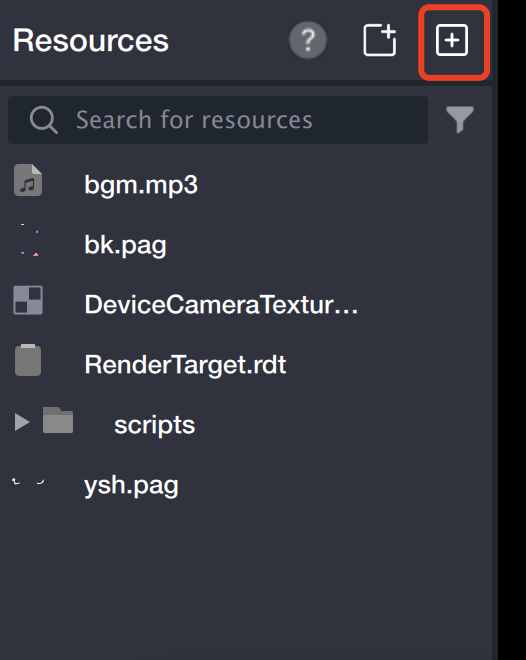
Drag the texture file directly to the Resource Panel, or click the File Input Icon in the upper right corner of the Resource Panel, access the computer's local folder, and confirm the selection to import.


Step Two: Create Following Object

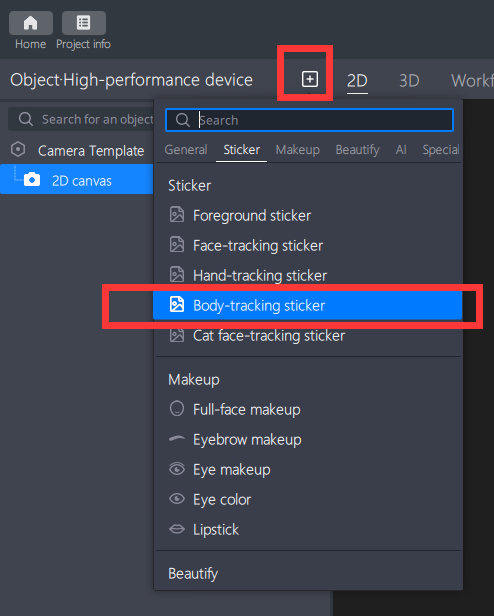
【Object】 Panel > 【+】 Add > Body-following Stickers


Step Three: Import Sticker File

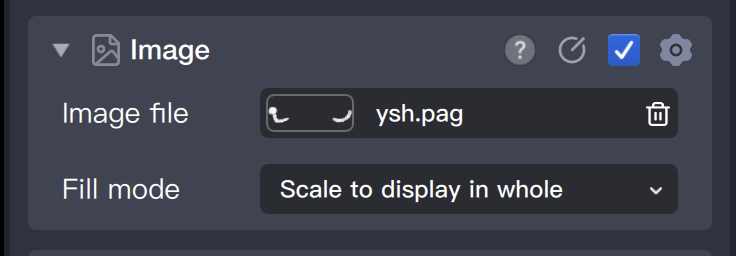
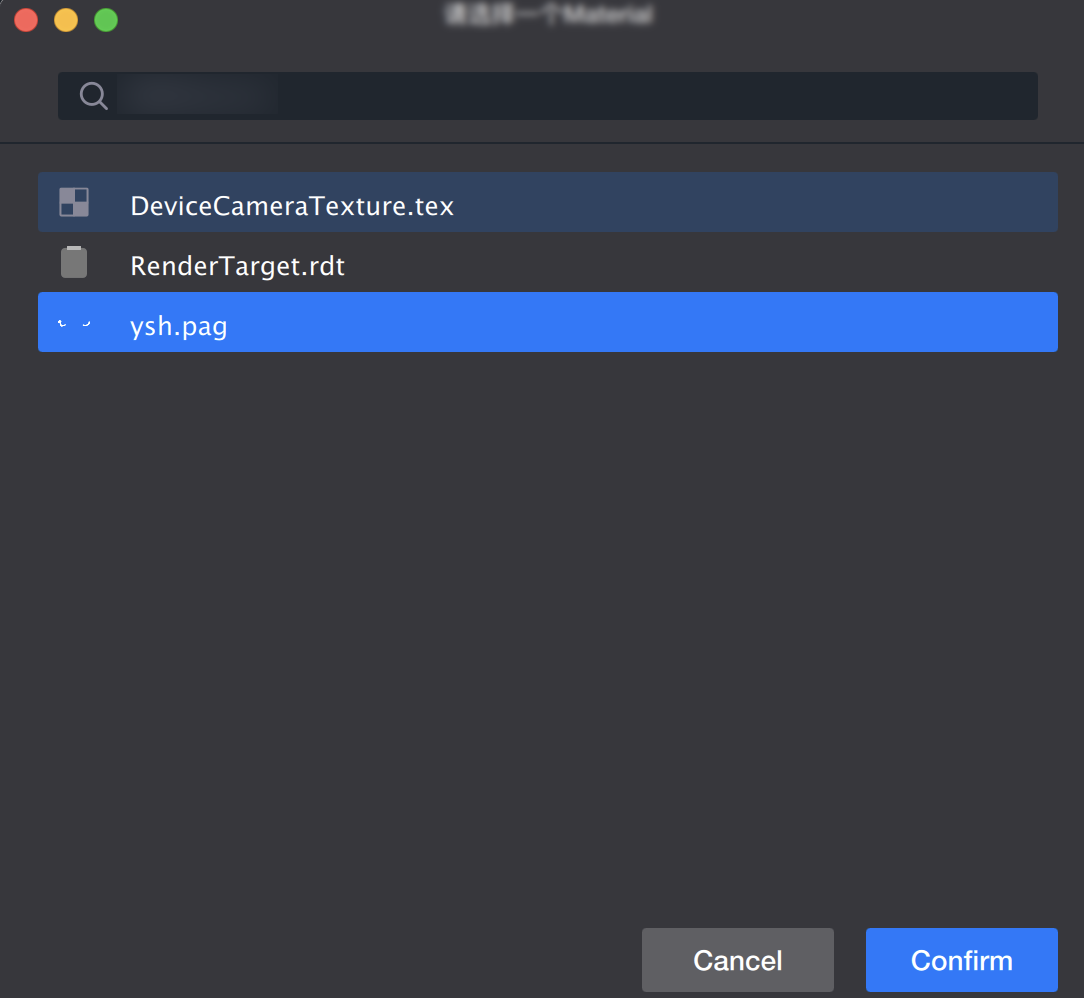
Select the body following object in the left object panel, and find the [Sticker File] in the component panel on the right. Click on its file input box.


The resource panel will open immediately. Select the file and confirm, and the file will be added to the body.


Step Four: Adjust Material

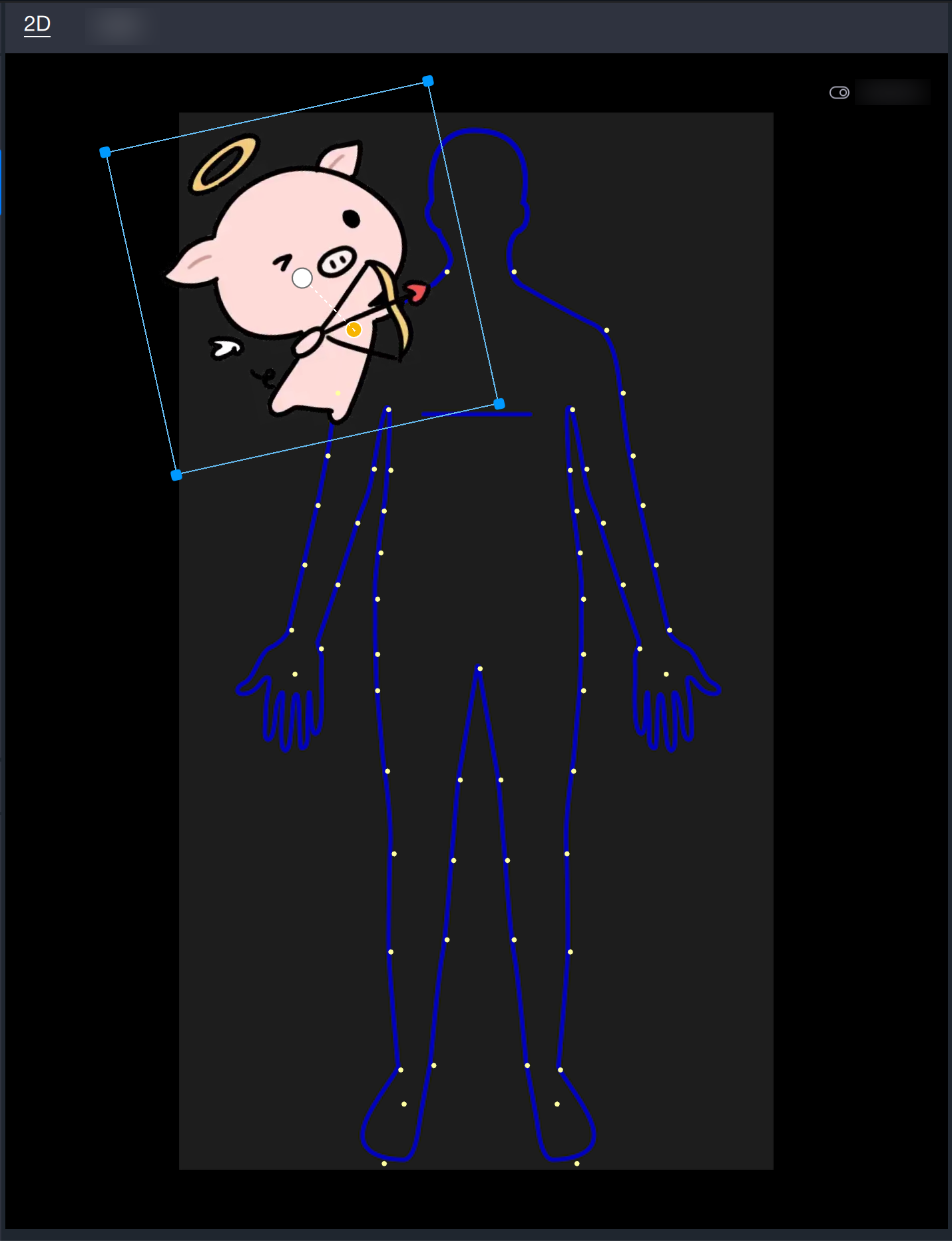
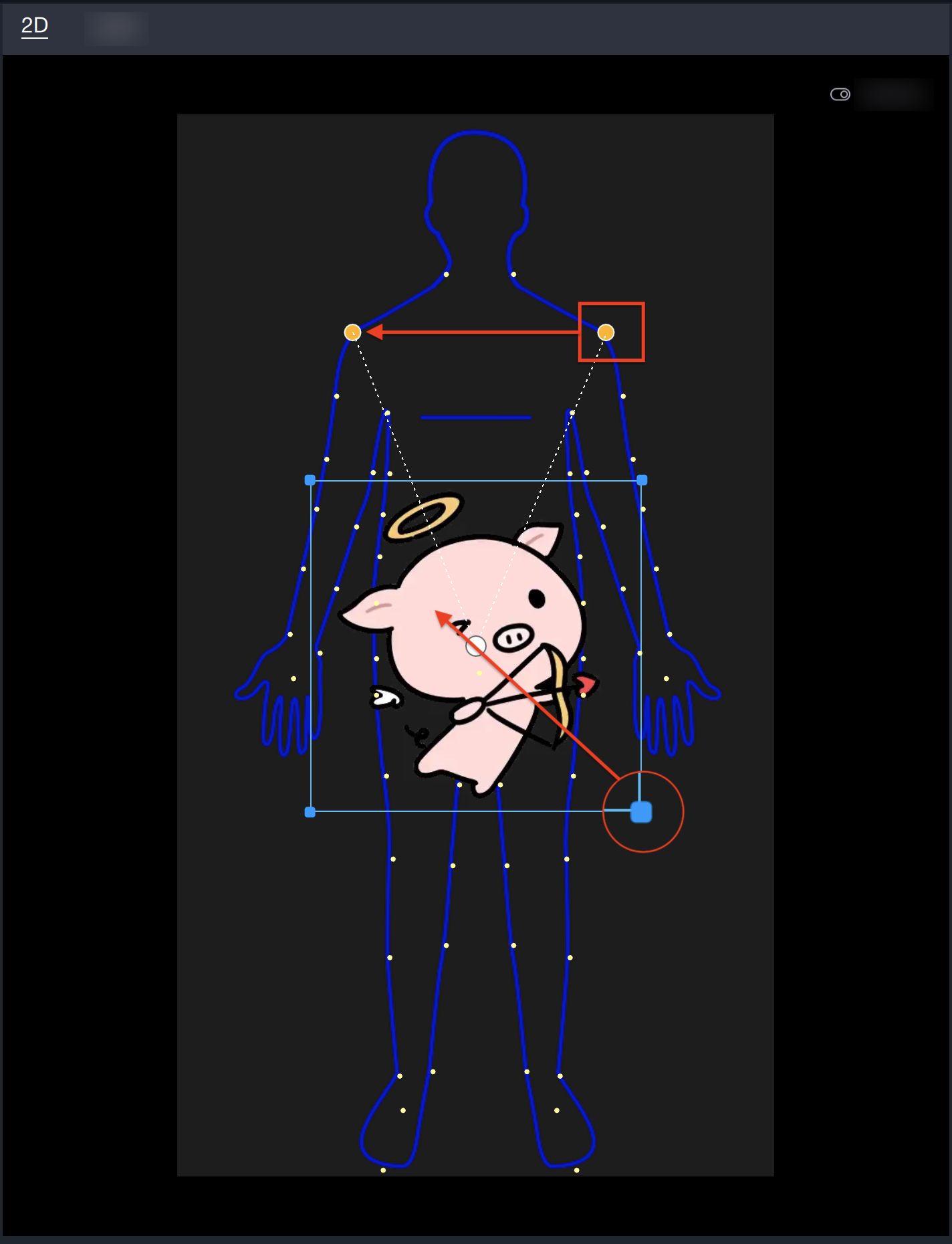
The body following sticker supports binding two points. By default, it binds two points. You can merge the binding points into one or split them into two by dragging the binding points. The bound points represent the points of the shooting object when it moves. The points can be adjusted by dragging the yellow selected point in the panel or by adjusting the component panel.


The sticker position can be adjusted through the [Position and Transformation] in the component panel, or by dragging in the scene panel to change the position, direction, and size. Please note that you need to select this object or its parent object in the object panel.
Help and Support

Was this page helpful?

Help us improve! Rate your documentation experience in 5 mins.

Feedback