This document will guide you on how to preprocess Android APK parent packages through Tencent Cloud Object Storage (COS) and Serverless Cloud Function (SCF).
Preparation
1. Ensure that COS and SCF services are activated, and record the bucket name and region information. 2. Follow the guide on Quick Start to add a site and purchase an EdgeOne package. 3. The Domain Name for Acceleration www.example.com has been added in the EdgeOne console, with the origin server configured as Tencent Cloud COS. Step 1: Upload Android APK Parent Package
In Cloud Object Storage (COS), upload the Android APK parent package.
1. Log in to the COS console. In the left menu, click on Bucket List. 2. On the bucket list page, click on the Bucket Name used to store the APK parent package.
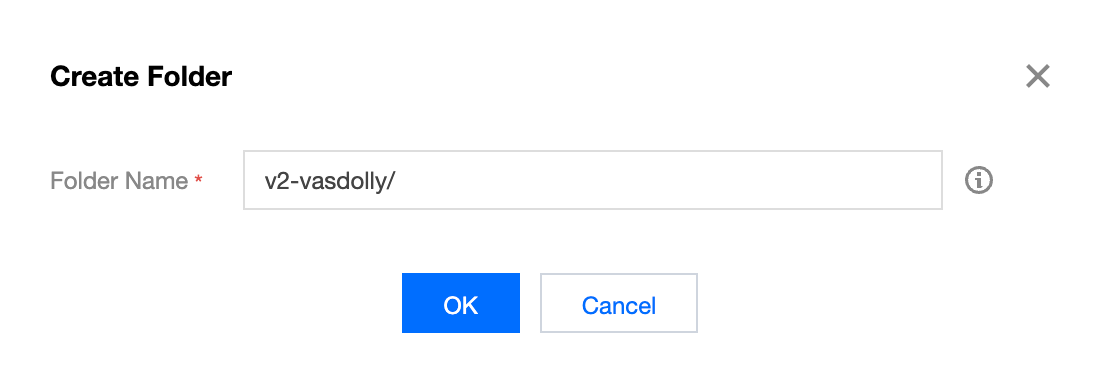
3. In the file list, click on Create Folder to designate the directory for uploading the APK parent package, enter the folder name (example: v2-vasdolly/), and click OK.
Note:
Do not directly use the root directory as the upload directory for the APK parent package.
Step 2: Create a New Template Function
Create a new function in SCF via EdgeOne APK dynamic packaging template.
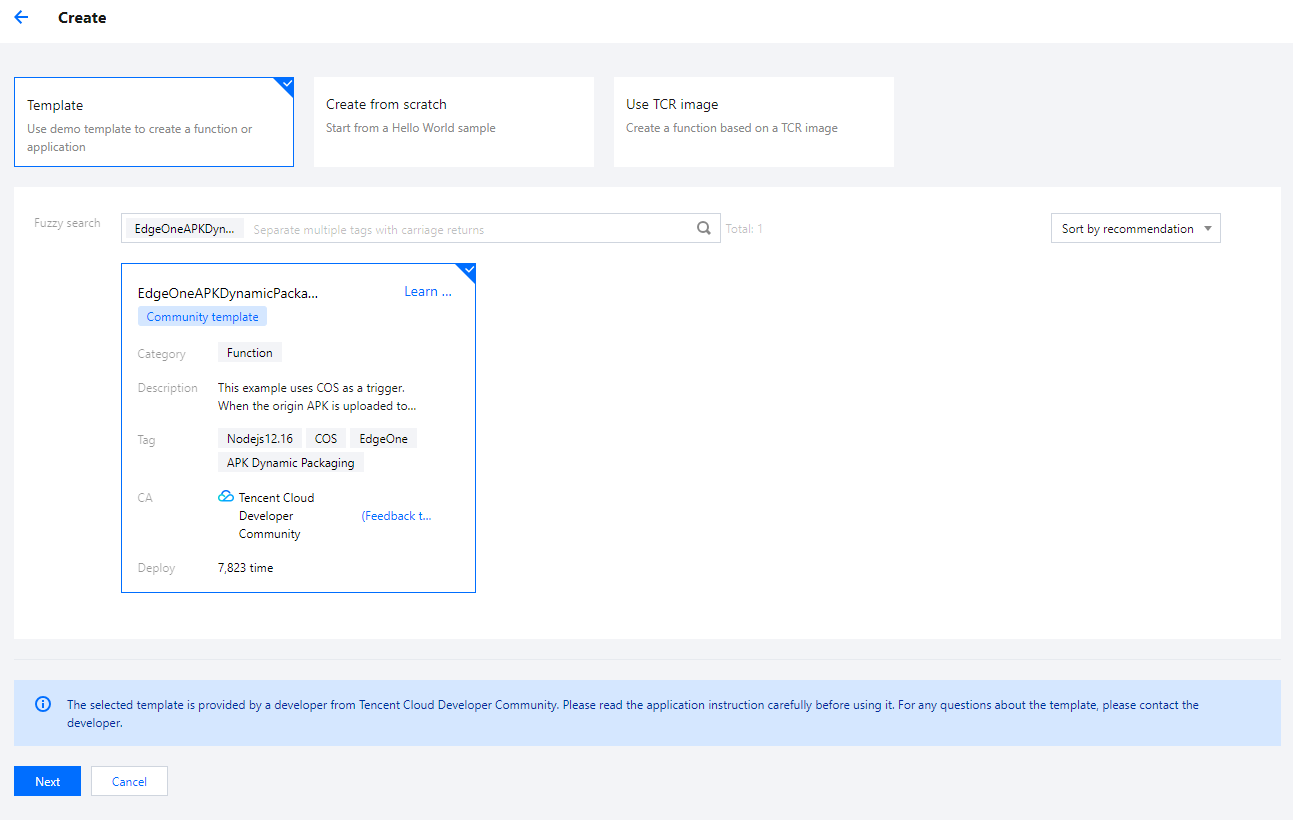
2. On the function service page, click on Create and choose Template. In the fuzzy search, enter "EdgeOne APK Dynamic Packaging", select it, and click Next.
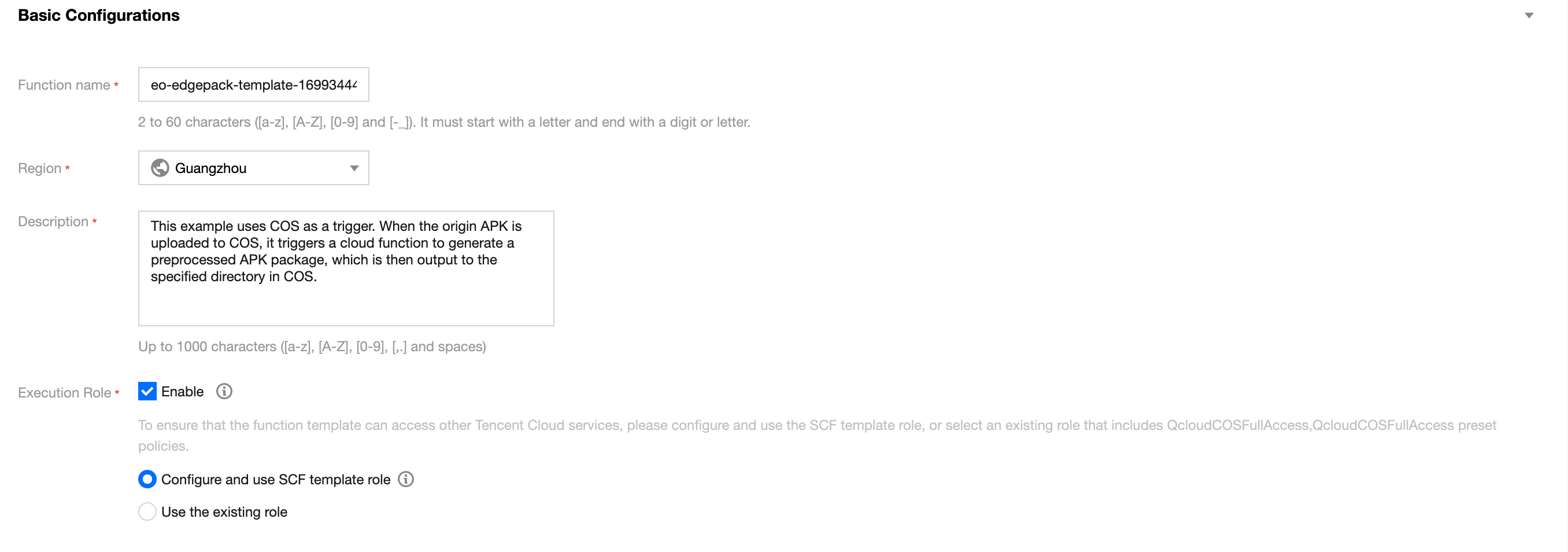
3. On the Function Configuration page, configure the following parameters:
Basic Configuration
Function name: When creating the function, a name will be generated automatically. You can choose to customize it for easy recognition.
Region: Choose the region where the COS bucket from Step 1 is located, example: Guangzhou. Description: Describe the purpose of this function.
Execution Role: By default, Enable, Configure and use SCF template role is selected. If an existing role is used, ensure it includes the preset policies QcloudCOSFullAccess.
Function Code: The template has built-in default function code for processing Android APK parent packages, and no modification is required.
Environment Configuration:
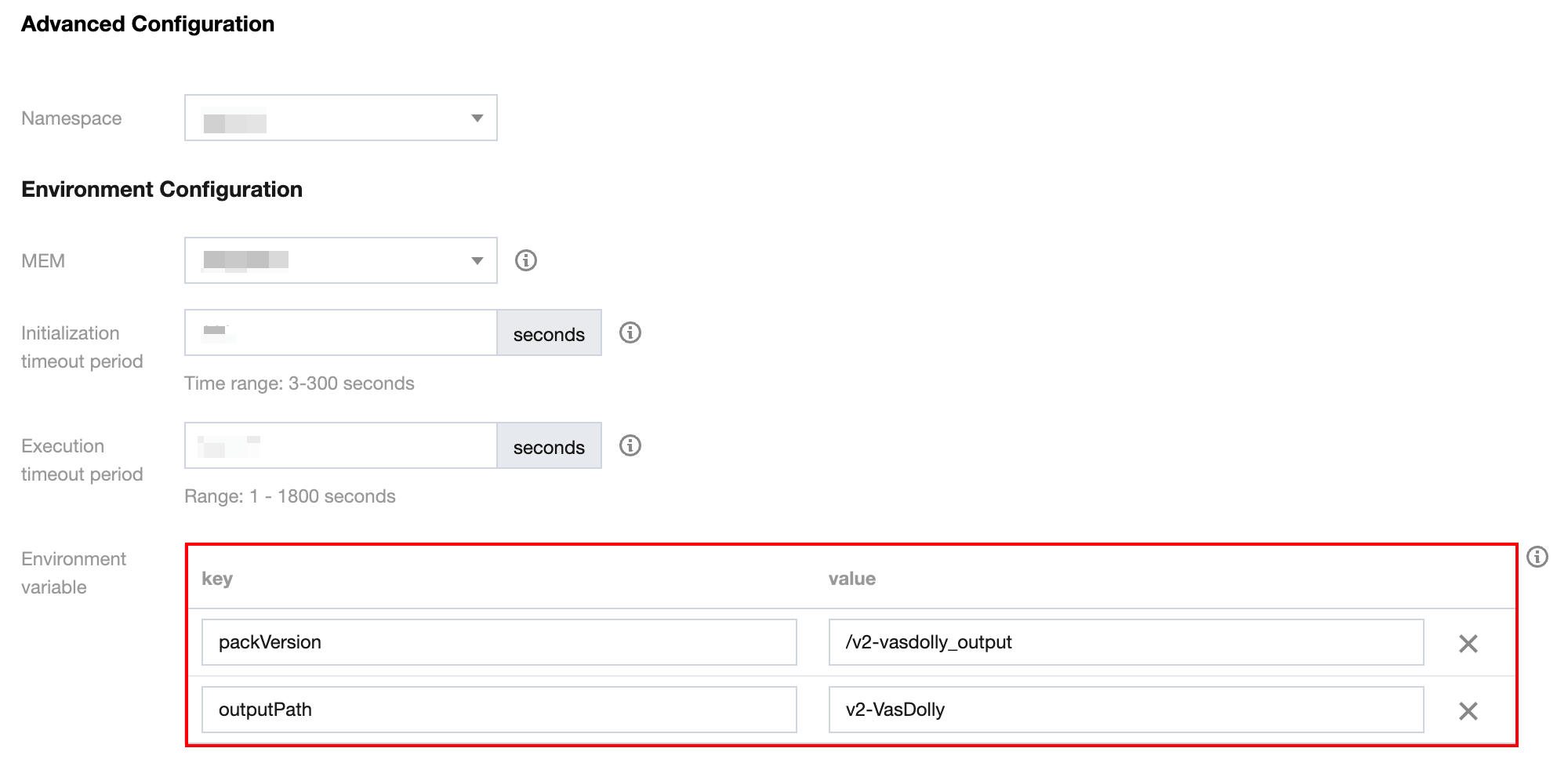
Click on Advanced Configuration, select Environment Configuration, and add the following keys and corresponding values to the environment variables. Keep the rest of the configurations as default:
outputPath (Required): Customize the directory in the COS bucket where the Cloud Function SCF outputs the processed APK parent package, for example, /v2-vasdolly_output.
packVersion (Required): Information about the signature version used for different APK versions. Enter the following values for different signature versions:
|
v1 | v1 |
v2 | Please enter v2-VasDolly, v2-Walle, or v2-Custom: v2-VasDolly: Store the channel information in the ID-Value pair with the ID 0x881155ff (VasDolly default). v2-Walle: Store the channel information in the ID-Value pair with the ID 0x71777777 (Walle default). v2-Custom: Store the channel information in the ID-Value pair with the ID specified by the blockId environment variable. v2-Custom: The channel information is stored in the ID-Value pair with ID blockId (specified by the blockId environment variable). |
blockId(Optional): If using the v2-Custom method for preprocessing, specify the blockId.
Examples:
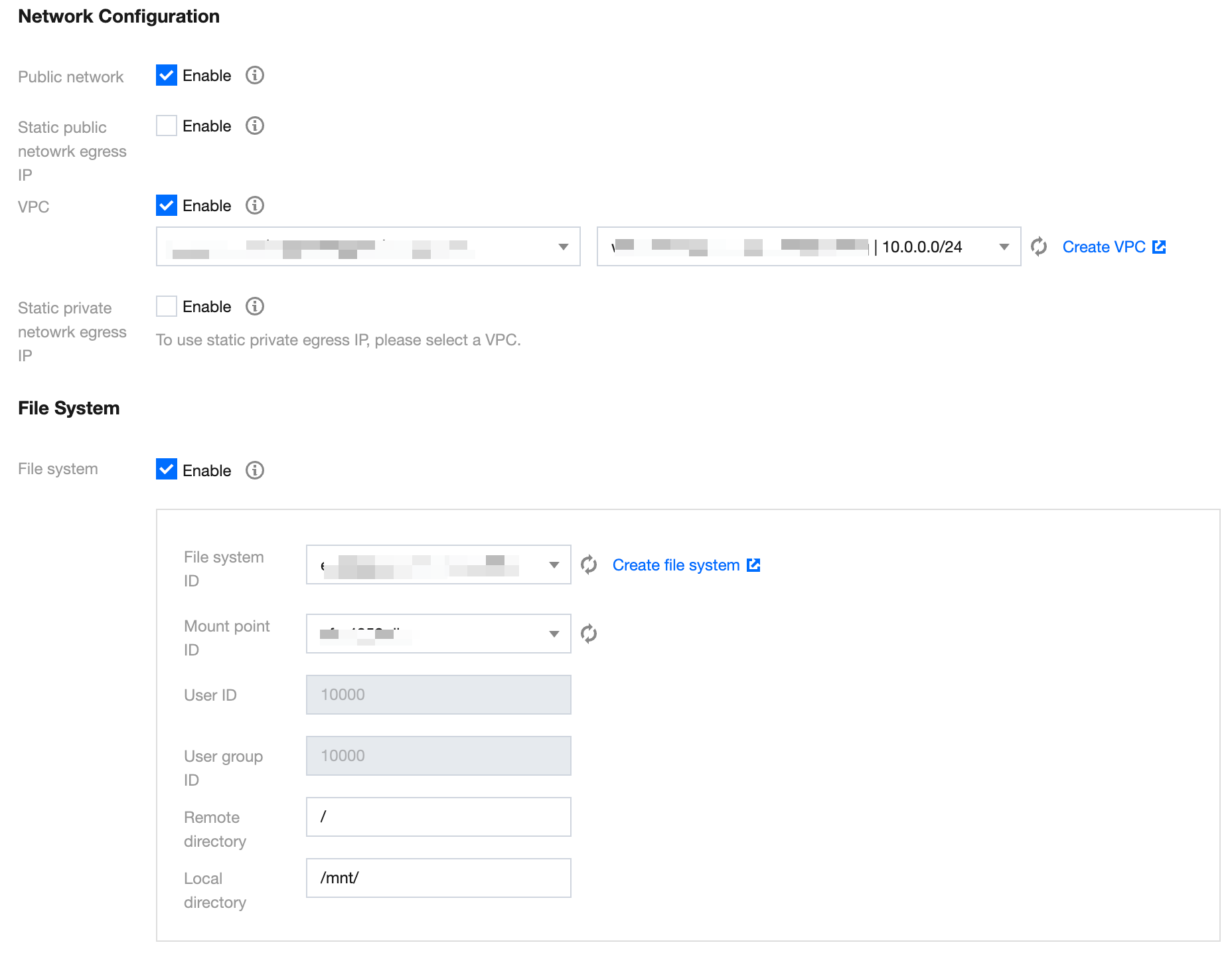
(Optional) File System: If the APK parent package uploaded to COS is larger than 200MB, go to the CFS Console to enable the CFS service and file system for expanding the local storage space of SCF. Note:
Due to the limitations on the SCF side, each cloud function has a temporary disk space of 500MB during execution. When processing APK files, both the original APK file and the processed APK file coexist in the disk. Therefore, for processing excessively large APK files, it is necessary to mount an additional file storage system. For details, see Mounting CFS File System. Trigger Management
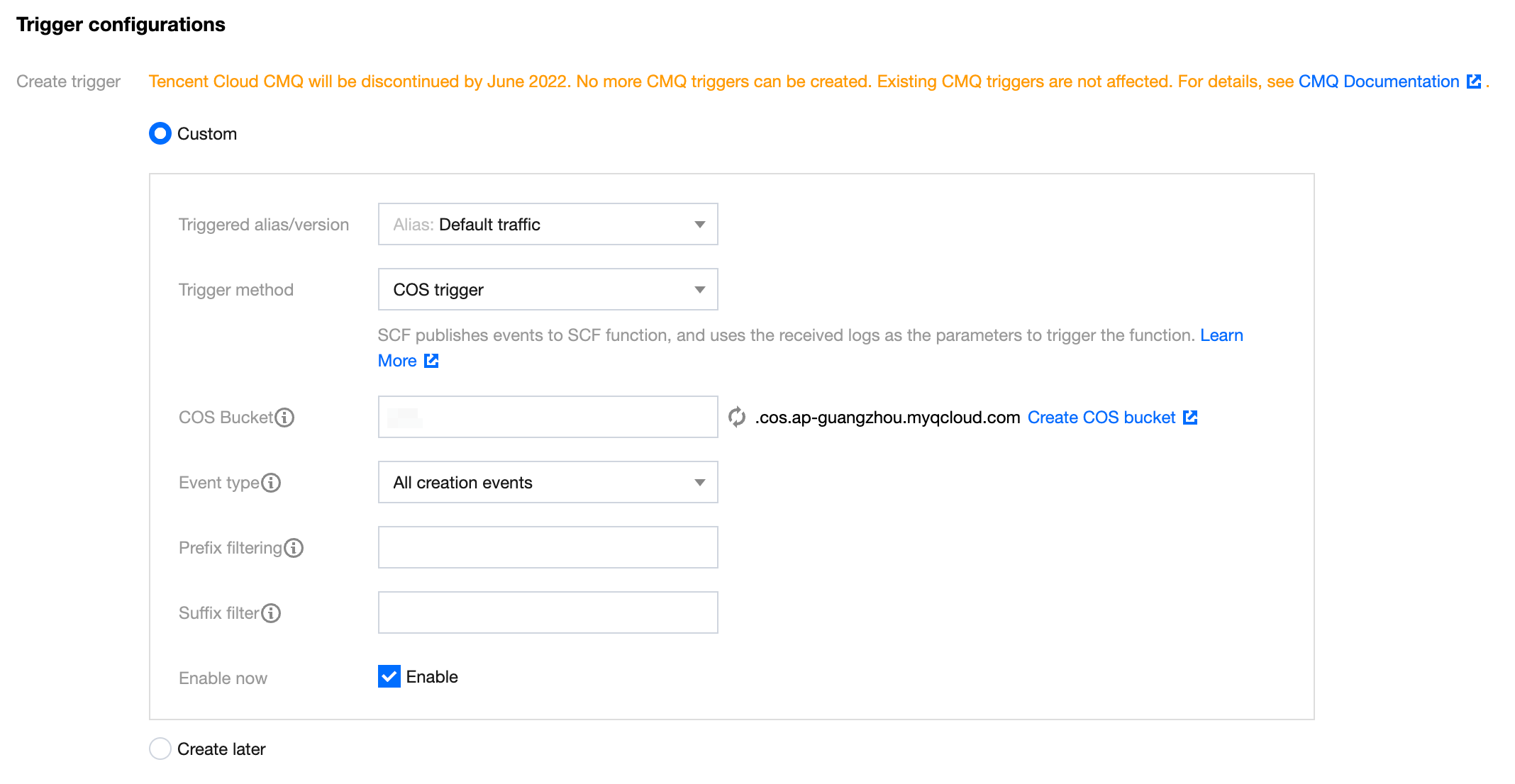
In the trigger configuration, select the bucket for the COS bucket in the same region as that of the SCF. Enter the bucket name for fuzzy search, for example: apk-test-1251557890.cos.ap-guangzhou.myqcloud.com. Keep the other configurations as default.
Trigger Mode: Choose COS trigger.
COS Bucket: Select the COS bucket where the parent package resides in this available zone.
Event Type: Choose All Created Events.
Prefix Filter: Please enter the directory where the APK parent package is uploaded. For example, if your parent package is in the v2-vasdolly directory, enter v2-vasdolly/.
Suffix Filter: Please enter .apk.
Once the above information is filled out, the SCF function will only be triggered when files with a .apk suffix are uploaded to the specified v2-vasdolly/ directory in the designated COS bucket.
4. Click Complete to complete the creation of the EdgeOne APK dynamic packaging function.
Step 3: Verify SCF's Preprocessing of Android APK Parent Package
1. Log in to the COS console. In the left menu, click on Bucket List. 2. On the bucket list page, click on the Bucket Name used to store the APK parent package.
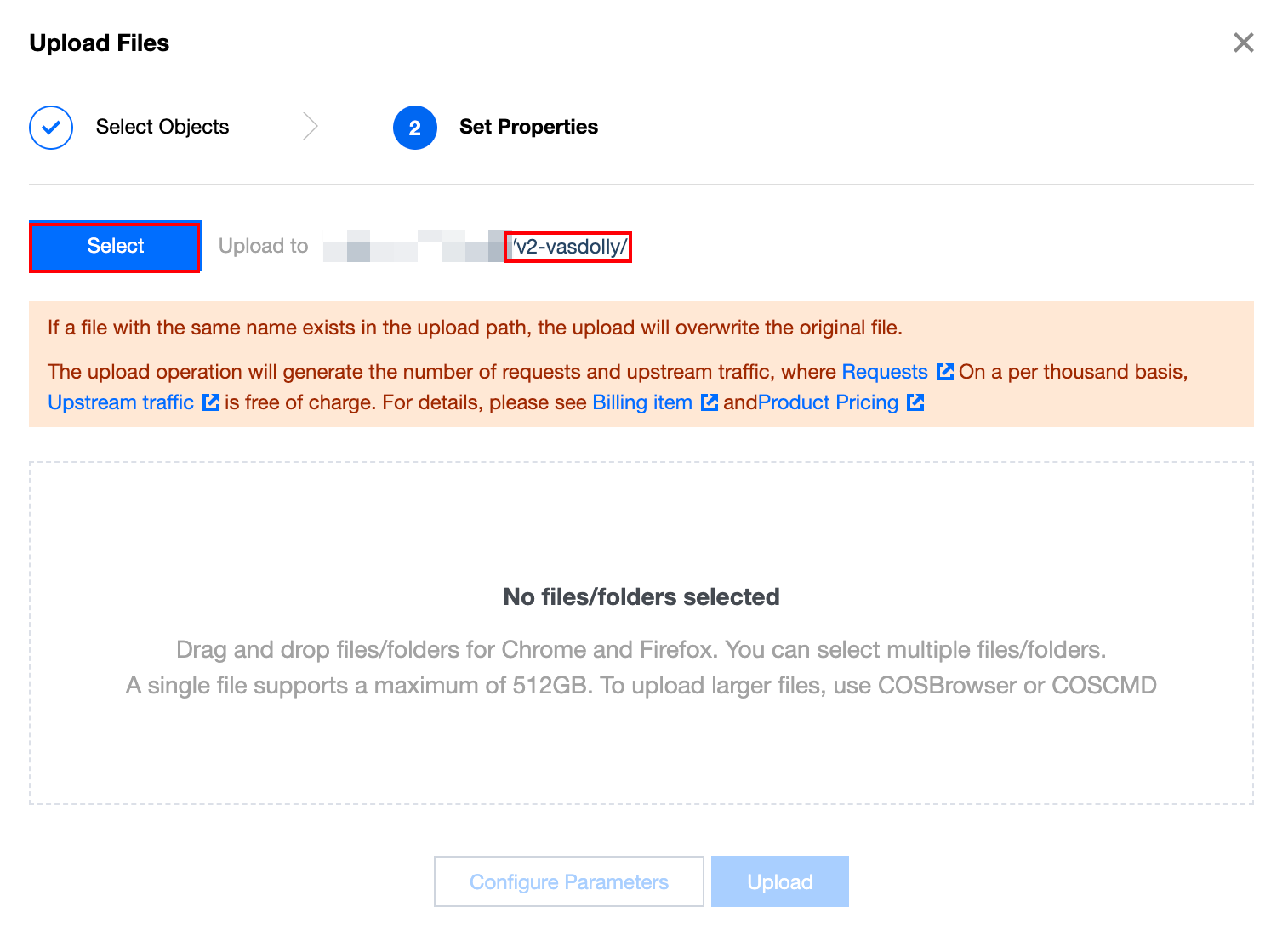
3. In the file list page, click on the v2-vasdolly/ directory, click Upload Files and select a file ending with .apk, for example**:** v2_src.apk. Click Upload.
4. If the SCF has successfully processed the Android APK parent package, a new output directory will be generated at the same level as the COS upload directory. The specific path is the directory filled in the outputPath in the Create Template Function, for example, /v2-vasdolly_output. Click on the directory name to enter it, and you will see the SCF has preprocessed the new APK parent package.