Usually, if a domain name provides HTTPS access, the public and private keys of the certificate must be deployed on the server to complete communication encryption and decryption during the handshake process. If your domain name needs to connect to EdgeOne for security acceleration, you also need to upload and deploy both the public and private key of the certificate at EdgeOne's edge nodes. If you prefer to keep your certificate's private key more securely and do not want to upload it to the Tencent Cloud SSL console, EdgeOne supports the Keyless certificate deployment solution. This document describes how to use the Keyless certificate solution for EdgeOne.
Note:
This feature is currently undergoing internal testing. If you need to use it, please contact us. Currently, the Keyless solution only supports the RSA algorithm certificate.
Solution Description
Handshake Process for HTTPS One-Way Authentication (Taking the RSA Key Exchange Algorithm as an Example)
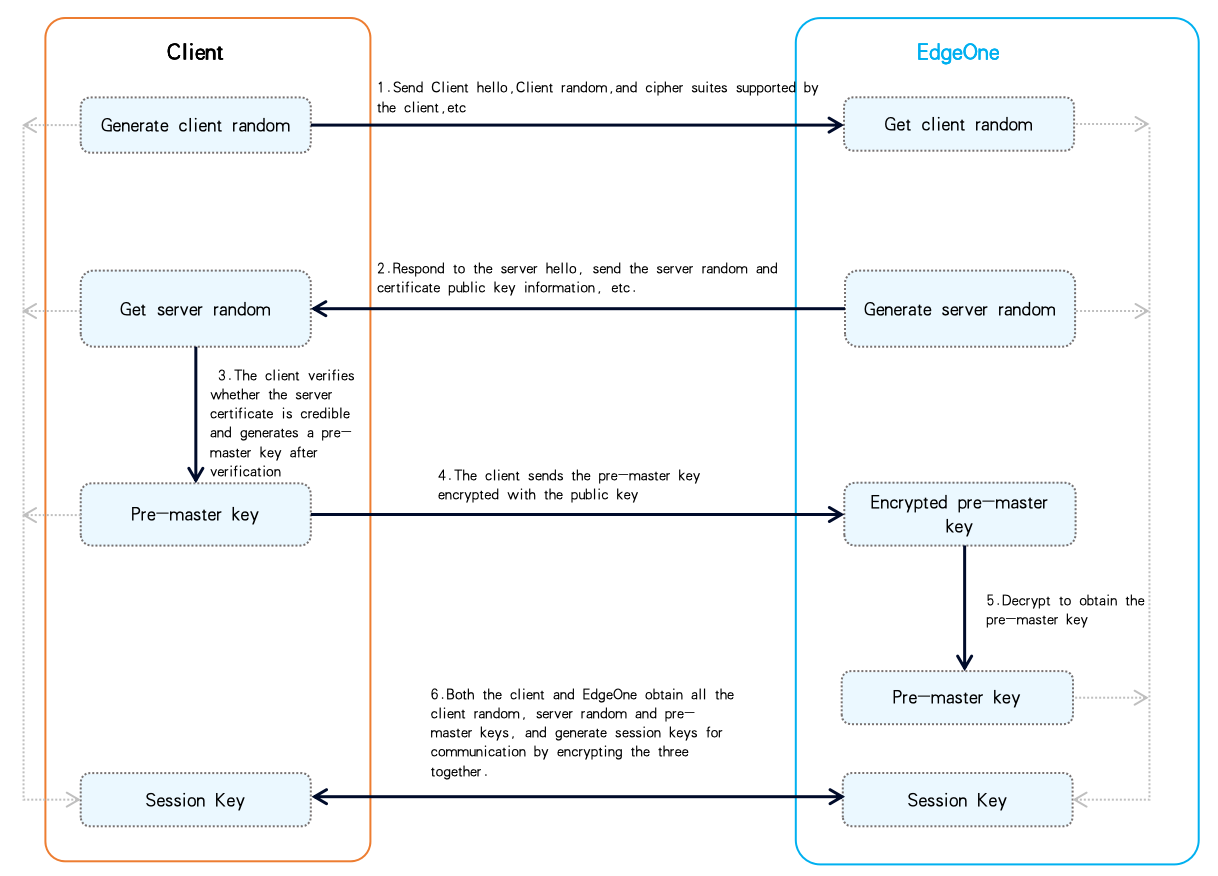
Under normal circumstances, if an HTTPS certificate is configured on EdgeOne, the process for the client to initiate an HTTPS handshake request is as follows (taking the RSA key exchange algorithm as an example):
1. The client sends a hello request to EdgeOne, including a random number generated by the client and information about supported encryption suites;
2. Once EdgeOne receives the request, it generates a random number on the server side and sends the public key of the HTTPS certificate configured for the current domain name to the client;
3. After receiving the server's random number and the public key certificate for the current domain name, the client verifies the certificate using a CA certificate to ensure it is valid and trusted;
4. Once the certificate is confirmed to have passed the verification, the client generates a pre-master key based on the current encryption algorithm, encrypts it with the public key from the certificate, and sends it to EdgeOne;
5. EdgeOne receives the encrypted pre-master key and decrypts it with the private key from the certificate to obtain the pre-master key;
6. At this point, both the server and the client have the complete information on the client's random number, the server's random number, and pre-master key, which will be combined to generate a session key. Both the client and the server use this session key for communication.
The security of the above encrypted communication session lies in the fact that the private key of the certificate on the server is secure. If it is leaked, it could be exploited by attackers, leading to session information leakage.
Handshake Process in the Keyless Certificate Solution (Taking the RSA Key Exchange Algorithm as an Example)
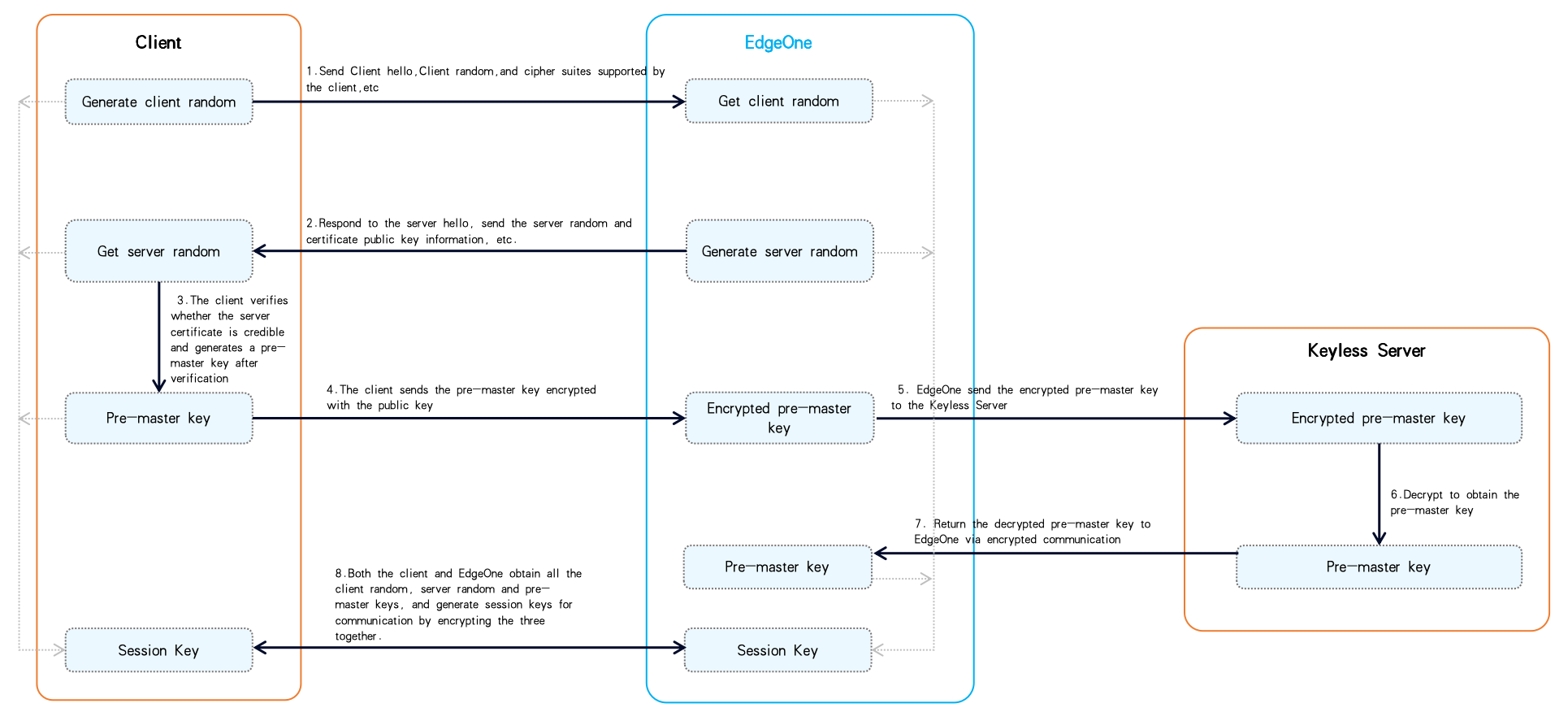
EdgeOne currently supports the Keyless certificate solution. To further ensure the security of the private key of the certificate, it supports users to deploy only the public key of the domain name certificate to EdgeOne's edge nodes. Users can store the private key themselves and request the Keyless storage server to use the private key to decrypt related data when needed. The main difference from the normal handshake process for HTTPS one-way authentication is that after the server receives the encrypted pre-master key, EdgeOne will forward the information to the Keyless Server, which will then complete the decryption and return the decrypted pre-master key information to EdgeOne via encrypted communication.
Note:
By default, HTTPS secure encrypted communication can be configured between EdgeOne's edge nodes and the Keyless Server. If you need to configure the HTTPS two-way authentication handshake to further ensure the security of the session, please contact us. Preparations
1. Prepare a server for installing the Keyless Server, for example: 1.1.1.1.
2. Prepare a domain name that needs to use Keyless, for example: example.com. This domain name has been connected to EdgeOne, and its corresponding certificates are: example.com.crt and example.com.key .
3. Prepare the server certificate that needs to be configured currently, including the client public and, private keys, for example: server.crt and server.key.
Note:
You may also prepare the certificates required for testing by generating self-signed certificates, for which you can refer to Using OpenSSL to Generate Self-Signed Certificates. It is important to note that self-signed certificates are solely for testing purposes and are not trusted by browsers, thus they should not be used in actual business scenarios. Directions
Step 1: Install the Keyless Server Service on the Server
1. Log into the server where you plan to install the Keyless Server and ensure the following dependencies are installed. The requirements for the dependent environments are as follows:
Go: The version should be go1.20 or higher. trpc-go: The version should be v1.0.3 or above. Openssl: The necessary libraries include openssl-static(1:1.1.1k-12.tl3.1), openssl-devel(1:1.1.1k-12.tl3.1), and zlib-devel(1.2.11-25.tl3). 2. Upon verifying that all initial installations have been completed, execute the following command to download the open-source Keyless server project code, provided by Tencent Cloud EdgeOne, from GitHub into your designated installation directory.
git clone https://github.com/Tencent/edgeone-keyless-server.git
3. Navigate to the root directory of the Keyless project.
cd /edgeone-keyless-server
4. Within the root directory, establish a directory named /ssl designated for the storage of Keyless public and private key certificates; furthermore, create a directory /ssl/mutual_ssl intended for housing the certificates utilized during the HTTPS handshake when the server receives Keyless requests.
mkdir ssl
mkdir ssl/mutual_ssl
Note:
Upon receiving a request for Keyless SSL acceleration, the Keyless server, by default, retrieves the certificate's private key for decryption by accessing the certificate stored in the /ssl directory. Should you wish to customize the storage path for the certificate, it is necessary to amend the private_key_path in /config/keyless.yaml to reflect the current path where the certificate is stored.
5. Upload the Keyless public and private key certificates for the current domain to the /ssl directory; for instance: example.com.crt, example.com.key. For the server certificates required for the handshake between EdgeOne edge nodes and the Keyless server, upload the public and private key files of the certificate to the ./ssl/mutual_ssl/ directory, such as server.crt, server.key.
Note:
The filenames of the public and private key certificates for Keyless must remain consistent.
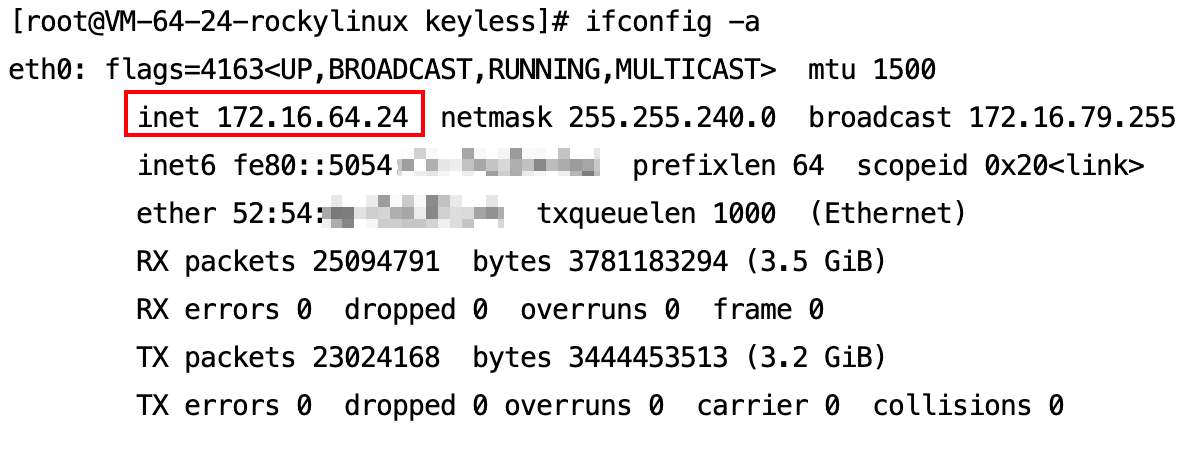
Should you desire to employ HTTPS mutual authentication handshake between EdgeOne edge nodes and the Keyless server, please upload the client's CA certificate to the ./ssl/mutual_ssl/ directory as well. Additionally, you will need to configure the client certificate that the EdgeOne edge node carries when initiating access to the Keyless server. For this certificate configuration, please contact us. 6. Run the following command to get the local IP address, for example: 172.16.64.24.
7. Modify the configuration file.
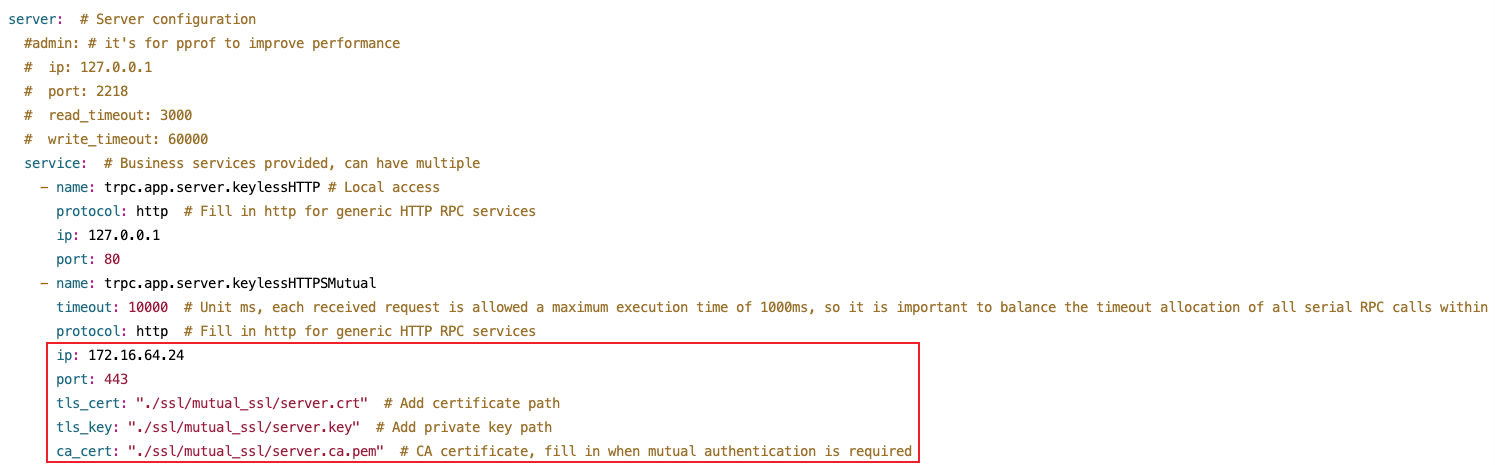
7.1 Press i to enter the insert mode to begin editing the configuration file. Modify the following five parameters, while keeping the other parameters as default:
IP: The local IP address obtained in Step 6;
Port: The service port for external access. It is recommended to use 443, and it is necessary to ensure that the port is accessible;
tls_cert: The path of the server certificate's public key uploaded in Step 5;
tls_key: The path of the server certificate's private key uploaded in Step 5;
ca_cert: By default, no configuration is needed. If the configuration of the two-way authentication handshake is required, this item is used to specify the CA certificate path for the client certificate, which is the client CA certificate path uploaded in Step 5.
7.2 Press Esc to exit the insert mode, then enter :wq to save and exit.
8. Upon completing the basic configuration, proceed to compile the project.
go build -o keyless main.go && chmod a+x keyless
9. Run the following command to launch the keyless server service.
sudo nohup /edgeone-keyless-server/keyless >/dev/null 2>&1 &
10. Run the following command to check whether the current service has been launched successfully. If launch success is displayed, it means the service has been launched successfully.
Step 2: Upload the Certificate to the Tencent Cloud SSL Certificate Console
Note:
If you need to upload a server certificate containing solely the public key, please contact us to enable allowlist access to Tencent Cloud's SSL product for you. Step 3: Configure the Domain Name in the EdgeOne Console to Use the Keyless Certificate
1. Log in to the Tencent Cloud EdgeOne console, enter Service Overview in the left menu bar, and click the site to be configured under Website Security Acceleration. 2. On the site details page, click Domain Name Service> Domain Management.
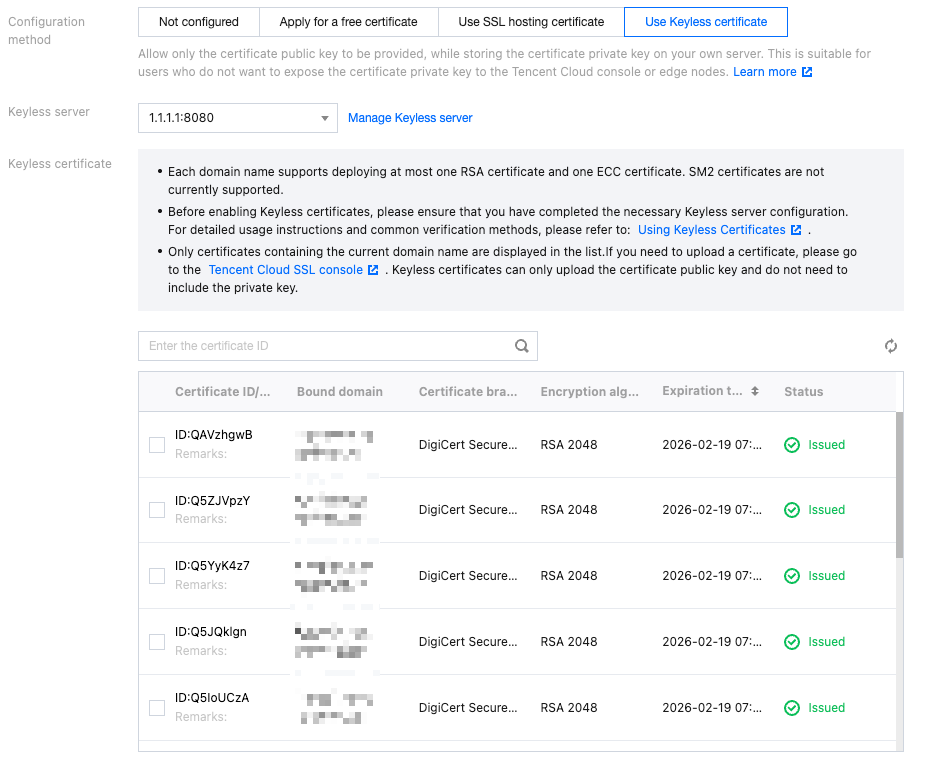
3. Find the domain name to be configured, click Edit in the HTTPS configuration column to go to the HTTPS configuration page. Find the Edge HTTPS configuration card, click Configure, and select Keyless certificate as the configuration method.
4. Configure the address of the Keyless server. This address is the server address and port number you prepared in Step 1. 5. Select the HTTPS certificate to be used. This certificate is the one you uploaded in Step 2. 6. Click OK and wait for the configuration to be deployed so that it can take effect.
Step 4: Verify Access
Use curl to perform access verification and check if the HTTPS handshake can be accessed successfully. You can refer to the following curl command:
curl https://example.com/ -v -k
Updating a Keyless Certificate
1. Log in to the Keyless server, go to the currently installed Keyless directory, and upload the public key and private key certificates to be updated to the ./ssl/ directory;
Note:
The file names of the Keyless public key and private key certificates must remain consistent. When updating the certificates, do not directly overwrite the old domain name certificates. It is recommended to use new file names for storage. For example, if original certificate names are example.com.crt and example.com.key , new certificate names can be example.com.new.crt and example.com.new.key .
2. After the upload is complete, execute the following command to reload the Keyless certificates:
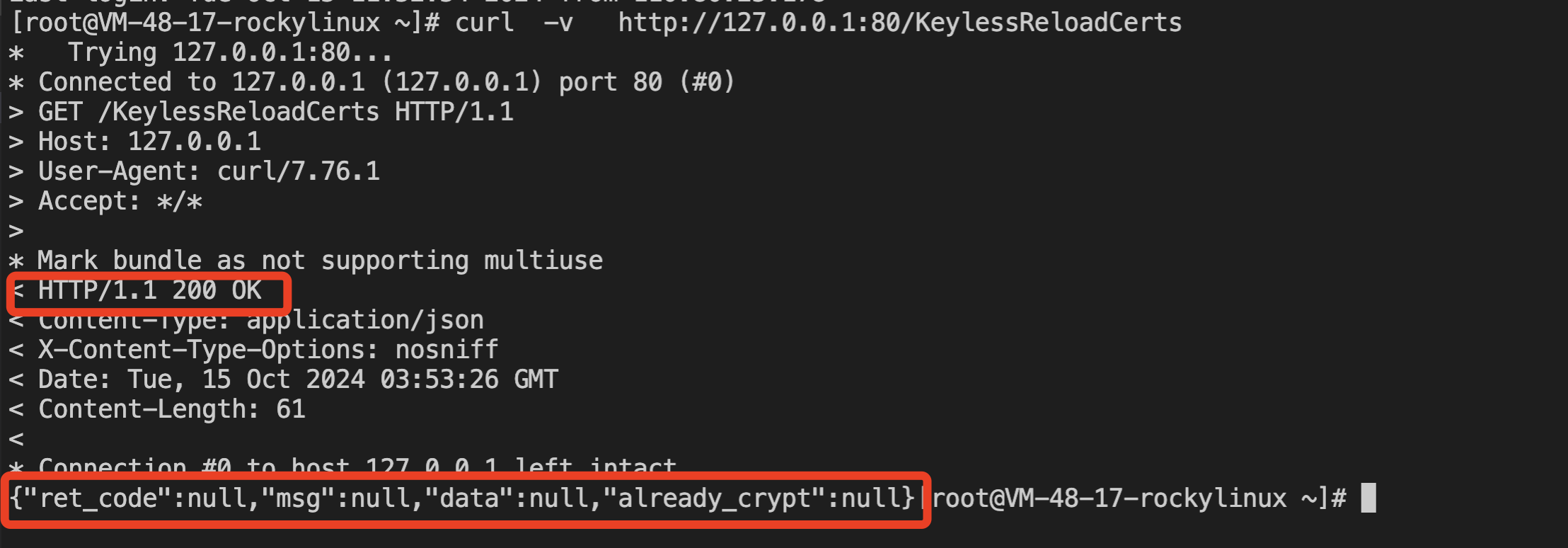
curl http://127.0.0.1/KeylessReloadCerts -v
If the curl request is as follows and responds with 200, it means the loading is successful:
4. Log in to the Tencent Cloud EdgeOne console, enter Service Overview in the left menu bar, and click the site to be configured under Website Security Acceleration. 5. On the site details page, click Domain Name Service > Domain Management.
6. Find the domain name to be configured, click Edit in the HTTPS configuration column to go to the HTTPS configuration page. Find the Edge HTTPS configuration card, click Configure, and select Keyless certificate as the configuration method.
7. Change the HTTPS certificate to the one you newly uploaded, and then click OK . It will take effect once the configuration is deployed and issued.