This document is a practical guide for EdgeOne real-time log push to Datadog. Datadog is a commonly used cloud-based monitoring and security platform that supports log aggregation, search, analysis and data visualization. This tutorial helps users push EdgeOne logs to Datadog in real time, building a uniform log analytics and security monitoring system.
If you do not yet understand how to create a real-time log push task or define push content, for details, see Push to HTTP Server.
Confirmed the Datadog Site region and corresponding log collection HTTP endpoint, such as https://HTTP-intake.logs.datadoghq.com/api/v2/logs. For details, see Datadog Log Collection.
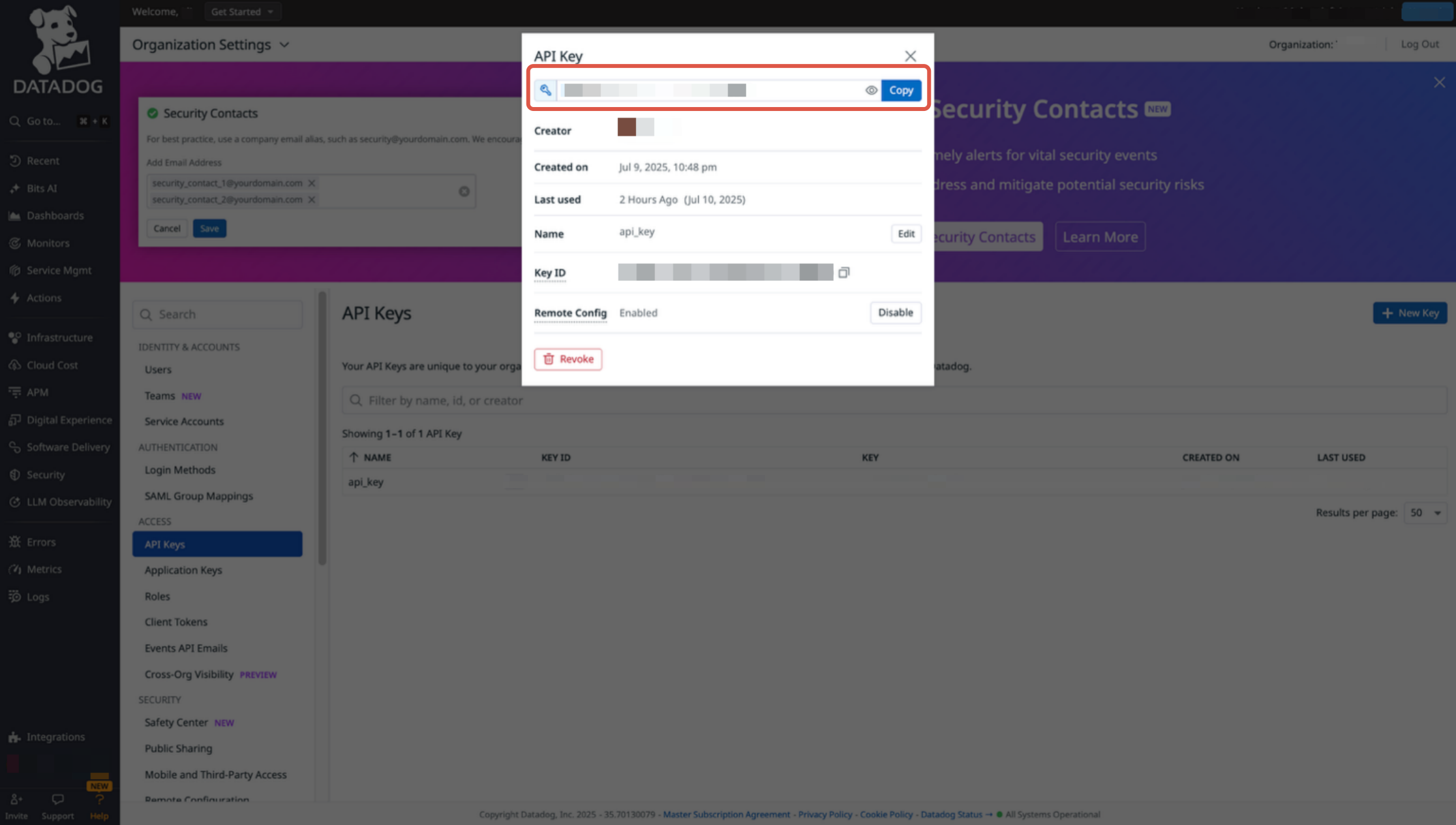
Record the API key value, which will be used as identity authentication in subsequent configuration.
EdgeOne Real-Time Log Push Configuration
Refer to Push to HTTP Server to configure a real-time log push task in EdgeOne. Below are the configuration instructions for pushing to Datadog destination information:
1. On the destination information page, fill in the destination and parameter information:
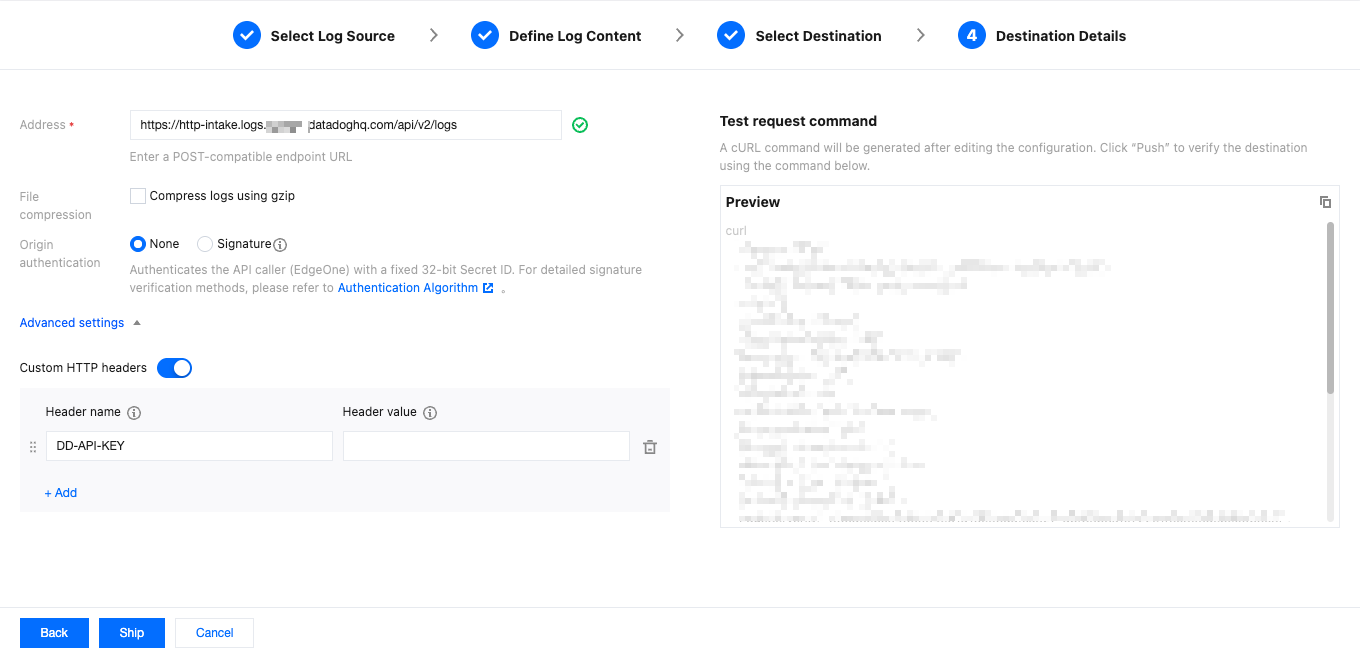
API address: Please check your Datadog website URL. For example, https://http-intake.logs.example.datadoghq.com/api/v2/logs;
Content compression: To decrease log Content size and save traffic overhead, you can enable Content compression by checking the option to use gzip to compress log files. EdgeOne will use gzip format to compress logs before transmission and add the HTTP header Content-Encoding: gzip to indicate the compression format;
Origin server authentication: Select "None";
Custom HTTP request header: Add DD-API-KEY as the header name and paste the set api key as the header value.
2. Click Push.
3. During the configuration phase of a real-time log push task, test data will be sent to the API address to verify API connectivity. For details, see Push to HTTP Server.
Verification
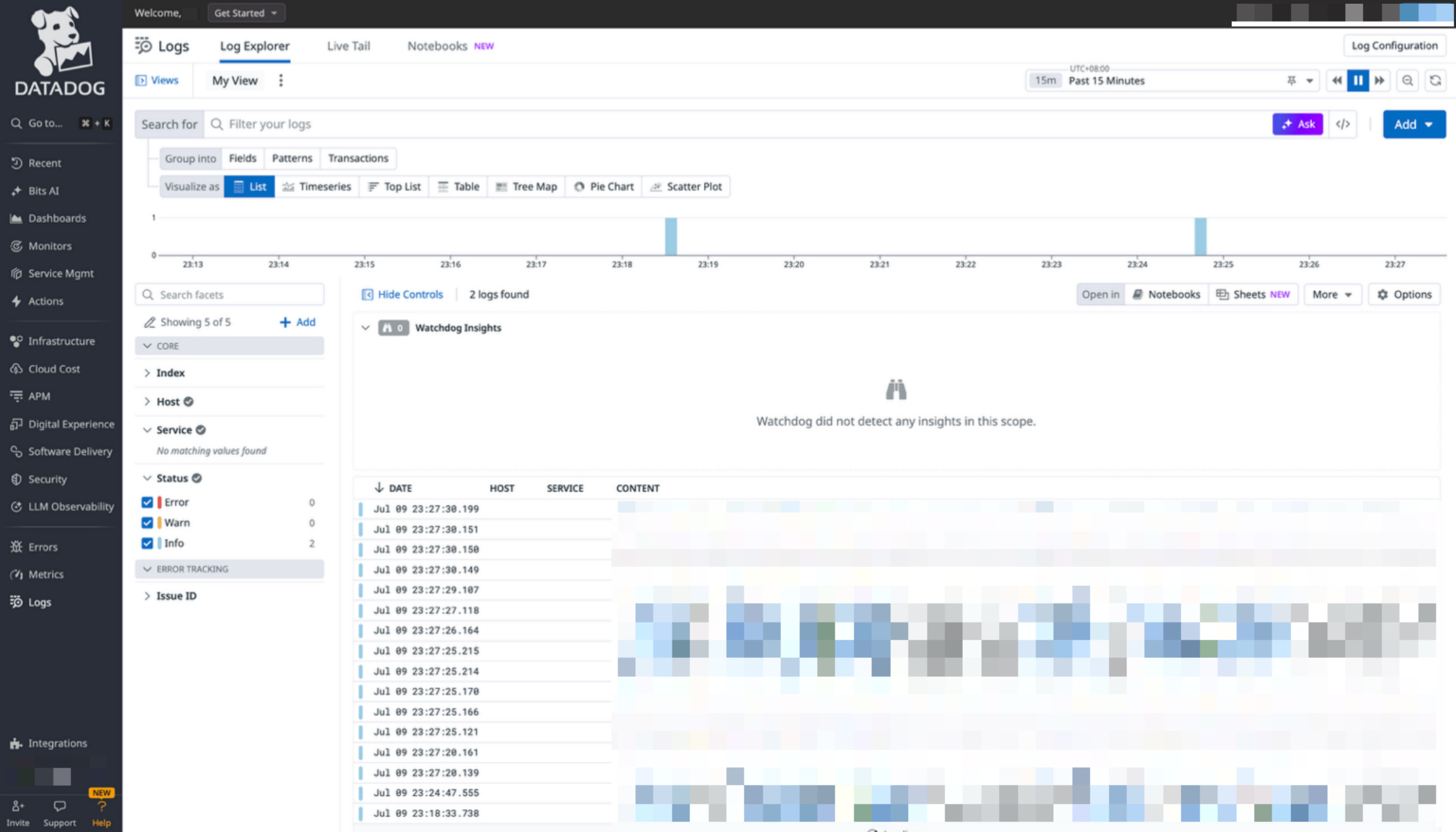
View EdgeOne real-time logs in Datadog Resource Explorer to check whether they were successfully delivered.
1. Log in to the Datadog console.
2. Enter the Logs > Search page.
3. View EdgeOne real-time log content pushed by EdgeOne.