Overview
Audit reports are an important feature for recording and analyzing user operations performed through the BH, including access control status, security events, and usage recommendations. Audit reports assist enterprises or organizations in detecting abnormal behavior and identifying potential security risks.
Directions
Report Task List
The report task list records all tasks you have created. You can switch the task status between start and stop, and also edit or delete tasks.
2. In the left sidebar, choose Audit Report > Report Task.
3. On the report task page, detailed records include the task name, report type, report description, report template, creator, task status, number of reports, task activation status, and task operations.
Creating a One-Time Task
1. On the Audit Report > Report Task page, click Creating Task.
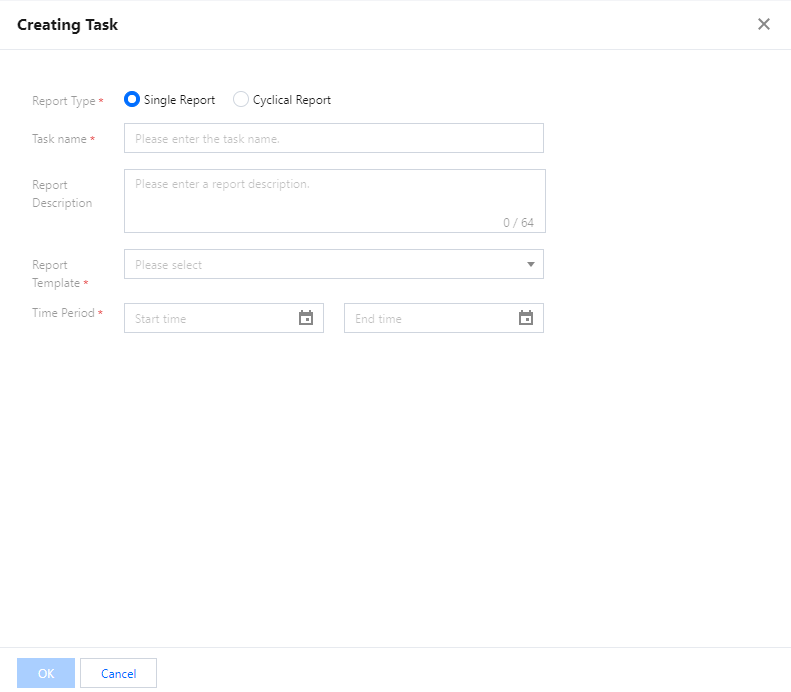
2. On the Create New Task panel, select Single Report as the report type and configure the following user information:
|
Task name | Enter the name of the task. |
Department | Select the department. Note The department management feature is only available to customers with specific requirements. If you need to enable this feature, Contact Us. |
Report description | Enter a description for the report. |
Report template | Select a report template. |
Time range | Select a specific start and end time based on actual requirements to generate the desired report. |
Creating a Scheduled Task
1. On the Audit Report > Report Task page, click Creating Task.
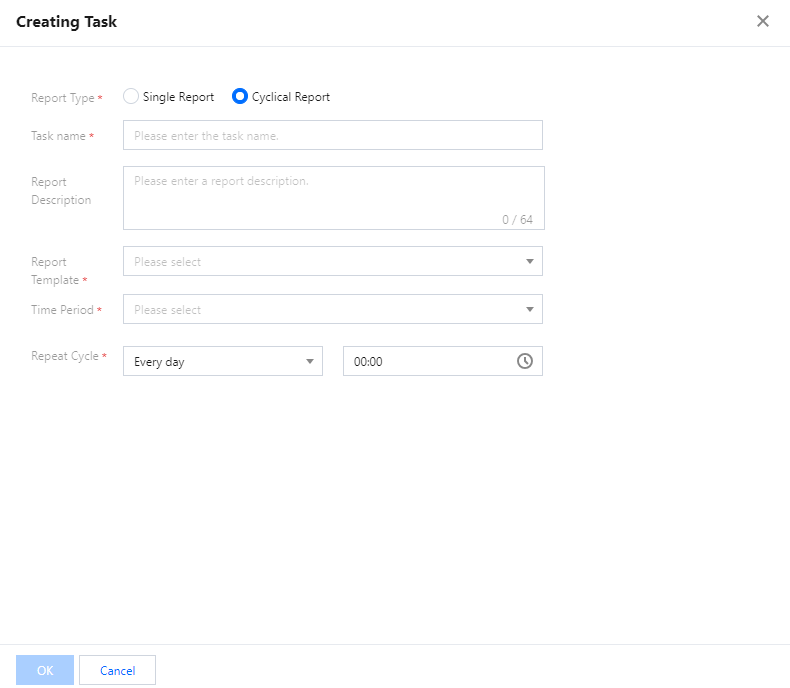
2. On the Creating Task panel, select Cyclical Report as the report type and configure the following details:
|
Task name | Enter the name of the task. |
Department | Select the department. Note The department management feature is only available to customers with specific requirements. If you need to enable this feature, Contact Us. |
Report description | Enter a description for the report. |
Report template | Select a report template. |
Time range | Select a time range: last 24 hours, last 7 days, last 30 days, last 90 days, or last 6 months. |
Recurrence cycle | Set the frequency for generating audit reports. |
Editing a Task
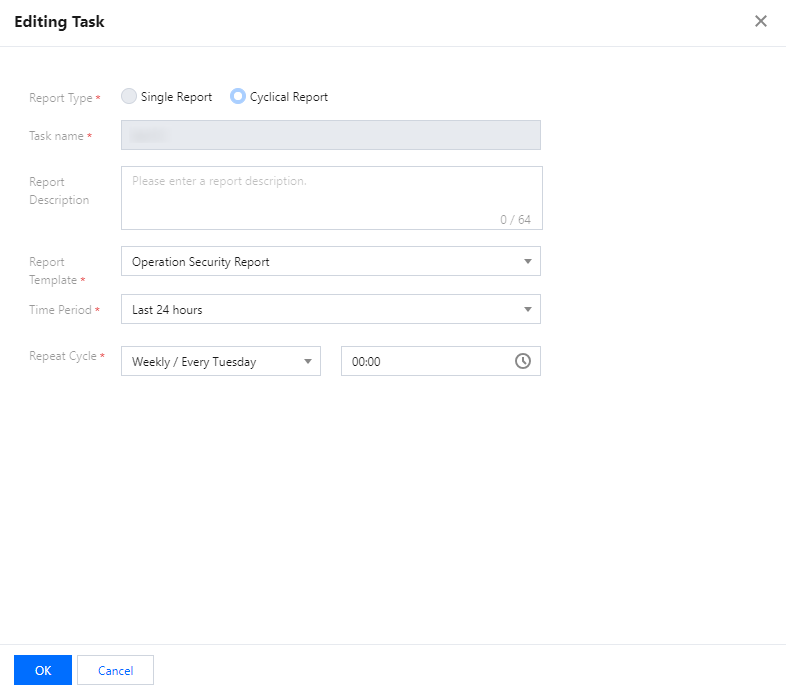
1. On the Audit Report > Report Task page, you can edit tasks of the Repeat Cycle type.
2. Select the recurring task that needs editing and click Edit.
3. In the Edit User popup, modify the required information.
Note
The report type and task name cannot be changed.
4. Click OK to update the recurring task information.
Deleting a Task
1. On the Audit Report > Report Task page, you can delete a task or multiple tasks.
If you want to delete a report task, click Delete in the operation column of the corresponding task.
If you want to delete multiple report tasks, select the tasks to delete and click Delete.
2. In the confirmation deletion window, click OK to delete the report.