Access String
Download
フォーカスモード
フォントサイズ
Overview
Users access and manage hosts using connection strings provided by the BH. Below is a detailed instruction on how to use connection strings.
Prerequisites
The administrator has informed the Ops personnel of the login address.
The administrator has granted host access permissions to the Ops personnel.
The Ops personnel have completed Account Activation.
The connection string feature has been enabled for access permissions.
Directions
1. Enter the Ops page login address in a browser to open the BH Ops page. Enter your phone number and password to log in to the BH. Alternatively, click Account password to switch to login with account name and password.
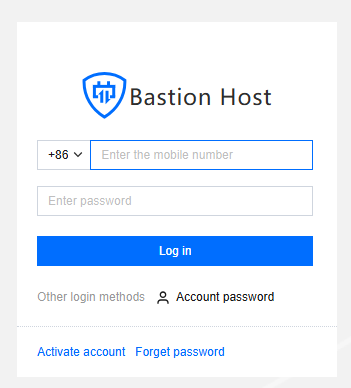
2. After entering the BH, choose Services > Asset list in the left sidebar.

3. On the Host List page, click Connection string on the right side of the corresponding host to open the access string dialog box.

4. In the access string dialog box, click View Access String.
Note
If the connection string has not been created, click Update Connection string first.
The connection string is a randomly generated 16-character string consisting of uppercase and lowercase letters and numbers.
The connection string can have an expiration time set. Once t is expired, it becomes unusable. After the connection string is updated, the previous one will also become invalid.
All operations performed to access hosts through the BH will be recorded.
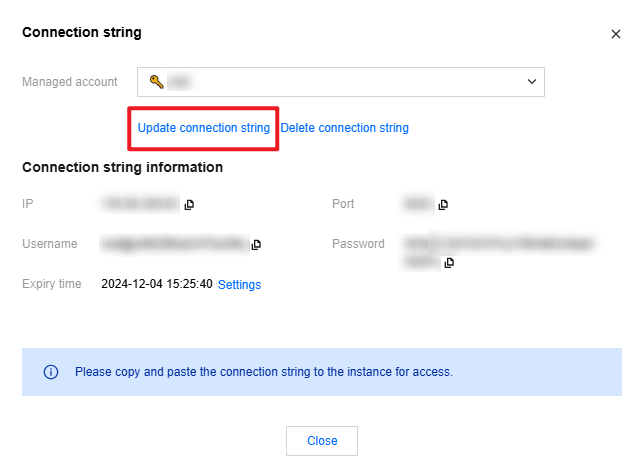
5. Copy the IP, port, username, password, and other information displayed in the connection string, and paste it into the client for access. Below is an example using the SecureCRT client.
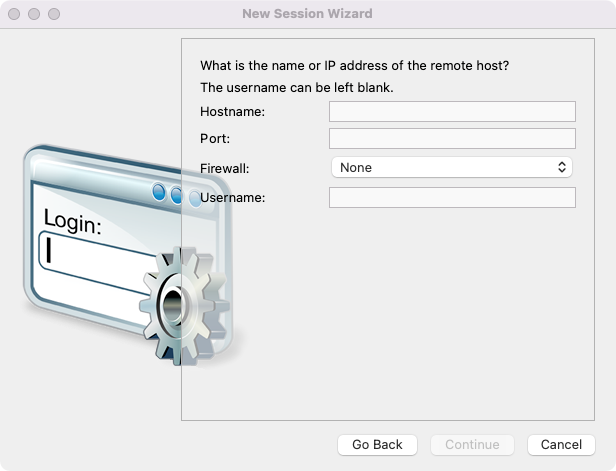
Parameter Name | Parameter description |
Hostname | IP address of the connection string |
Port | Port of the connection string |
Firewall | None |
Username | Username of the connection string |
6. When accessing, you will also need to enter a password. Simply use the password information provided in the connection string.
フィードバック