Linux Resource Login Prompting Host Unreachable
Phenomenon Description
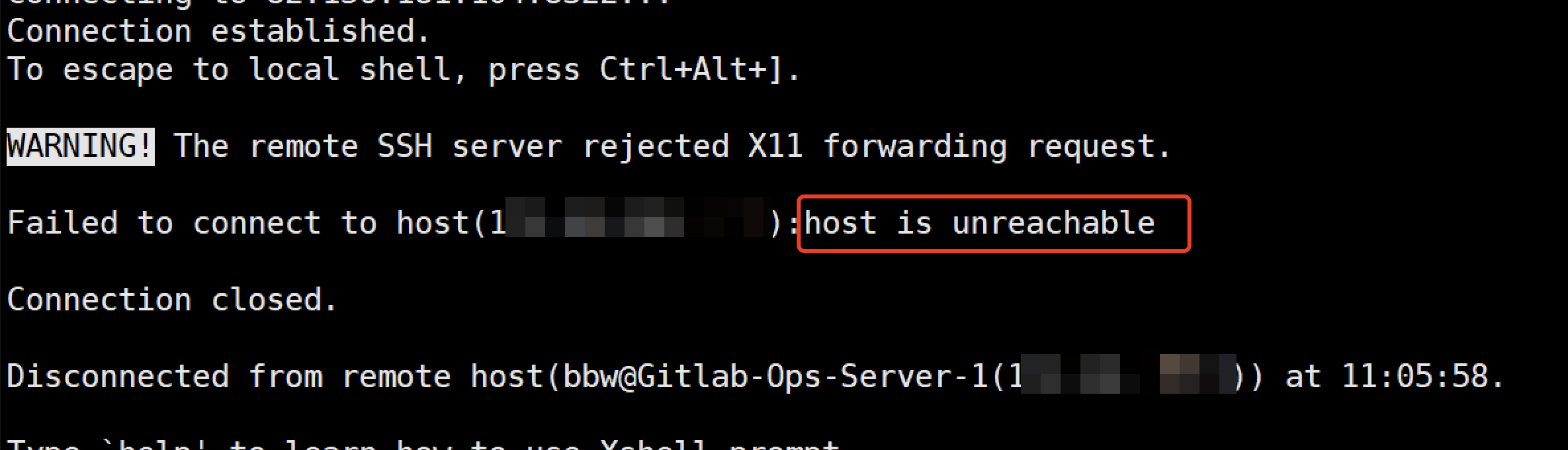
Accessing Linux resources fails with a prompt indicating host is unreachable and connection closed, as shown below:
Possible Causes
The network or port between the BH and the CVM resource is unreachable, preventing the BH from proxying access to the resource.
Solutions
1. If the BH and the resource are not in the same VPC, access is not possible. In this case, purchase multiple services or connect the VPC networks.
2. If the resource has security group restrictions, the BH cannot access the target resource. You need to adjust the security group settings to allow the BH to access the resource's SSH port (default: 22).
Directions
Not in the Same VPC
1. Log in to the BH Console.
2. In the left sidebar, choose Activate Package.
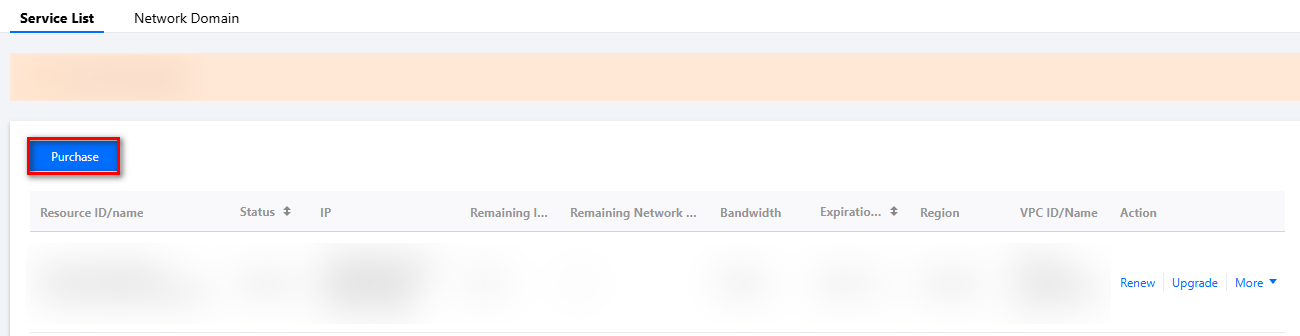
3. On the Activate Package page, click Purchase to purchase multiple services.
Note
Security Group Restrictions
1. On the Activate Service page, view the private and public IP addresses of the BH that cannot access the target resource. Record the private IP address to add it to the inbound rules in [Step 5](#Step 5!0011237e8dc98411a0794ba6dddb9989).

2. Log in to the CVM Console and click Instances under the Instances & Images menu.
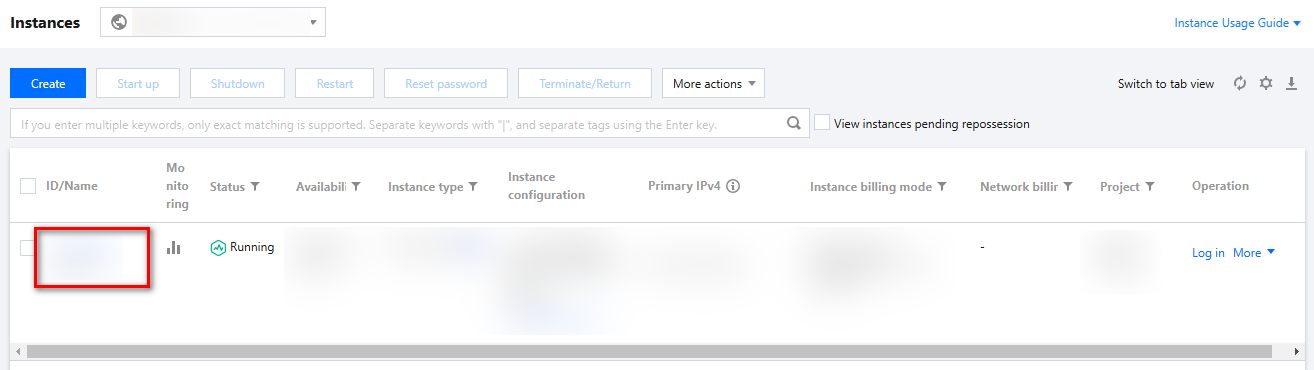
3. On the Instance page, click the ID/Name > Security groups of the CVM instance that requires a security group binding to access the security group details page for that instance.
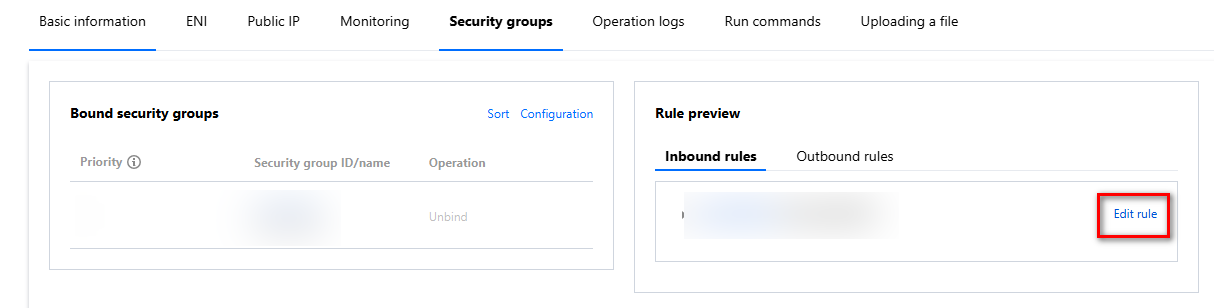
4. On the Security group page, click Edit rule to access the Inbound Rules page for the security group in the VPC.
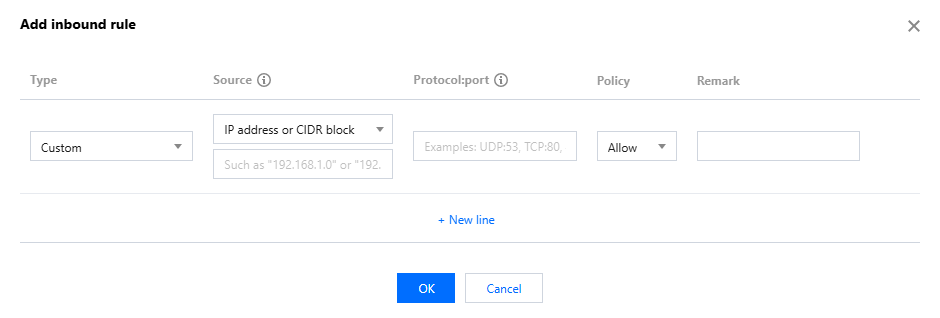
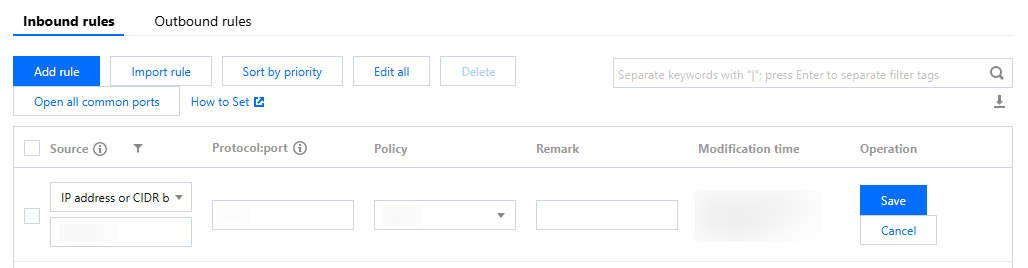
5. On the Inbound rules page, add or modify inbound rules to allow the private IP address of the BH to access the SSH remote port of the resource.
Note
Source: Allow access to specific IPs based on actual requirements.
Port protocol: Enter the remote desktop port.
Add: Click Add rule, configure the relevant parameters, and click OK.
Edit: Click Edit rule, modify the source IP and protocol port, and click Save.
6. In host assets, click Edit rule, check the resource port configuration to ensure it is set to the remote desktop port. If it is incorrect, modify it based on the actual situation.
Note
Check whether there are any other security product policies in the network that impose access restrictions. If restrictions exist, they need to be lifted.

Help and Support
Was this page helpful?
You can also Contact sales or Submit a Ticket for help.
Help us improve! Rate your documentation experience in 5 mins.
Feedback