In DLC, you can use User-Defined Functions to process and construct data, and it supports function management.
Creating function
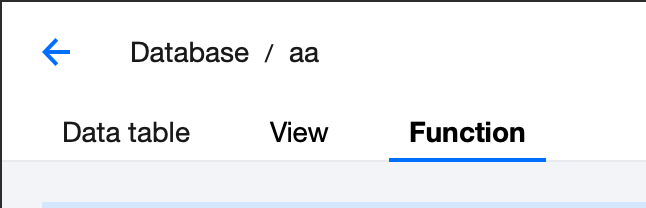
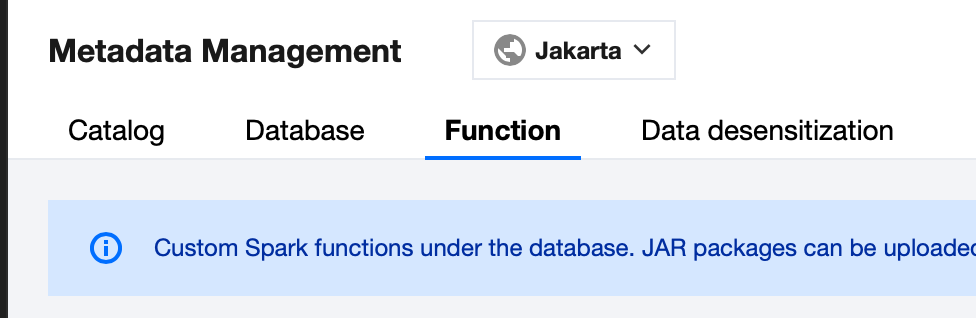
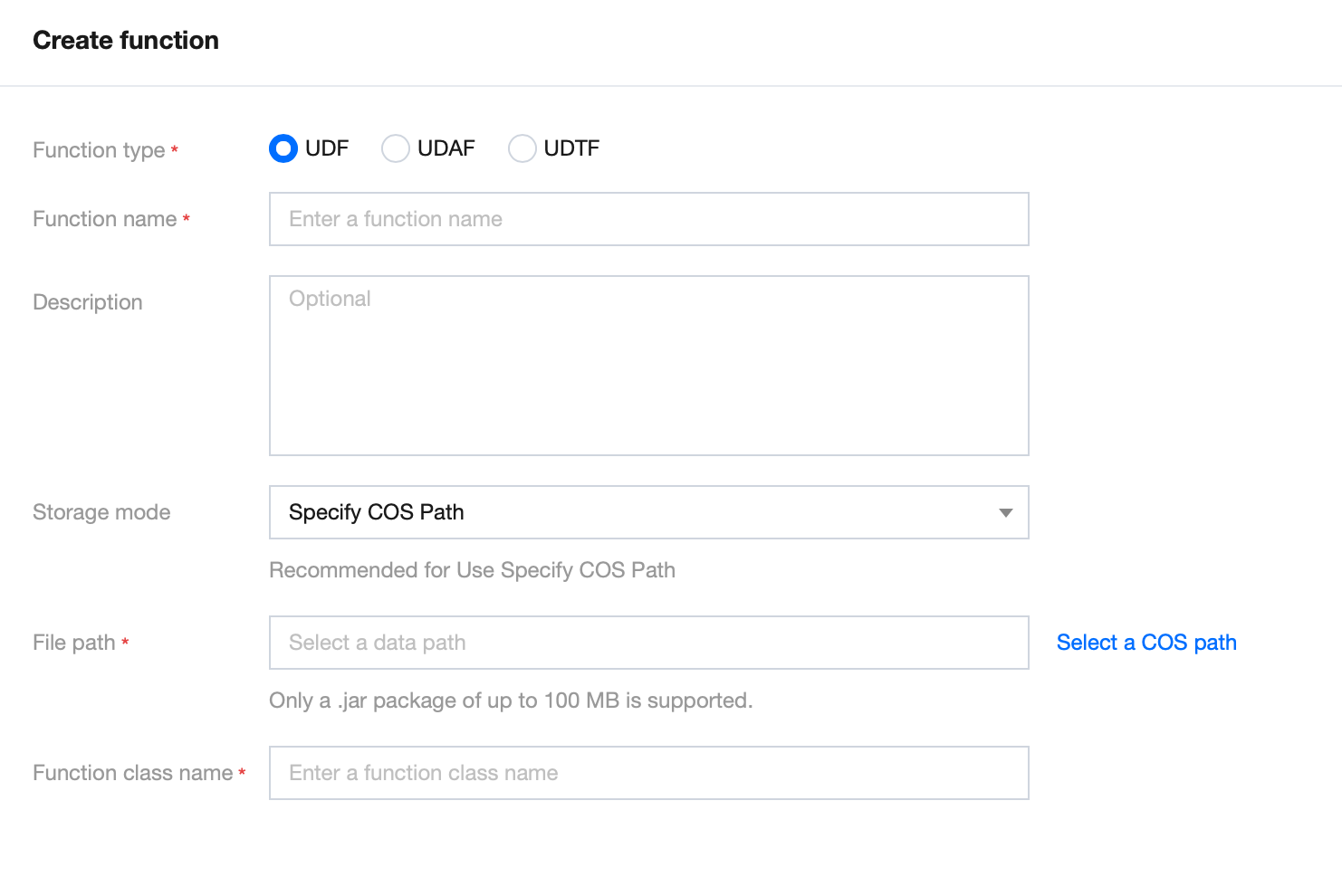
1. Log in to the DLC Console, select the service region. The account must have database operation permissions. 2. Portal 1: Go to the Metadata Management page, switch to the Database page, click the database name where you need to create a function, and switch to the Function page. 3. Select Function, then click on the Create Function button to enter the function creation menu.
The function package supports either local uploads or the use of existing JAR or Python files stored in COS. For local uploads, the maximum file size for JAR files is 5 MB, and for Python files, the limit is 2 MB.
Python UDF registration is effective globally, and the configuration entry is as follows: Navigate to the Data Management page, switch to the Functions tab, and click Create. For the creation and management processes, refer to UDF Function Development Guide. Select the Spark cluster to run the function. There will be no fees incurred during the execution.
It is recommended to save the function package to the system for easy management and use. It also supports mounting to a specified COS path.
View function information
1. Log in to the DLC Console. The account must have database operation permissions. 2. Choose Metadata Management > Database and click the database name of the function you want to view. Alternatively, go to the Metadata Management page and switch to the Function page for a global view. 3. Select the function to view its Build Status. If the build fails, click the Edit button on the right and submit again.
4. Click on the Function Name to directly view the function details.
Editing Function Information
1. Log in to the DLC Console, select the service region. The account must have database operation permissions. 2. Go to the Metadata Management page and click the database name of the function you want to view. 3. Select a Function and click the Edit button to enter the function information editing page.
The function name, storage method, and upload method cannot be modified at this time. If you need to change this information, please recreate the function.
After modifying the function information, it will be rebuilt. Please proceed with caution.
Deleting function
For functions that no longer need to be managed, you can delete them.
1. Go to the DLC Console, select the service region, log in to an account with database operation permissions. 2. Go to the Data Management Page, click on the database name of the function you want to view.
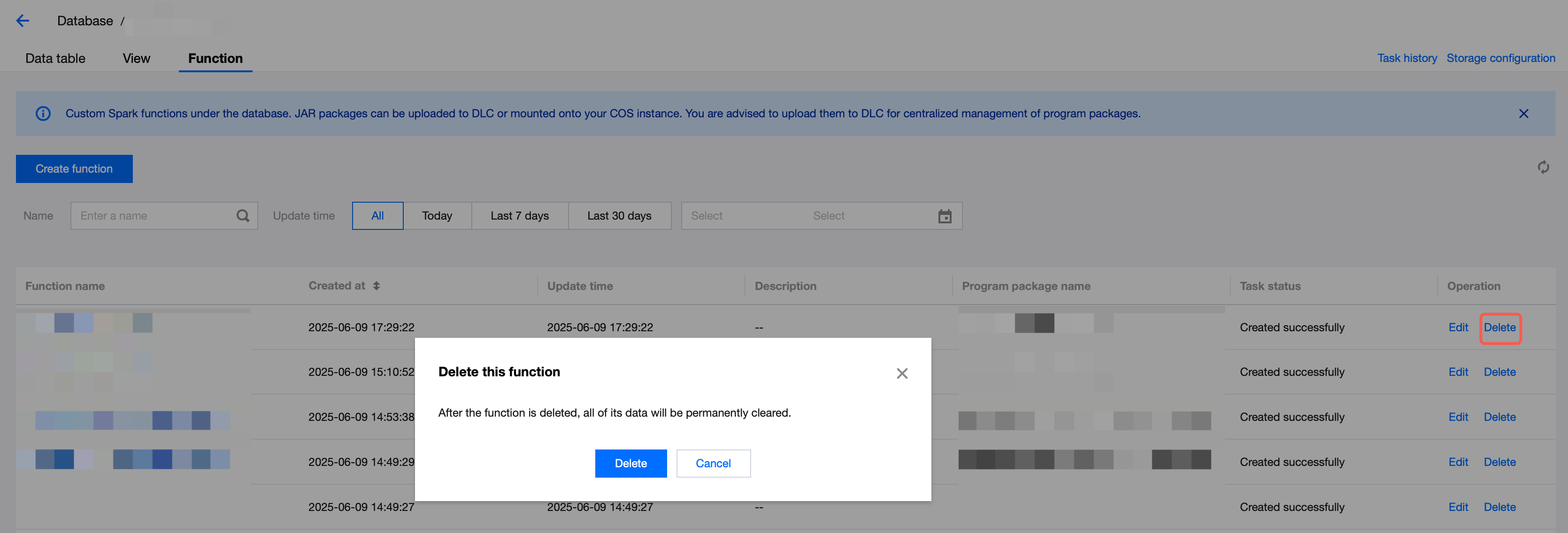
3. Select the function and click the delete button to delete the function that is no longer needed.
Note:
After deletion, the data under this function will be cleared and cannot be recovered. Please proceed with caution.