Exploit prevention is a virtual patch-based system developed by the Tencent Cloud security team to defend against frequent 0-day and N-day vulnerabilities. It integrates Tencent's vulnerability mining and real-time high-risk vulnerability alerting technologies to capture and analyze vulnerabilities, generate virtual patches based on Tencent's expertise, and automatically make the patches effective in CVM instances. This helps effectively block hacker attacks and gain more time for vulnerability fix.
Enabling exploit prevention
Enable the exploit prevention feature to block vulnerability exploitation in real time and protect your business from attacks.
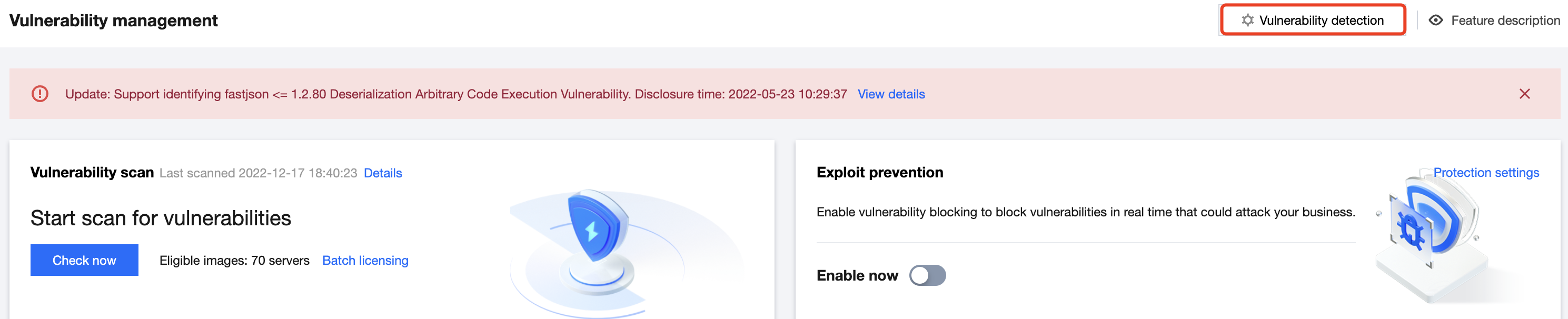
1. Log in to the TCSS console and select Vulnerability Detection on the left sidebar. 2. On the Vulnerability Detection page, toggle on the Enable now switch . The drawer on the right will display the configuration page for exploit prevention.
3. On the Vulnerability Detection page, click Vulnerability detection in the top-right corner.
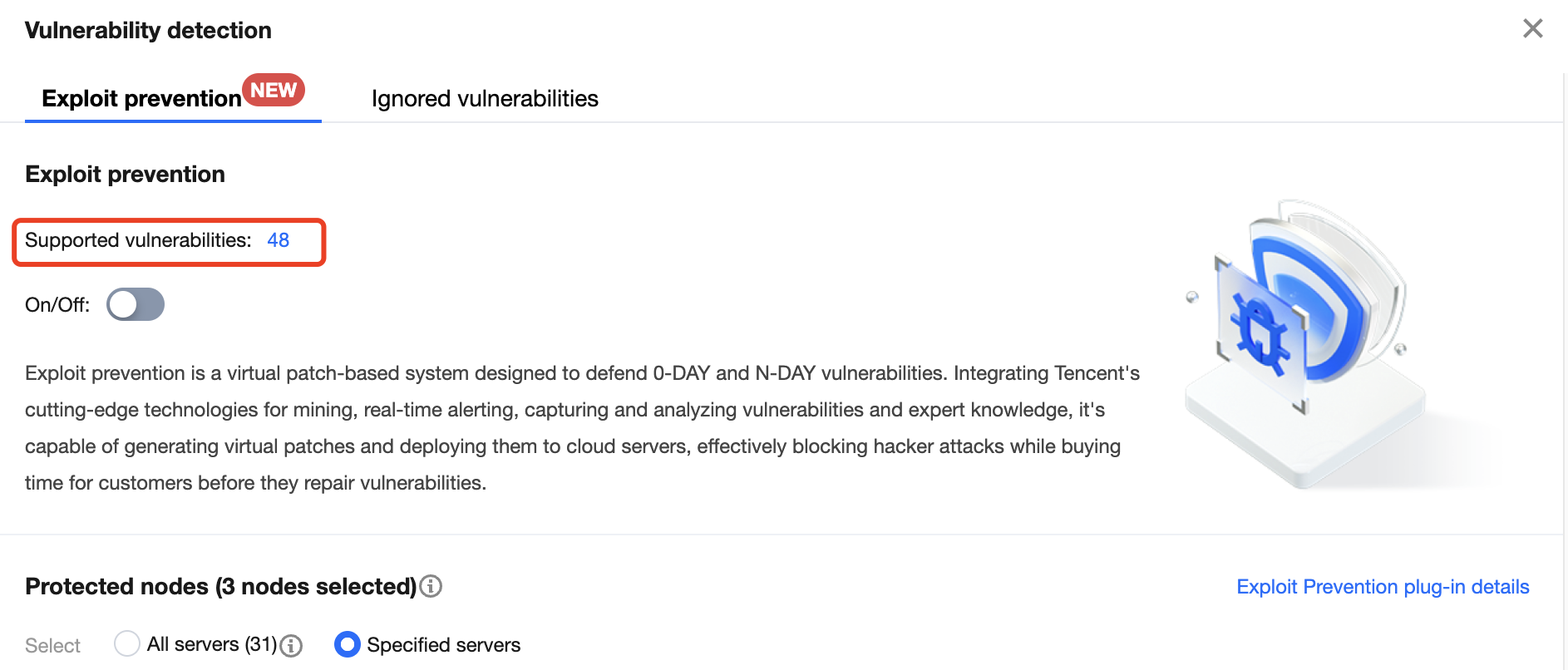
4. On the Vulnerability detection page, click the number of prevented vulnerabilities to view the details.
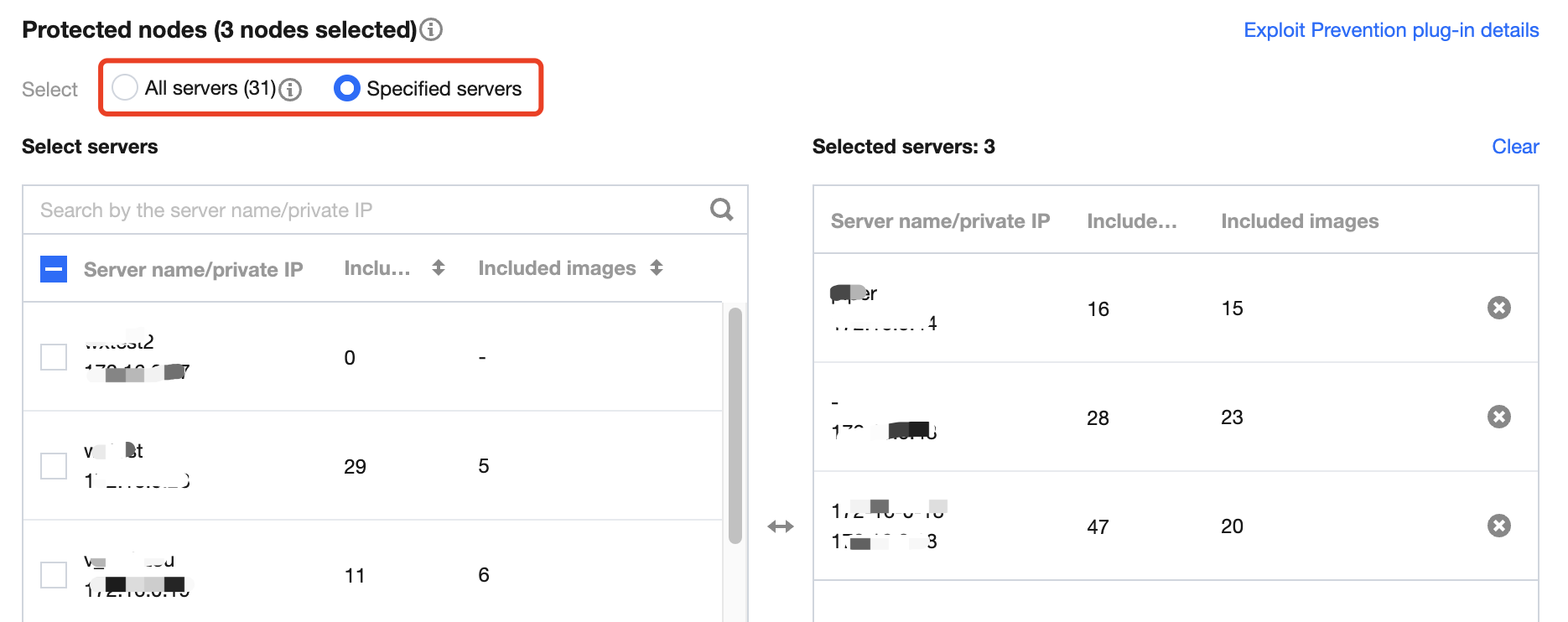
5. On the Vulnerability detection page, select Protected nodes, click Implement now at the bottom of the drawer, and wait for the policy to be distributed. Then, the selected nodes are protected against container vulnerability exploitation.
Note:
If you select All servers for Protected nodes, exploit prevention will be automatically enabled for newly added servers.
When vulnerability defense is enabled, there will be a brief increase in resource usage (on average 1 to 2 minutes). It is recommended to enable it in batches, avoiding peak business hours.
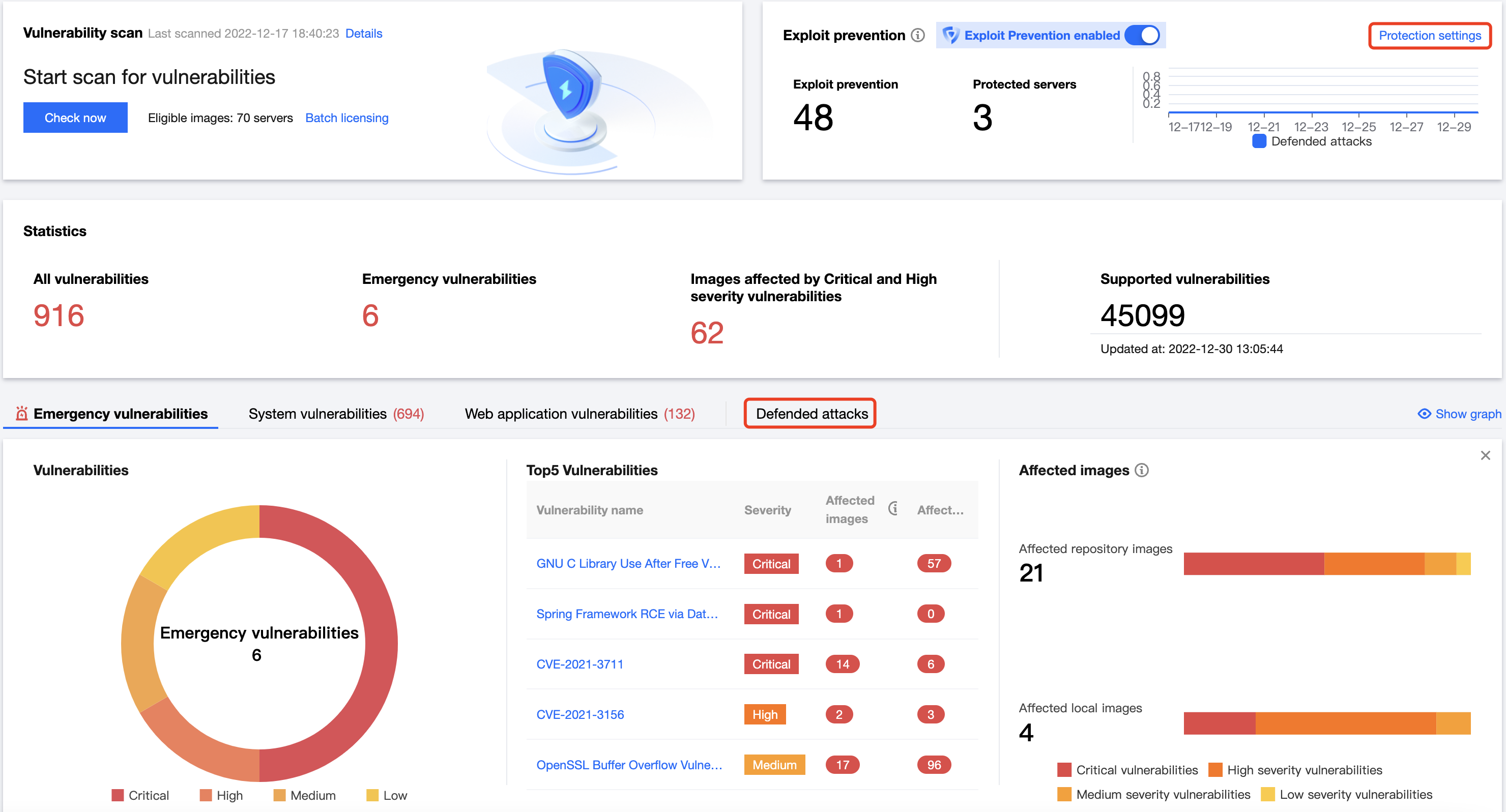
5. On the Vulnerability Detection page, click Protection settings to view or adjust the status of the exploit prevention switch, adjust the scope of protected nodes, and view the status of the prevention plugin on the node.
Viewing prevented vulnerabilities
1. After exploit prevention is enabled, you can filter vulnerabilities in the Defending status on the emergency vulnerabilities, system vulnerabilities, and application vulnerabilities pages to view the details.
2. Hover over the Defending icon to quickly view the numbers of protected nodes and defended attacks. In addition, you can click Protection settings to enter the prevention settings drawer and click Prevented attacks to enter the vulnerability attack event page.
Note:
If exploit prevention is not enabled, you can filter vulnerabilities in the Undefended status on the emergency vulnerabilities, system vulnerabilities, and application vulnerabilities pages to view the details.
Vulnerability attack event
1. On the Vulnerability Detection page, click Vulnerability attack event to view attacks that have been successfully defended against.
2. Click View details to view the attack IP, attack packet, and prevention plugin information. You can also click Image details to view the vulnerability details. We recommend you block attack IPs and fix vulnerabilities in business images.