Based on adaptive learning technologies, the abnormal process feature applies preset rules and custom check rules to monitor abnormal process startups and then trigger alerts or block the exceptions in real time. It consists of the event list and rule configuration modules. This document describes the rule configuration feature of advanced prevention.
Filtering and Refreshing Rules
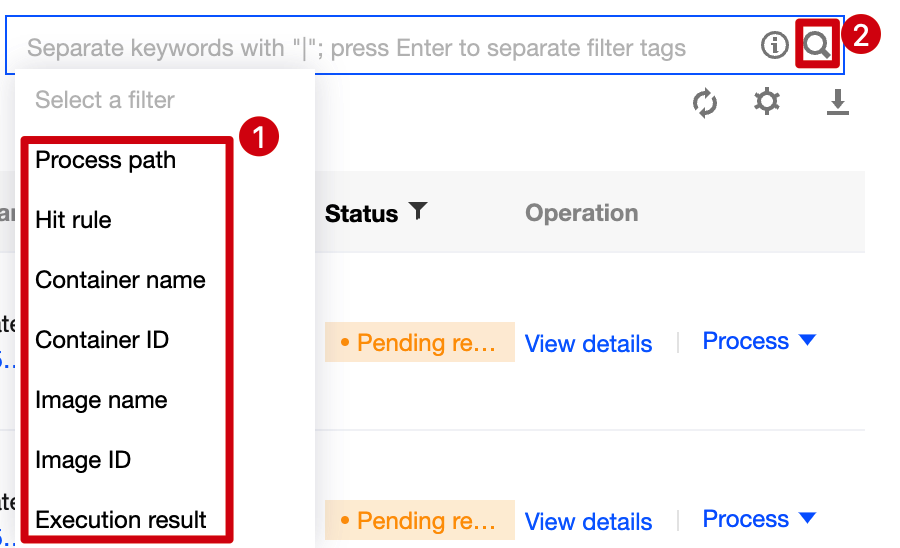
1. Log in to the TCSS console and click Advanced Prevention > Abnormal Processes > Rule configuration on the left sidebar. 2. On the Rule configuration page, click the search box and search for configured rules by rule name.
3. On the Rule configuration page, click on the right of the Operation column to refresh the rule list. Adding a Rule
1. Log in to the TCSS console and click Advanced Prevention > Abnormal Processes > Rule configuration on the left sidebar. 2. On the Rule configuration page, click Create rule.
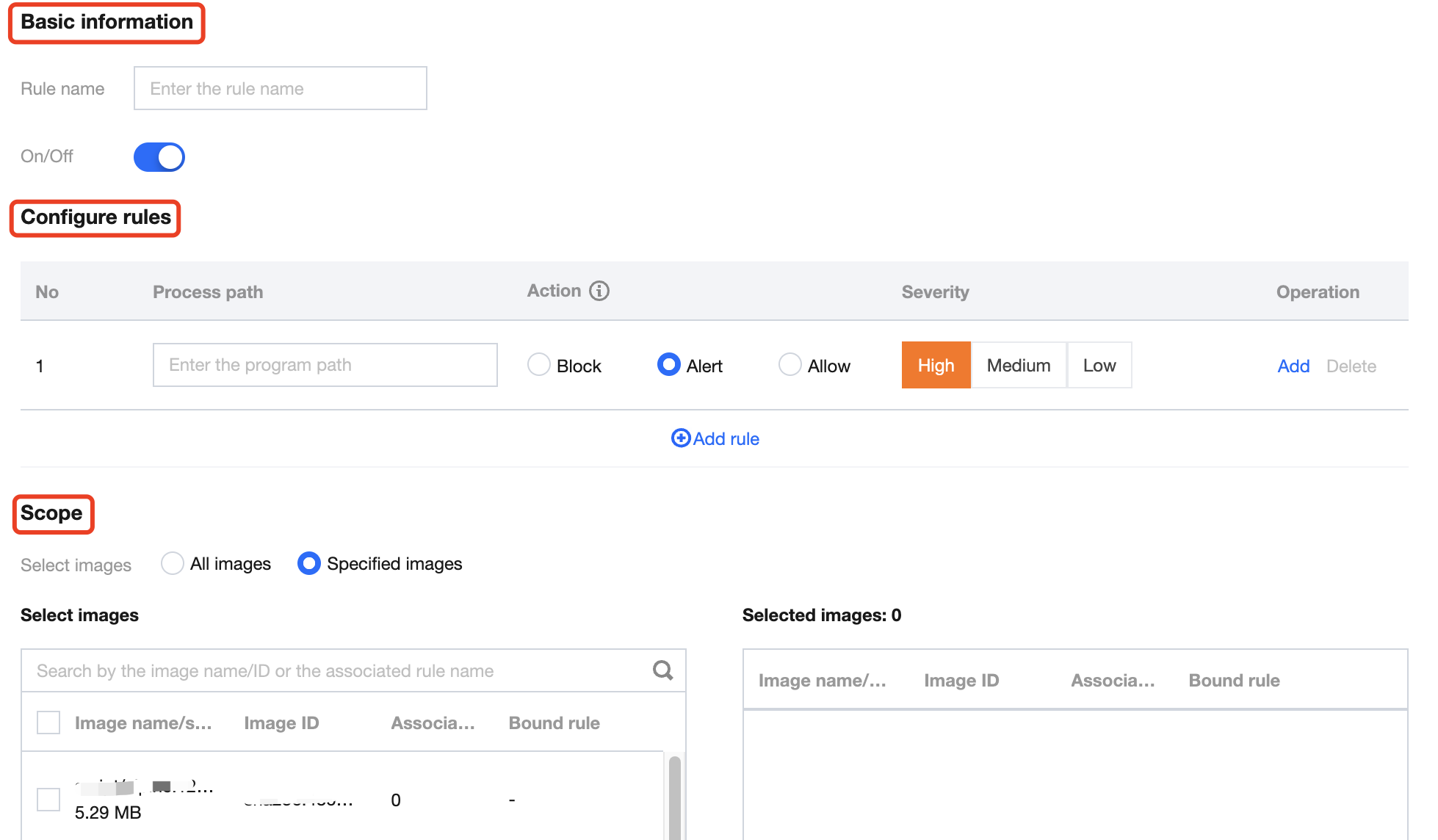
3. On the Add rule page, configure the basic information and rules and specify the scope.
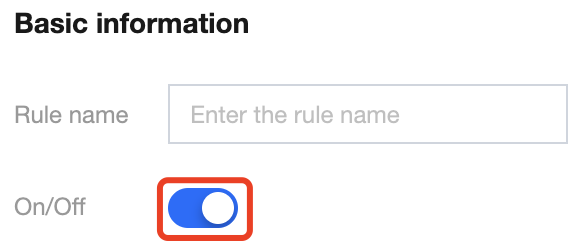
Basic information: Enter the rule name of the event. Toggle on or off to enable or disable rule check. Note:
This rule will no longer be executed once disabled.
Configure rules: Enter the process path and select the action. Click Add or Delete to add or delete a rule.
Note:
You can configure up to 30 rules.
Actions to be executed include:
Block: Once a rule is hit, the process will be blocked and the event details will be recorded.
Alert: Trigger alerts about the event, allow running of the process and log the event details.
Allow: When a rule is hit, the process will be automatically allowed without being recorded.
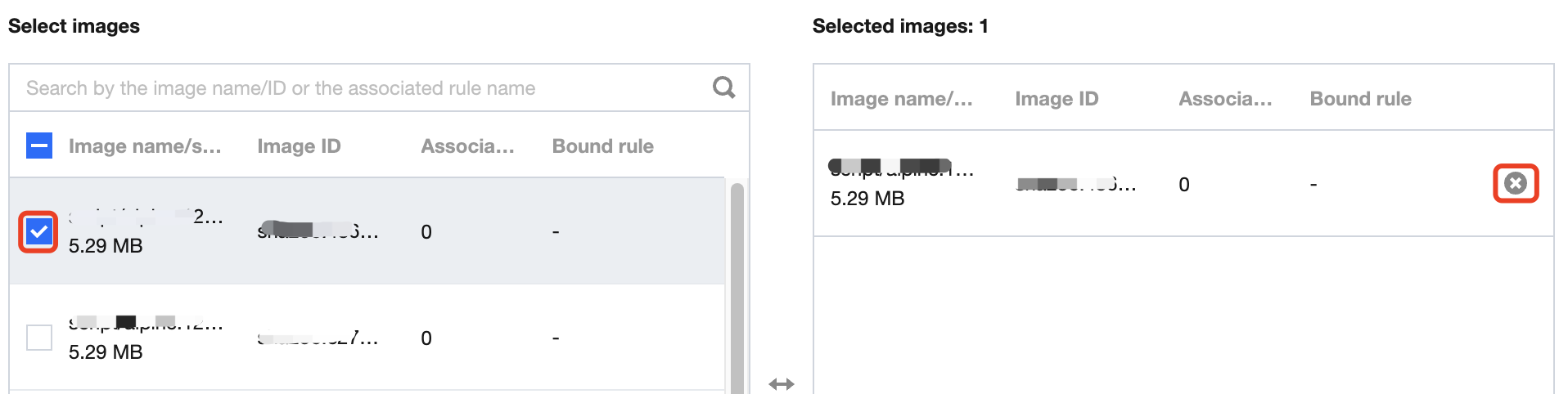
Images: All images or Specified images. Click or to select or delete the target specified image. Note:
You can press Shift to select multiple ones.
4. After selecting the target content, click Set or Cancel. Copying a Rule
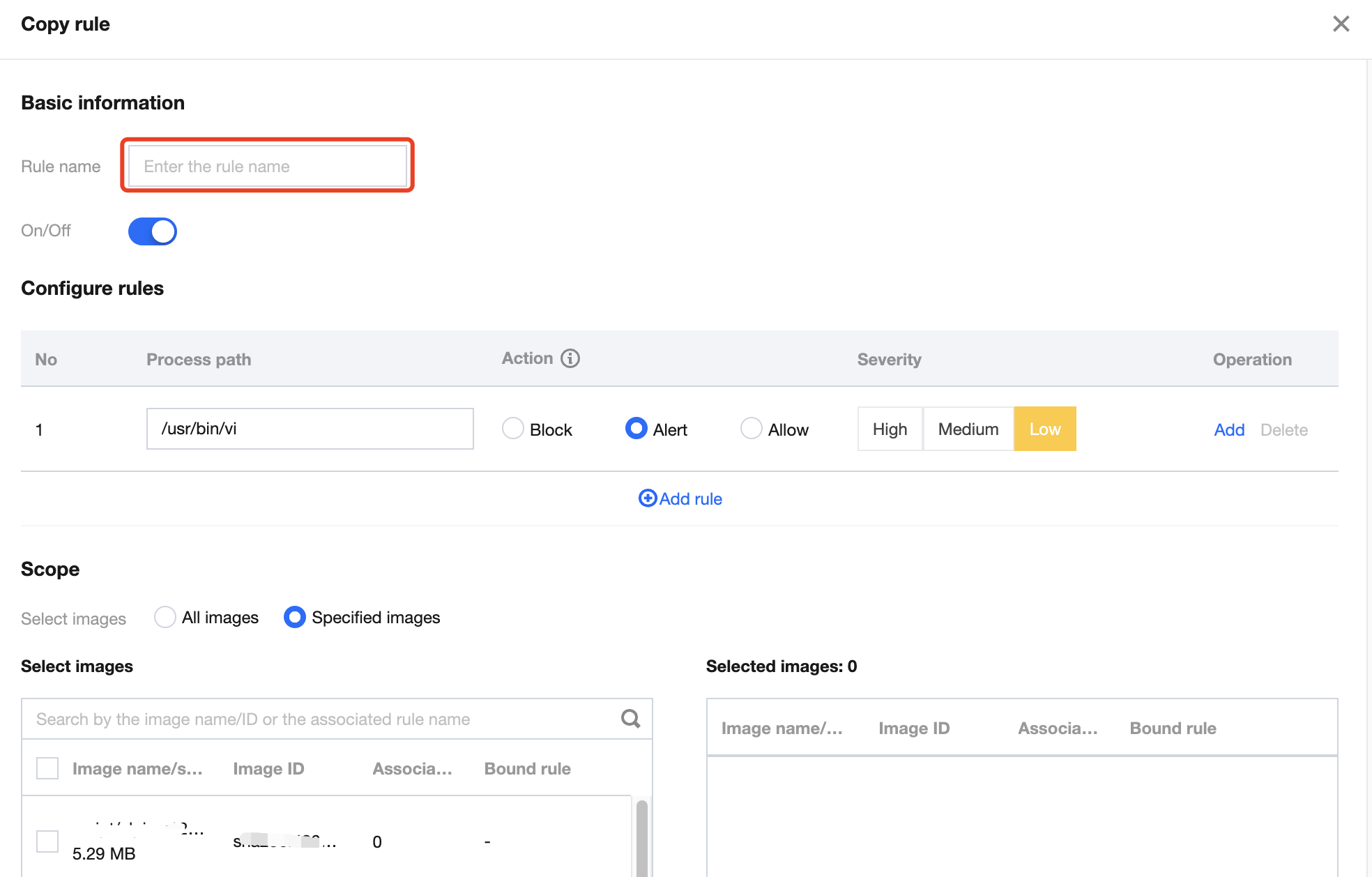
1. Log in to the TCSS console and click Advanced Prevention > Abnormal Processes > Rule configuration on the left sidebar. 2. On the Rule configuration page, click Copy on the right.
3. On the Copy rule page, enter the rule name, toggle On/Off, configure rules, and specify the scope.
4. After selecting the target content, click OK or Cancel.
Editing a Rule
1. Log in to the TCSS console and click Advanced Prevention > Abnormal Processes > Rule configuration on the left sidebar. 2. On the Rule configuration page, click Edit on the right.
3. On the Edit rule page, modify the basic information, configure rules, and specify the scope.
4. After selecting the target content, click OK or Cancel.
Deleting a Rule
1. Log in to the TCSS console and click Advanced Prevention > Abnormal Processes > Rule configuration on the left sidebar. 2. On the Rule configuration page, delete a rule in either of the following methods:
Select the target rule, click , and click Delete on the left in the Operation column.
Select the target rule and click Delete on the right.
3. In the pop-up window, click Delete or Cancel.
Note:
The rule cannot be recovered once deleted, and images associated with the rule will be automatically associated with the default system rule.
Exporting a Rule
1. Log in to the TCSS console and click Advanced Prevention > Abnormal Processes > Rule configuration on the left sidebar. 2. On the Rule configuration page, click to select the target abnormal process rule and click to export it. Note:
Click in the Operation column to select multiple ones. Custom List Management
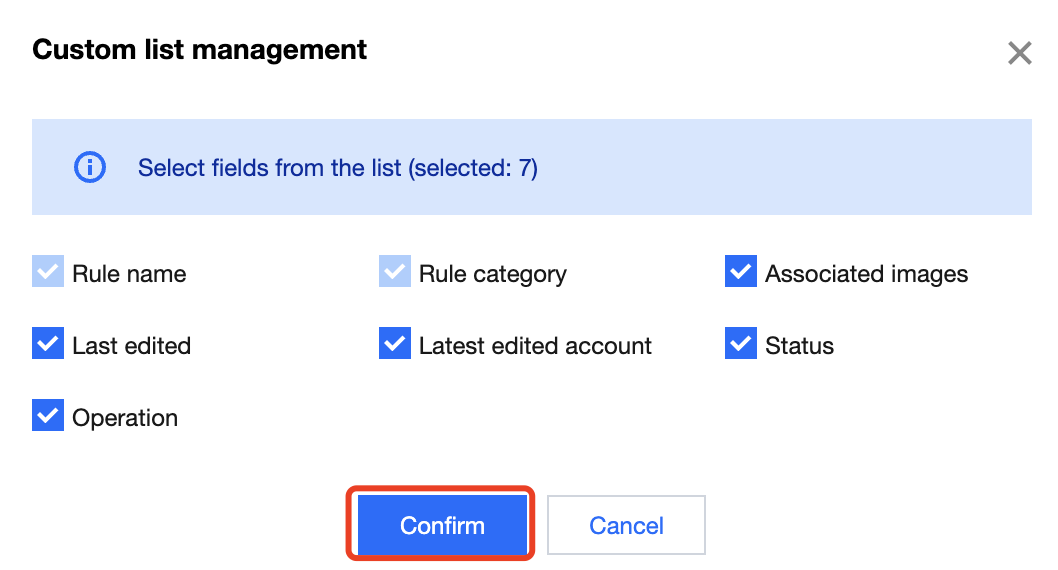
1. Log in to the TCSS console and click Advanced Prevention > Abnormal Processes > Rule configuration on the left sidebar. 2. On the Rule configuration page, click to pop up the Custom List Management window. 3. In the pop-up window, select the target type and click OK.
Key fields in the list
1. Rule category: Preset rule or custom rule.
2. Associated images: Number of images for which the rule takes effect. Click the number of affected images to pop up the drawer on the right, which displays the rule details.
3. Status: On/Off.
4. Operation: System rules can only be copied, and custom rules can be copied, edited, or deleted.