Starting Up and Shutting Down CVD Instances
フォーカスモード
フォントサイズ
This document describes how to search for, start up, and shut down Cloud Virtual Desktop (CVD) instances.
Prerequisites
Searching for CVD Instances
1. Log in to the CVD console.
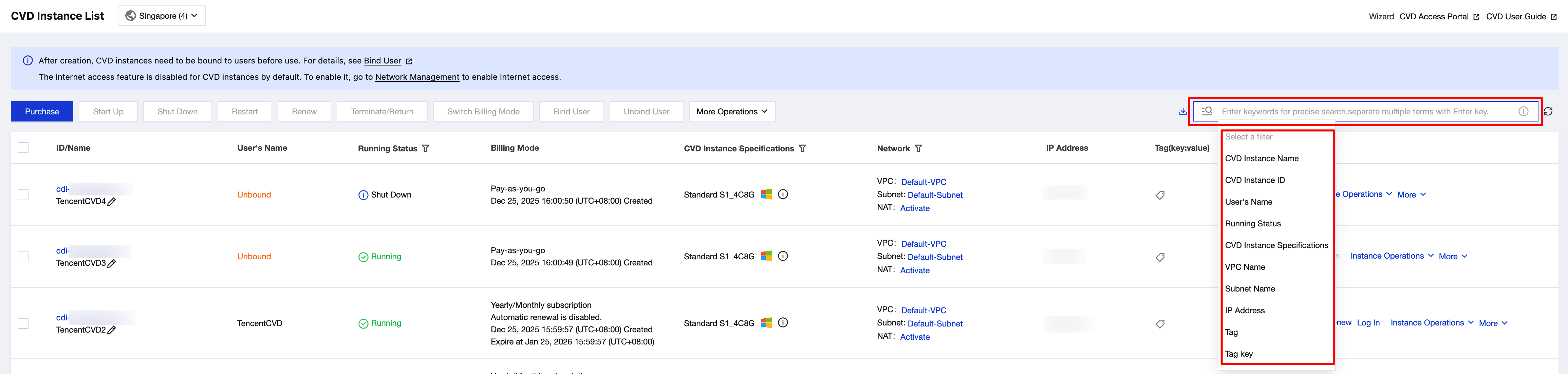
2. On the CVD Instance List page, select the desired resource attribute in the search box, enter the content to search for, and click Confirm or press the Enter key. You can repeat this operation for multi-attribute queries.
Starting Up CVD Instances
Use the console to start up CVD instances.
Note:
For pay-as-you-go CVD instances, computing resources are released when the instance is shut down. Therefore, subsequent attempts to start up the instance may fail. In this case, you can try starting it up again or starting it up at a later time.
Starting Up a Single CVD Instance
1. Log in to the CVD console.
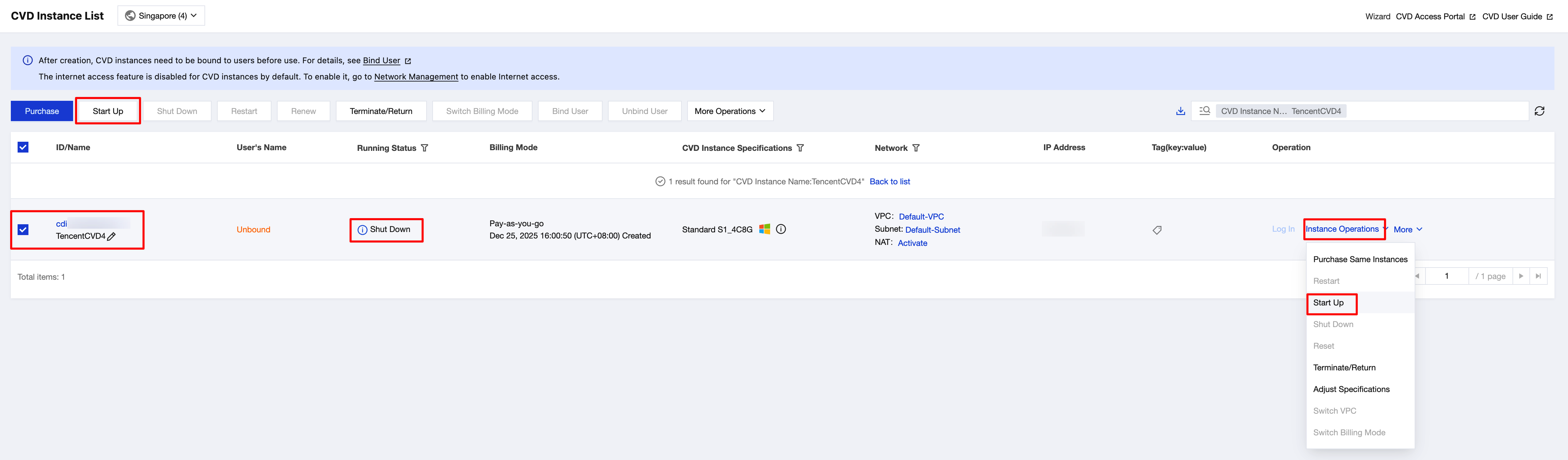
2. On the CVD Instance List page, select a CVD instance with an operation status of Shutdown, and then click Start Up in the operation bar at the top or choose Instance Operations > Start Up in the operation column on the right.
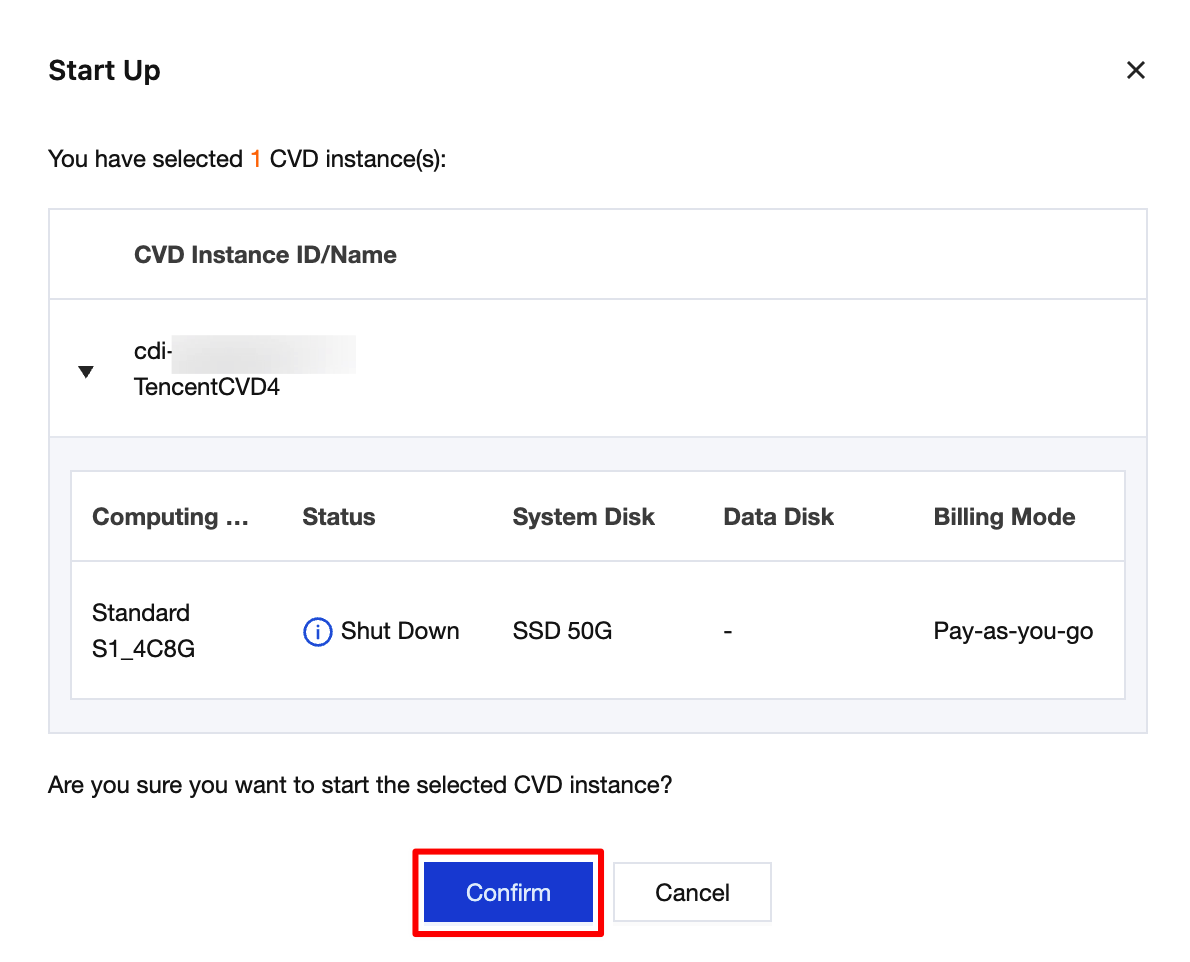
3. Confirm that the instance information is correct, and click Confirm.
Starting Up CVD Instances in Batches
1. Log in to the CVD console.
2. On the CVD Instance List page, select multiple CVD instances with an operation status of Shutdown, and then click Start Up in the operation bar at the top.

Shutting Down CVD Instances
Use the console to shut down CVD instances.
Note:
For pay-as-you-go CVD instances, computing resources are released when the instance is shut down. Therefore, subsequent attempts to start up the instance may fail. In this case, you can try starting it up again or starting it up at a later time.
Shutting Down a Single CVD Instance
1. Log in to the CVD console.
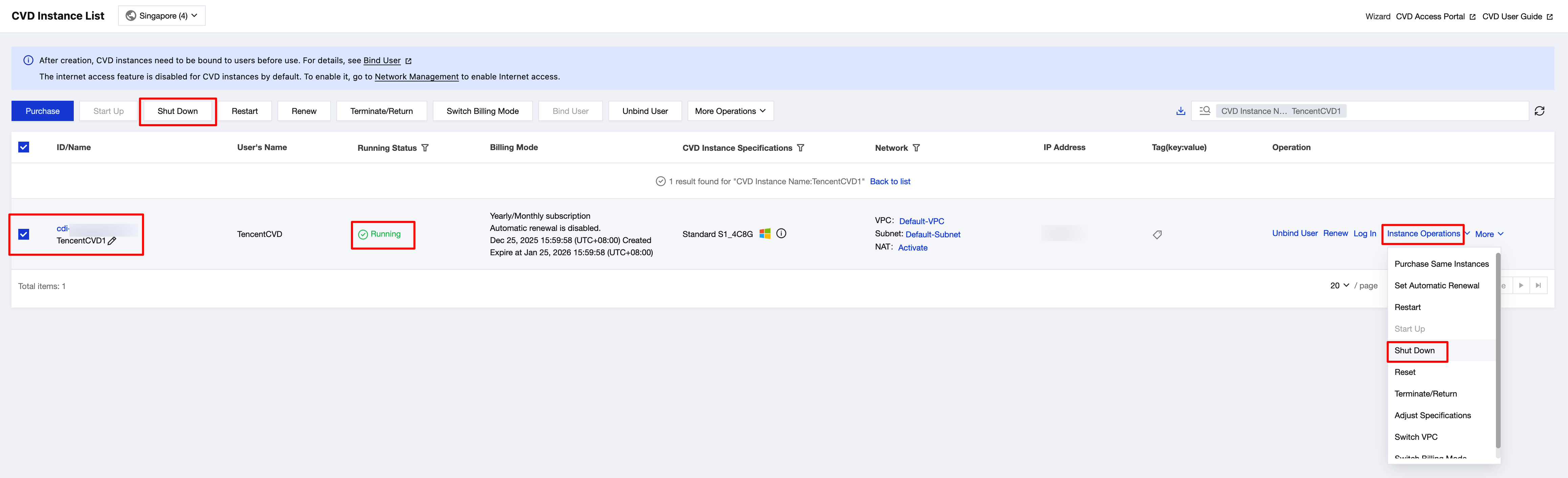
2. On the CVD Instance List page, select a CVD instance with an operation status of Running, and then click Shut Down in the operation bar at the top or choose Instance Operations > Shut Down in the operation column on the right.
Shutting Down CVD Instances in Batches
1. Log in to the CVD console.
2. On the CVD Instance List page, select multiple CVD instances with an operation status of Running, and then click Shut Down in the operation bar at the top.
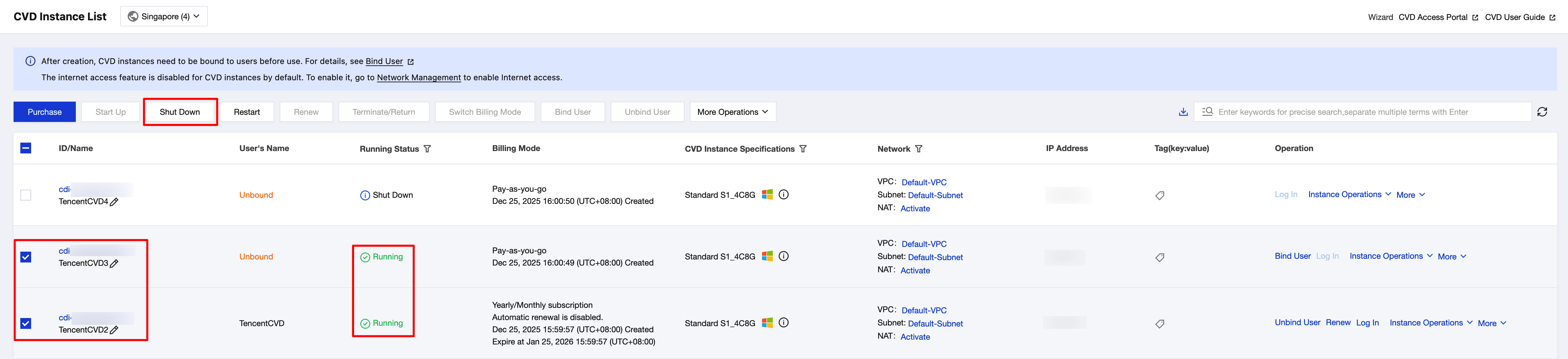
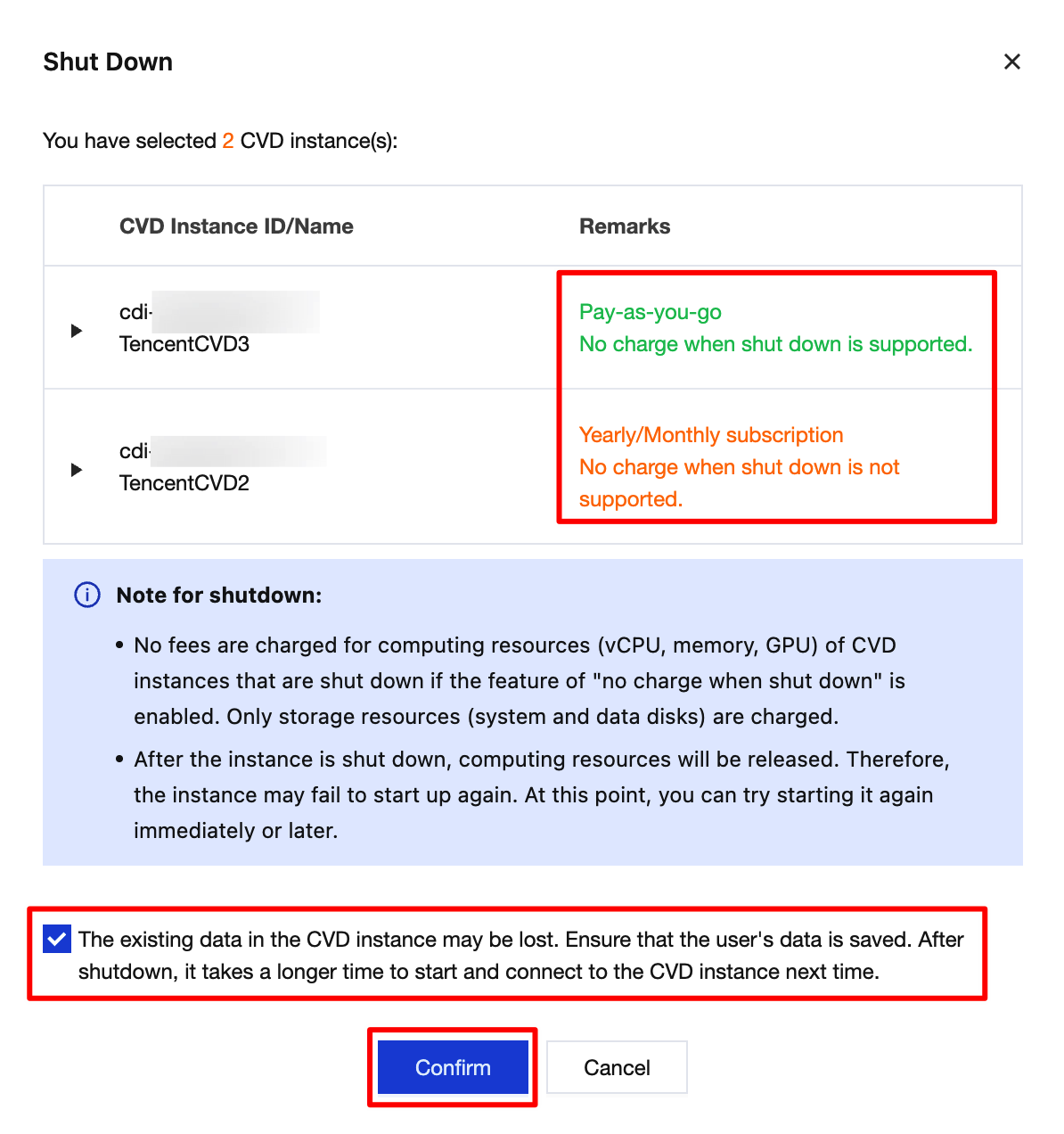
3. Pay-as-you-go CVD instances support pay-as-you-go billing for start-up and shut-down operations. Relevant prompts will appear when you choose to shut down CVD instances.
フィードバック