The Merge Node is a logical control node provided by WeData Data Development. It can perform logical judgments on the status of upstream task instances and set merge conditions for successful completion of the Merge Node. It is primarily used to solve issues where multiple branch tasks from Branch Nodes trigger downstream processes.
Use Limits
Note:
1. A Merge Node supports up to 50 merge conditions.
2. The Merge Node does not currently support cross-project cloning.
3. The Merge Node does not support adding upstream dependency tasks in Scheduling Settings. You can only configure upstream dependencies on the details page of the Merge Node.
Using Merge Node
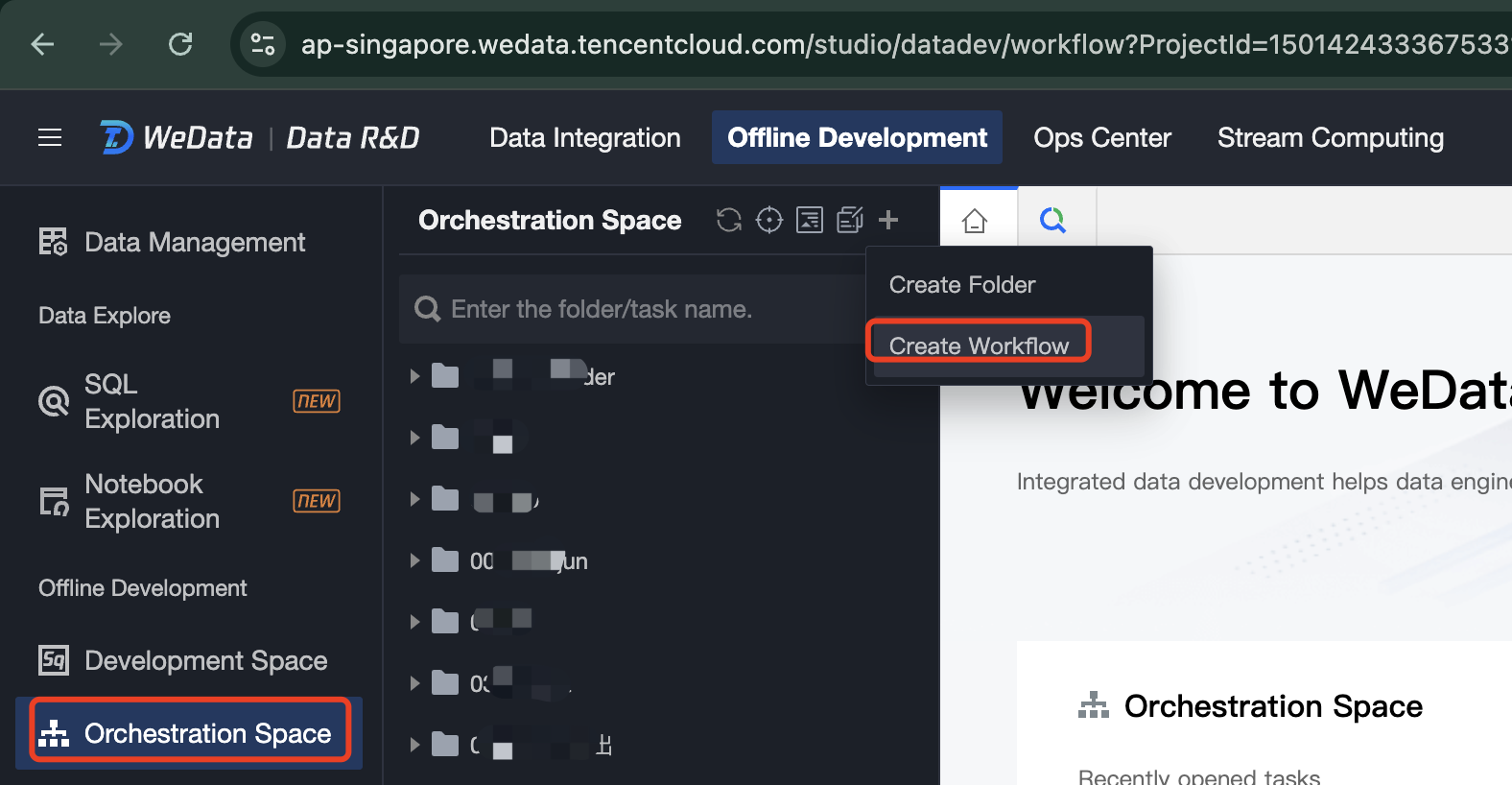
Enter the WeData console, go to Project Management, click Data Development in the project list. After entering the Data Development module, switch to Data Development > Orchestration Space interface.
1. Create a new workflow in the top left corner of the Orchestration Space.
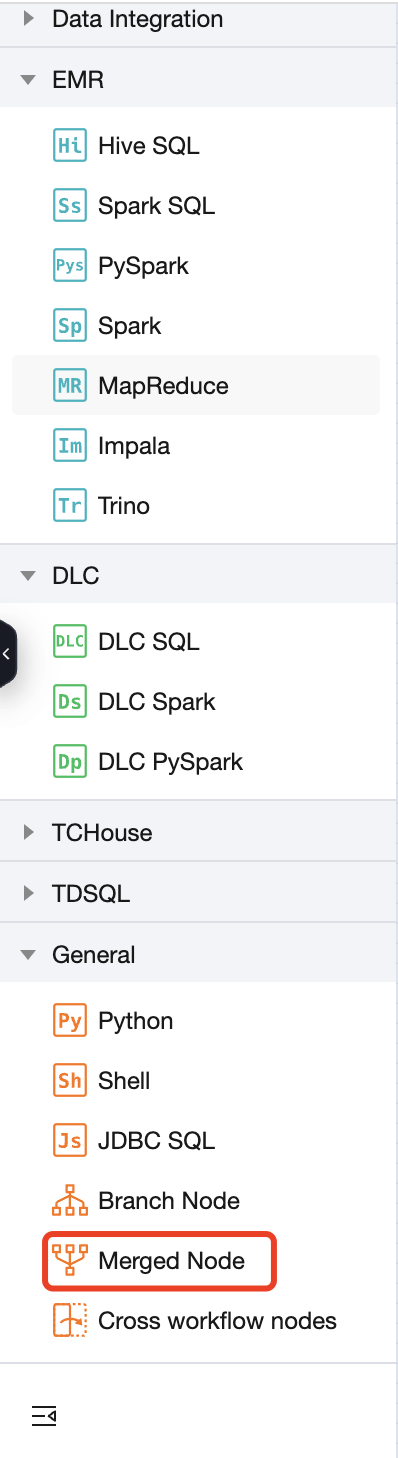
2. Double-click the Workflow, and under General, click Branch Node to create a Merge Node.
3. In the new Merge Node task dialog box, enter the task name and click Confirm Task Creation to enter the Merge Node configuration interface.
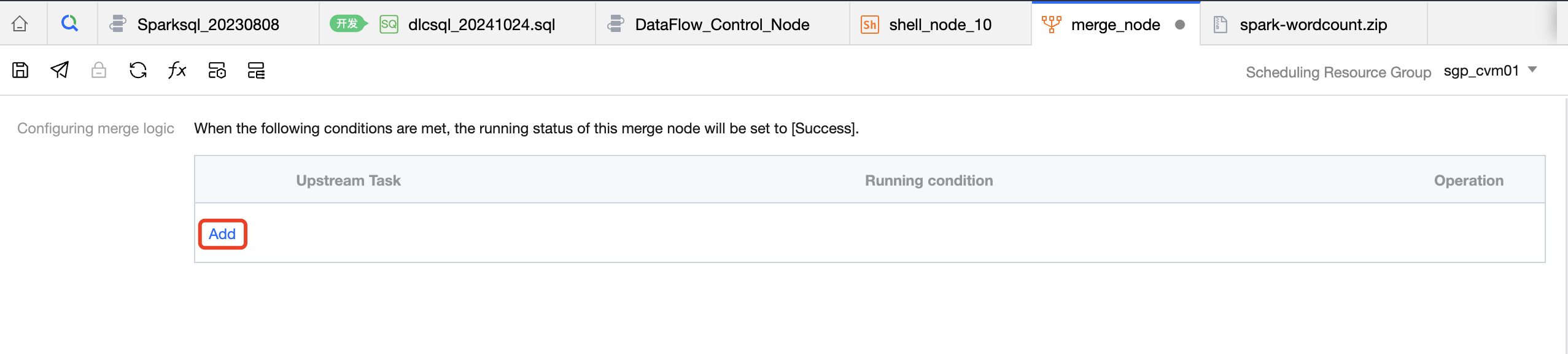
4. Merge Node Configuration. Click the Add button under the upstream tasks of the Merge Node to add merge conditions.
Parameter name
Parameter description
Upstream Tasks
The upstream tasks that need to be judged by the Merge Node.
Selection Restriction:
Note:
Duplicate selection of already selected upstream tasks is not supported.
Selection of direct downstream and indirect downstream tasks of a merge node is not supported.
Selection of branch nodes is not supported
Run Condition
When the merge node is successfully set up, you need to determine the final status of the upstream task instance. The default is: Success or Branch Not Executed.
Success: The upstream task instance runs successfully.
Branch Not Executed: The upstream task instance does not meet the branch node criteria and is skipped.
Failure: The upstream task instance fails to run.
Relationship Between Run Conditions
The relationship between multiple upstream task run status conditions defaults to 'or', but can be set to 'and'.
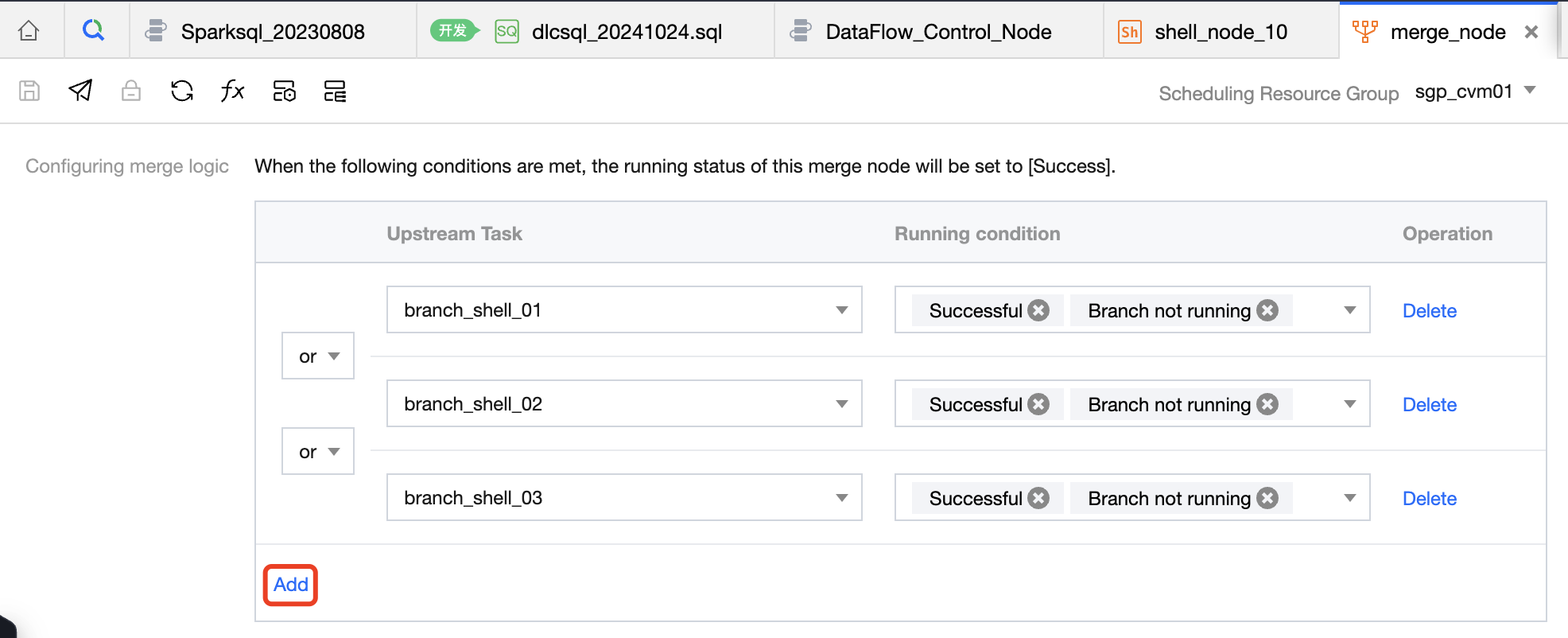
For example, set any of the upstream task instances branch_shell_01, branch_shell_02, branch_shell_03 to reach a final state and be in a successful state, then set the current merge node to a successful state.
5. Other tasks can be configured downstream of the merge node to trigger downstream tasks after a successful merge.
6. Click Submit on the workflow toolbar, select the current workflow's task to submit, and check the instance status in the periodic scheduling.
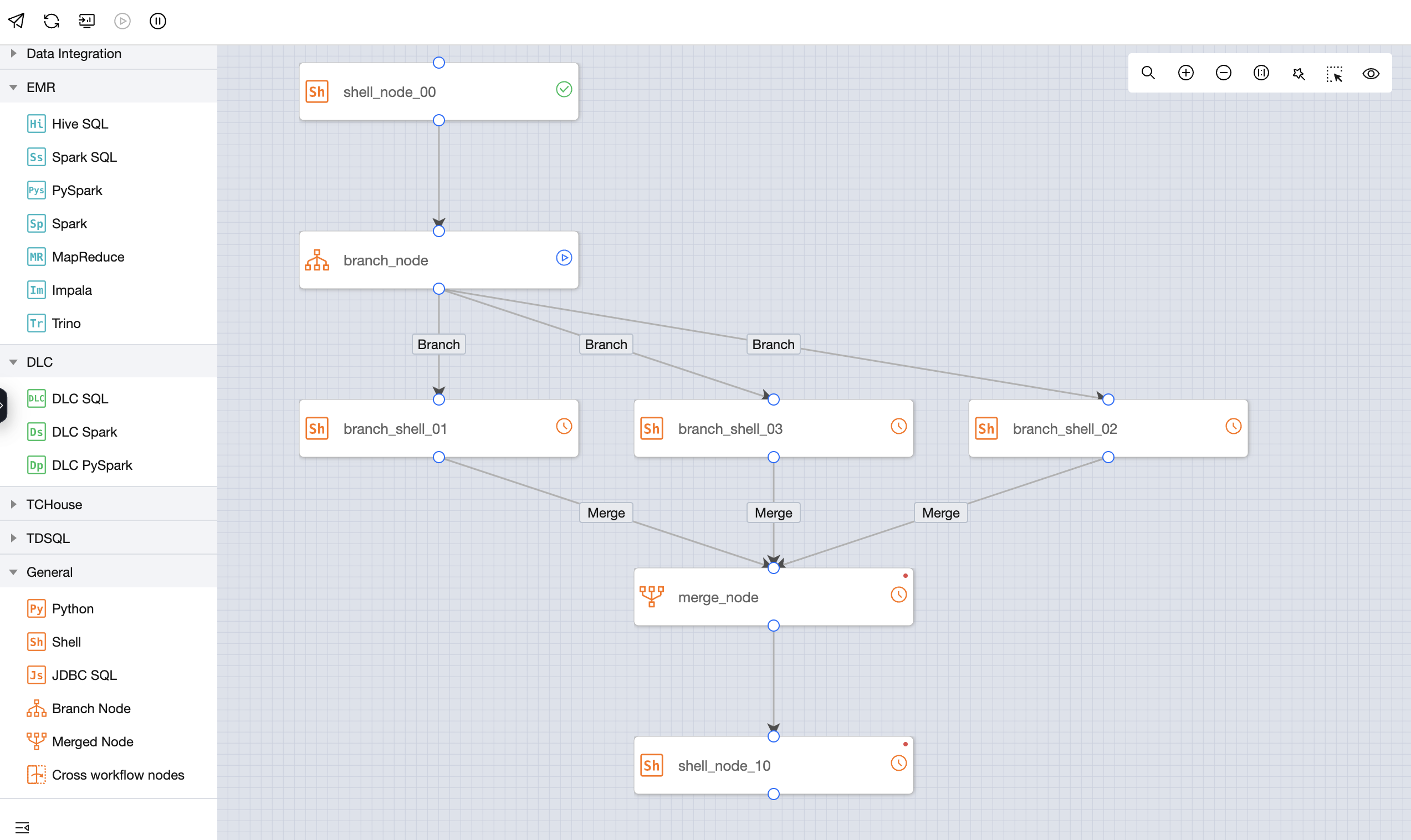
2. Create a merge node: merge_node in the workflow DataFlow_Control_Node.
3. For the upstream tasks of the merge node, select: branch_shell_01, branch_shell_02, branch_shell_03. The default run conditions are: Success, Branch Not Executed. The relationship between multiple upstream task conditions is set to 'or'. After configuration, Save the task.
4. To facilitate testing, configure a shell task node downstream, depending on the merge_node.
The final configuration effect is as follows:
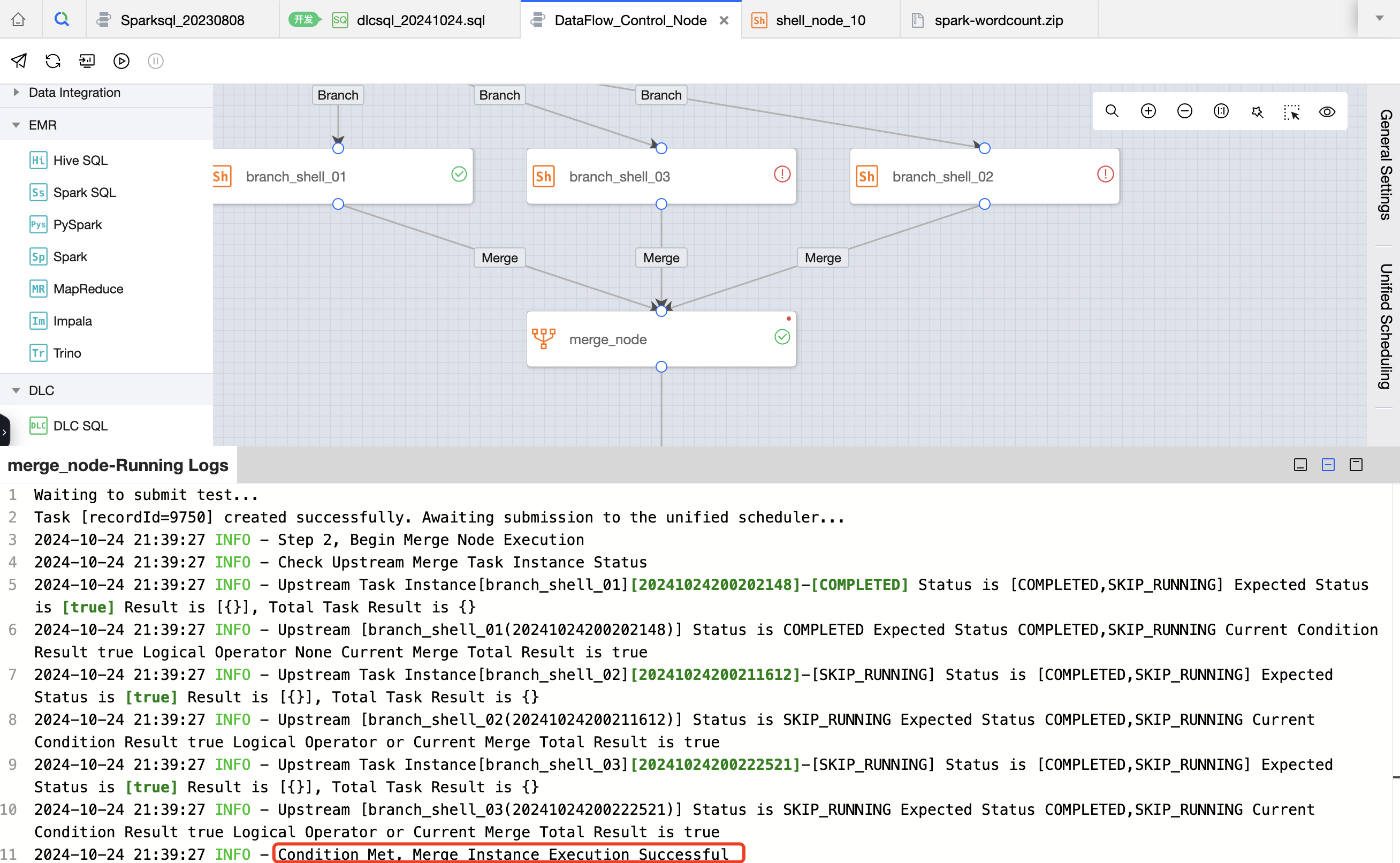
5. Workflow test run.
Click on the workflow test run in the workflow toolbar to test the entire workflow. After the merge node completes its run, check the running log of the merge node. The merge node assesses the status of upstream tasks to check if they meet the criteria, and sets the merge node to Success.
6. Submit the workflow to the schedule.
Click Submit on the workflow toolbar, select the newly added merge node and downstream task node in the current workflow to submit, and check the instance status in the periodic scheduling.