Dynamic Release Record (2026)
Code Template
Feature Overview
Code templates provide code reuse capabilities. By creating a single piece of code, it can be used across multiple tasks, enabling both code reuse and centralized management.
Usage Scenario
In real development scenarios, there are often large amounts of similar SQL code where the business logic is identical, and only certain parts differ. For example, the input and output tables may share the same structure but differ in name. In such cases, developers can abstract the SQL into a template, defining the varying parts as parameters. By referencing the template in tasks and configuring different parameter values, SQL code reuse can be achieved.
Feature Description
Entering Code Template
1. log in to WeData console.
2. In the left-hand menu, click Project List and locate the target project where you want to configure the alert rules.
3. After selecting the project, click to enter the Offline Development module.
4. In the left-hand menu, click Code Templates.
Creating a Template
Click the icon in the upper left corner to unfold the menu, then click Create Template.
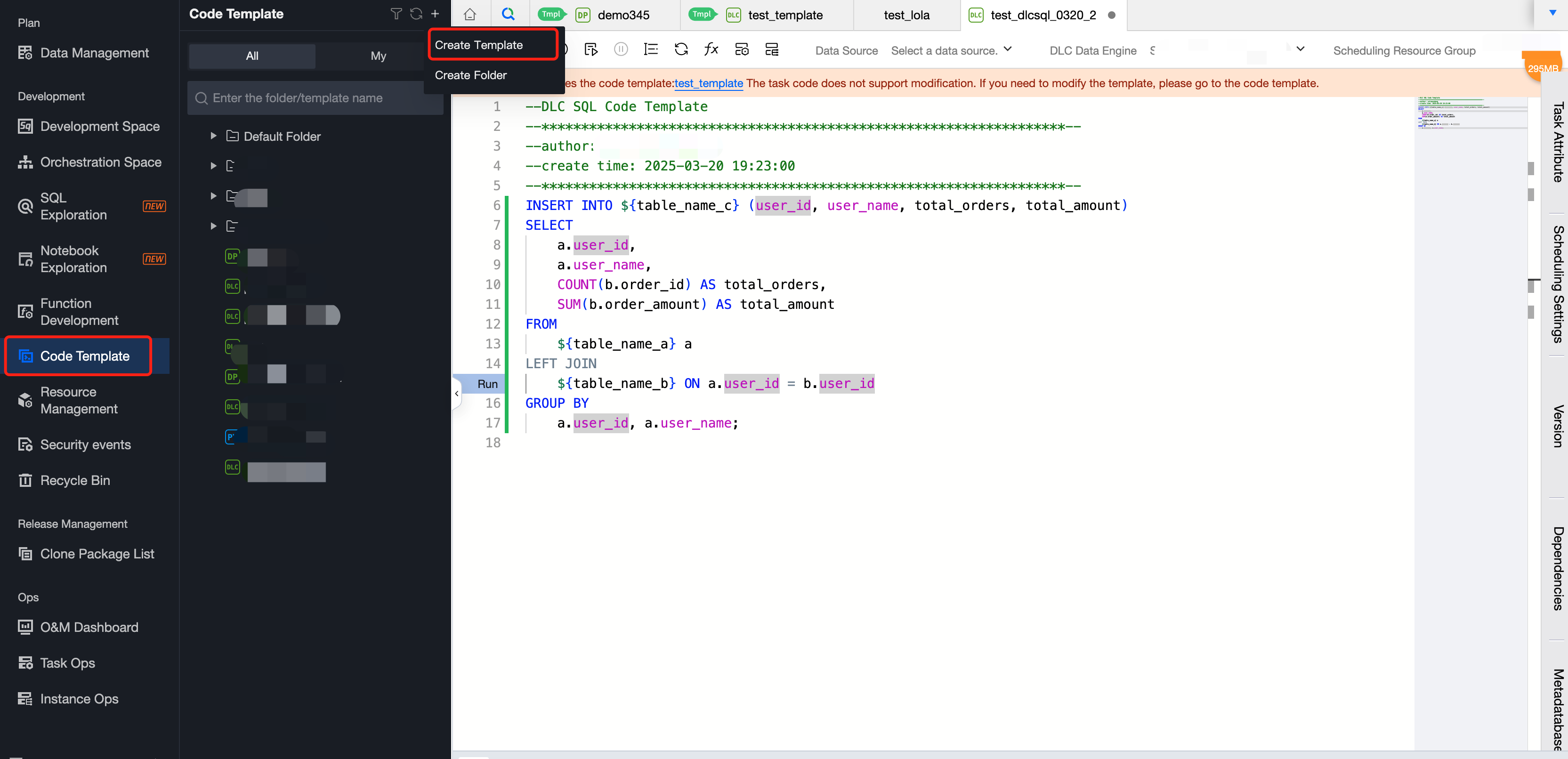
Step One: Create New Code Template
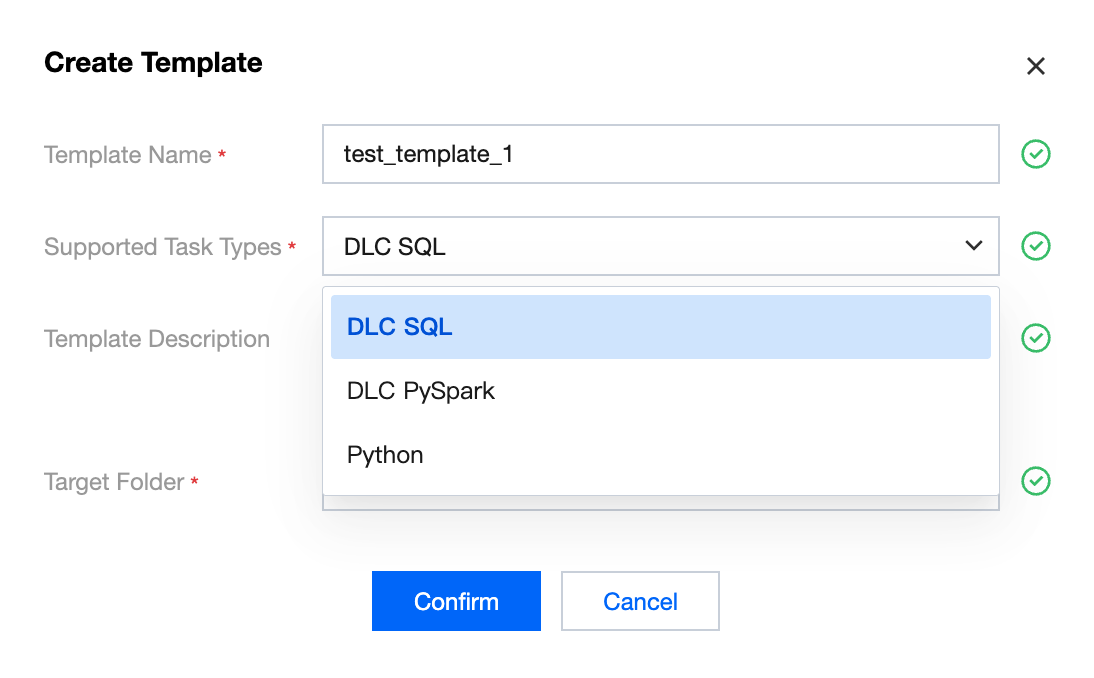
Template Name: Define the definition template name.
Currently supports DLC SQL, DLC PySpark, and Python. Select the task type(s) the template will be applied to.
Template Description: Provide a description of the template.
Target Folder: Define and select a folder based on business needs to facilitate template management.
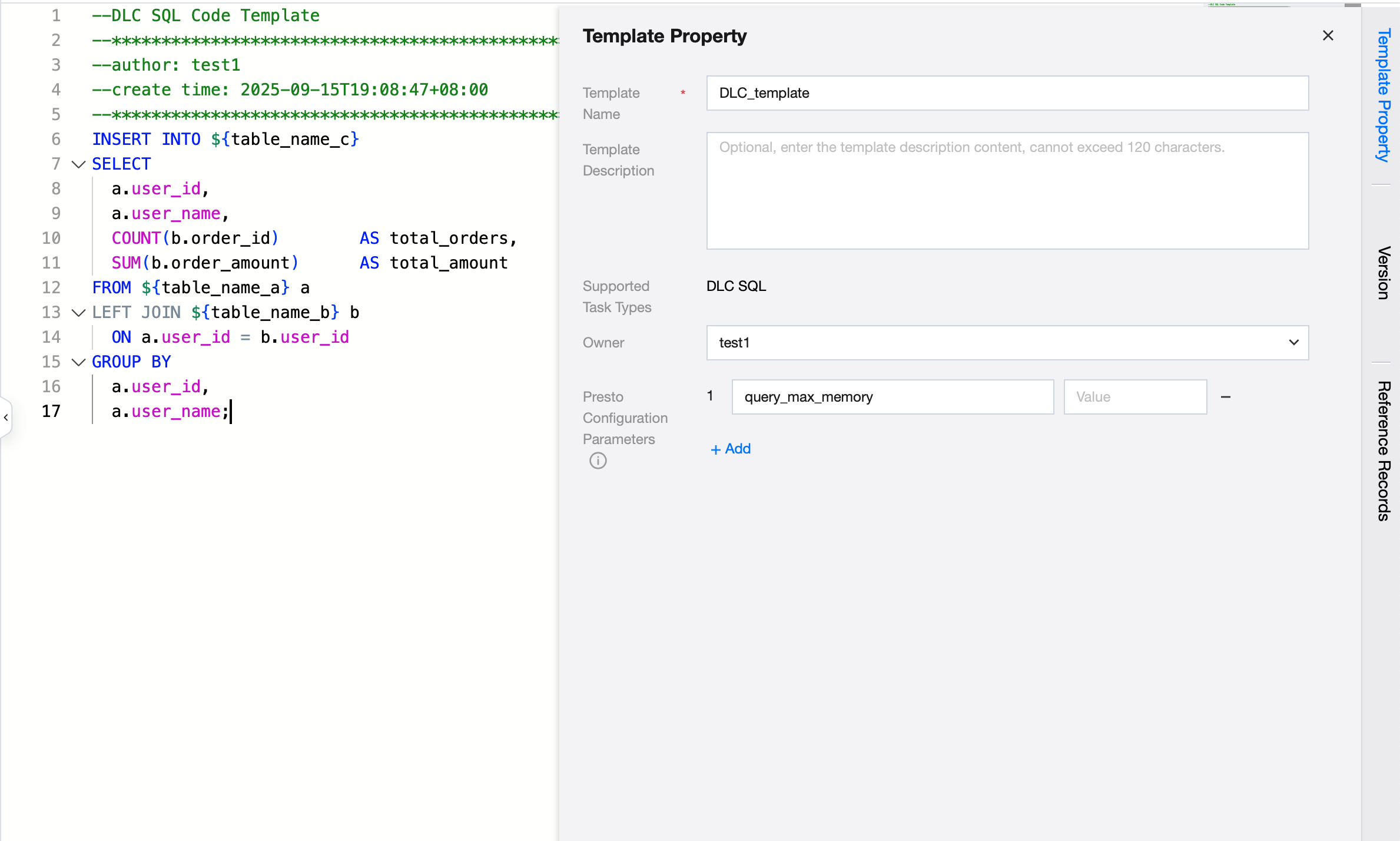
Step Two: Configure Template Content and Submit
Code editor: Configure template code content, parameters can be defined via ${}.
Template property configuration:
Attribute | Content |
Template Name | Definable or modify template name, support Chinese, English, digits, underscore (_) and hyphen (-). |
Template Description | Define or modify the template description. |
Owner | By default, the creator is set as the owner when the template is created. You can later update the owner through this option. |
Other running parameters | Depending on the task type supported by the template, different runtime parameters may be displayed. These parameters only take effect when running a template test, and will not affect tasks that reference the template. Each task referencing the template must configure its own parameters separately. For example, a DLC SQL task can configure Spark SQL parameters for testing the current template. Required parameters and definitions can refer to the detailed description of the compute task node. |
Resource Configuration | Select from existing resource groups or custom resources to run the template |
Network Configuration | Bind network configurations to tasks to enable access to specified network data. View detail in DLC Data Engine - Network Configuration. |
Version
You can view detailed information about the template’s version history, as well as perform comparison and rollback operations. After a rollback, the template must be resubmitted for the changes to take effect.
Reference Records
Supports viewing the tasks that reference the current template, making it easier for users to manage templates.
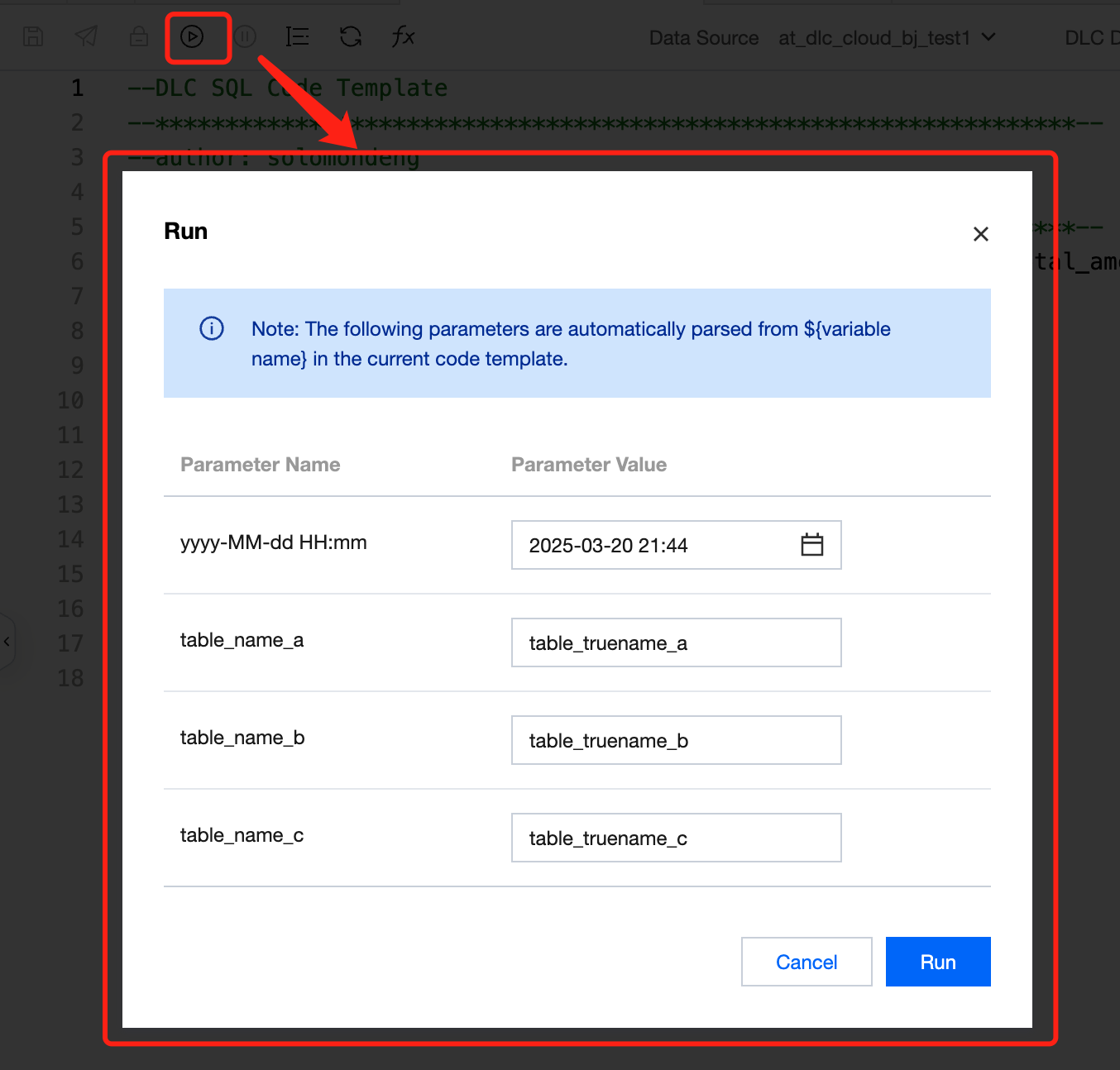
Step 3: Test-Run
After editing the template, you can perform a test run. Click Run action above the editor, define the parameter values, and then execute the test. The run results and logs can be viewed directly on the current page.
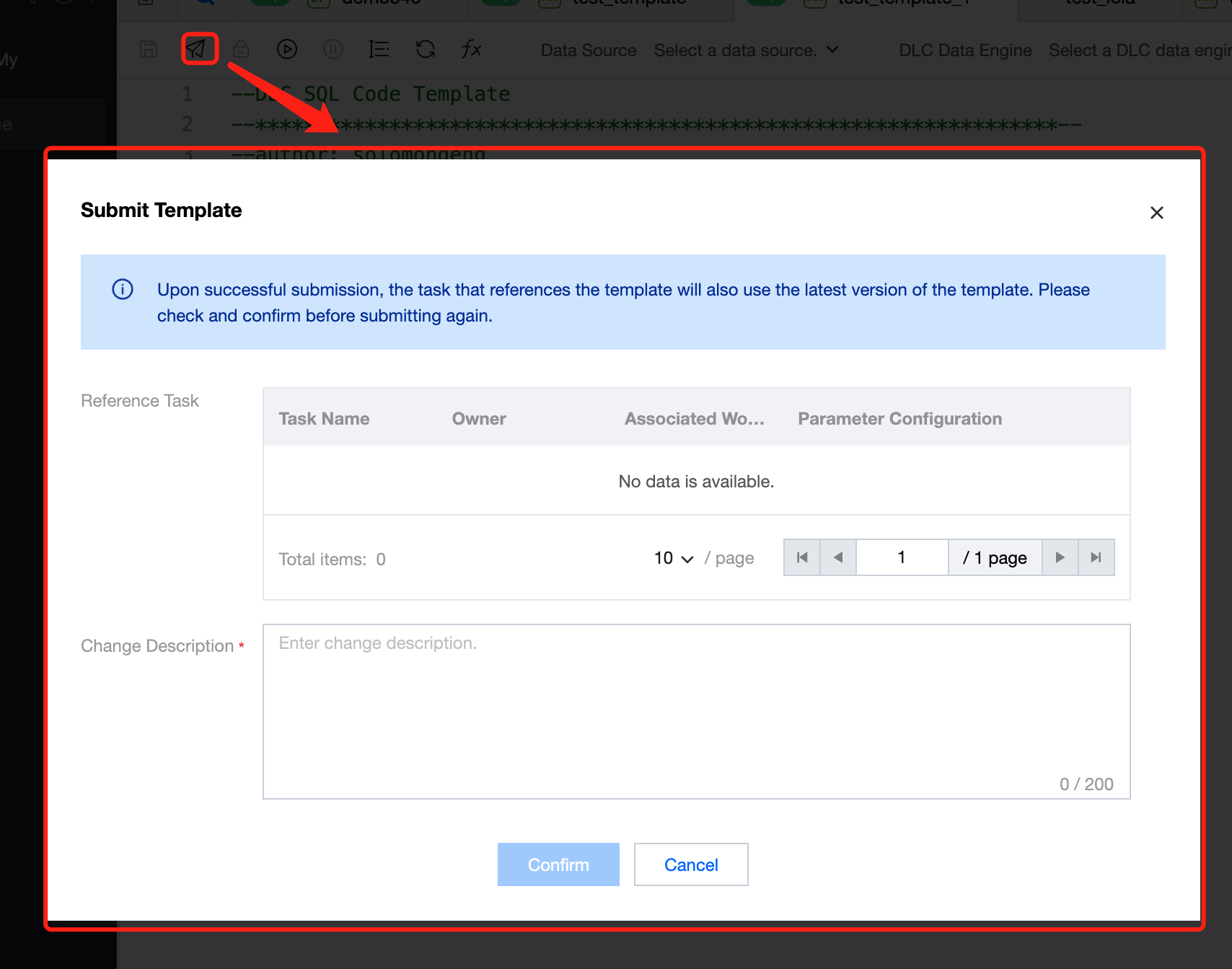
Step 4: Submit
After the test passes without issues, you can proceed to submit. Click the Submit action above the editor to complete the submission. Once submitted, tasks that reference the template will use the latest version of the template code in the production environment.
Step One: Create a Task
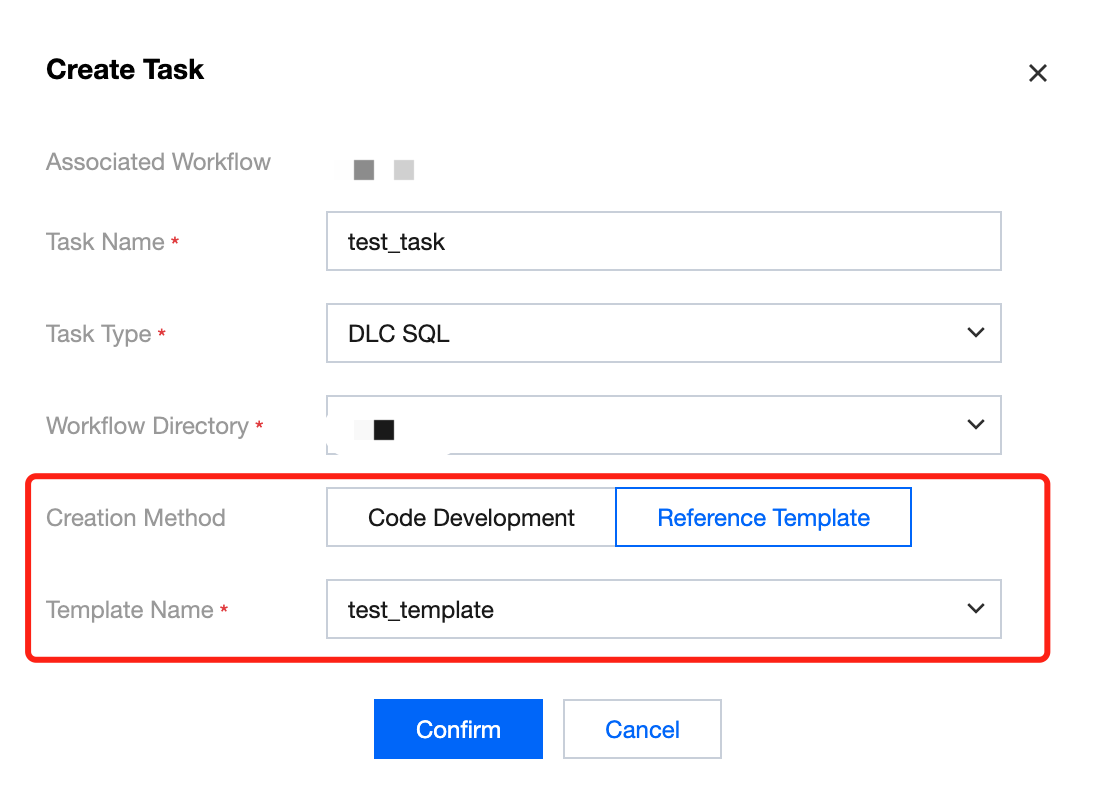
1. Enter the Offline Development > Orchestration Space > Workflow Directory, and click in the upper right corner Create Task.
2. When creating a new task, if the task type is DLC SQL, DLC PySpark, or Python, you can choose to create the task by referencing a template. Once a template is referenced, the template code will be displayed in the task’s code editor and cannot be modified.
Creation Method: Select Reference Template
Template Name: Select the name of the template to reference
Note:
Tasks will only reference the code content of the template; other configurations such as scheduling resource groups and data sources are not included.
The template feature is supported only for the following task types: DLC SQL, DLC PySpark, and Python.
Only templates that have been submitted can be selected when creating a task.
Step Two: Configure Template Parameter Values
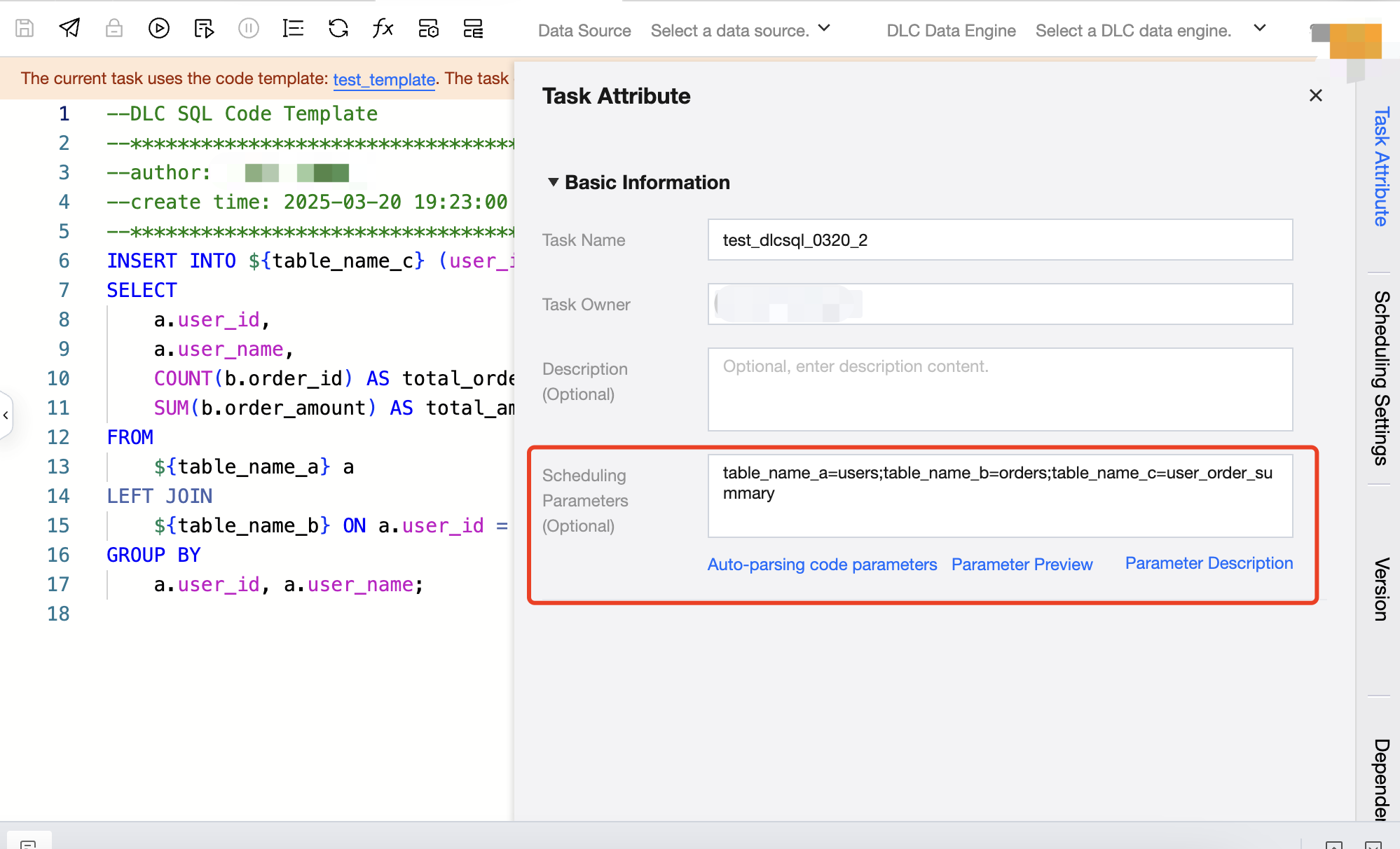
In Task Attribute > Scheduling Parameters, configure the values of template parameters.
You can manually fill in the parameter name and value.
You can also click auto-parse code parameters, define parameter values, and click Confirm to complete the configuration of template parameter values.
Modifying a Template
For tasks that reference a template, you cannot directly modify the task’s code. Instead, you must update the code within the template. The modification process is as follows:
1. Open the code template and edit the code content.
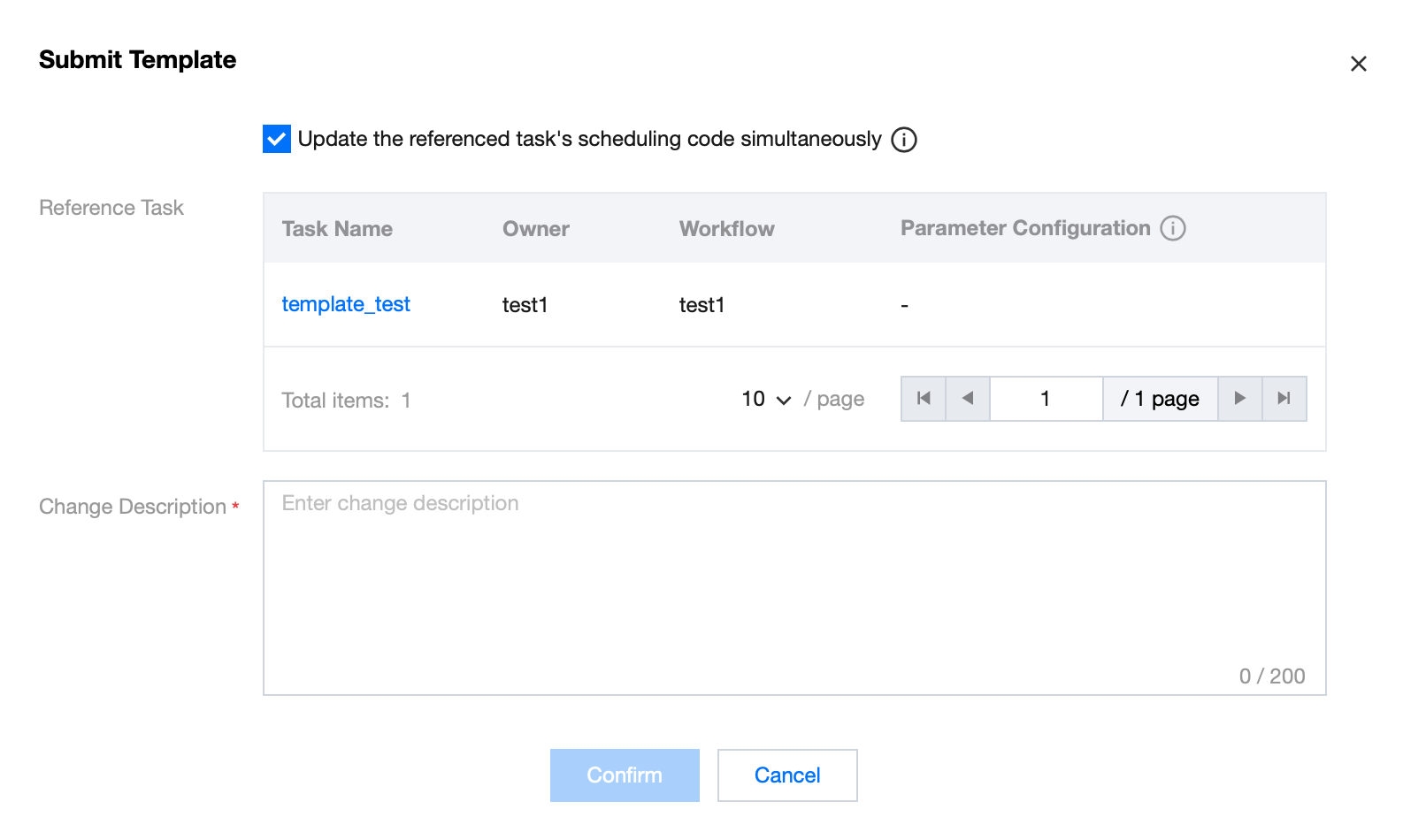
2. Submit: In an update scenario, if new parameters are added when submitting the code template, you can configure parameter values for the tasks referencing the template during submission. The configured parameter values will be automatically filled into the corresponding task scheduling parameters, so there is no need to resubmit the tasks.
When submitting, the option “Update the referenced task's scheduling code simultaneously” is selected by default:
Checked:
For new tasks or tasks in the Offline state, the saved version in the Orchestration Space will be updated.
For tasks in Scheduling, Paused, or Invalid states, the saved version in the Orchestration Space will be updated, and tasks in the Scheduling state will run using the updated code (i.e., the changes in this code template take effect in scheduling).
Unchecked: For tasks in all states, only the saved version in the Orchestration Space will be updated.
Help and Support
Was this page helpful?
You can also Contact sales or Submit a Ticket for help.
Help us improve! Rate your documentation experience in 5 mins.
Feedback