The primary programming language for mini programs is JavaScript. You can use JavaScript to develop business logic and call APIs of mini programs to fulfill business requirements.
ECMAScript
For most developers, ECMAScript and JavaScript are the same thing, but strictly speaking, they are different. ECMAScript is a standard for scripting language and it is standardized by Ecma International in the document ECMA-262. JavaScript is an implementation of ECMAScript. Knowing this helps you understand that JavaScript in mini program development is different from JavaScript in browsers and in NodeJS.
ECMA-262 specifies components of the ECMAScript language:
1. Syntax
2. Types
3. Statements
4. Keywords
5. Operators
6. Objects
JavaScript components in web browsers:
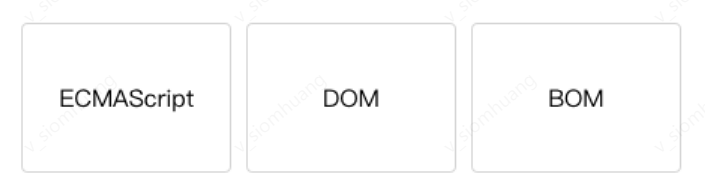
JavaScript in browsers has three important components: ECMAScript, Browser Object Model (BOM) and Document Object Model (DOM). These two object models, which are very familiar to web developers, allow developers to manipulate browser performances, such as modify URLs, modify page rendering, and record data. The JavaScript composition in NodeJS is shown in the following figure:
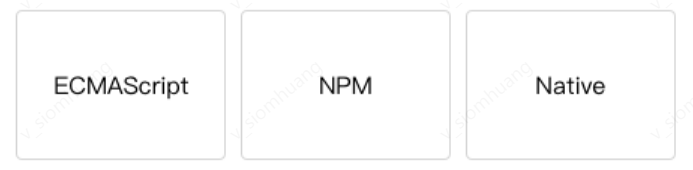
JavaScript in NodeJS is composed of ECMAScript, NPM and Native modules. NodeJS developers are very familiar with the NPM, the package manager. They can use various packages to implement features and use some native modules, such as FS, HTTP, OS, to have some capabilities that the language itself does not have.
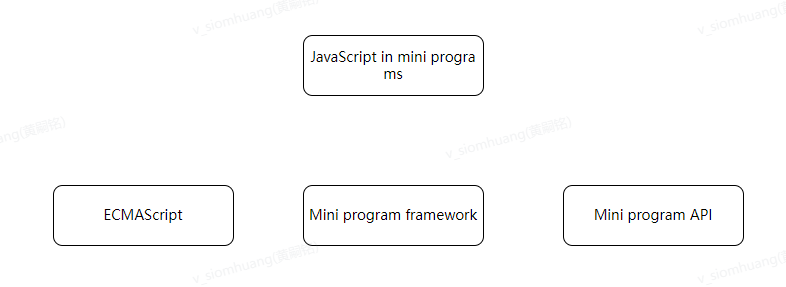
However, different from the above mentioned environment, the mini program JavaScript compositions are as follows:
The JavaScript in mini programs is implemented by ECMAScript, as well as the mini program framework and APIs. Compared with JavaScript in browsers, there are no BOM or DOM objects, so JavaScript libraries such as JQuery and Zepto cannot run in mini programs. Similarly, due to the lack of Native modules and NPM package manager, neither native libraries can be loaded in mini programs nor most NPM packages can be directly used.
Mini program runtime environment
After understanding that JavaScript in mini programs is different from that in browsers and NodeJS, you also should be aware that the script execution environment for mini programs on different platforms is also different.
Mini programs can now run on three platforms:
iOS, including iOS9,10 and 11
Android
Mini program IDE
The ECMAScript standards are different for mini program implementation in these three platforms. Up to now, there are a total of seven versions of ECMAScript standard. Currently, most developers use ECMAScript 5 and ECMAScript 6 standards. However, for mini programs, the runtime environment used by iOS9 and iOS10 is not fully compatible with ECMAScript 6 standard. Some syntax and keywords specified in ECMAScript 6 are not available or different from the standard, such as:
Arrow functions
let const
Template strings
…
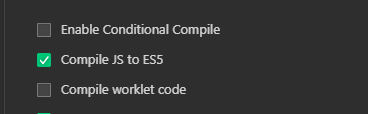
You may find that some code has syntax errors on mobile phones with earlier operating systems. In order to solve this problem, the mini program IDE provides syntax transcoding tools to help you convert ECMAScript 6 code into ECMAScript 5 code.
You need to check converting ES6 to ES5 in the project settings to use this feature.
Modularization
In browsers, JavaScript is running in the same scope, and the defined parameters or methods can be accessed or overridden by subsequently loaded scripts. Unlike browsers, mini programs can use any JavaScript file as a module and expose APIs through module.exports or exports.
For example, B.js references module A and uses the `multiplyBy2` method exposed by A to implement an operation multiplying a variable by 2, as shown below:
// moduleA.js
module.exports = function( value ){
return value * 2;
}
// B.js
//Reference module A in B.js
var multiplyBy2 = require('./moduleA')
var result = multiplyBy2(4)
Use require(path) to import the common code in the files that need to use these modules:
var common = require('common.js')
Page({
helloMINA: function() {
common.sayHello('MINA')
},
goodbyeMINA: function() {
common.sayGoodbye('MINA')
}
})
Script execution order
In browsers, the scripts are executed in strict accordance with the order of loading, as shown below:
<html>
<head>
<!-- a.js
console.log('a.js')
-->
<script src ="a.js"></script>
<script>
console.log('inline script')
</script>
<!-- b.js
console.log('b.js')
-->
<script src ="b.js"></script>
</head>
</html>
The output of the above code is:
a.js
inline script
b.js
The script execution order is different in mini programs. The entry point for the mini program execution is app.js. And the mini program execution order will follow the order defined in require in app.js file. For example:
/* a.js
console.log('a.js')
*/
var a = require('./a.js')
console.log('app.js')
/* b.js
console.log('b.js')
*/
var b = require('./b.js')
The output order of the above code is:
a.js
app.js
b.js
When the app. js is executed, the mini program will be executed in accordance with the order of pages defined by developers in the app. json, one by one, as shown below:
{
"pages": [
"pages/index/index",
"pages/log/log",
"pages/result/result"
],
"window": {}
}
// app.js
console.log('app.js')
// pages/index/index
console.log('pages/index/index')
// pages/log/log
console.log('pages/log/log')
// pages/result/result
console.log('pages/result/result')
The output of above file execution:
app.js
pages/index/index
pages/log/log
pages/result/result
Scope
Unlike script files that run in a browser, mini program scripts have a scope that is more similar to NodeJS.
Variables and functions declared in a JavaScript file are only valid in the file. Variables and functions with the same name can be declared in different files without affecting each other.
// a.js
//Define local variables
var localValue = 'a'
// b.js
// b.js cannot access the variables defined in a.js file:
//Define local variable console.log (localValue) //An error triggered: b.js cannot access the variables defined in a.js
When you need to use a global variable, you can use global function getApp() to obtain a global instance and set the related attribute values, setting the global variable:
// a.js
//Access global variable
var global = getApp()
global.globalValue = 'globalValue'
// b.js
//Access global variable
var global = getApp()
console.log(global.globalValue)
// Output globalValue
Please note that the example only works when the a.js is executed first and b.js is executed later. When you need to ensure that the global data can be used in any file securely, you can set in the App():
// app.js
App({
globalData: 1
})
// a.js
//Local variable
var localValue = 'a'
//Get global variable
var app = getApp()
//Modify global variable
app.globalData++ // The value of globalData is 2 after execution
// b.js
//Define other local variables, which will not affect the variables in a.js
var localValue = 'b'
// If a.js is executed first, the value outputted should be 2