This task guides you to create a Lark group bot, and receive various Tencent Cloud message center notifications you subscribed to through the bot in the Lark group. After receiving a message, the bot will automatically send the message to the Lark group.
Directions
Creating a Robot
1. Log in to Message Center Console, click Chatbot Reception Management in the left sidebar.
2. On the Robot Receipt Management page, click Create Chatbot.
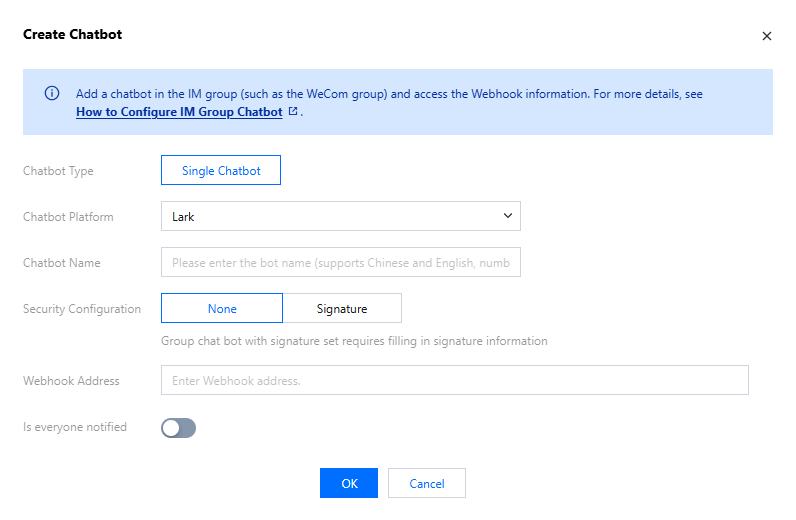
3. In the Create Chatbot window, fill in the following configuration message.
chatbot platform: Select "Lark".
bot name: Fill in the bot name.
Security configuration: Can be set to none or set a signature (selecting a signature requires filling in the key created when setting up the robot).
Notify all users: Can turn on the notification switch as needed.
4. Click Confirm, creation succeeded.
Get Webhook
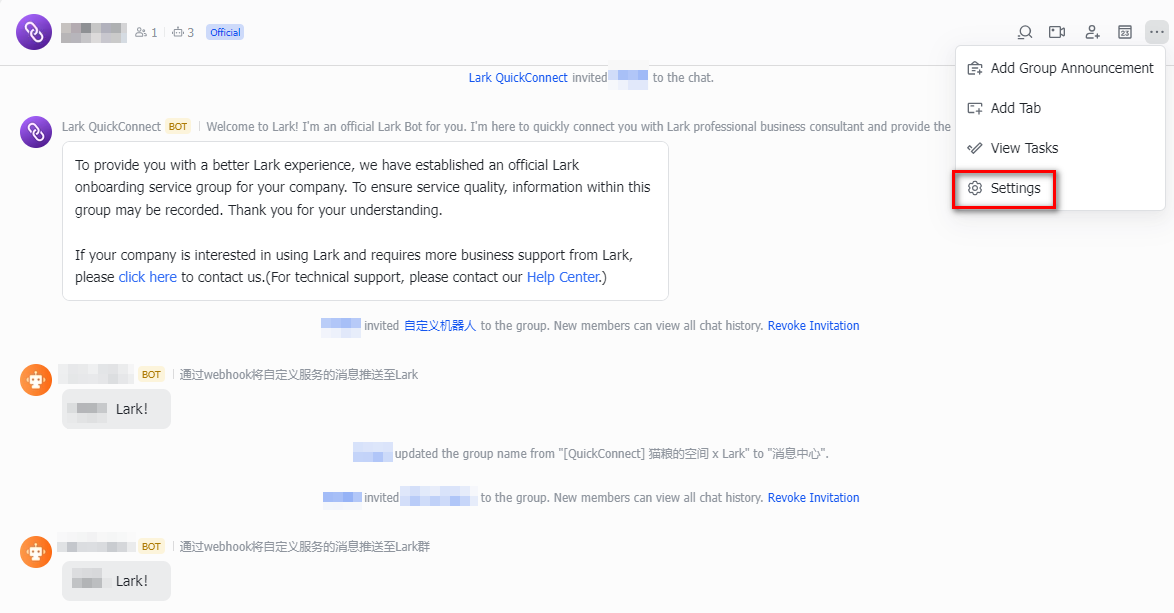
1. Open Lark on PC, find the Lark group that needs to receive messages, and click
.
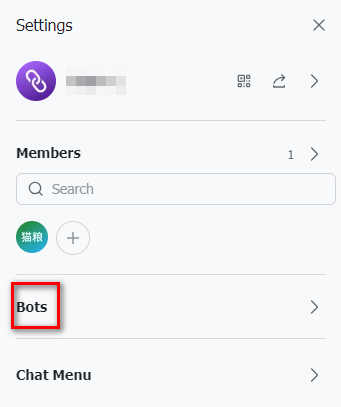
2. On the Settings page, click Group Bot.
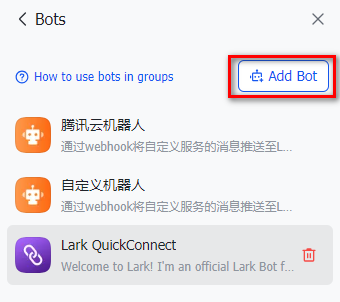
3. On the Group Bot page, click Add Bot.
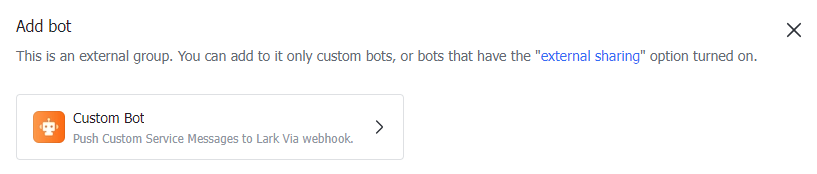
4. On the Add Bot page, click Custom Robot.
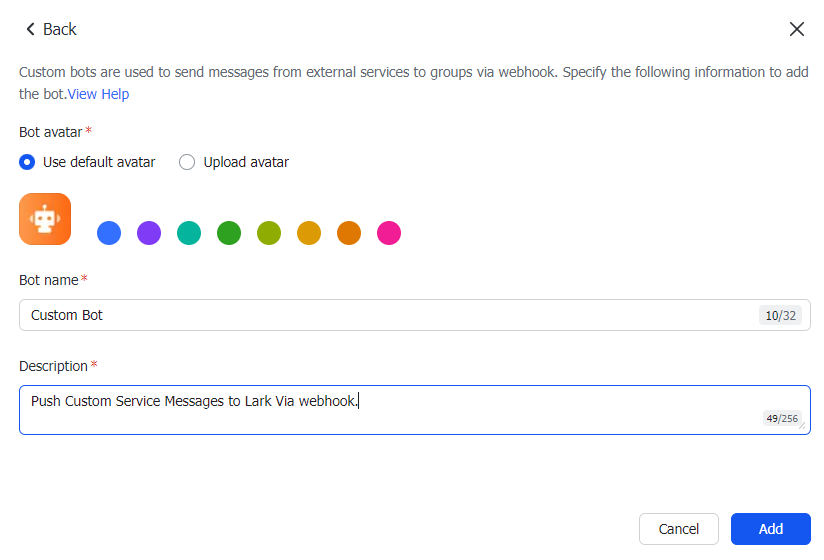
5. After adding the bot avatar, bot name, and description, click Add in the bottom-right corner.
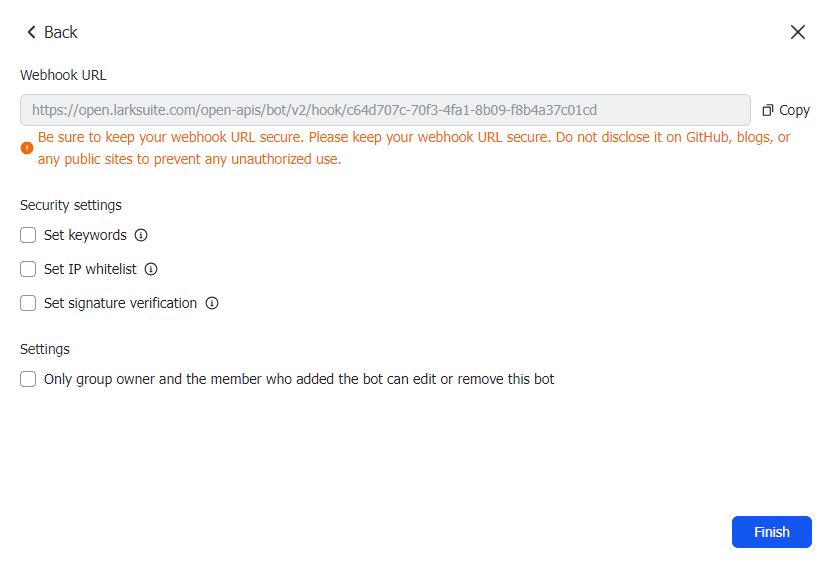
6. After addition, the interface will show the Webhook address.
Testing Push Messages
1. On the Robot Receipt Management page, click Test.
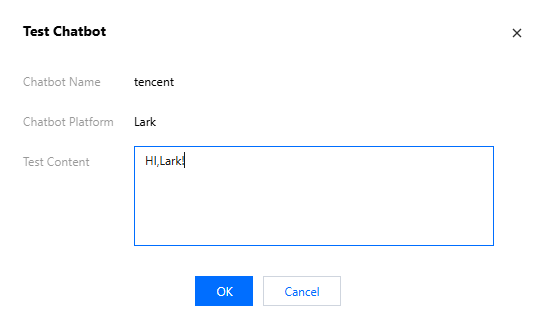
2. On the Test Robot page, enter test content.
3. Click confirm, and just send a test content.
4. In a Lark group, you can view test messages.
Setting Robot Message Reception
1. Enter the Message Centerconsole, click on the left navigation Subscription Management, and enter the Subscription Management page.
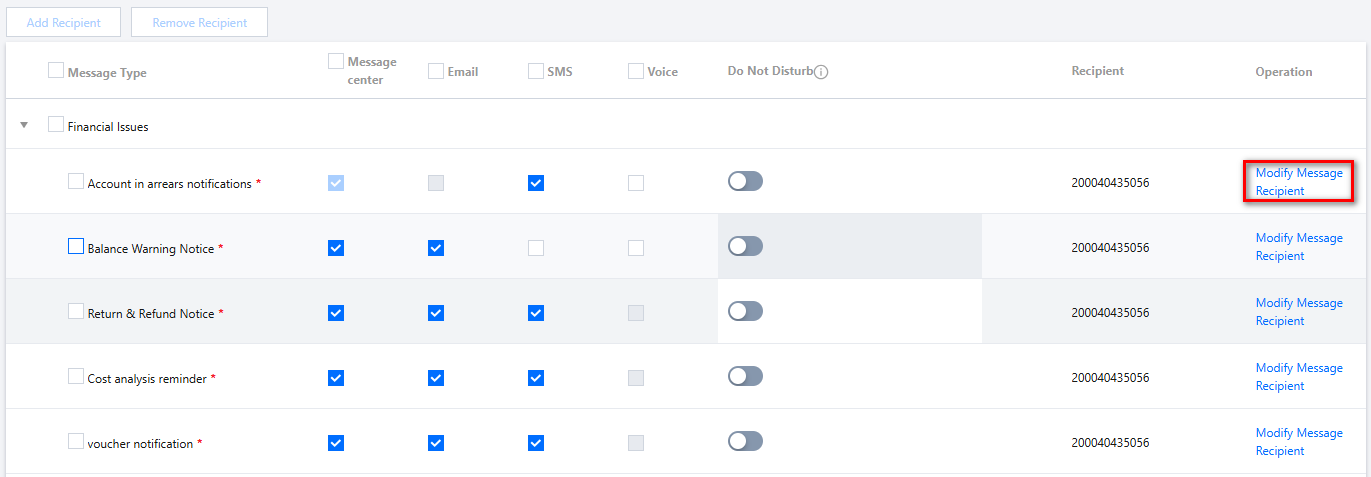
2. Select the message type you want to subscribe to. After checking, click to modify the message recipient and enter the subscription editing page.
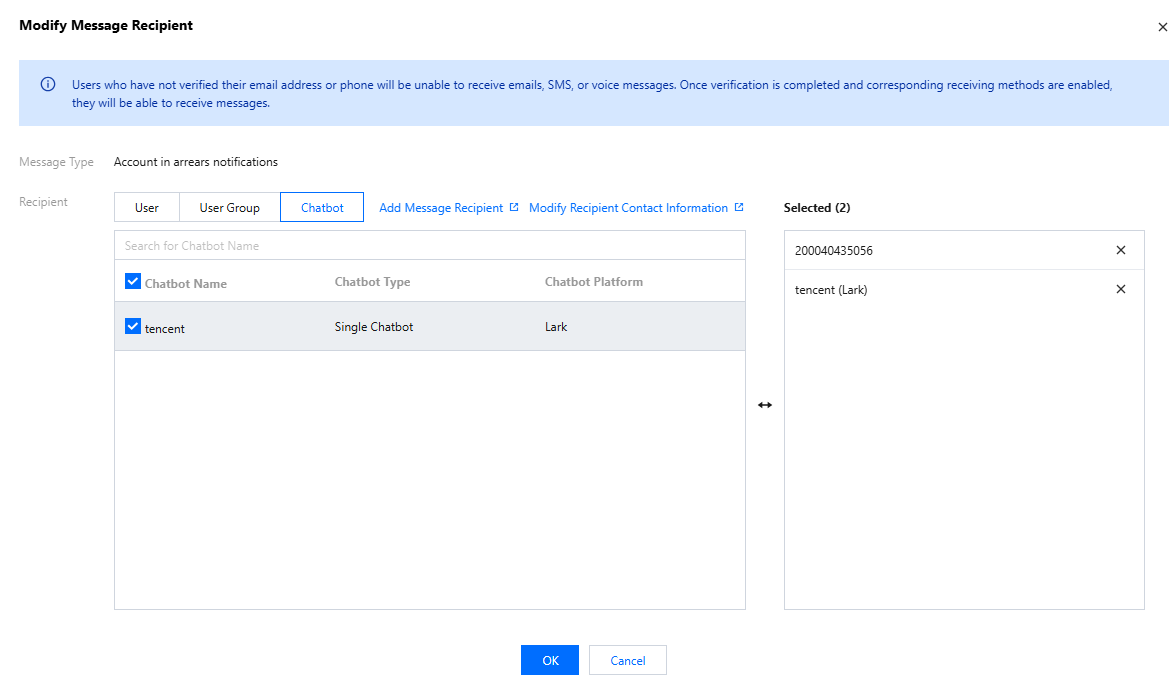
3. On the Modify Message Recipient page, select Robot, check Robots that need to receive messages, click Confirm to add one robot under the product's sub-message configuration.
Notes:
Note: The robot's message reception currently needs to be bound to an SMS channel.