The object storage service provides native POSIX semantics through the Metadata Acceleration Capability, allowing users to access the storage service via file system semantics and offering native metadata operation support. The system design metrics can achieve Gb-level single-connection bandwidth, 100K-level QPS, and ms-level latency. Enabling the metadata acceleration feature enhances cluster metadata operation performance, such as List and Rename operations, and supports native Append and Truncate operations, making it widely applicable in big data, high-performance computing, machine learning, AI, and other scenarios.
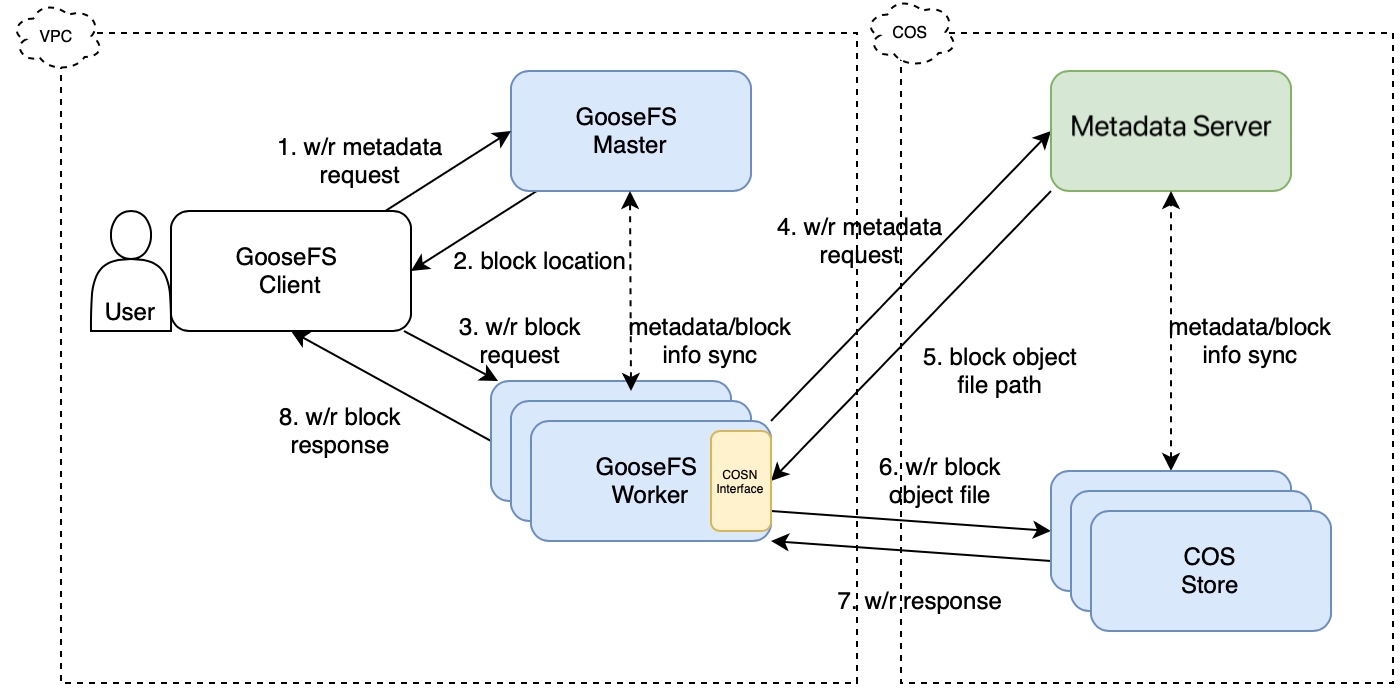
GooseFS V1.3+ integrates the latest COSN interface (COSN V8.14+) and supports native POSIX semantics for accessing the storage service. The overall file read and write process framework is as follows:
Unlike the native COS protocol, accessing buckets natively with POSIX semantics has the following advantages:
1. More comprehensive POSIX semantics compatibility with native Append and Truncate operational support.
3. Lower latency for file data operations, effectively reducing read and write latency for large files in big data scenarios.
Note:
GooseFS does not support API operations like Append and Truncate for COS currently, but GooseFS-Lite provides client support. Download and use if needed.
Prerequisites
The prerequisites for accessing the storage service with native POSIX semantics through GooseFS are as follows:
1. Create a bucket on the COS service as remote storage. For the operation guide, please see COS console quick start.
4. After creating a GooseFS cluster, modify the access protocol configuration in the core-site.properties file to access the specified bucket natively via the POSIX protocol.
Operation Steps
Creating a Bucket and Configuring the HDFS Protocol
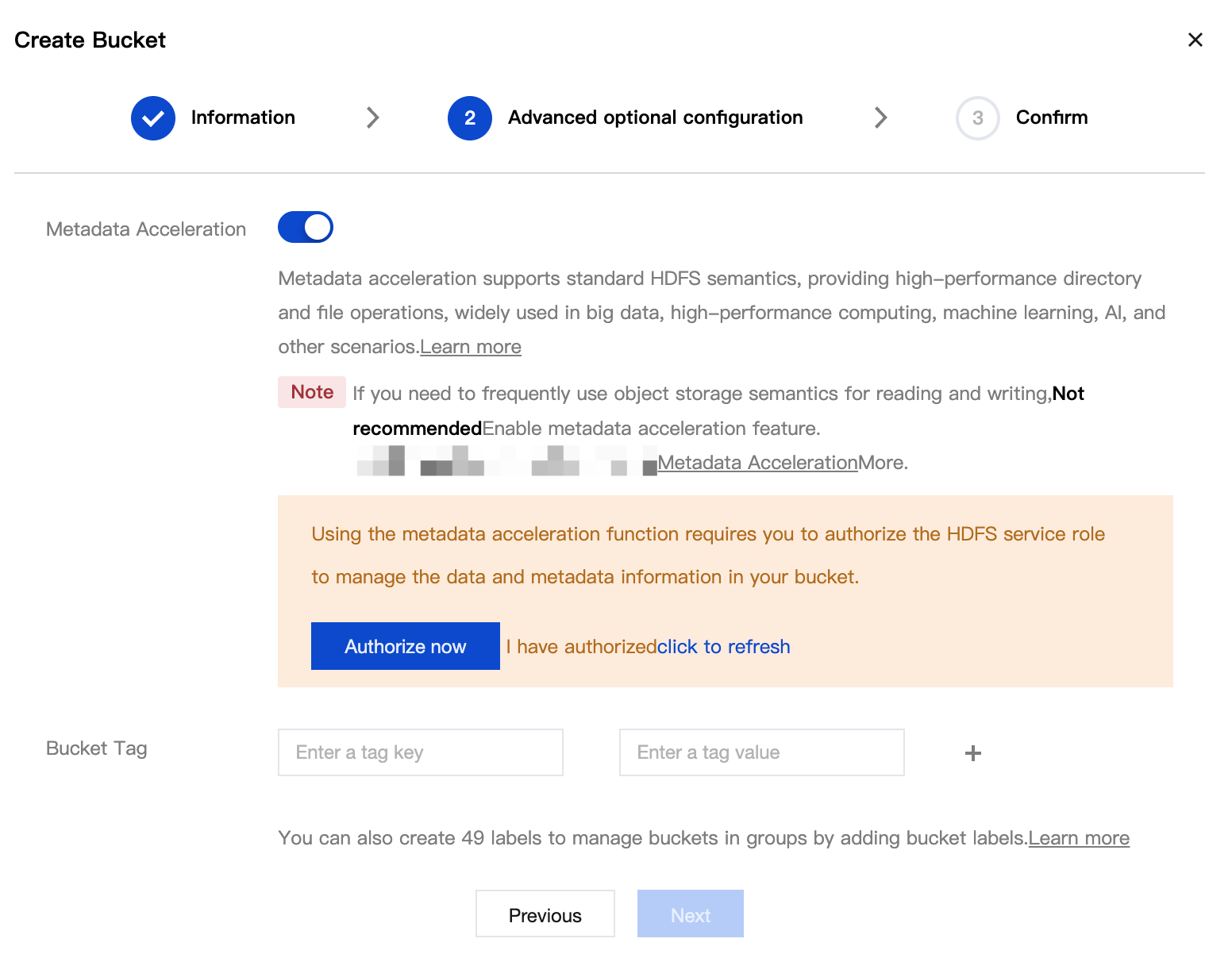
1. Create a COS bucket and enable Metadata Accelerator. As shown below:
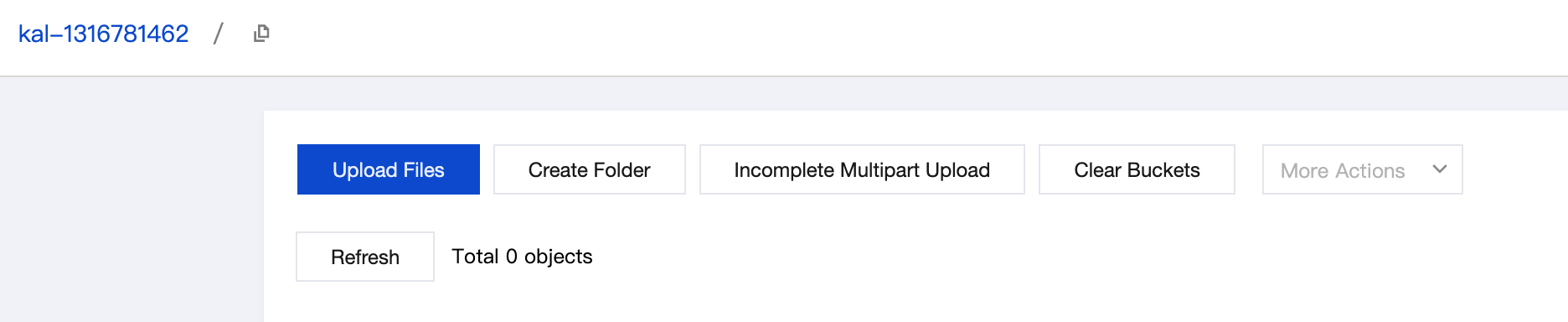
2. After the bucket is created, enter the bucket's File List page. You can perform file upload and download operations on this page. As shown below:
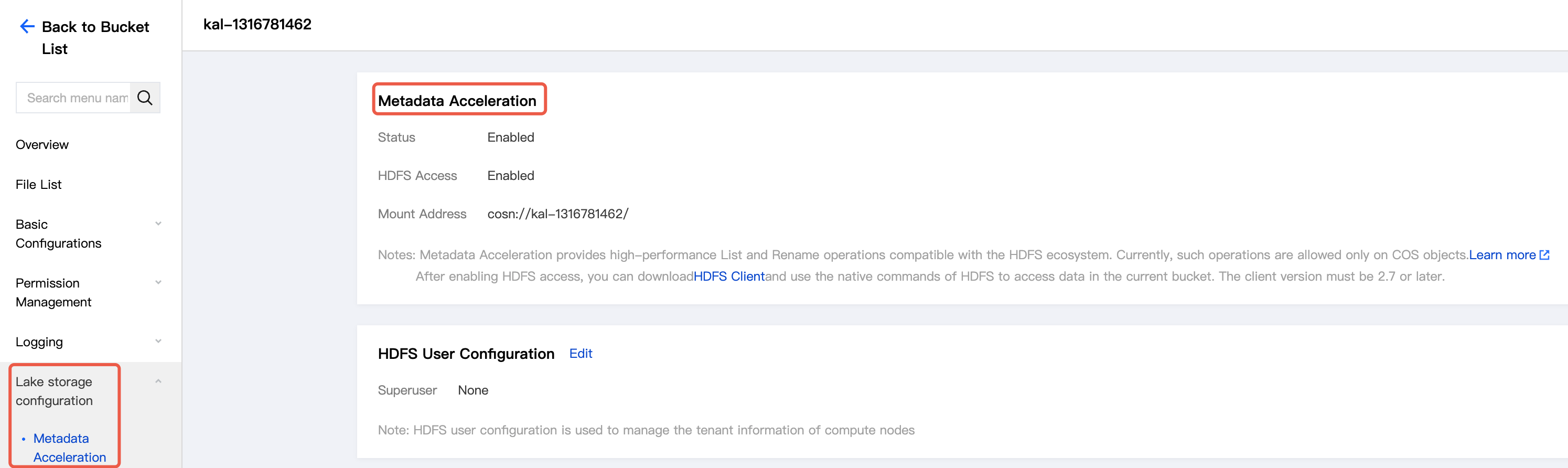
3. In the left menu bar, click Lake Storage Configuration > Metadata Acceleration. You can see that metadata acceleration is enabled.
4. If it is the first creation of a bucket requiring metadata acceleration, follow the prompt to perform the corresponding authorization operation. After clicking to complete authorization, the HDFS protocol will be automatically enabled, and the default bucket mount point information will be shown. As shown below:
Note:
If the HDFS filesystem is not found, contact us to get help.
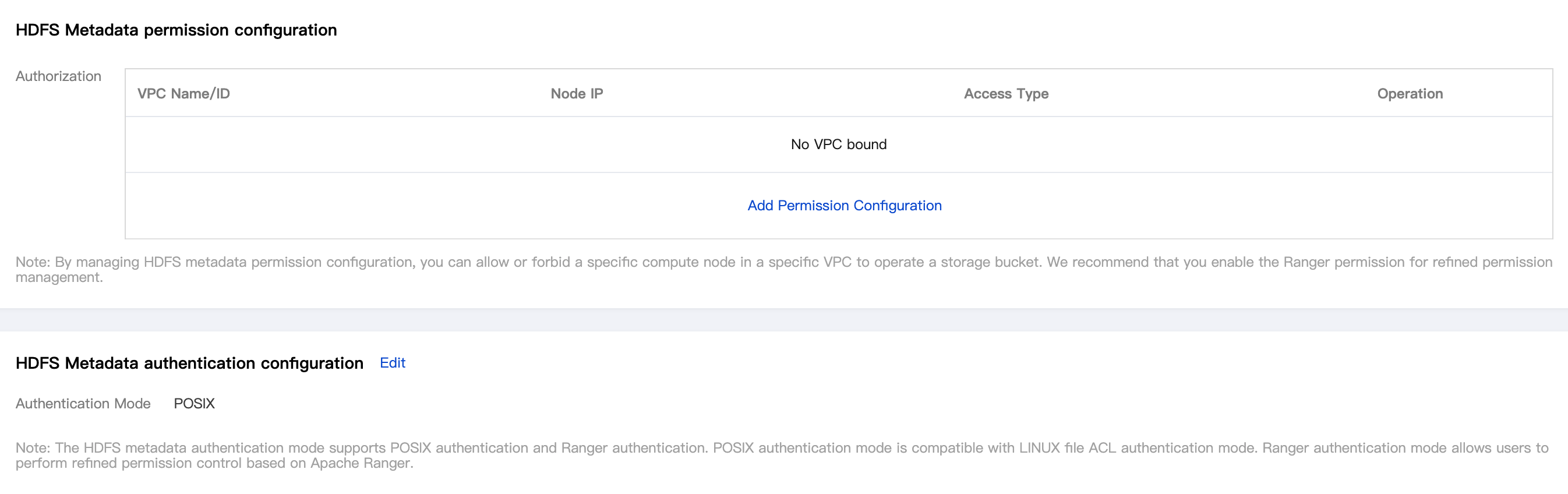
5. In the HDFS Metadata permission configuration section, click Add Permission Configuration.
6. In the VPC network name column, select the VPC network address of the compute cluster. In the node IP address column, fill in the IP address or IP range to be allowed in the VPC IP range. Select read-write or read-only for the access type. Once configured, click Save.
Note:
HDFS permission configuration differs from the native COS permission system. When accessing via the HDFS protocol, it is recommended to authorize HDFS permissions to designate machine access within the VPC to the COS storage bucket, so that you get the same permission experience as native HDFS.
Modifying Configuration File to Support Accessing COS through POSIX Semantics
1. After creating a GooseFS cluster, edit the core-site.xml file and add the following basic configuration:
Note:
We recommend that you avoid using permanent keys in the configuration. Configuring sub-account keys or temporary keys can help improve business security. When authorizing a sub-account, grant only the permissions of the operations and resources that the sub-account needs to avoid unexpected data leakage.
If you must use a permanent key, it is advisable to limit its permission scope by restricting executable operations, resource scope and conditions (such as access IP) to enhance usage security.
<!--The account's API key information. You can log in to the [CAM console](https://console.tencentcloud.com/capi) to view the cloud API key.-->
We recommend you use a sub-account key or temporary key via complete the configuration to enhance configuration security. When authorize sub-account, recommend on demand grant sub-accounts executable operations and resources.