Business Intelligence (BI) supports generating data tables from Excel/CSV files using the Excel upload method. The specific operation steps and process are shown below.
Creating an Excel Data Table
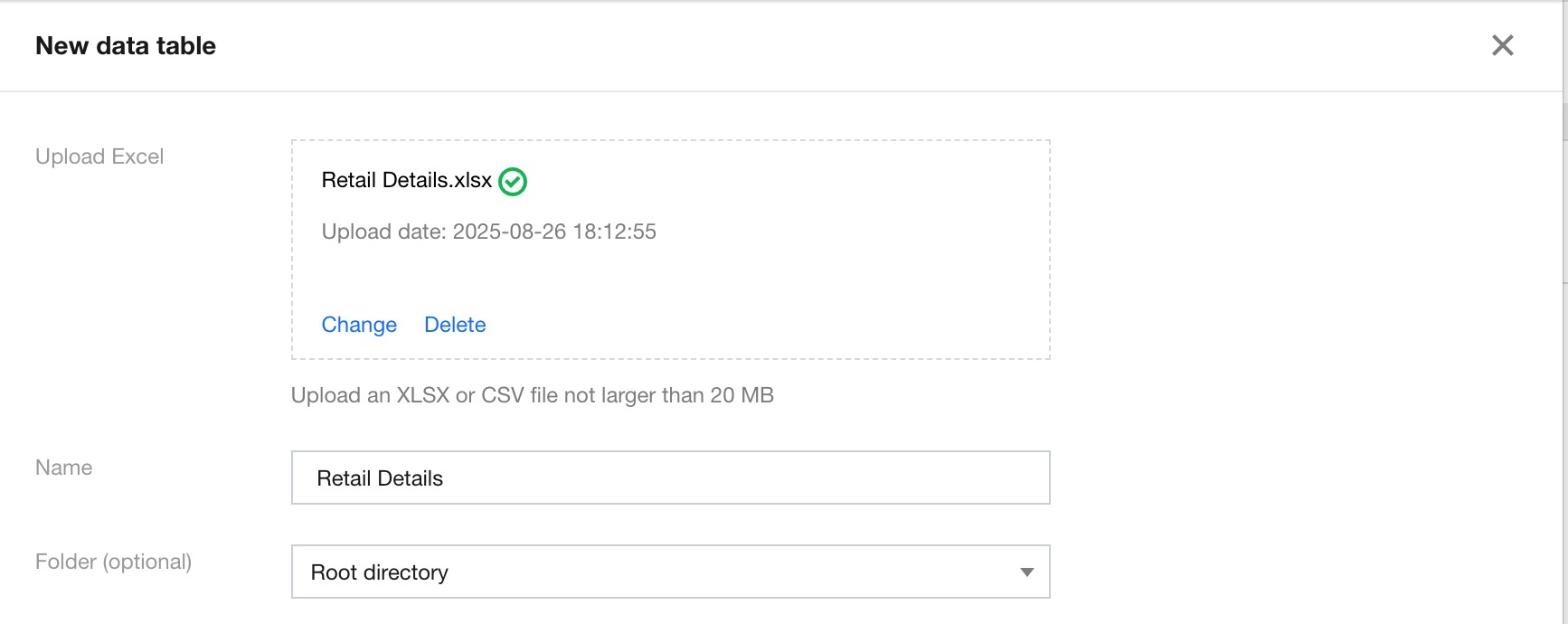
In the Data Table module under Data, click Create Data Table, select Excel Upload, and complete the following configurations:
Upload Excel: Files in XLSX and CSV formats can be uploaded, with a maximum size of 20 MB.
Display name: The display name of the data table in BI.
Folder (optional): Click the drop-down icon to select a created folder.
Field Configuration
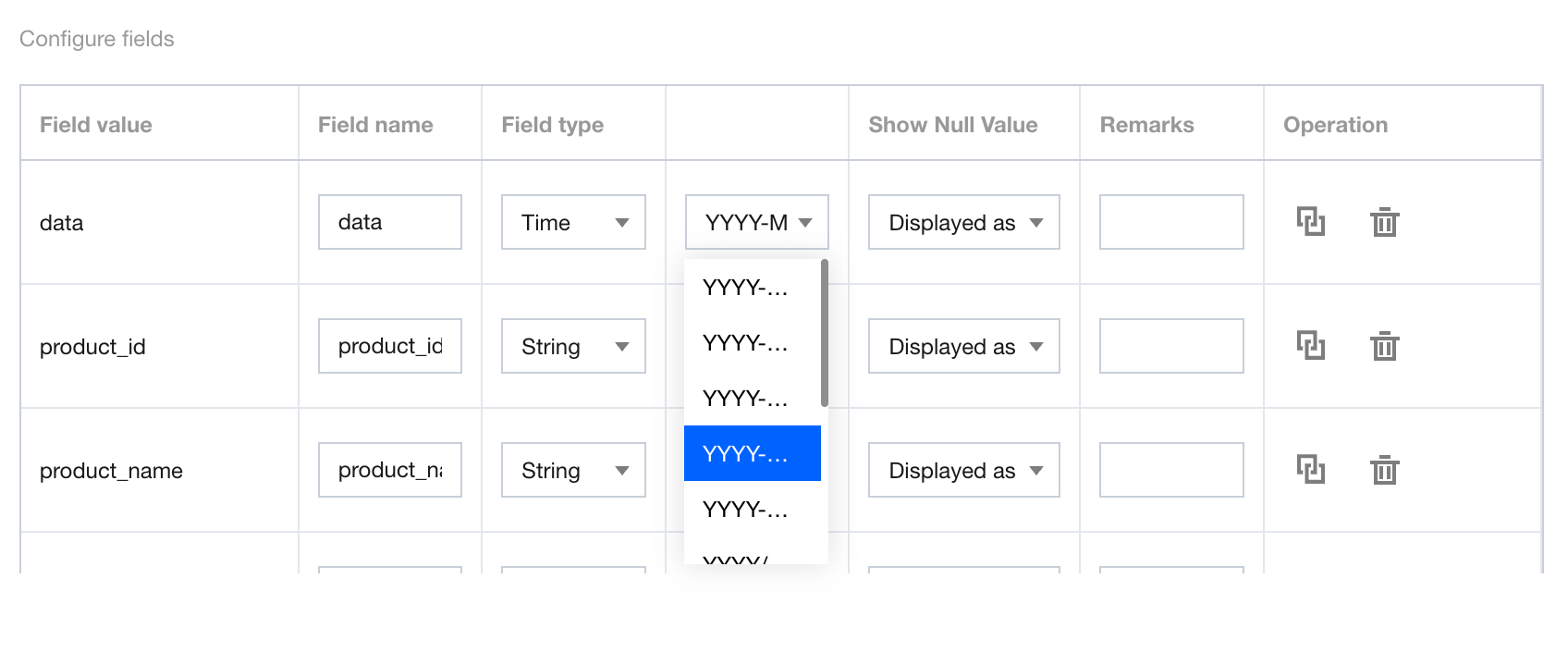
After an Excel file is uploaded, the system will automatically parse the field configuration information of the corresponding data table.
Field Chinese name: The display name of the field in BI. The name defaults to the field name and supports editing.
Field type: Available options are "time", "character", "numeric value", and "associated dictionary". By default, the field format needs to be read. When "time" is selected, you can perform a second-level selection for different granularities of the time format.
Remarks: Used to record the definition of the field. You can use the remarks as the table header definition when configuring a report table component.
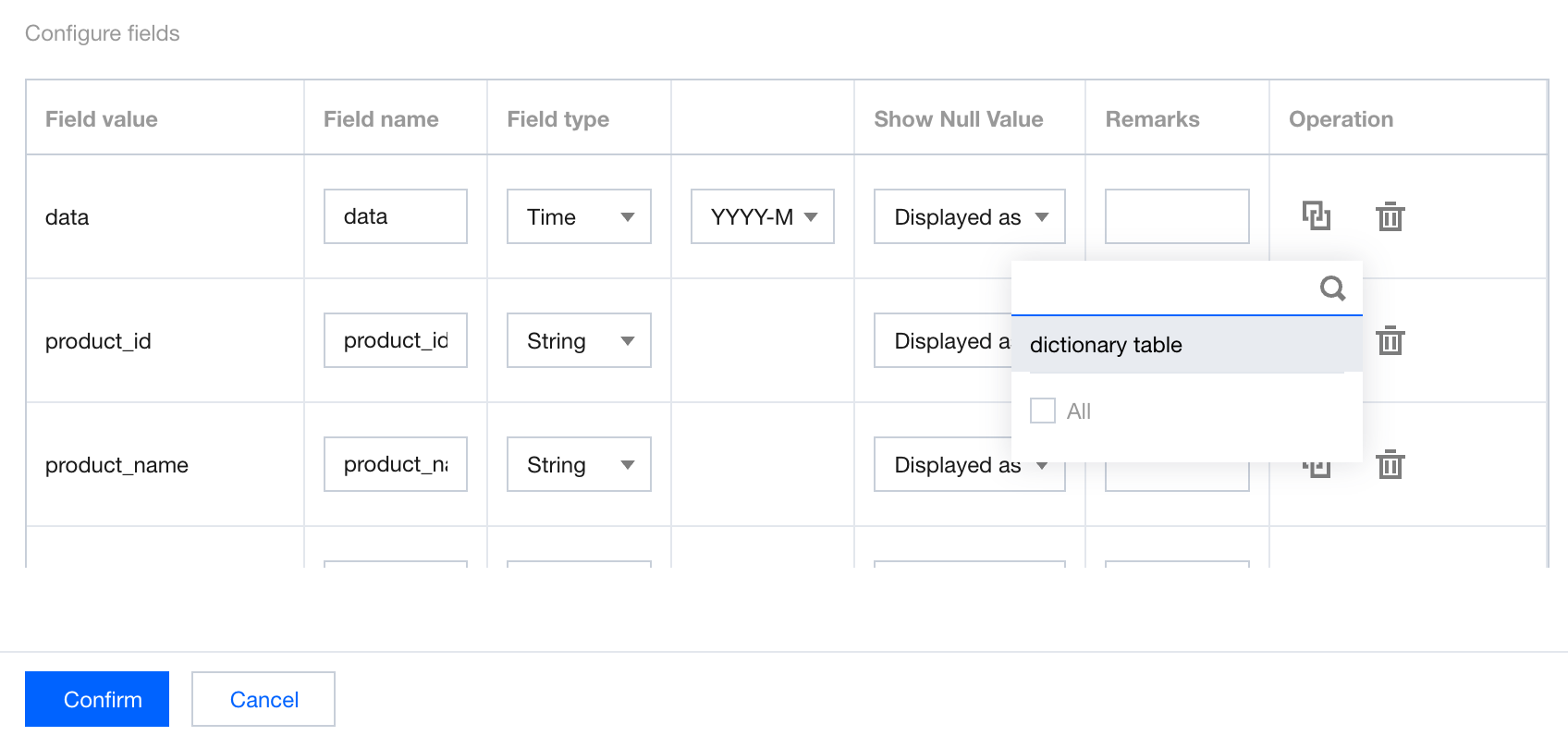
Operations: Dictionary table association can be performed
. When associated dictionary is selected, you can select the dictionary table to be associated for mapping.