For the same analysis topic (equivalent to an ad-hoc page), you can create multiple sheets for multi-model validation.
Preliminary operation: An ad-hoc analysis page is created.
Through this document, you will learn the following:
Creating Sheets
Editing Sheets
Deleting Sheets
Creating Sheets
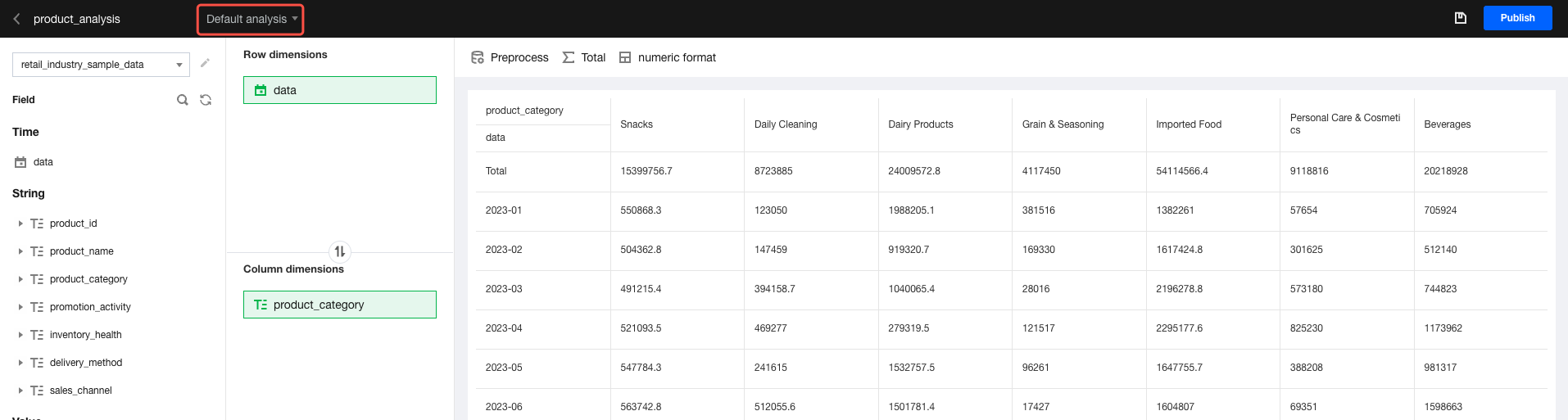
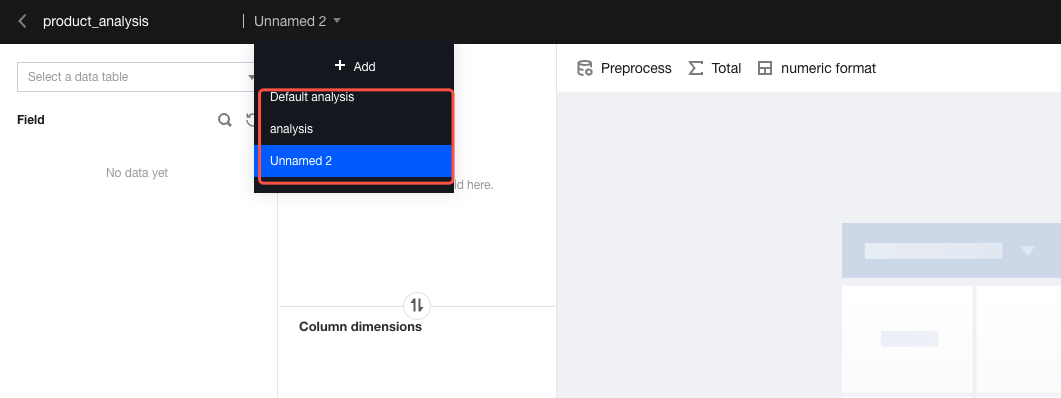
1. Entry: Go to the console. Select "Project", "Ad-hoc analysis", and then "Edit ad-hoc analysis". Click "sheets management" in the upper-left corner, as shown in the figure below:
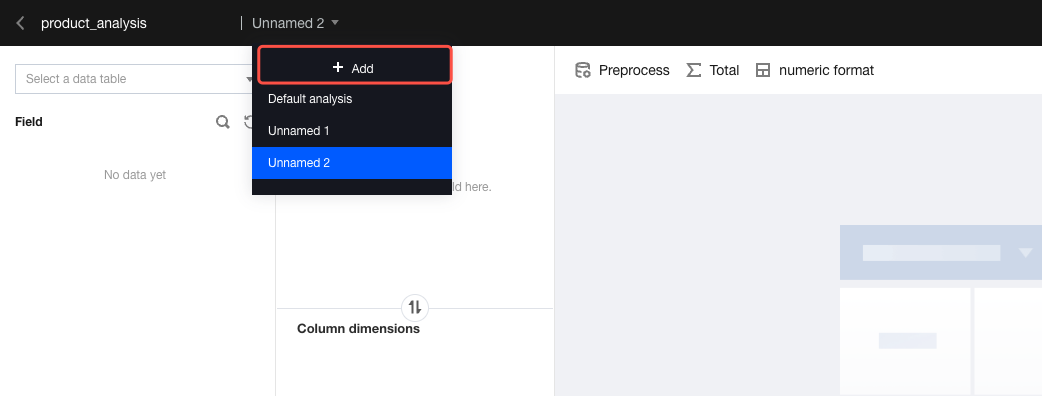
2. Click "+Add" to create a sheet.
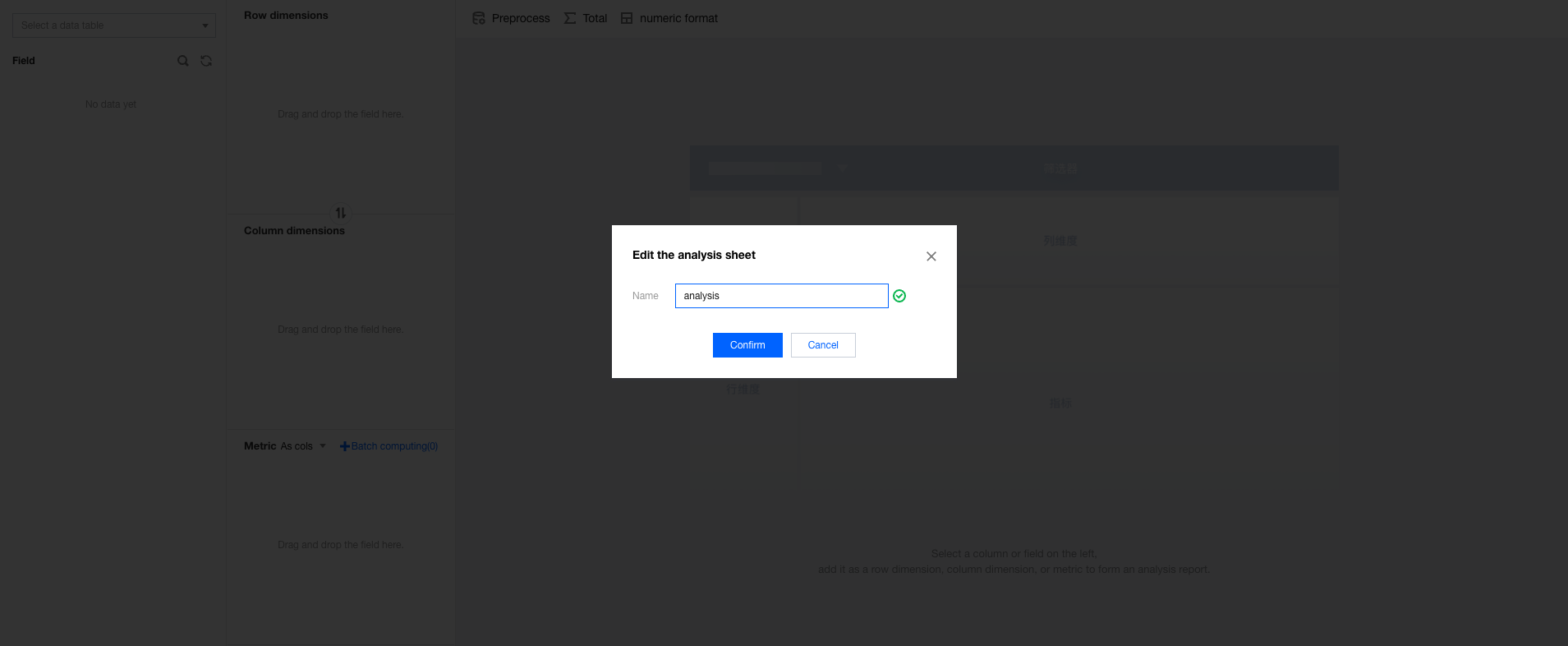
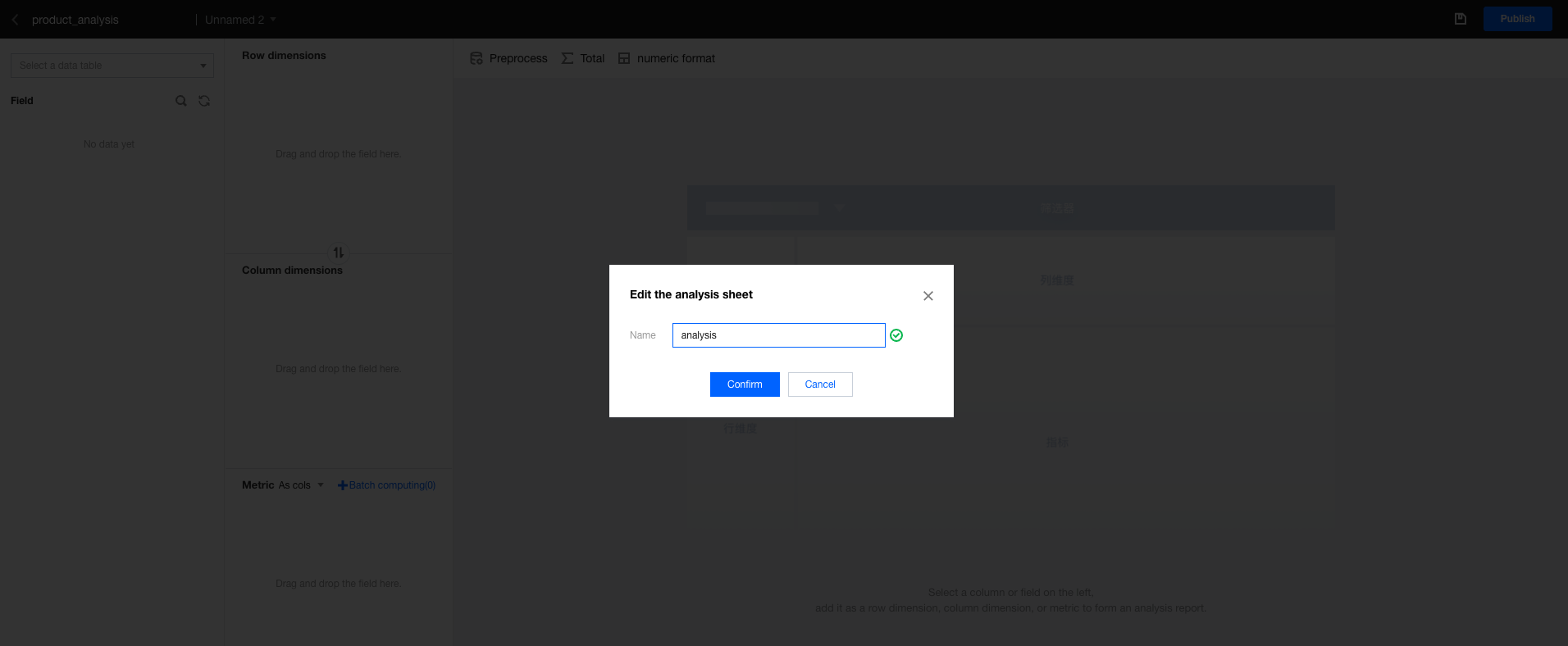
3. Enter the sheet name.
We recommend that you name the sheet around the current analysis topic and explore horizontally or vertically.
Horizontal: If sheets are divided by the relevant departments for business decision-making related to the topic, they have parallel relationships.
Vertical: If sheets are divided into hierarchical elements by topic, they have drill-down relationships.
Editing/Switching Sheets
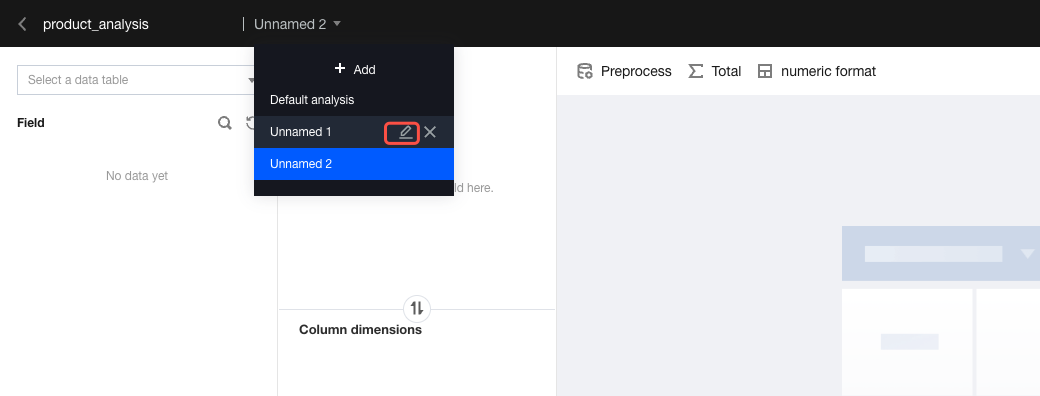
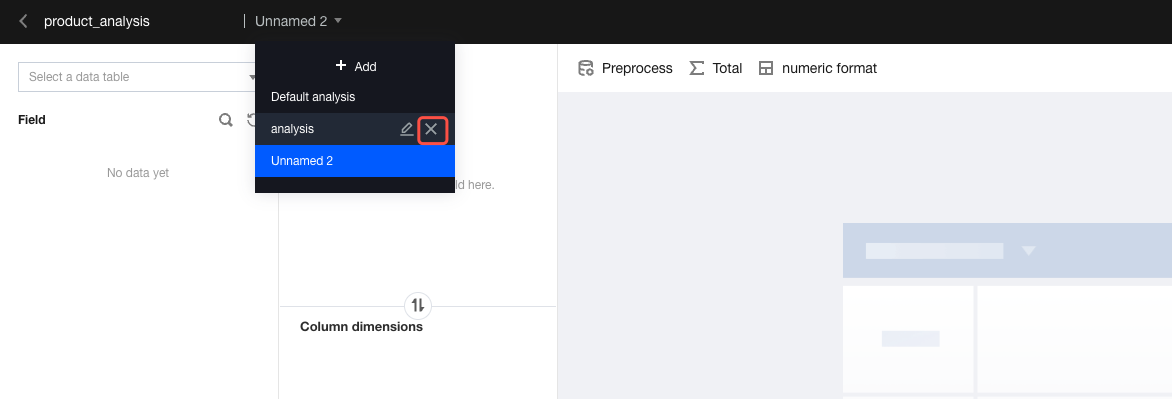
1. In the drop-down sheet list, hover the mouse over the sheet name and click the "edit" icon.
2. Enter a new name for the sheet, then click OK to update the sheet name.
3. To switch an analysis sheet, click the sheet name directly in the list.
Deleting Sheets
1. In the drop-down sheet list, hover the mouse over the sheet name and click the "Delete" icon.
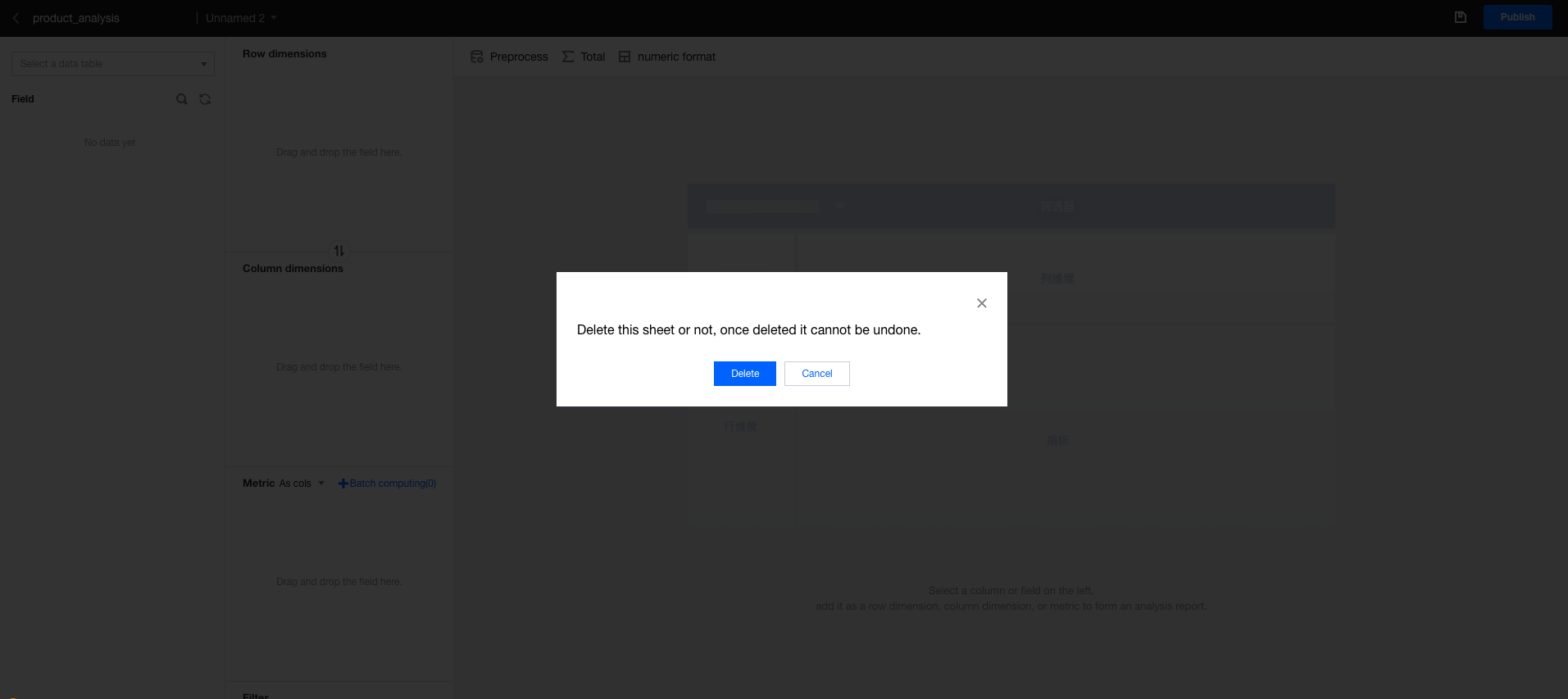
2. Select "Delete" in the secondary confirmation dialog box to delete the sheet.
Note
A page should have at least 1 sheet. Therefore, deletion is not supported when only 1 sheet exists.
Once a sheet is deleted, the sheet cannot be restored.