The dashboard embedding feature enables users to embed pages or project dashboards into third-party systems, providing easy access for third-party users.
Prerequisites for the embedding feature:
The current edition is the Basic Edition or the Professional Edition.
Pages need to be published first before they can be embedded.
The current user is an Enterprise Administrator or Project Administrator.
To include page parameters, you need to purchase the Professional Edition.
In this document, you will learn:
How to embed the entire dashboard.
How to set the default display page.
Dashboard Embedding Settings
Users can complete the embedding settings through the following steps.
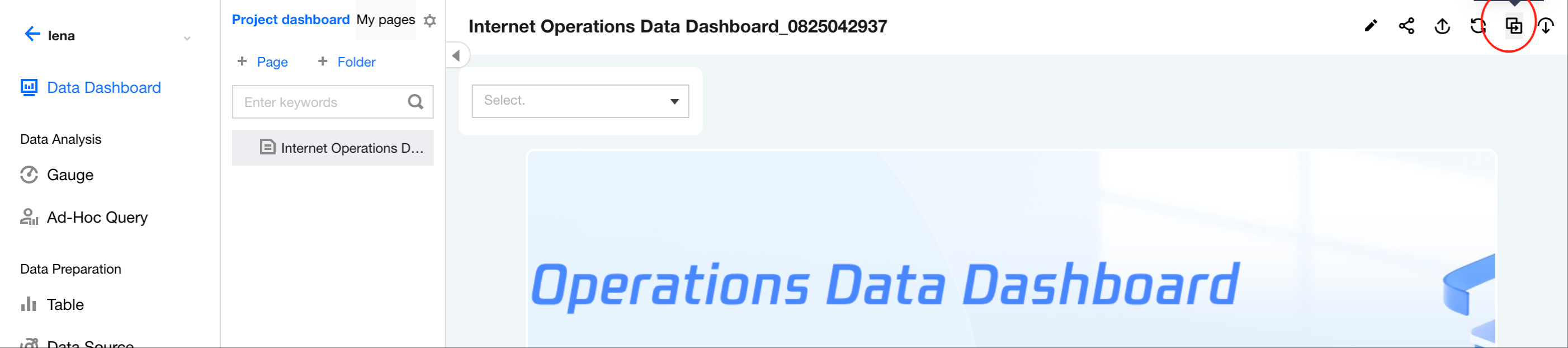
1. Go to the project > Dashboard, and click the Embed icon.
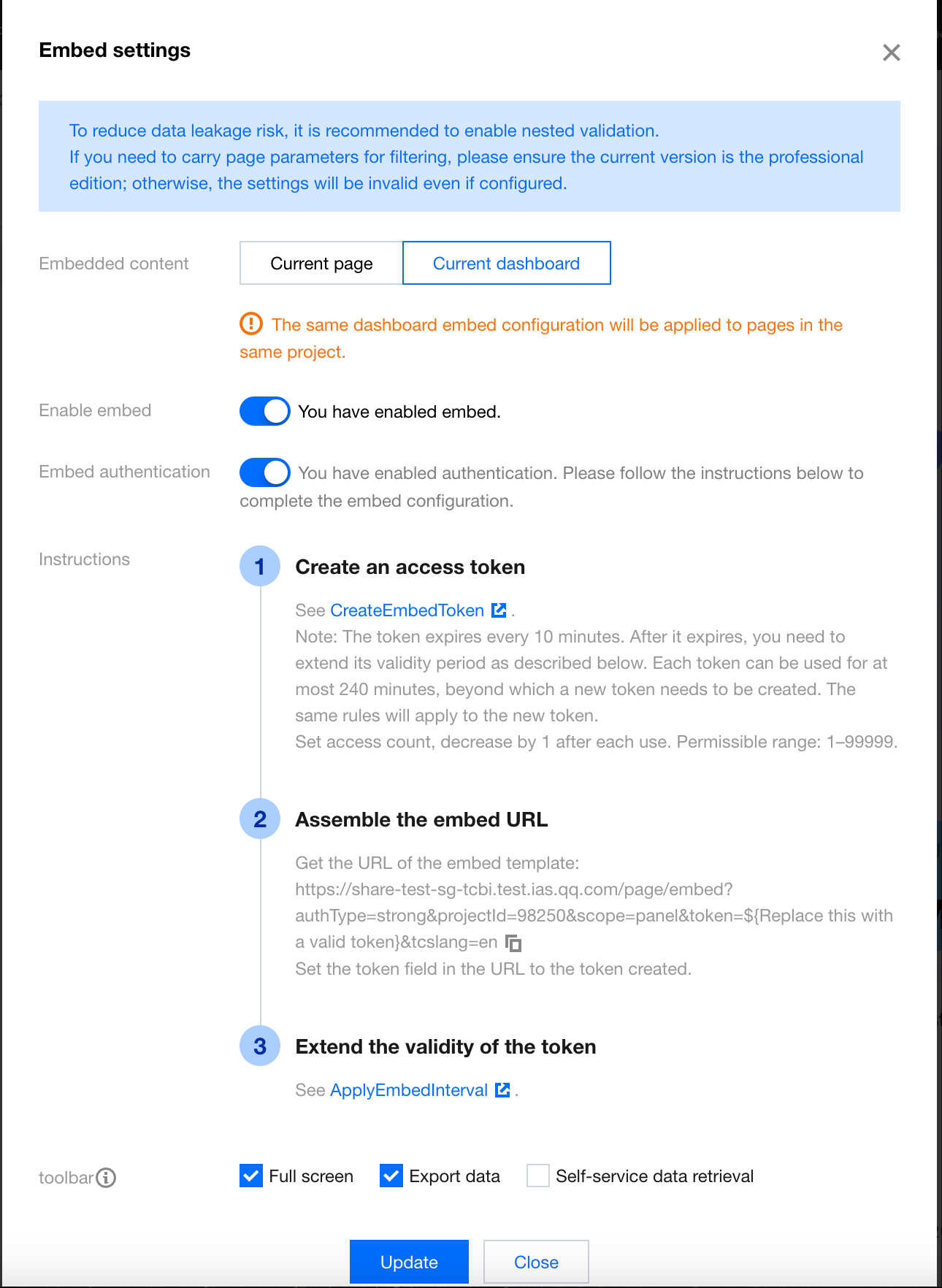
2. In the embedding configurations, select "Current dashboard".
To invalidate the embedded link, you can disable the embedding feature. Once the embedding feature is disabled, users will see a "Page not accessible" message when trying to access the embedded link.
If embedding verification is not enabled, the embedded link may be exposed. It is recommended to enable embedding verification for non-public data to ensure security.
If you want the link to be accessible only within a specific validity period, you can set the validity period. Once the validity period is enabled, users attempting to access the link outside the validity period will see a "Out of validity range" error.
Note:
The embedding of the project dashboard applies to the entire dashboard, meaning that any page's settings for the project dashboard will be synchronized. If someone else disables the embedding of the project dashboard on any page within the project, the previous settings will be overwritten.
3. Click Update Settings for the settings to take effect.
Setting the Default Display Page for the Dashboard
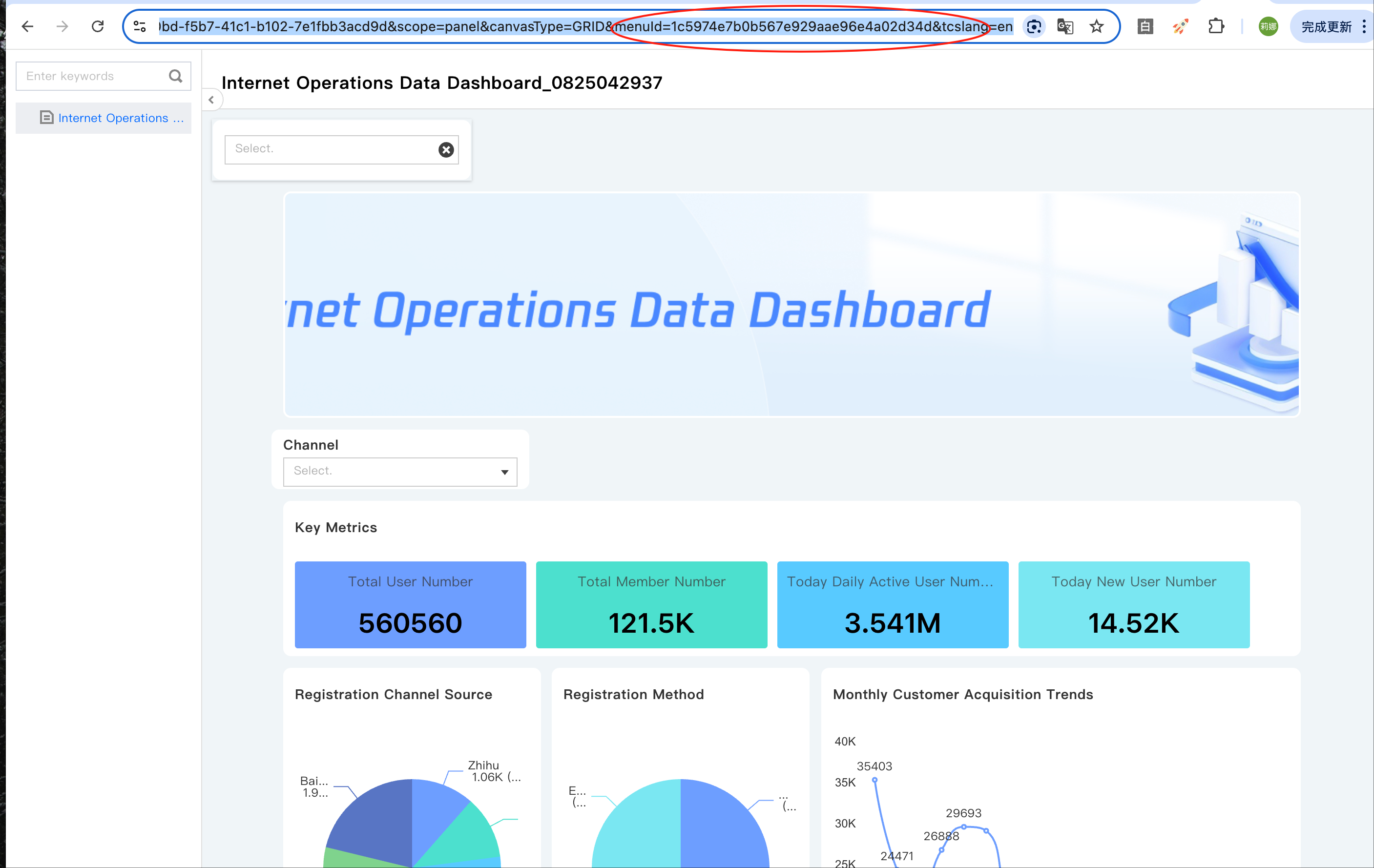
In the embedded dashboard, if you need to set a default page to open upon entry, you can specify the default page using the menuId.
1. Obtain the embedded dashboard link: Follow the configuration steps above to embed the dashboard.
/* In this example, assume the embedded link is obtained as shown below. Remember to modify the projectId, menuId and token values. */