Organization Management
An organization is a namespace for managing team members and resources. Before creating a repository, you must first create an organization to manage members and repositories.
Creating an Organization
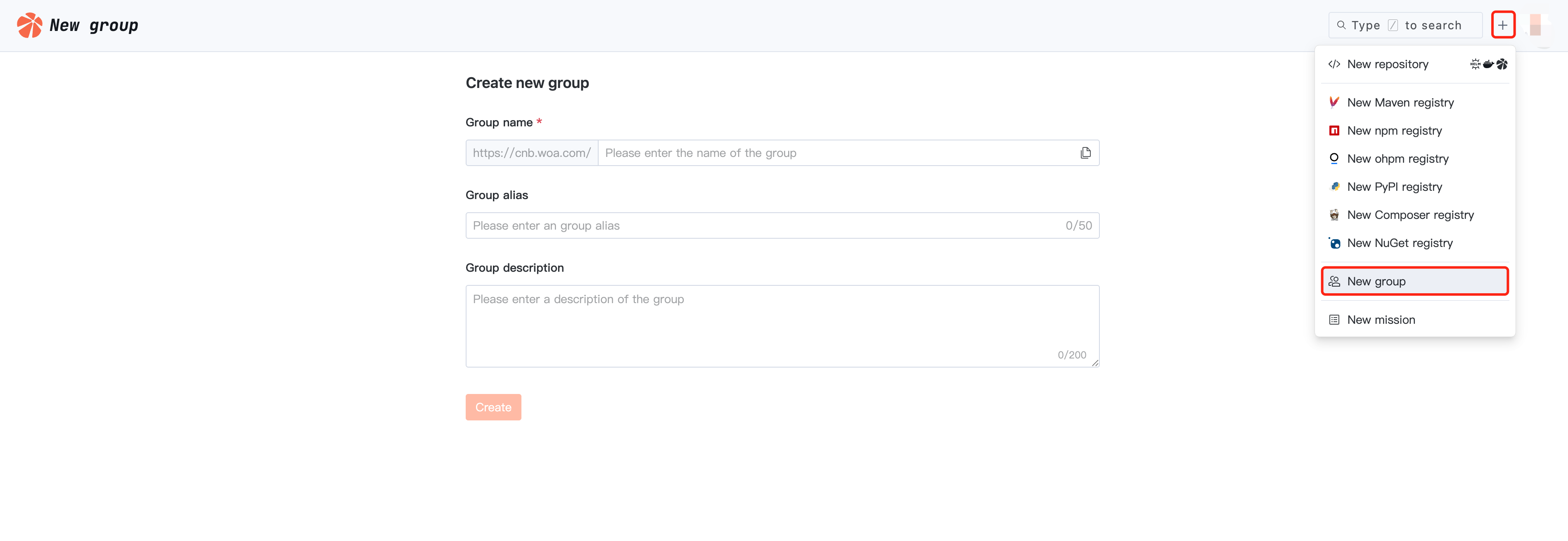
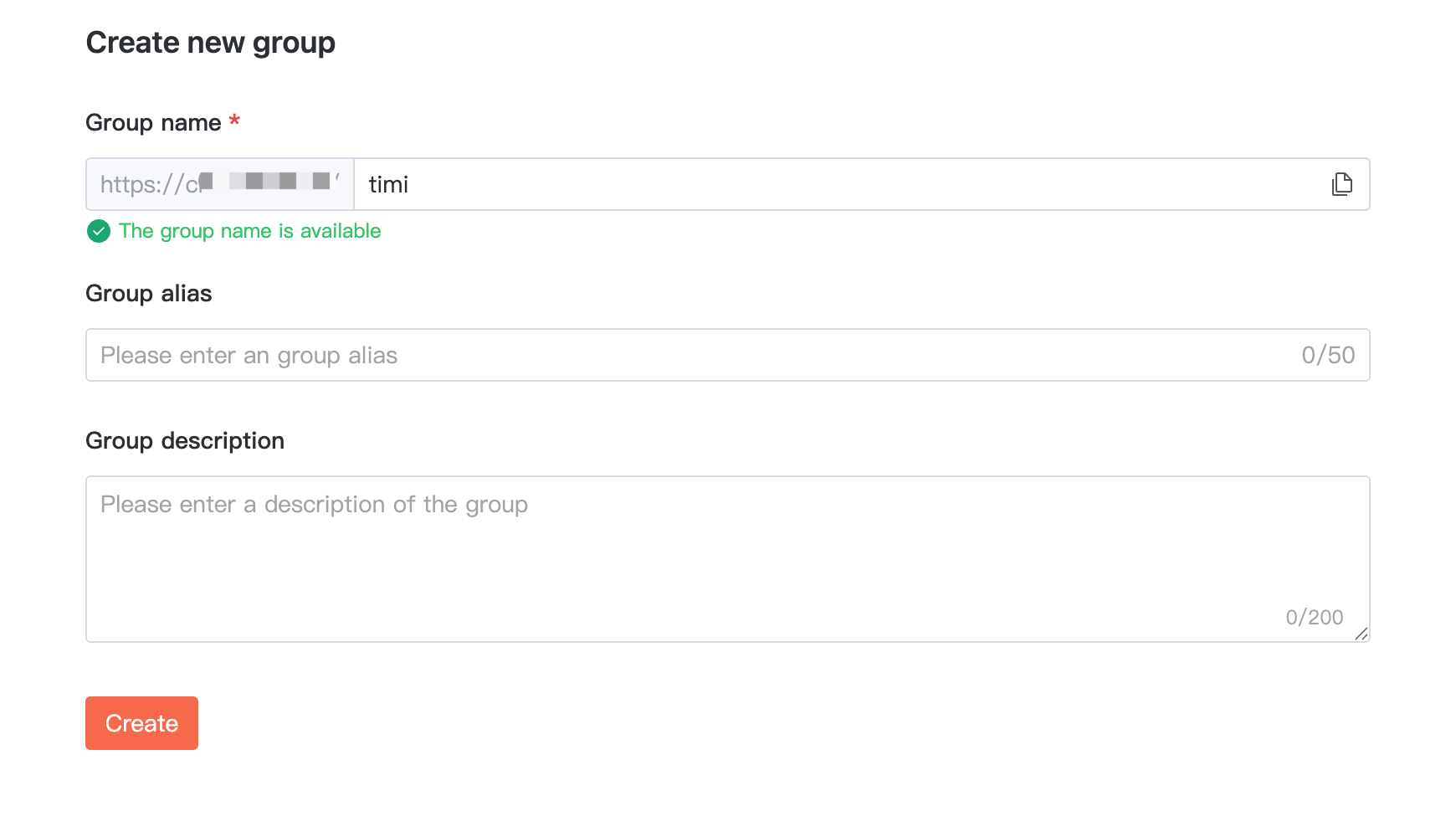
Enter CNB, click + in the upper right corner, select New group, fill in the organization name and related description, then click Create to complete the organization creation.
Sub-Organization
CNB supports multi-level organizations, mapping the organizational structure of large development teams, isolating different businesses, and making it easy for each unit to manage members and resources on its own.
After entering the organization, select Sub-Organization > Create Sub-Organization to create a sub-organization.
Note:
Note: The max level of an organization is 10.
Member
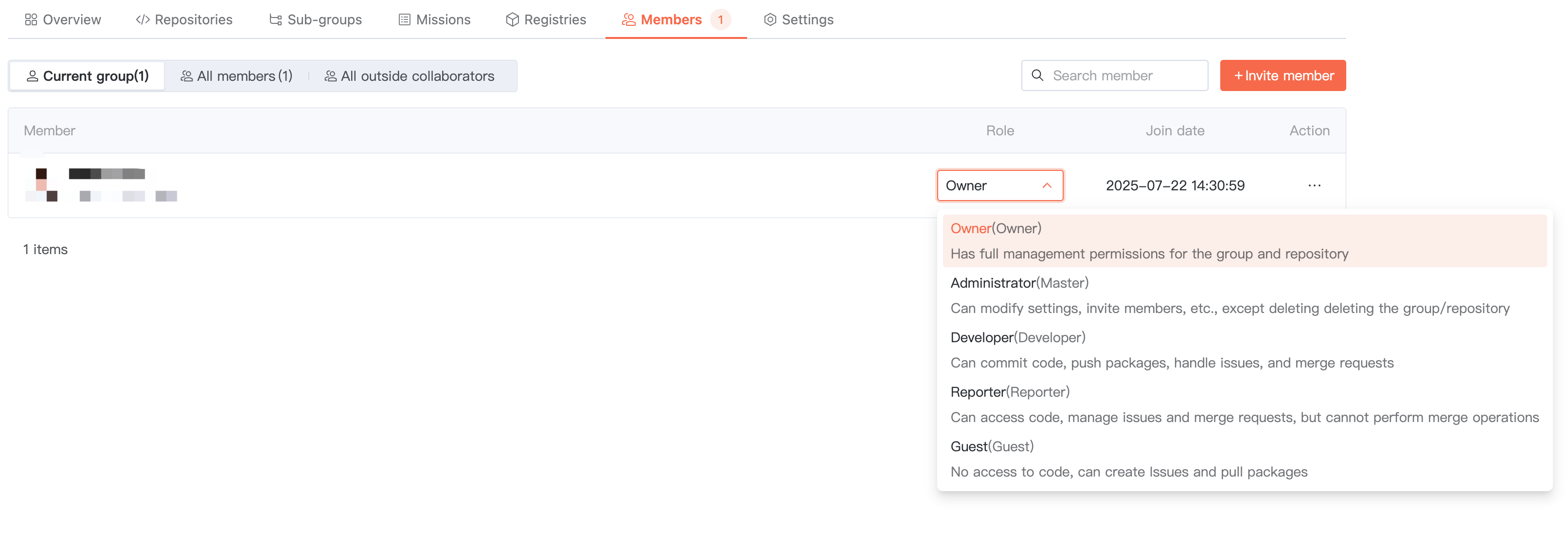
CNB grants access by role, fixed as five roles. Sub-organizations, repositories, and artifact repositories automatically inherit member permissions from the parent organization.
Role | Description |
Owner | Full management permissions for organizations and repositories. |
Administrator | Can manage organizations, repositories and members, but cannot delete organizations or repositories. |
Developer | Submit code, push artifacts, fix issues, merge requests. |
assistant | Access code, manage issues and merge requests, but cannot perform merge operations. |
visitor | Cannot access code, create Issue, pull artifact. |
CNB Permission Logic
Organizations can add members, configure member roles, and authorize.
Sub-organizations or repositories inherit member roles from the parent organization and can also directly add members.
During authentication, permissions for this user across all parent organizations are combined, adopting the "maximum role".
Inheritance Logic Example
Organization structure as follows:
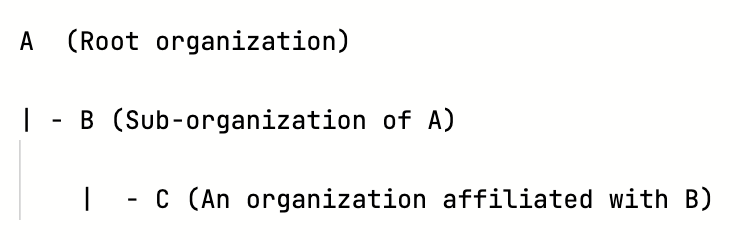
User user-1 is added to A and has admin permission. Not in B, C for this user.
So user-1 has admin permission in A, B, and C, since sub-organizations or repositories inherit parent members, therefore user-1 also has permission in B and C.
Organization Settings
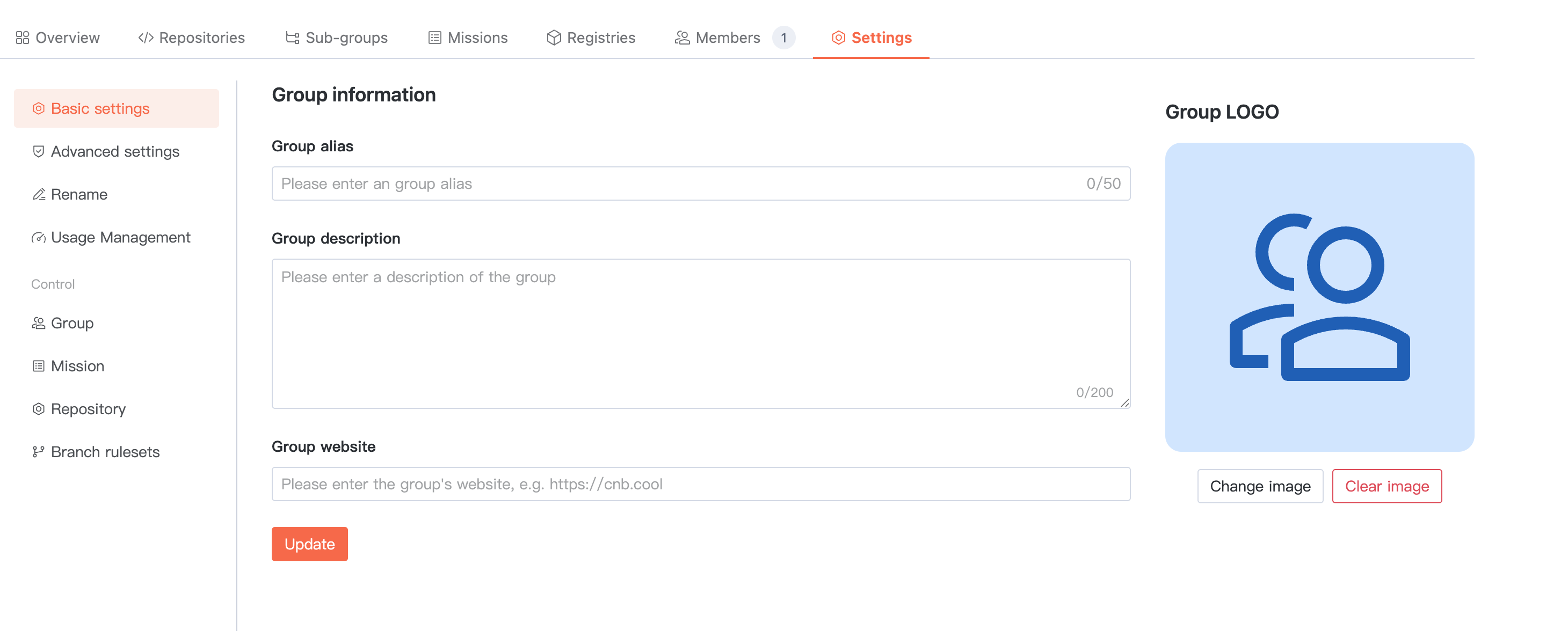
Basic information
Basic information is mainly public information of the organization and will display on the home page after configuration.
Advanced Settings
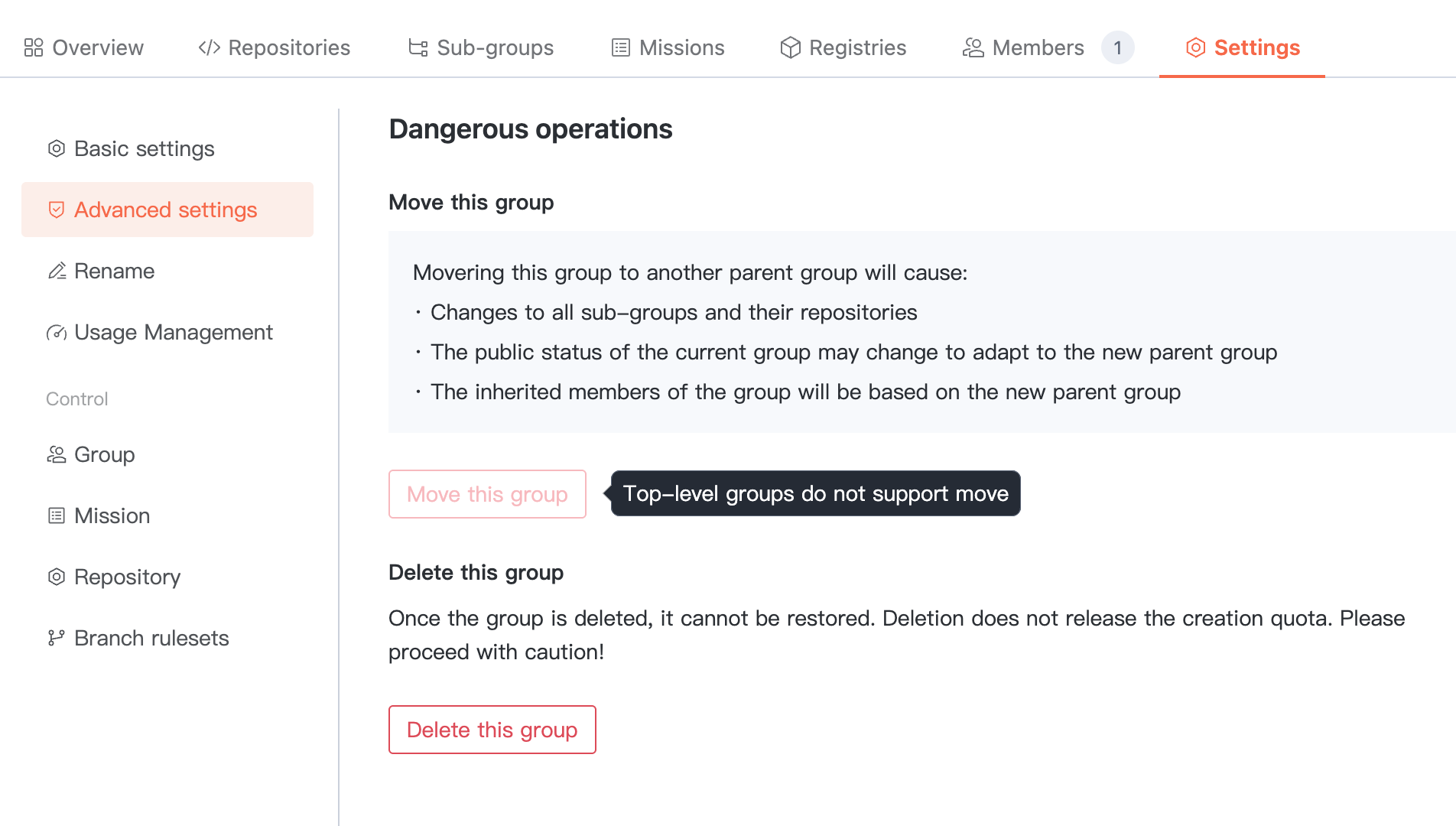
Manage organization dangerous operations, such as transfer organization and delete organization. Note: modify with caution.
Note:
Top-level organizations do not support transfer.
The current organization cannot be deleted when it has sub-organizations or repositories.
Changing the Organization Name
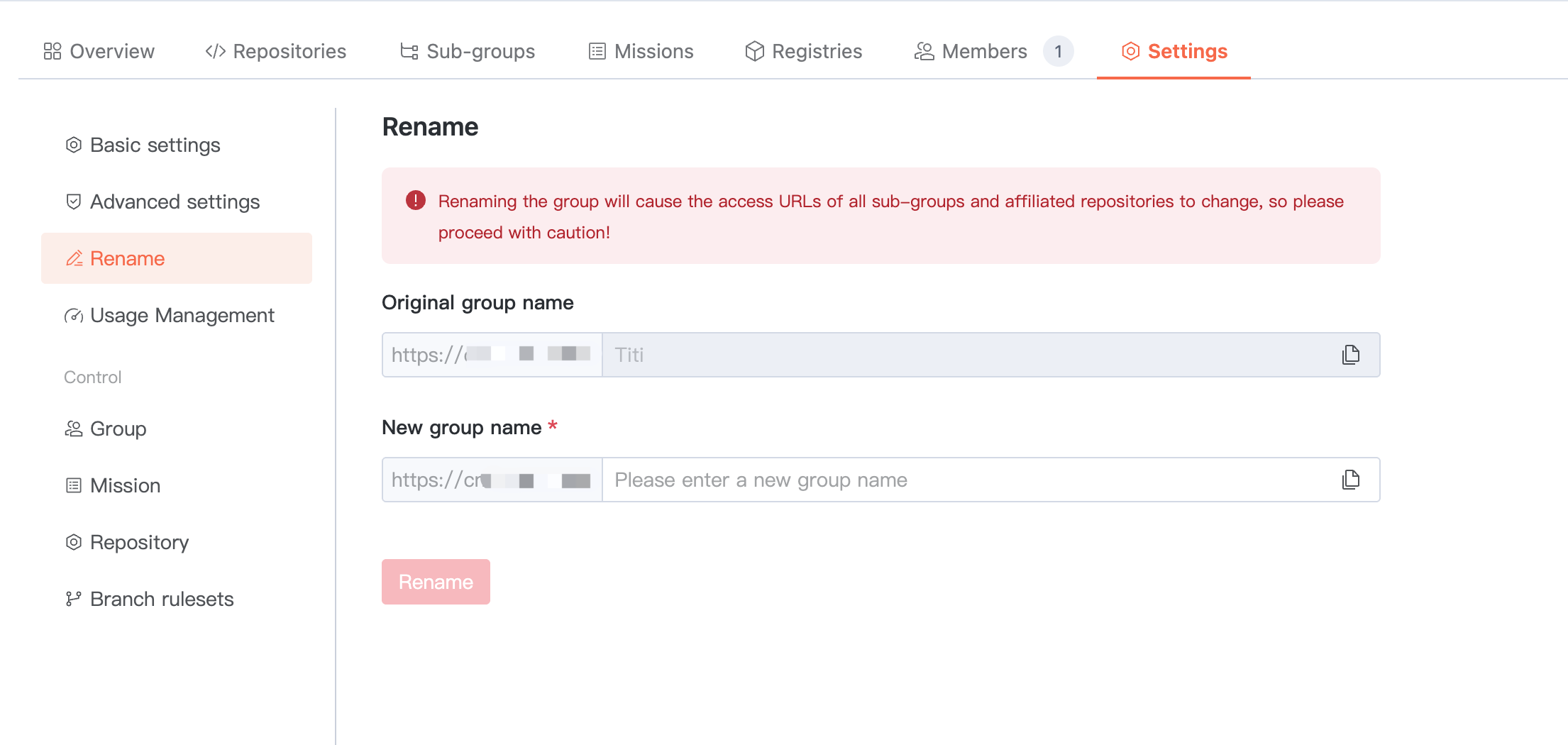
Note that changing the organization name will cause the access URL of ALL sub-organizations and assigned repositories to change. Proceed with caution.
Usage Management
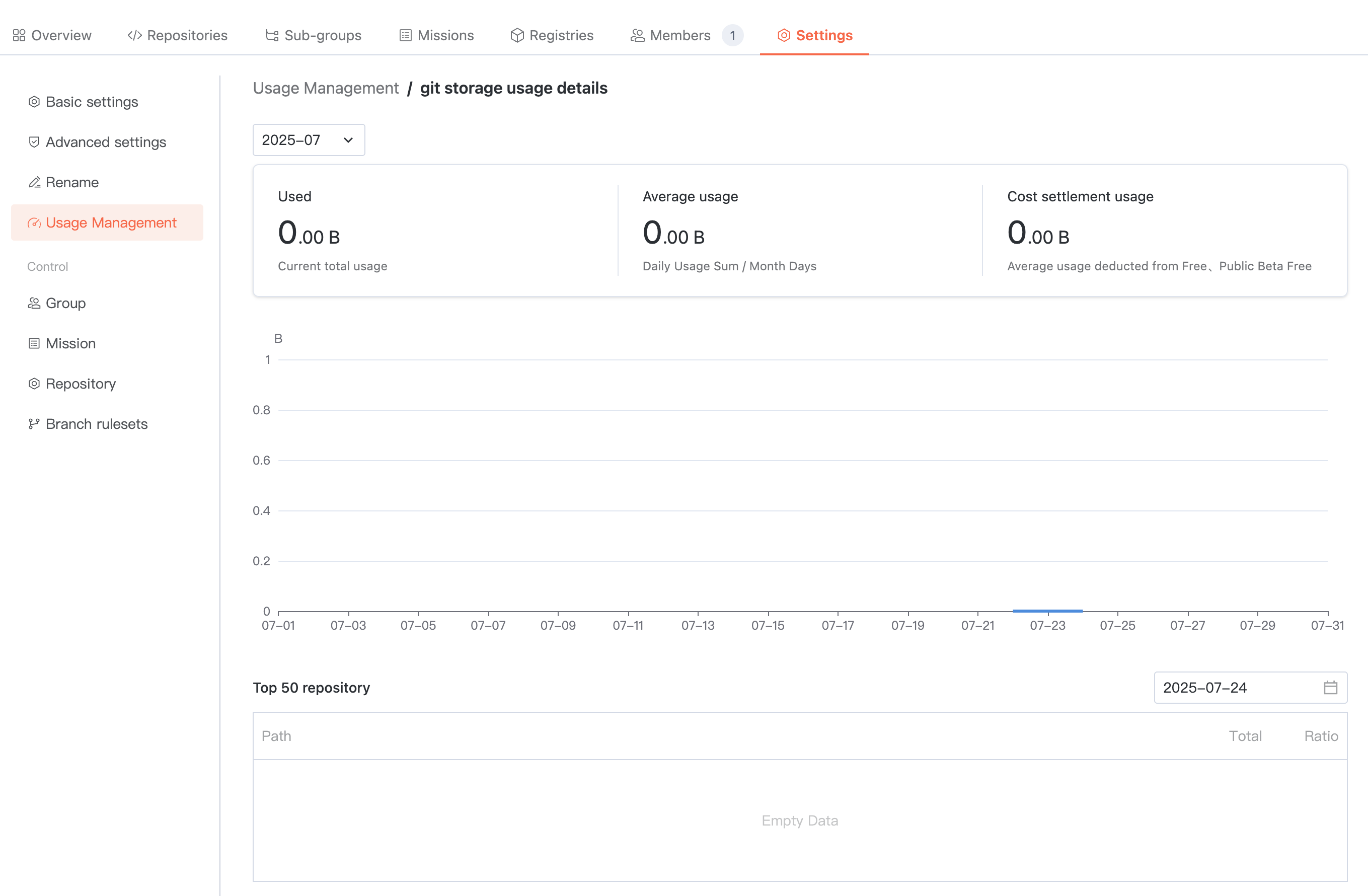
Track consumption statistics for the entire organization and manage budget caps.
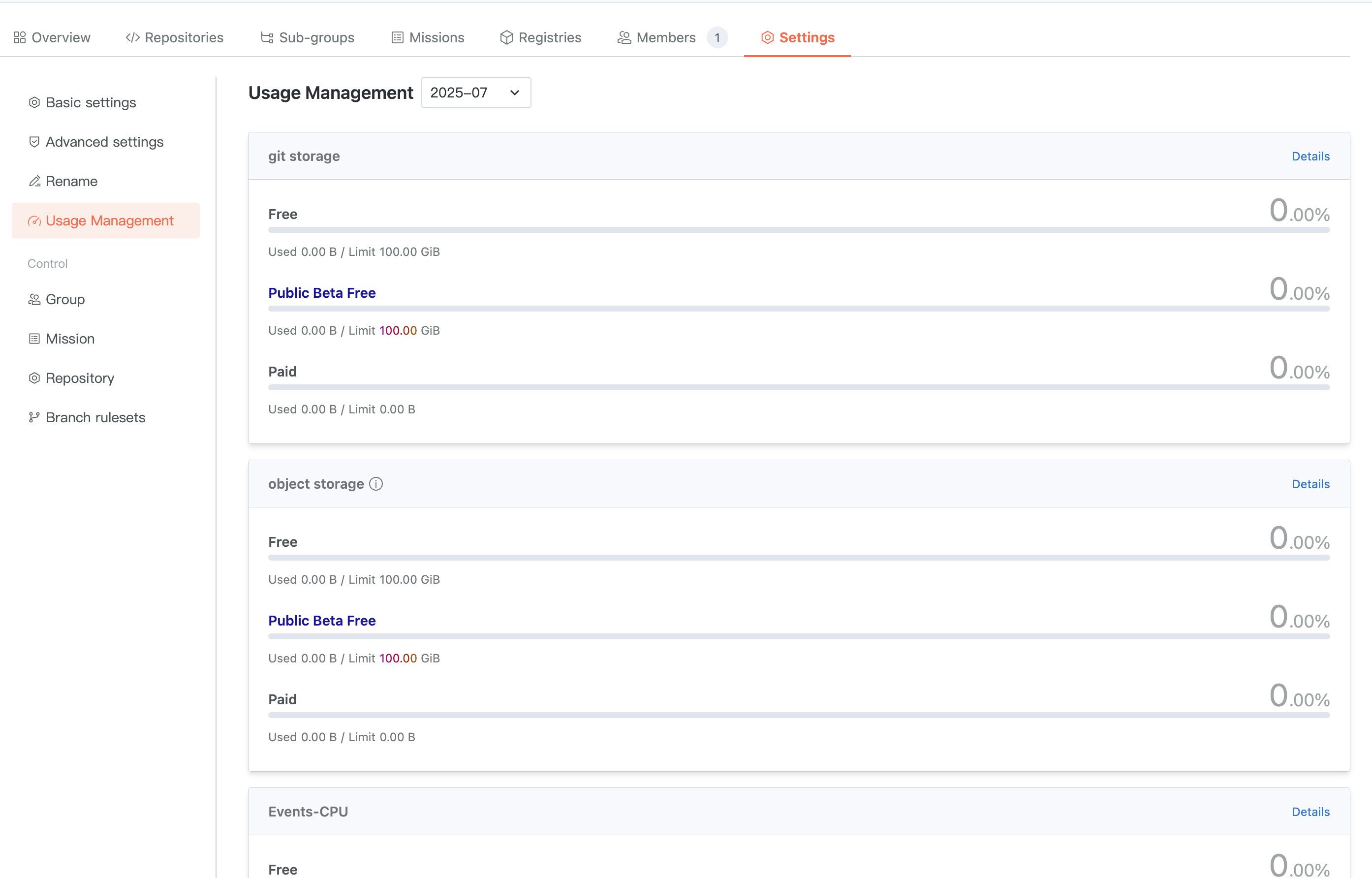
Click in the upper right corner Details to view the usage trend and specific distribution of the resource type.
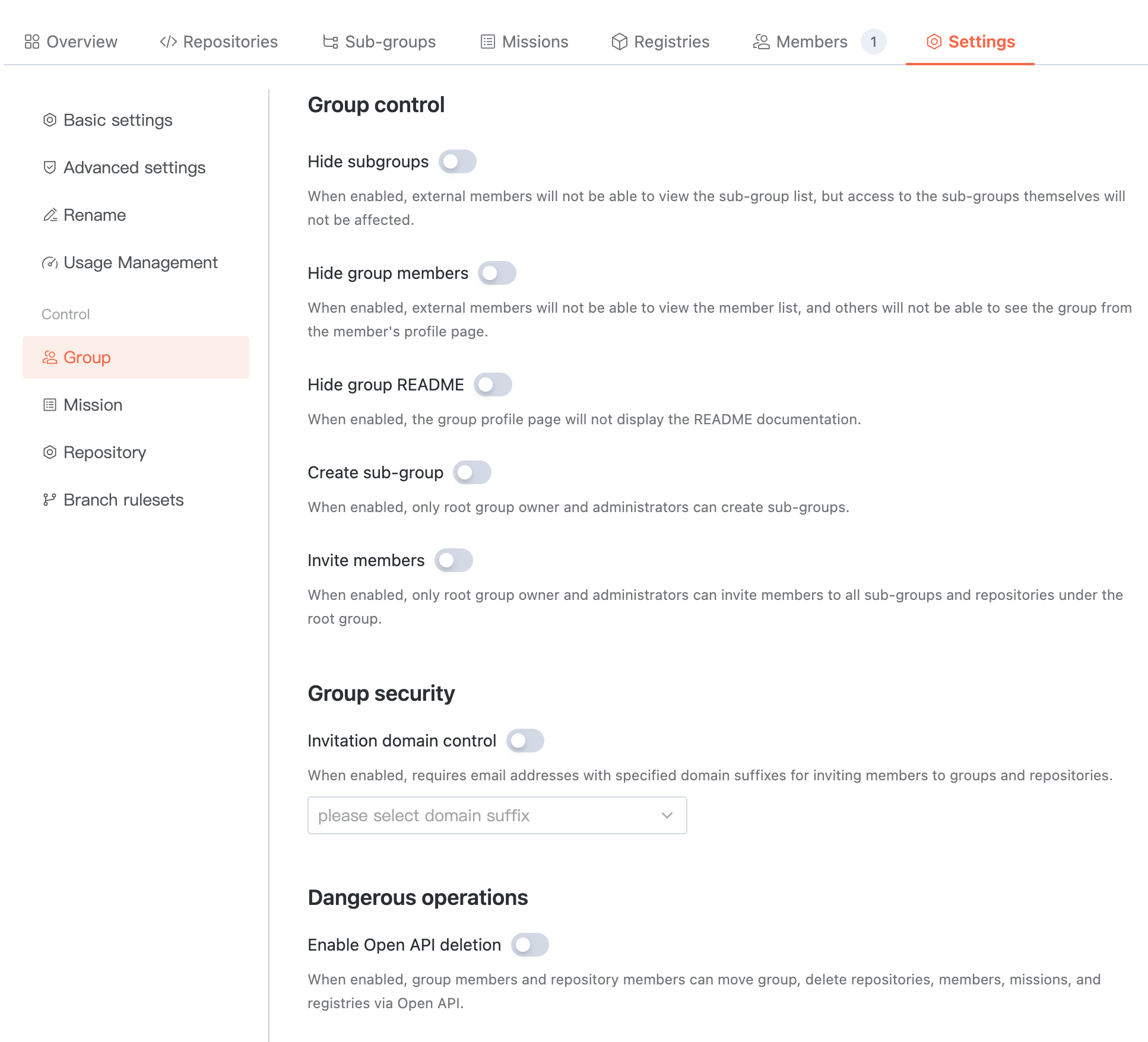
Organization Management
Manage visibility of public members for organization lists and member lists, enable invitation authentication control.
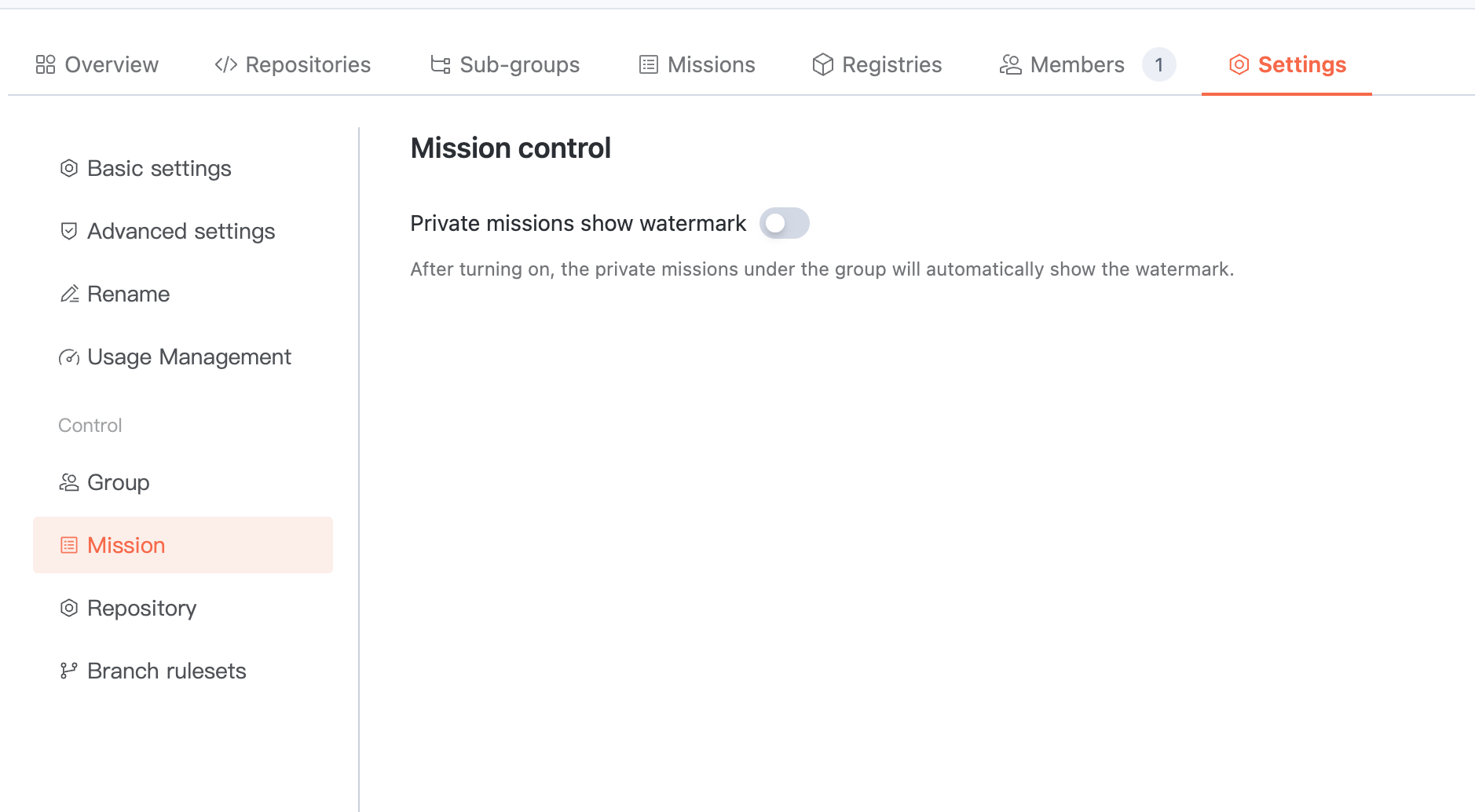
Task Set Management
Enable private task set display watermark, private task sets under the organization will automatically display watermark.
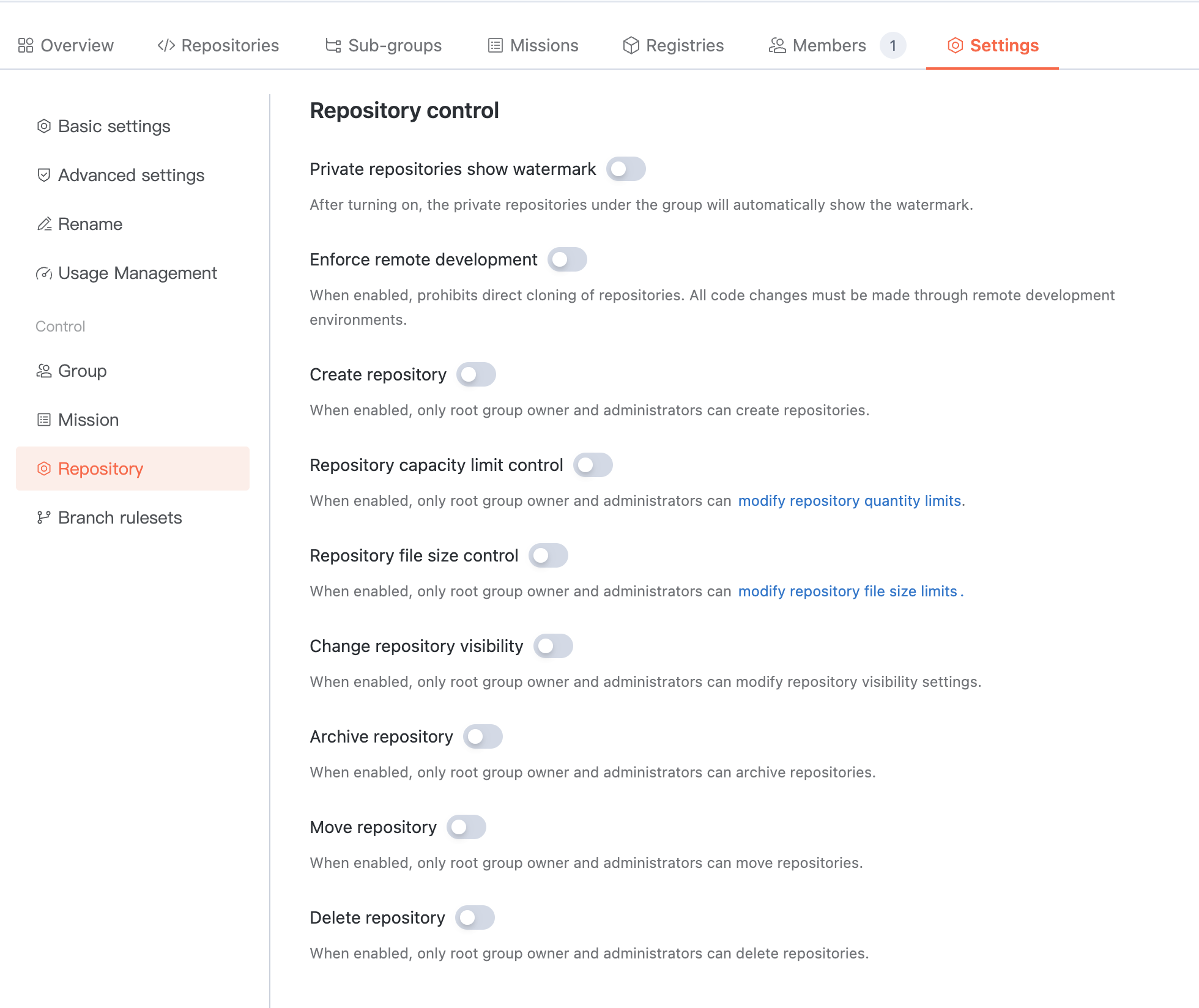
Repository Management
Support control over repositories under the organization, for example, private repositories automatically display watermarks, only root organization admins and owners can create repositories, and only root organization admins and owners can change repository visibility.
Branch Protection
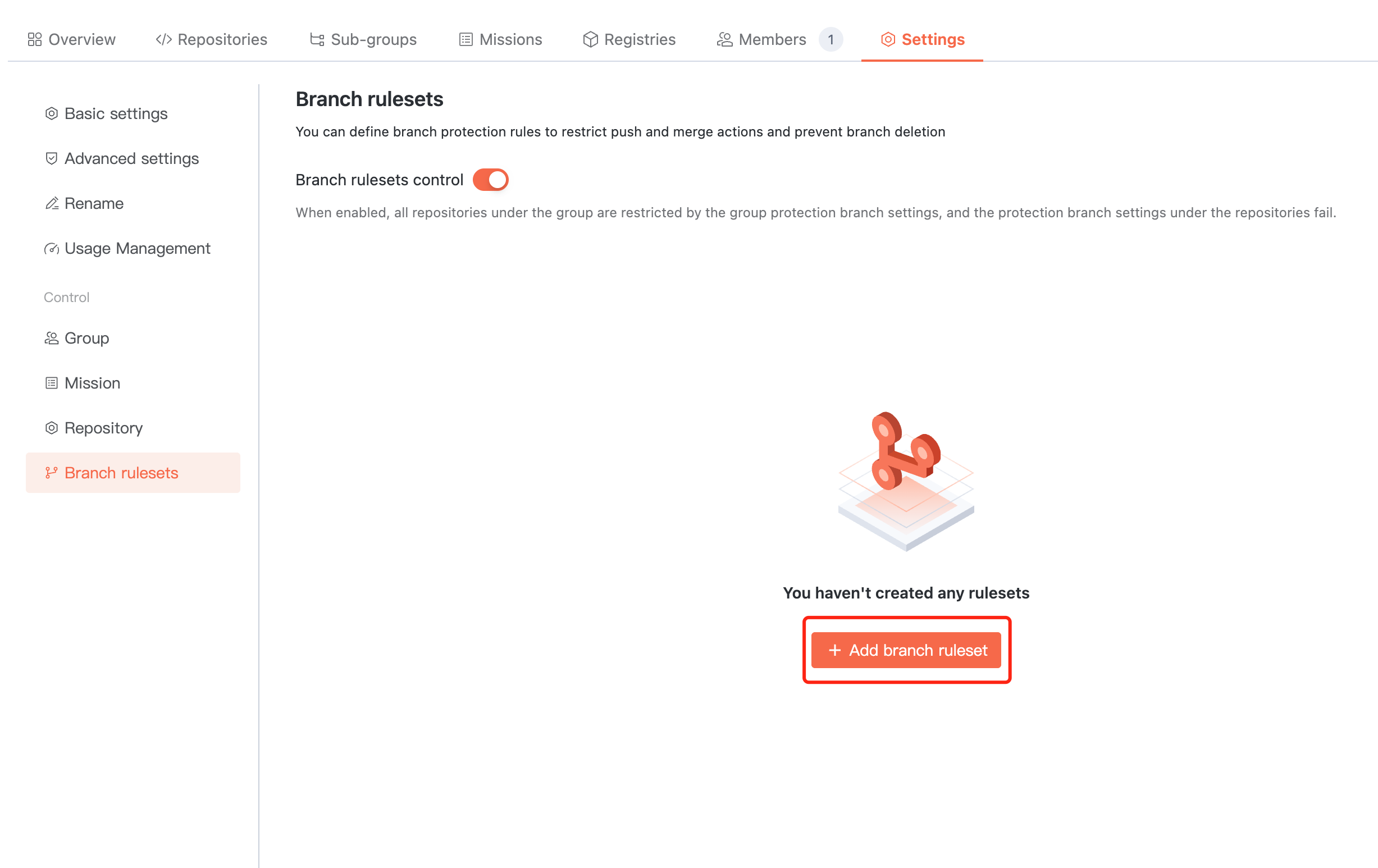
You can limit push and merge by defining branch protection rules to prevent branches from being deleted.
1. Enable branch protection and click Add branch ruleset.
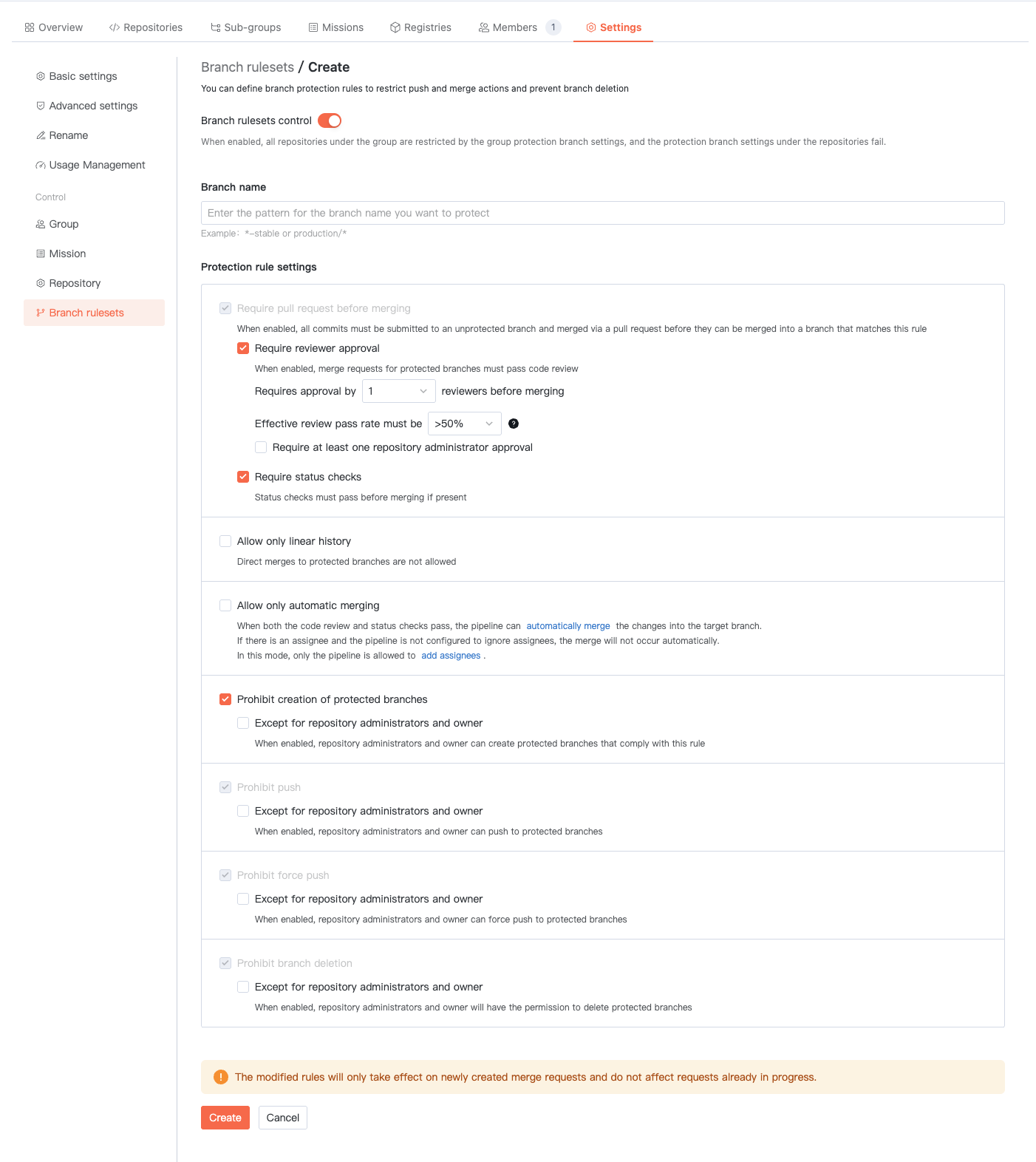
2. Fill in the branch name and rule setting information, then click Create to complete rule creation.
Note:
Note: Rule modifications are applicable only to new merge requests and do not affect requests in progress.
Help and Support
Was this page helpful?
You can also Contact sales or Submit a Ticket for help.
Help us improve! Rate your documentation experience in 5 mins.
Feedback