In one-way authentication, the client authenticates the server through the server certificate, and the server uses the certificate you selected to establish a connection with the client. To ensure cluster security, TDMQ for MQTT provides a default server certificate for one-way authentication. If you need to use your own certificate for authentication, refer to this guide to bind a custom certificate. The server certificate must be purchased or issued by youself, hosted in Tencent Cloud SSL Certificates, and then configured in the MQTT console. Restrictions and Limitations
The maximum number of server certificates in a single cluster is 3.
Configuring a Custom Certificate
Step 1: Hosting a Server Certificate
Step 2: Enabling One-Way Authentication
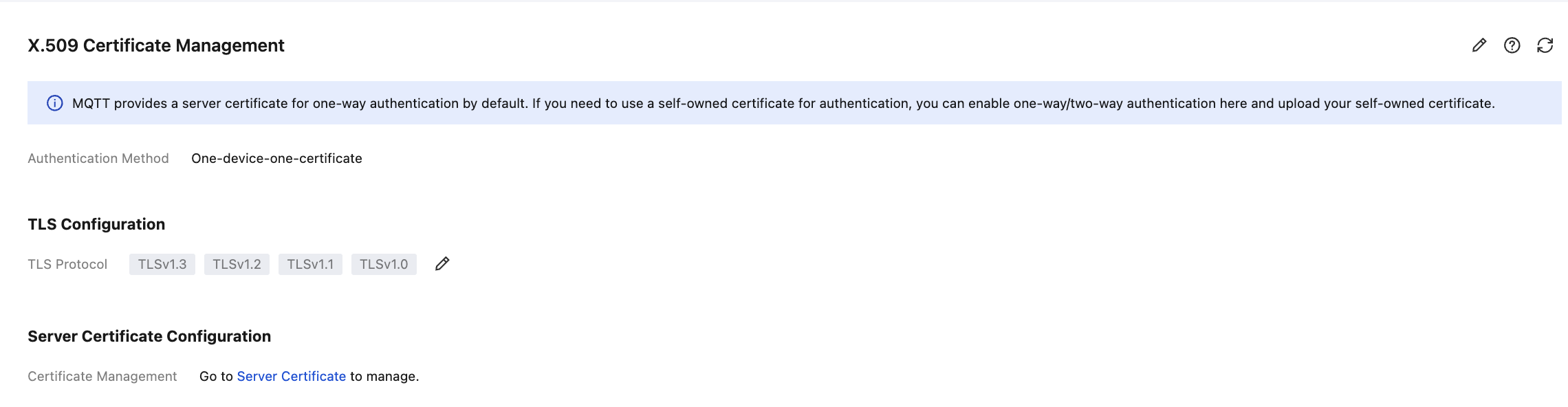
If you use the cluster authentication for the first time, MQTT has one-way authentication enabled by default, so you can skip this step. If you previously used two-way authentication or one-device-one-certificate authentication, you can switch back to one-way authentication by following this step.
2. In the left sidebar, click Resource > Cluster, select a region, and click the ID of the cluster for which you want to configure a certificate, to go to the basic information page of the cluster.
3. In the basic information page, select Authentication, choose the X.509 Certificate Management sub-tab, and click the edit icon on the right. 4. In the pop-up window, set the authentication method to One-Way Authentication, and click Submit to complete the configuration.
Step 3: Binding a Custom Certificate
2. In the left sidebar, choose Resource > Cluster, select a region, and click the ID of the target cluster to go to the cluster basic information page.
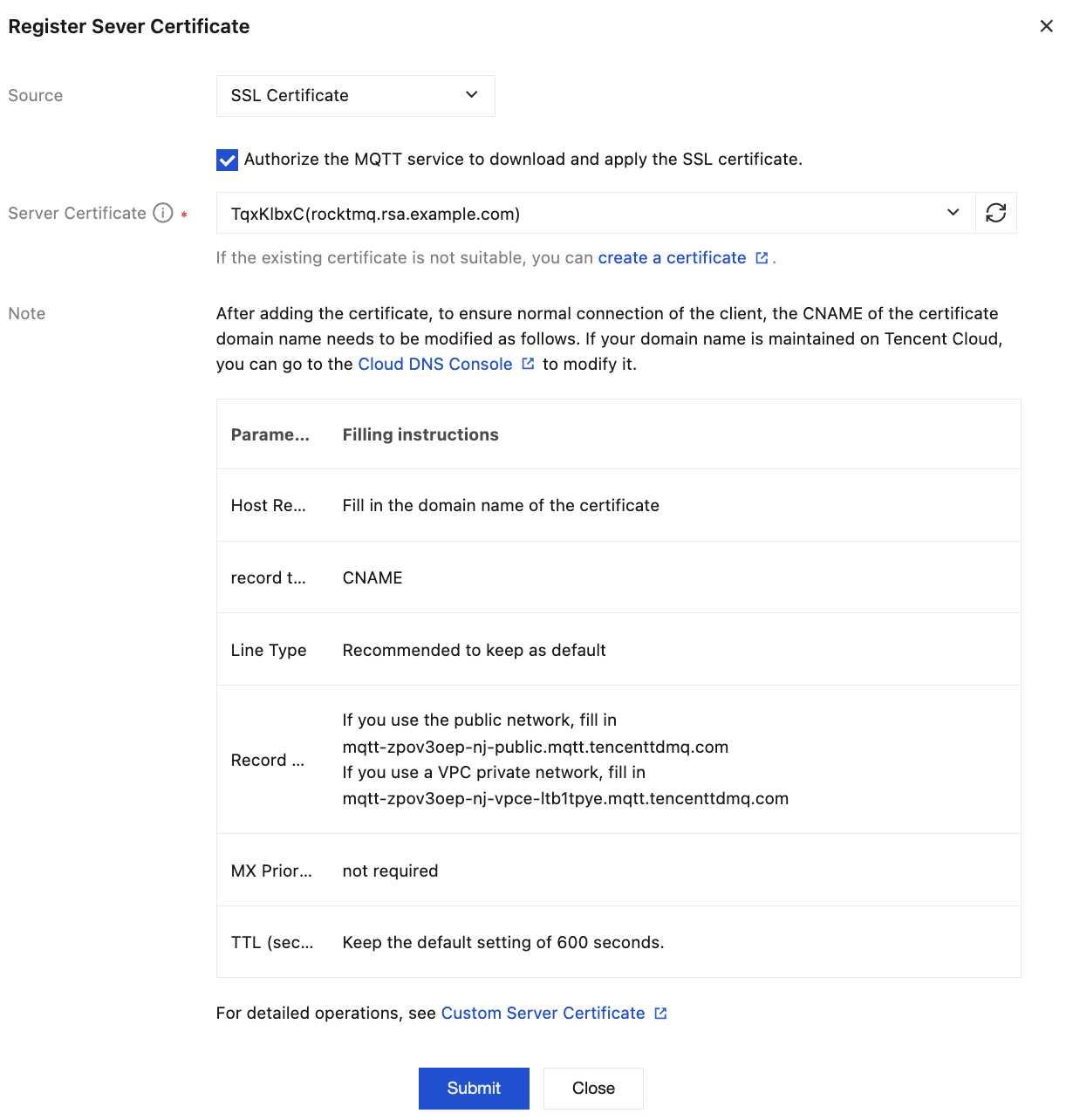
3. On the cluster details page, select the Server Certificate tab, and click Bind Custom Certificate in the top-left corner.
Source: Select SSL Certificates.
Server Certificate: In the drop-down box, select the SSL Certificates hosted in Tencent Cloud.
4. Click Submit to complete the binding.
Note:
Multiple custom certificates can be configured based on the default server certificate. The current maximum number of custom server certificates is 3.
Clusters support using multiple server certificates for authentication when one-way/two-way authentication is enabled.
Step 4: Configuring a Custom Domain Name
After the certificate is added, to ensure normal client connections, the CNAME configuration for the certificate domain name must be modified accordingly. If your domain name is managed on Tencent Cloud, you can go to the DNS Resolution console to modify it. |
Host Record | Fill in the domain name for the certificate in use. |
Record Type | CNAME |
Record Value | If using a public network, enter -. If using a VPC private network, enter mqtt-xxxx-nj-vpce-xxx.mqtt.tencenttdmq.com. |
MX Priority | Not required |
TTL (seconds) | It is recommended to retain the default value of 600s. |
Assume the selected server certificate Subject Alternative Name contains the following domain name: mqtt-abc.compay.com.
Refer to DNS - CNAME Record to create a CNAME record that resolves mqtt-abc.compay.com to the domain name provided by the cluster's access point: mqtt-xxx-sh-public.mqtt.tencenttdmq.com. Subsequently, the cluster can be accessed via mqtt-abc.company.com. Step 5: Configuring a TLS Version (Optional)
If certain devices or SDKs in your cluster only support specific versions of the TLS protocol, causing handshake failures and connection issues with the default server, you can adjust the supported TLS protocol version range on the server using the TLS Configuration feature. This enables both communication parties to negotiate a mutually recognized protocol version, resolving compatibility issues caused by version mismatches and ensuring all components successfully establish secure connections to maintain cluster communication stability.
Note:
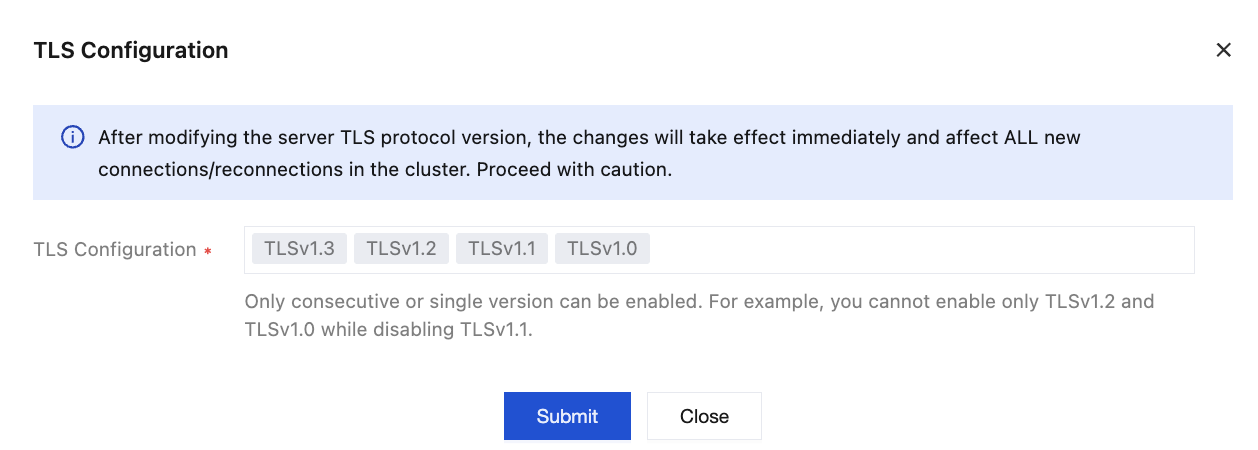
Upon modification, the TLS protocol version supported by the server takes effect immediately and affects all newly connected/reconnected clients under the cluster. Please exercise caution.
The server supports all versions from TLS 1.0 to TLS 1.3 by default. If modification is required, refer to the following configuration steps:
1. Go to Cluster > Authentication, choose the X.509 Certificate Management sub-tab, and click the edit icon on the right side of . 2. In the pop-up window, select the supported TLS version range. Since the TLS protocol only supports enabling consecutive versions or a single version, the configuration modification method is as follows:
To enable consecutive versions (such as TLS 1.1 and TLS 1.2): First select one version as the "Minimum Version", then select another version as the "Maximum Version", and click Submit to submit the configuration.
To enable only a single version (such as TLS 1.2 only): Double-click the version, then click Submit to submit the configuration.
Managing a Certificate
Disabling a Default Server Certificate
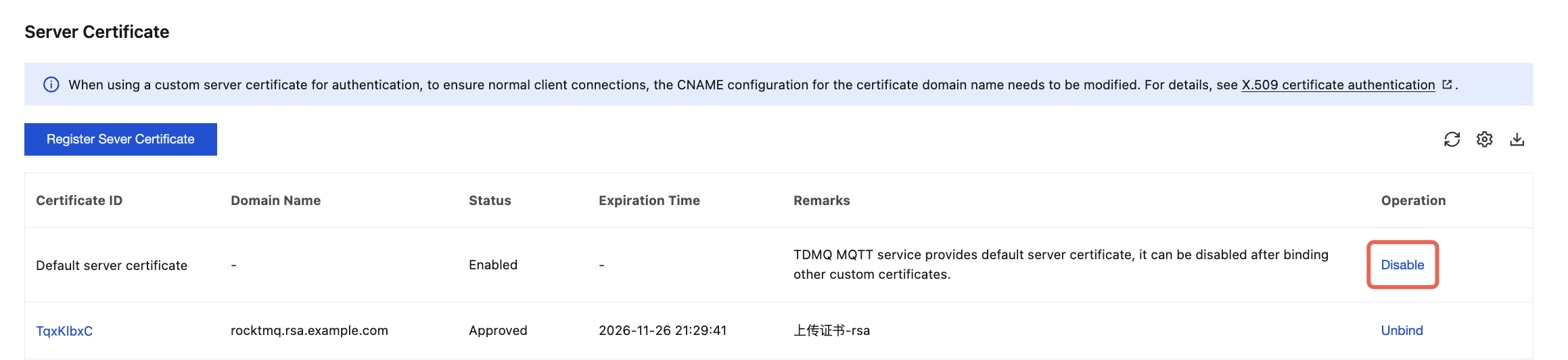
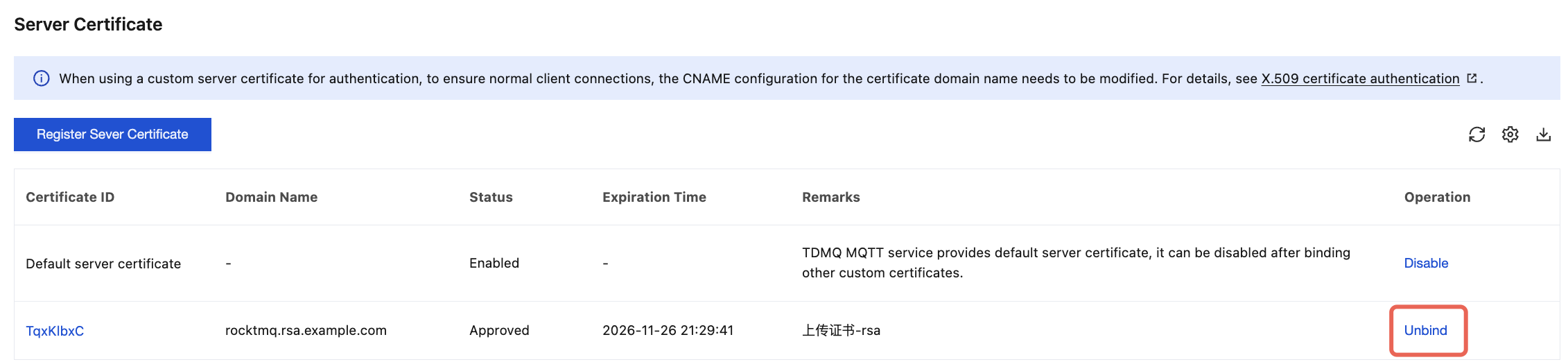
After a custom certificate is bound, you can disable the default server certificate provided by TDMQ for MQTT. The specific steps are as follows:
On the server certificate management page, click Disable in the operation column of the default server certificate. After confirmation in the pop-up window, the default certificate can be disabled.
Unbinding a Custom Certificate
If you no longer need the configured custom certificate, you can unbind it. After unbinding, you cannot connect via the domain name associated with the certificate.