Managing Instance Placement Groups
Download
Focus Mode
Font Size
Scenarios
When you need to assign placement groups to your instances or adjust the association relationships between instances and placement groups, you can perform the following operations:
Add/Adjust: For instances that are not added to any placement group, you can add them to a placement group. For instances that are added to a placement group, you can also move them to another placement group.
Remove: Remove instances from the placement group where they are currently located.
You can perform the above operations on a single instance or multiple instances.
Prerequisites
You have created a placement group. For details, see Creating a Placement Group.
When the Add/Adjust operation is performed, ensure that there are sufficient instance quotas in the target placement group.
Must-Knows
For instances that do not incur charges when being shut down, you cannot add them to or remove them from placement groups, or move them to another placement group.
Instances allocated on CVM Dedicated Host (CDH) instances cannot be added to or removed from placement groups, and they cannot be moved to other placement groups.
Batch operation limitations:
The "Remove" operation is only available when all selected instances belong to the same placement group.
If the selected instances do not belong to any placement group, only the "Add/Adjust" operation is available, and the "Remove" operation is unavailable.
Operation Steps
1. Log in to the Cloud Virtual Machine (CVM) console.
2. Select instances based on your needs:
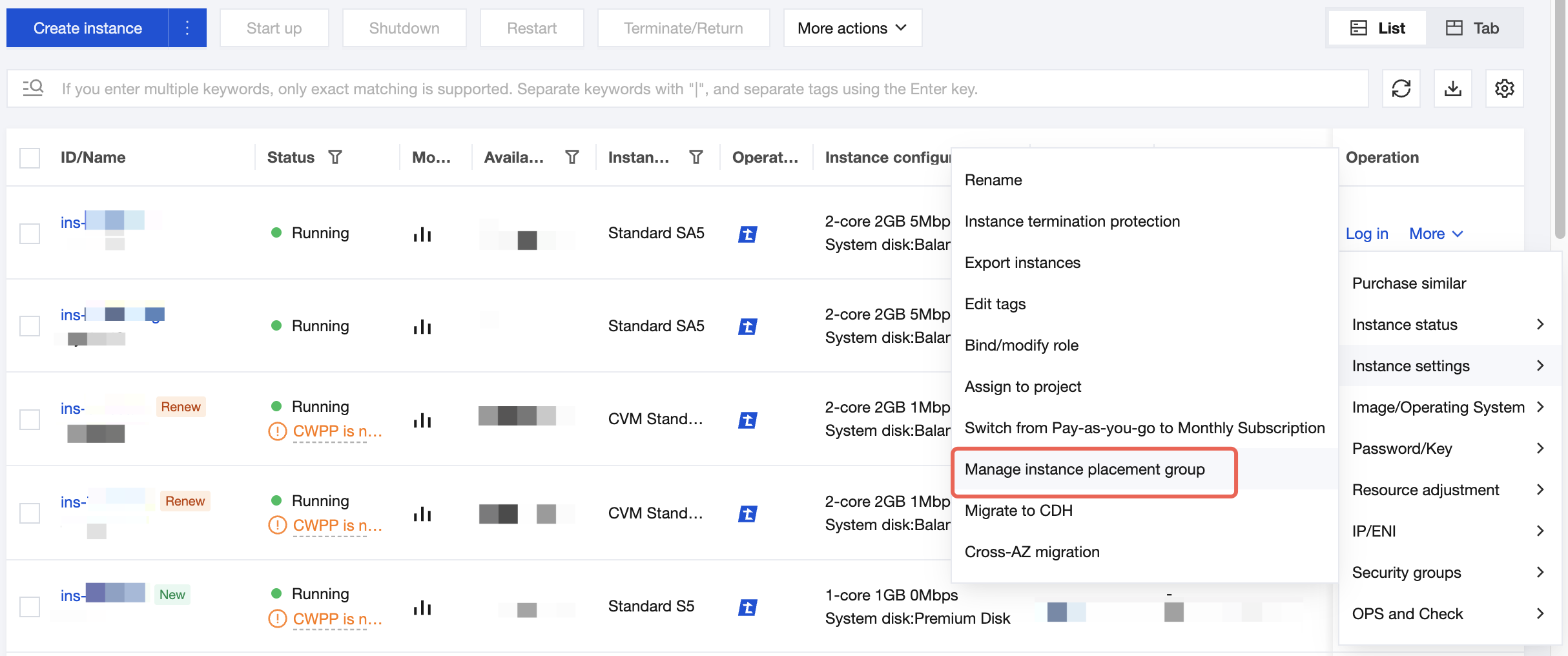
Single-instance operation: In the Operation column on the right of the target instance, choose More > Instance settings > Manage instance placement group.
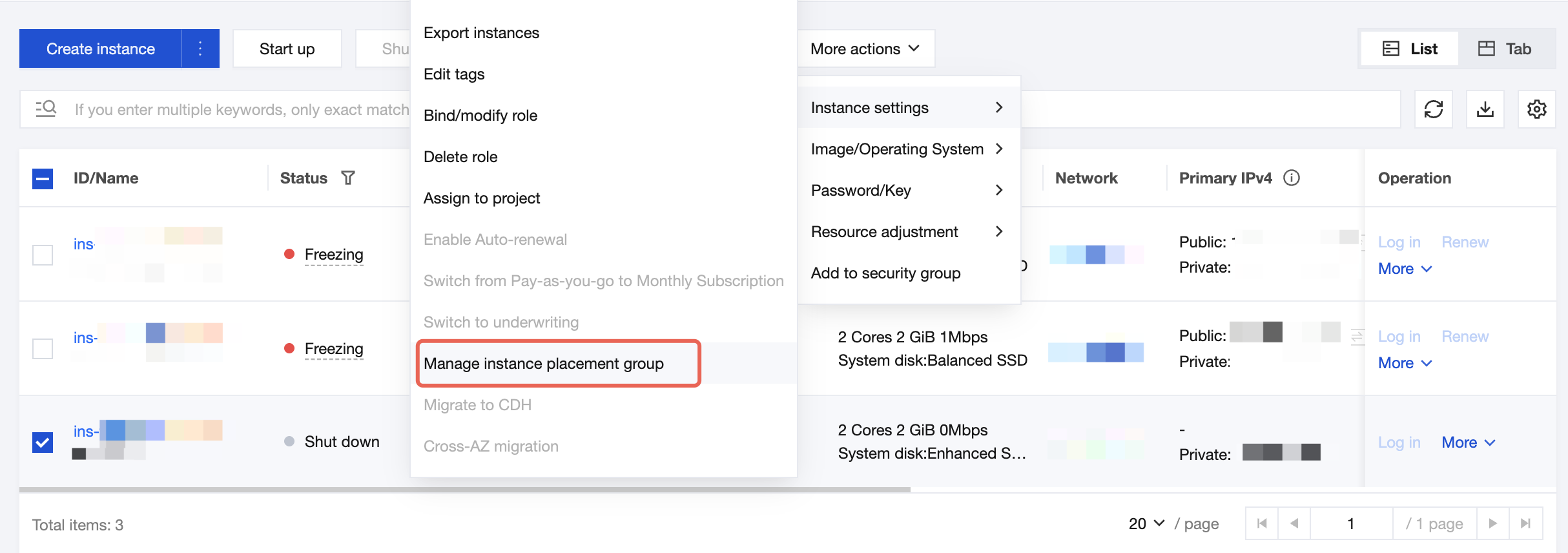
Batch operations: Select a single or multiple target instances, and choose More actions > Instance settings > Manage instance placement group at the top of the instance list.
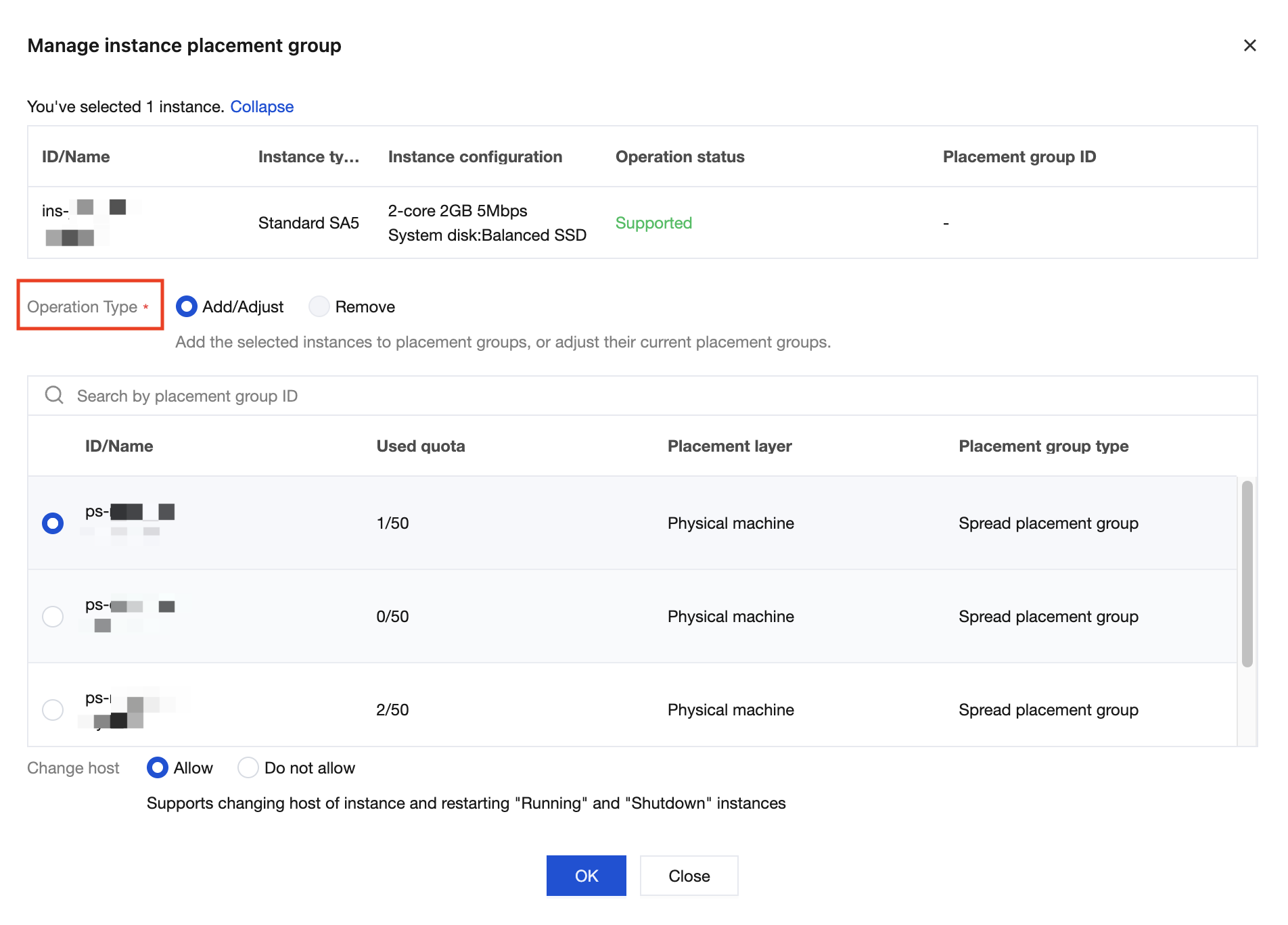
3. In the Manage instance placement group pop-up window, select the appropriate operation type based on your management objectives.
Select Add/Adjust.
Select a target placement group from the drop-down list.
Set whether to allow the host change:
Allow: If the current host of the instance does not meet the policy requirements for the target placement group, the system will migrate the instance to a host that meets the policy requirements. This process will cause the instance to restart.
Do not allow: Host change is not allowed. The system only attempts to add the instance to the placement group on the current host. If the current host does not meet the policy requirements, the operation may fail.
Click OK.
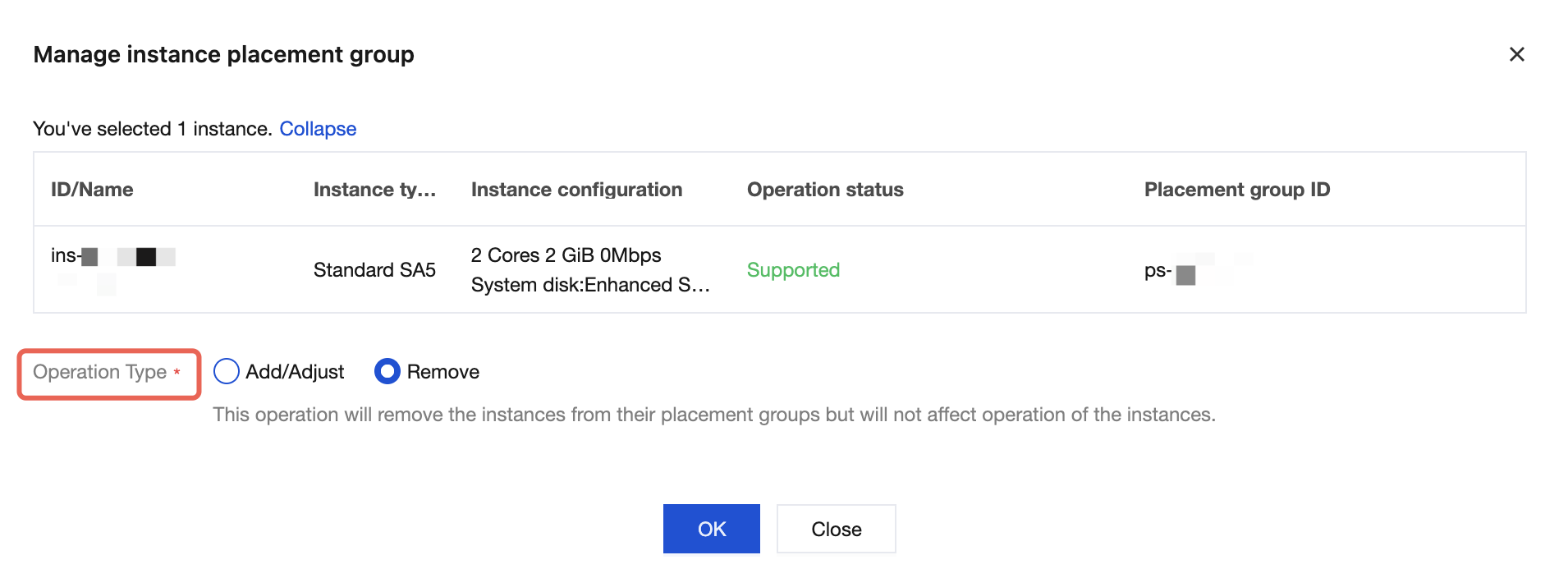
Select Remove.
View the prompt message: This operation will remove the instances from their placement groups but will not affect their normal operation.
Click OK.
4. After the operation is completed, pay attention to the operation result prompt of the system. You can also check whether the placement group value of the instance is updated to confirm whether the operation is successful.
Help and Support
Was this page helpful?
You can also Contact sales or Submit a Ticket for help.
Help us improve! Rate your documentation experience in 5 mins.
Feedback