Announcements
Manage Lexicon
The lexicon comprises two distinct categories: Term Lexicon and Hotword Lexicon. The Term Lexicon facilitates translation rules for specific vocabulary (such as product names, ambiguous terms, and loanwords) in cross-lingual translation scenarios, ensuring translation accuracy. Meanwhile, the Hotword Lexicon significantly enhances speech recognition accuracy for proprietary terms (including brands and technical terminology) by incorporating weighted entries. When encountering homophones with identical tones, the system prioritizes matches with higher-weighted hotwords, thereby enabling more precise and professional live subtitle generation.
Points of Attention
The system will identify and replace hot words based on their weight and frequency of occurrence. The larger the weight and the lower the frequency, the higher the probability of being hit.
Currently, lexicons only support configuring Chinese and English. The lexicon content takes effect 10 minutes after each update.
Term lexicon can translate the client's terminology in a specific field.
Creating a Library
1. Log in to the CSS console, and click AI Features > Subtitle & Simultaneous Interpretation, then click Manage Lexicon.
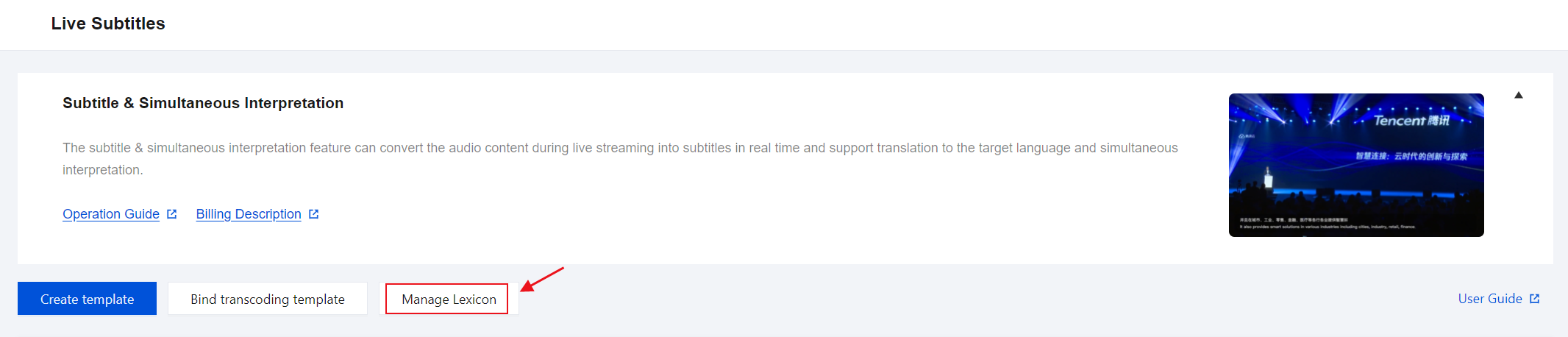
2. Click Create library.

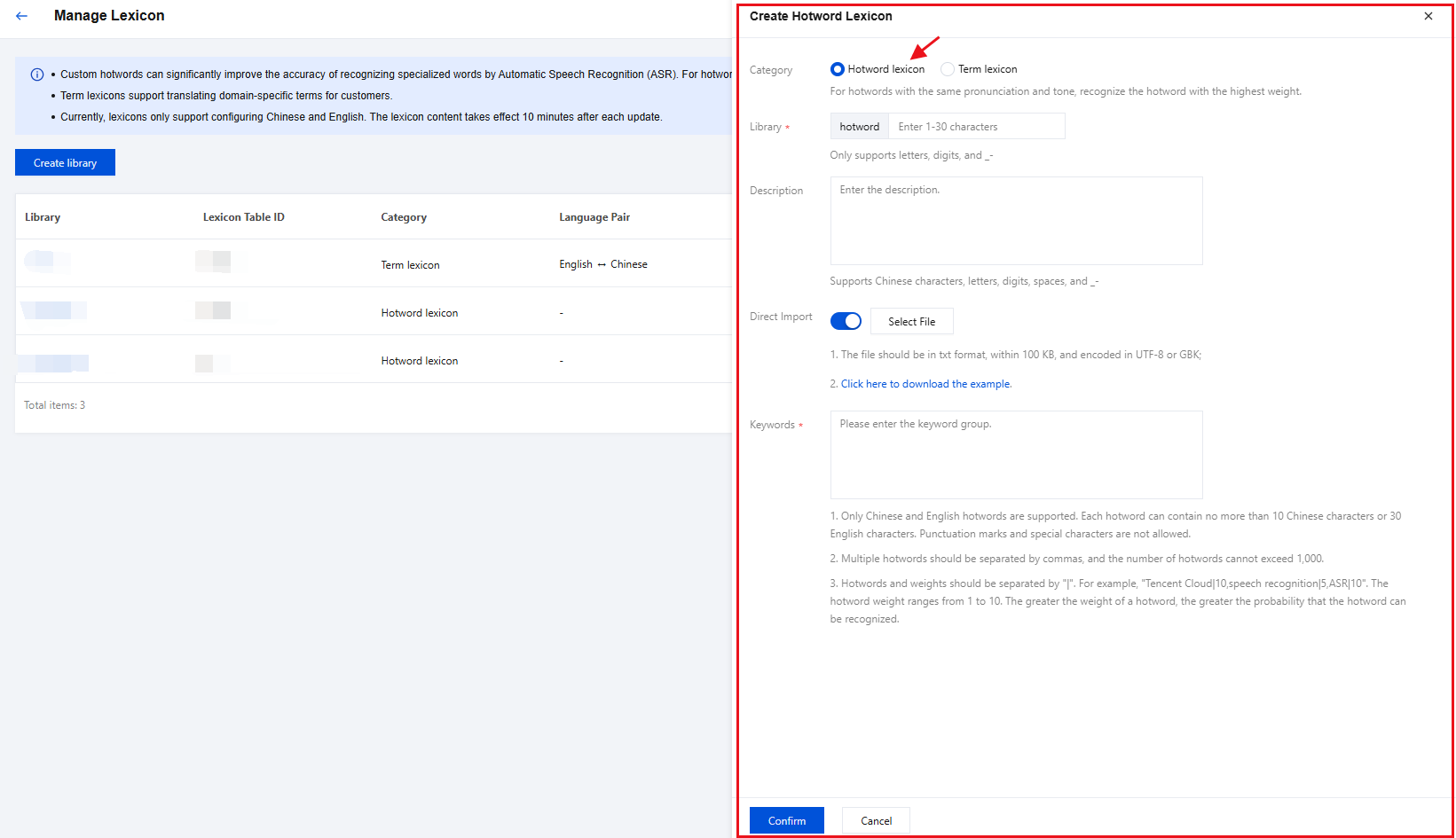
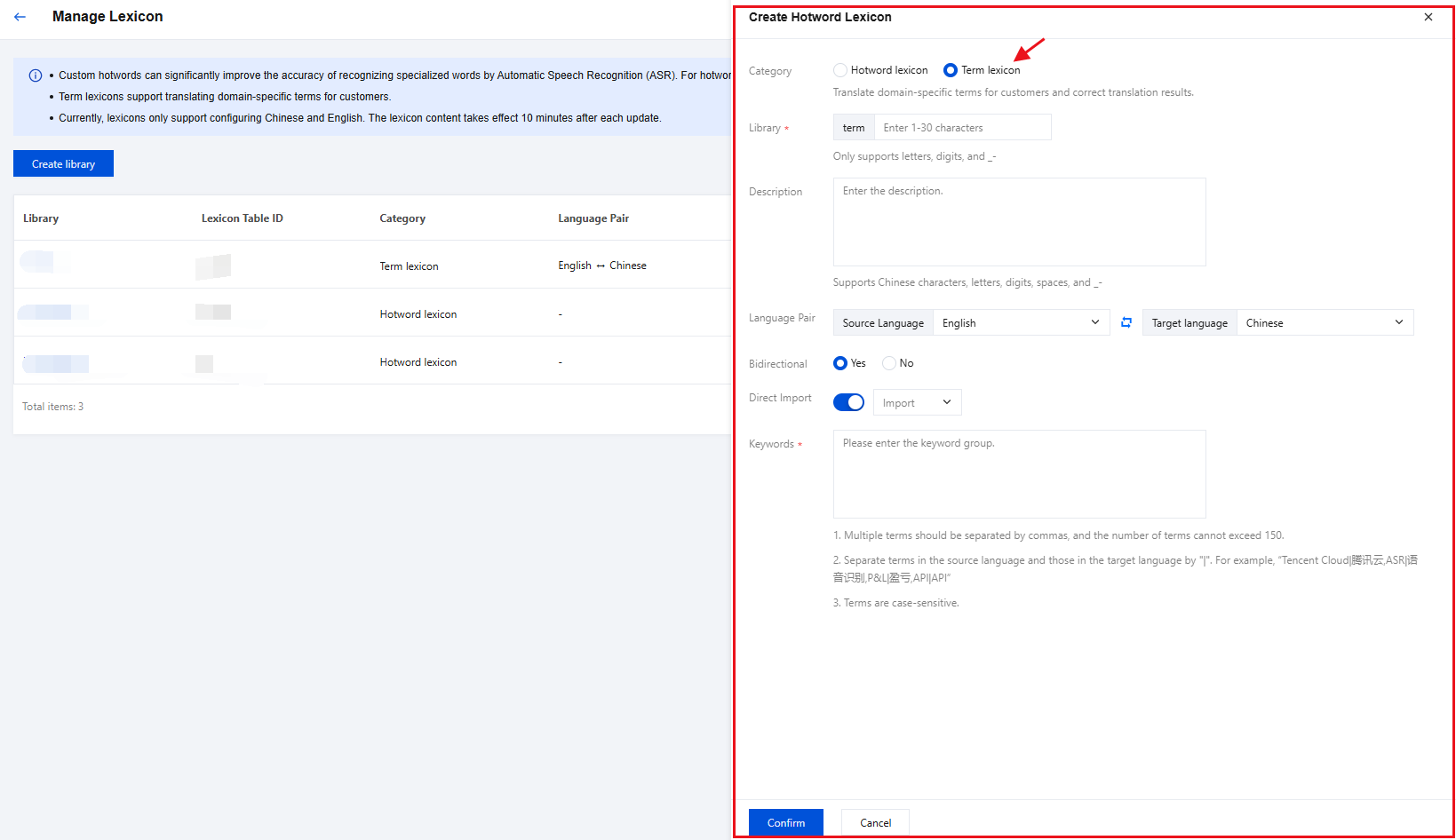
3. In the pop-up window, fill in the configuration information.Category: Default Hotword lexicon (optional Term lexicon). Please refer to the following table for detailed configuration.
Configuration Item | Description |
Category | Hotword lexicon:For hotwords with the same pronunciation and tone, recognize the hotword with the highest weight. |
Library | The prefix of the library name is always "hotword". It only supports English letters, digits, underscores (_), and hyphens (-), and contains up to 30 characters. |
Description | Supports Chinese characters, letters, digits, spaces, and _-. The description cannot exceed 100 characters. |
Direct Import | Toggle this on if you want to import hotwords from a file. Click Select File, and then select a file from your computer. Make sure that the file meets the following requirements: File format: TXT. File size: within 100 KB. File encoding: UTF-8 or GBK encoding. |
Keywords | Add hotwords here. Only Chinese and English hotwords are supported. Each hotword can contain no more than 10 Chinese characters or 30 English characters. Punctuation marks and special characters are not allowed. Multiple hotwords should be separated by commas, and the number of hotwords cannot exceed 1,000. Hotwords and weights should be separated by "|". For example, "Tencent Cloud|10,speech recognition|5,ASR|10". The hotword weight ranges from 1 to 10. The greater the weight of a hotword, the greater the probability that the hotword can be recognized. |
Configuration Item | Description |
Category | Term lexicon:Translate domain-specific terms for customers and correct translation results. |
Library | The library prefix is fixed to "term".It only supports English letters, digits, underscores (_), and hyphens (-), and contains up to 30 characters. |
Description | Supports Chinese characters, letters, digits, spaces, and _-. The description cannot exceed 100 characters. |
Language Pair | Language Conversion Directions: Supports bidirectional translation between Chinese and English, including the following conversion options: Chinese → English English → Chinese |
Bidirectional | Based on your business requirements, you may choose whether to enable bidirectional translation between Chinese and English. Options: Yes/No (Default value: "Yes") |
Direct Import | Depending on your actual business needs, you can choose to upload files from your computer or use the Common Vocabulary function. Select File If you need to import terminology, you can manually enable the direct terminology import feature. Click "Select File" and select the file to upload from your computer. Please ensure that the uploaded file meets the following requirements: File format: TXT. File size: within 100 KB. File encoding: UTF-8 or GBK encoding. Common Vocabulary You can directly select the preset vocabulary. |
Keywords | Add hotwords here. Multiple terms should be separated by commas, and the number of terms cannot exceed 150. Separate terms in the source language and those in the target language by "|". For example, “Tencent Cloud|腾讯云,ASR|语音识别,P&L|盈亏,API|API” Terms are case-sensitive. |
4. Click Confirm, and the hotwords are added.
Viewing a Library
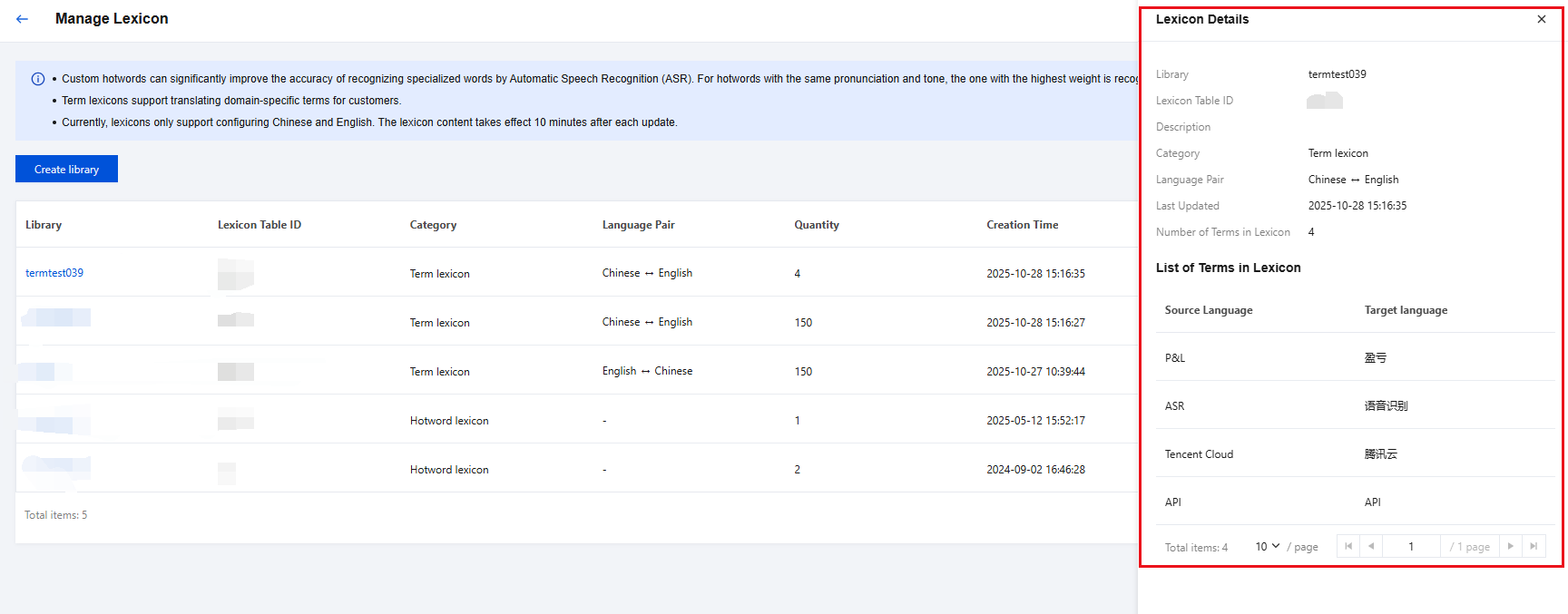
On the Manage Lexicon page, click the name of the library you want to view on the left side, and view its detailed information in the pop-up window.
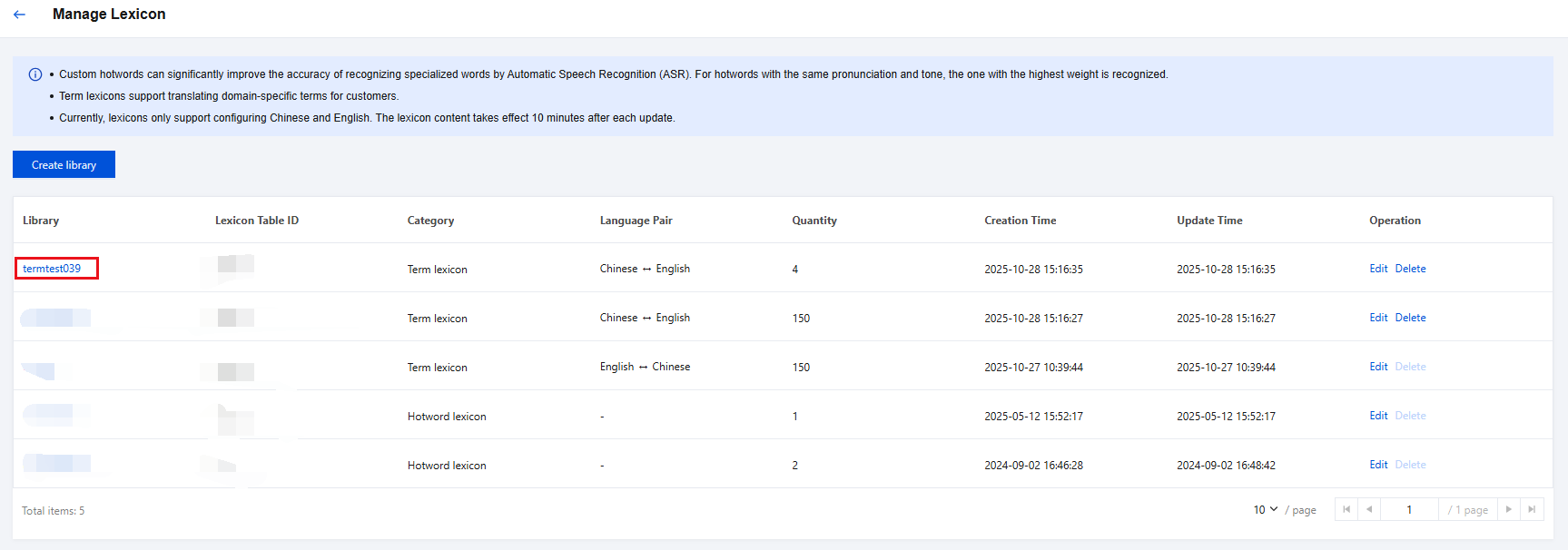
The information includes the library name, lexicon table ID, last updated time, number of hotwords, and list of hotwords and their weights.
Modifying a Library
1. On the Manage Lexicon page, find the library you want to modify, click Edit on the right, and then modify the configuration information of the library in the pop-up window.
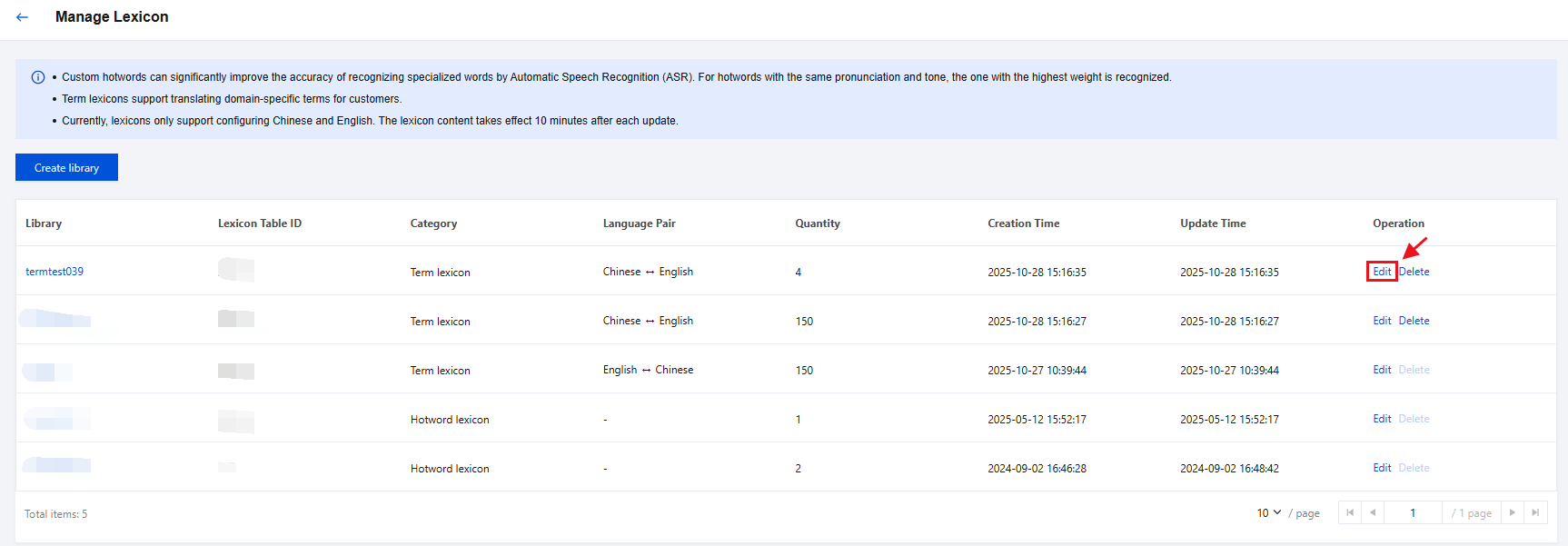
2. Click Confirm to save the current template and complete the modification of the custom library.
Deleting a Library
1. On the Manage Lexicon page, find the library you want to delete, and then click Delete on the right.
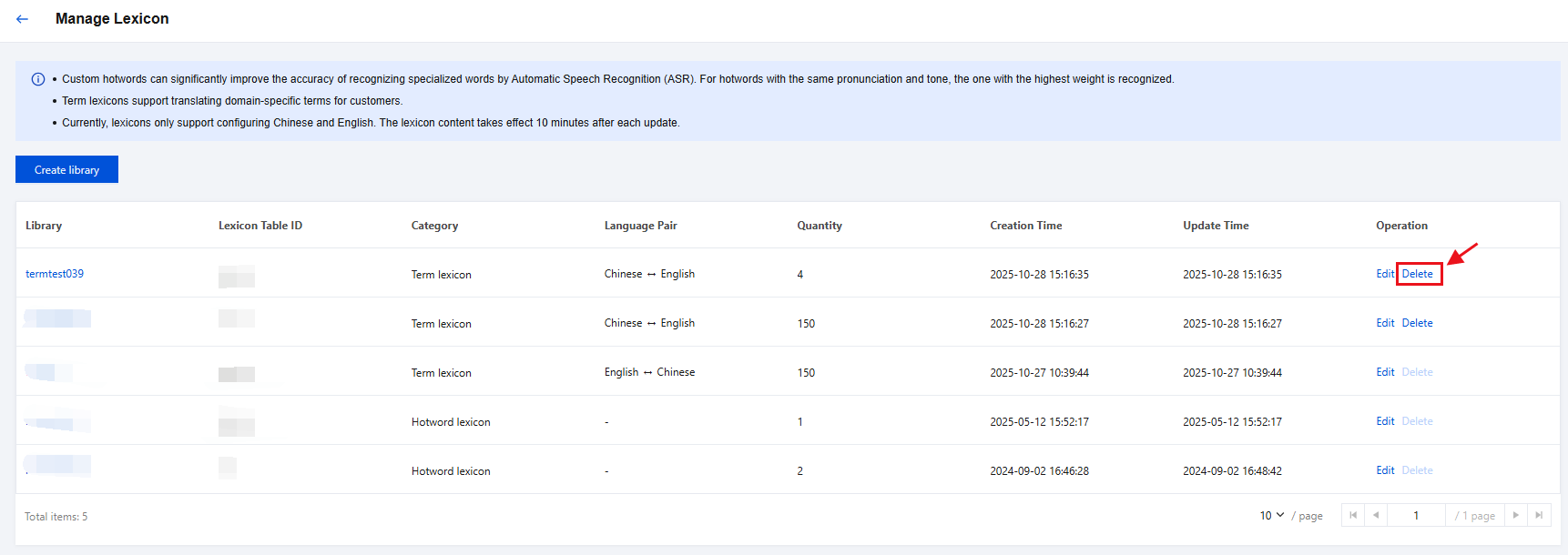
2. A confirmation box will pop up. Click OK to delete the custom library.

Help and Support
Was this page helpful?
You can also Contact sales or Submit a Ticket for help.
Help us improve! Rate your documentation experience in 5 mins.
Feedback