tencent cloud

Cloud Object Storage

Release Notes and Announcements
Release Notes
Announcements
Product Introduction
Overview
Features
Use Cases
Strengths
Concepts
Regions and Access Endpoints
Specifications and Limits
Service Regions and Service Providers
Billing
Billing Overview
Billing Method
Billable Items
Free Tier
Billing Examples
Viewing and Downloading Bill
Payment Overdue
FAQs
Getting Started
Console
Getting Started with COSBrowser
User Guide
Creating Request
Bucket
Object
Data Management
Batch Operation
Global Acceleration
Monitoring and Alarms
Operations Center
Data Processing
Content Moderation
Smart Toolbox
Data Processing Workflow
Application Integration
User Tools
Tool Overview
Installation and Configuration of Environment
COSBrowser
COSCLI (Beta)
COSCMD
COS Migration
FTP Server
Hadoop
COSDistCp
HDFS TO COS
GooseFS-Lite
Online Tools
Diagnostic Tool
Use Cases
Overview
Access Control and Permission Management
Performance Optimization
Accessing COS with AWS S3 SDK
Data Disaster Recovery and Backup
Domain Name Management Practice
Image Processing
Audio/Video Practices
Workflow
Direct Data Upload
Content Moderation
Data Security
Data Verification
Big Data Practice
COS Cost Optimization Solutions
Using COS in the Third-party Applications
Migration Guide
Migrating Local Data to COS
Migrating Data from Third-Party Cloud Storage Service to COS
Migrating Data from URL to COS
Migrating Data Within COS
Migrating Data Between HDFS and COS
Data Lake Storage
Cloud Native Datalake Storage
Metadata Accelerator
GooseFS
Data Processing
Data Processing Overview
Image Processing
Media Processing
Content Moderation
File Processing Service
File Preview
Troubleshooting
Obtaining RequestId
Slow Upload over Public Network
403 Error for COS Access
Resource Access Error
POST Object Common Exceptions
API Documentation
Introduction
Common Request Headers
Common Response Headers
Error Codes
Request Signature
Action List
Service APIs
Bucket APIs
Object APIs
Batch Operation APIs
Data Processing APIs
Job and Workflow
Content Moderation APIs
Cloud Antivirus API
SDK Documentation
SDK Overview
Preparations
Android SDK
C SDK
C++ SDK
.NET(C#) SDK
Flutter SDK
Go SDK
iOS SDK
Java SDK
JavaScript SDK
Node.js SDK
PHP SDK
Python SDK
React Native SDK
Mini Program SDK
Error Codes
Harmony SDK
Endpoint SDK Quality Optimization
Security and Compliance
Data Disaster Recovery
Data Security
Cloud Access Management
FAQs
Popular Questions
General
Billing
Domain Name Compliance Issues
Bucket Configuration
Domain Names and CDN
Object Operations
Logging and Monitoring
Permission Management
Data Processing
Data Security
Pre-signed URL Issues
SDKs
Tools
APIs
Agreements
Service Level Agreement
Privacy Policy
Data Processing And Security Agreement
Contact Us
Glossary
DocumentationCloud Object Storage

Limiting Sizes of Uploaded Objects

Focus Mode
Font Size
Last updated: 2024-06-27 15:23:57
Cloud Object Storage (COS) supports limiting object sizes upon the upload, which allows you to manage storage space flexibly by avoiding uploading objects that are too large or too small to make full use of the bandwidth and storage space. This document gives two samples to describe how to control the objects sizes in a refined way.

Prerequisites

The samples use the information below:
APPID of the root account: 1250000000
Bucket name: examplebucket-1250000000
In practice, please replace with your own bucket and use an account with the appropriate permissions and secret key to operate the bucket.

Sample 1. Specifying a Size Range During POST Object Uploads

When uploading objects using POST Object, you can add content-length-range in the HTML form to control the object size in this request as follows:
[ "content-length-range", minNum, maxNum ]
Sample:
[ "content-length-range", 1, 10]
The JSON-formatted field above is added to policy > conditions in the POST request form. A complete policy with this field carried is as follows:
{
"expiration": "2021-12-31T12:00:00Z",
"conditions": [
{ "bucket": "examplebucket-1250000000" },
[ "starts-with", "$key", "exampleobject" ],
{ "q-ak": "AKIDQjz3ltompVjBni5LitkWHFlFpwkn****" },
{ "q-sign-algorithm": "sha1" },
{ "q-sign-time": "1567150692;1567157892" },
[ "content-length-range", 1, 10 ]
]
}
For more information about how to construct a complete request, please see POST Object.

Response

The following response will be returned as follows if the size of the object is within the specified size range:
HTTP/1.1 204
Content-Length: 0
Connection: close
Date: Wed, 23 Aug 2020 08:14:53 GMT
ETag: "ee8de918d05640145b18f70f4c3aa602"
Location: http://examplebucket-1250000000.cos.ap-guangzhou.myqcloud.com/exampleobject
Server: tencent-cos
x-cos-request-id: NWQ2NzgxMzZfMmViMDJhMDlfY2NjOF84NGQz****
The response will fail if the object size is not in the specified range.
If the object is too big, the response is as follows:
HTTP/1.1 400 Bad Request
Content-Type: application/xml
Content-Length: 498
Connection: keep-alive
Date: Wed, 23 Aug 2020 08:14:53 GMT
Server: tencent-cos
x-cos-request-id: NTk5ZDM5N2RfMjNiMjM1MGFfMmRiX2Y0****


<?xml version='1.0' encoding='utf-8' ?>
<Error>
<Code>EntityTooLarge</Code>
<Message>Condition key content-length-range doesn‘t match the value </Message>
<Resource>examplebucket-1250000000.cos.ap-guangzhou.myqcloud.com/exampleobject</Resource>
<RequestId>NTk5ZDM5N2RfMjNiMjM1MGFfMmRiX2Y0****</RequestId>
</Error>
If the object is too small, the response is as follows:
HTTP/1.1 400 Bad Request
Content-Type: application/xml
Content-Length: 498
Connection: keep-alive
Date: Wed, 23 Aug 2020 08:14:53 GMT
Server: tencent-cos
x-cos-request-id: NTk5ZDM5N2RfMjNiMjM1MGFfMmRiX2Y0****


<?xml version='1.0' encoding='utf-8' ?>
<Error>
<Code>EntityTooSmall</Code>
<Message>Condition key content-length-range doesn‘t match the value </Message>
<Resource>examplebucket-1250000000.cos.ap-guangzhou.myqcloud.com/exampleobject</Resource>
<RequestId>NTk5ZDM5N2RfMjNiMjM1MGFfMmRiX2Y0****</RequestId>
</Error>

Sample 2. Specifying a Size Range when Applying for a Temporary Credential

The method used in sample 1 is easy, which requires only one parameter in the HTML form. However, it only supports POST Object but not PUT Object. Moreover, since the requester can still modify the parameter in requests, uploading objects beyond the specified size range is still possible, making it hard for central management.
To solve the problem above, bucket managers can use the following fields to limit the object size when applying for a temporary key. For COS objects, use the fixed cos:content-length.
Condition Field
Description
Example
numeric_greater_than
A number greater than
{"numeric_greater_than": {"cos:content-length": 1}}, The object size must be greater than 1 byte.
numeric_greater_than_equal
A number greater than or equal to
{"numeric_greater_than_equal": {"cos:content-length": 1}}, The object size must be greater than or equal to 1 byte.
numeric_less_than
A number smaller than
{"numeric_less_than": {"cos:content-length": 1}}, The object must be smaller than 1 bytes.
numeric_less_than_equal
A number smaller than or equal to
{"numeric_less_than_equal": {"cos:content-length": 1}}, The object must be smaller than 10 bytes.
For the complete request sample, please see the Obtaining a Temporary Access Credential API Documentation of STS. A complete policy is as follows:
{
"version": "2.0",
"statement": [
{
"effect": "allow",
"action": [
"cos:PutObject",
"cos:PostObject"
],
"resource":[
"qcs::cos:ap-guangzhou:uid/1250000000:examplebucket-1250000000/*"
],

"condition": {
"numeric_greater_than_equal": {"cos:content-length": 1}
, "numeric_less_than": {"cos:content-length": 10}
}
}
]
}
With the temporary credential obtained using the following policy, you can call the PUT Object or POST Object API to upload objects to the examplebucket-1250000000 bucket, with the object sizes limited to [1, 10), in bytes.
Note:
This policy is only applicable to the cos:PutObject and cos:PostObject actions. Using other actions such as cos:GetObject will fail.
This method allows bucket managers or the authentication center to centrally apply for temporary credentials and limit the size during the application, after which the credentials can be distributed to operators or business modules. In this way, object sizes can be controlled, avoiding uploading objects beyond the size range due to parameter modification.

Response

If the size of the uploaded object is within the specified range, the upload request will succeed with 200 or 204 returned. Otherwise, 403 will be returned, as shown below:
HTTP/1.1 403 Forbidden
Content-Type: application/xml
Content-Length: 298
Connection: keep-alive
Date: Wed, 23 Aug 2020 08:14:53 GMT
Server: tencent-cos
x-cos-request-id: NTk5ZDM5N2RfMjNiMjM1MGFfMmRiX2Y0****

Example 3: Restricting file upload types using bucket policies

You can specify the file upload type in the bucket policy. For bucket policy syntax examples, please refer to Bucket Policy Examples.
The steps to restrict file upload types using bucket policies are as follows:
1. Log in to the COS Console.
2. Click Bucket List on the left sidebar, select the bucket to which you want to add a bucket policy, and enter the bucket.
3. Click Permission Management > Policy Settings.
4. Based on your requirements, choose either Graphical Settings or Policy Syntax to add a bucket policy. For information on configuration items, please refer to Access Policy Language Overview.
5. When configuring bucket permission settings, set content-type to specify the file type, as shown in the image below:


Note
Supported file types: JPG, JPEG, PNG.
6. Click Confirm to save the policy. The policy is as follows:
{
"Statement": [
{
"Action": [
"name/cos:PutObject"
],
"Effect": "Allow",
"Principal": {
"qcs": [
"qcs::cam::anyone:anyone"
]
},
"Resource": [
"qcs::cos:ap-nanjing:uid/1250000000:examplebucket-1250000000/*"
],
"Condition": {
"ForAllValues:StringEquals": {
"cos:content-type"["image/png"]
}
}
],
"version": "2.0"
}
7. Verify if the policy is effective.
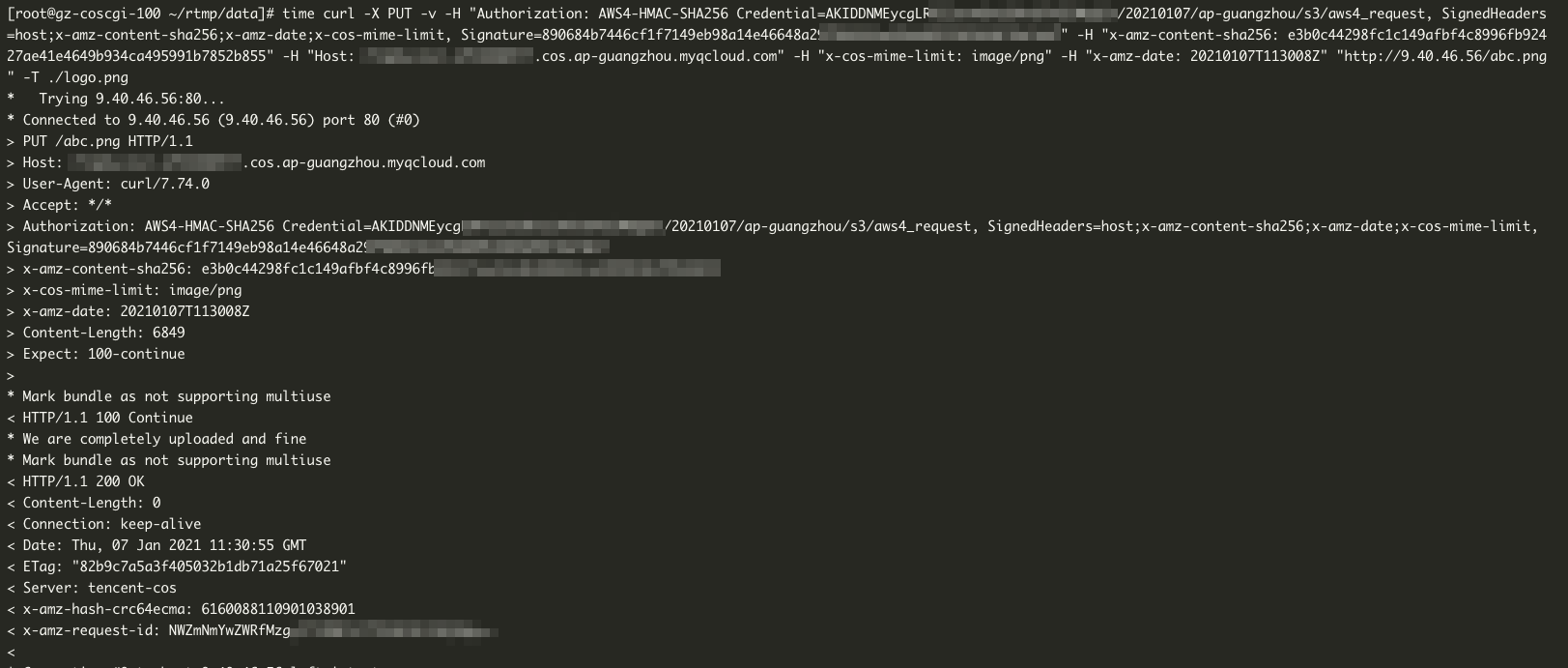
7.1 Following the steps above, set the configuration to allow only PNG files to be uploaded, and upload a PNG format file:
7.2 Verify if uploading a PNG format file is successful:


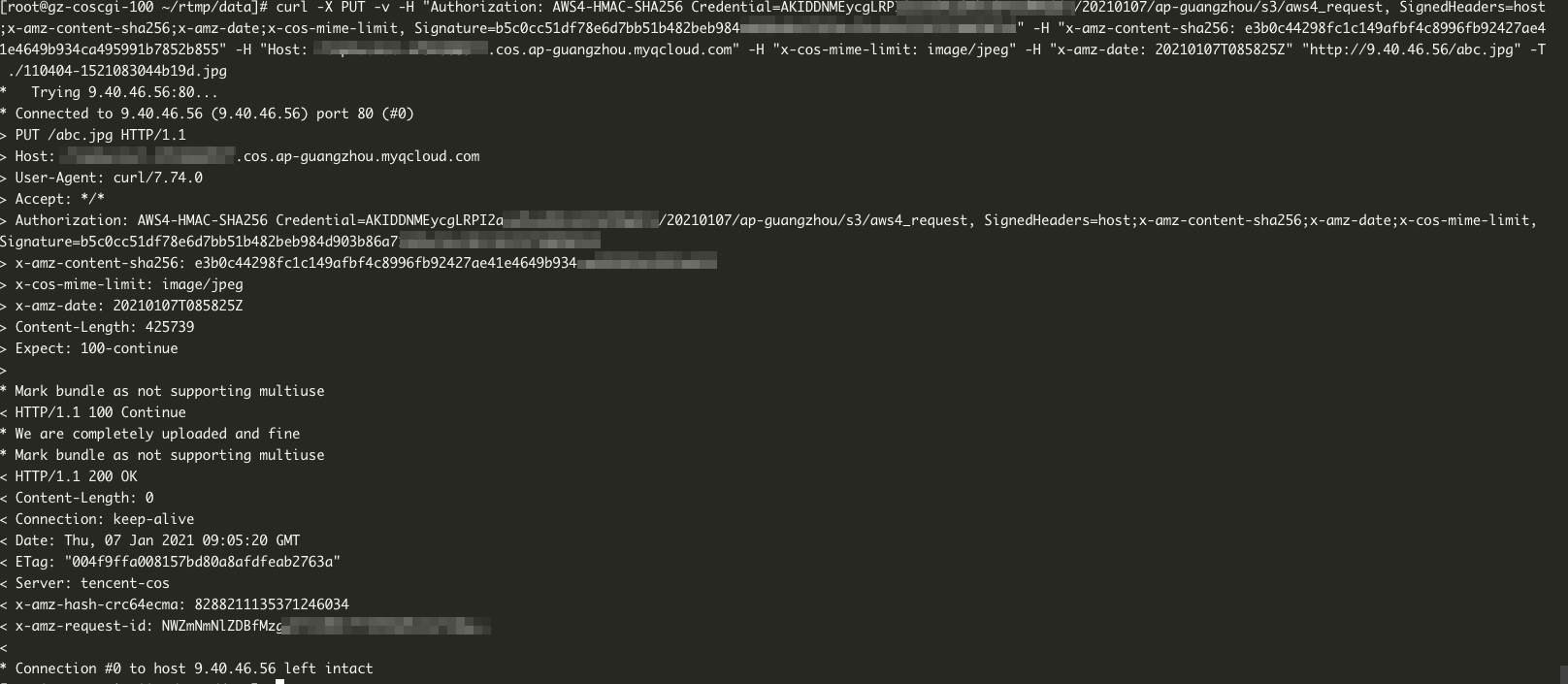
7.3 Verify if uploading a JPEG format file is successful:

From this, it can be seen that the policy successfully intercepted non-PNG format files from being uploaded to COS.

Help and Support

Was this page helpful?

Help us improve! Rate your documentation experience in 5 mins.

Feedback