tencent cloud

Java
Last updated: 2024-12-02 16:29:12
Java
Last updated: 2024-12-02 16:29:12

Overview

Welcome to Tencent Cloud Software Development Kit (SDK) 3.0, a companion tool for the TencentCloud API 3.0 platform. SDK 3.0 is unified and features the same SDK usage, API call methods, error codes, and returned packet formats for different programming languages.
This document describes how to use, debug, and connect to TencentCloud APIs with the SDK for Java 3.0 as an example.
This version currently supports various Tencent Cloud services such as CVM, VPC, and CBS and will support more services in the future.

Dependent Environment

JDK 7 and above.
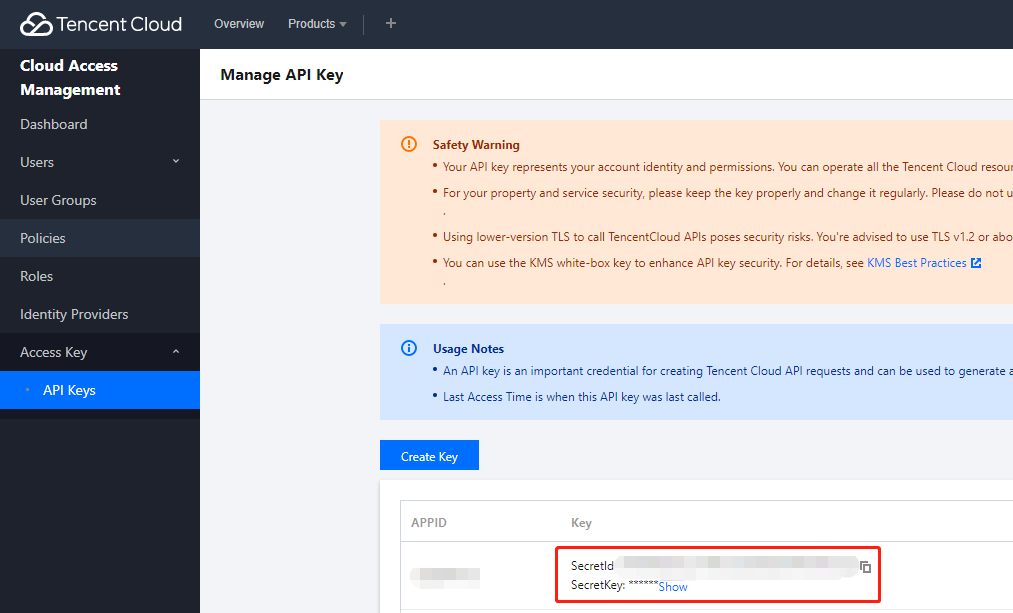
Get the security credential, which consists of SecretId and SecretKey. SecretId is used to identify the API requester, while SecretKey is a key used for signature string encryption and authentication by the server. You can get them on the API Key Management page as shown below:


Note:
Your security credential represents your account identity and granted permissions, which is equivalent to your login password. Do not disclose it to others.
Get the calling address (endpoint), which is generally in the format of *.tencentcloudapi.com and varies by service. For example, the endpoint of CVM is cvm.tencentcloudapi.com. For specific endpoints, please see the API documentation of the corresponding service.

Installing SDK

Method 1. Install through Maven (recommended)

Maven is a dependency management tool for Java that supports the dependencies your project requires and installs them into your project.
1. Go to Maven official website to download the corresponding Maven installation package for your system and install it. Fore more information on Maven, please see Welcome to Apache Maven.
2. Add Maven dependencies for your project by adding the following dependencies under the <dependencies> tag in Maven's pom.xml. You can find the latest version (v3.1.322) in the Maven repository.
<dependency>
<groupId>com.tencentcloudapi</groupId>
<artifactId>tencentcloud-sdk-java</artifactId>
<!-- go to https://search.maven.org/search?q=tencentcloud-sdk-java and get the latest version. -->
<!-- Please query the latest version at https://search.maven.org/search?q=tencentcloud-sdk-java, which is as follows -->
<version>3.1.322</version>
</dependency>
Note:
The version number here is just an example, and you can view the latest version number in the Maven repository.
v4.0.11 shown in the Maven repository was disused but has not been completely deleted due to the Maven index update issue.
The above import method downloads the SDKs of all Tencent Cloud products to your local system. You can replace the artifactId with a specific product SDK name such as tencentcloud-sdk-java-cvm/cbs/vpc to import the SDK of the specific product. The code can be used in the same way, and the major packages are the same. For more information, please see the samples. The latest version can also be queried in the Maven repository, which can greatly save the storage space.
3. Set the mirror source to speed up the download. To do so, edit the settings.xml configuration file of Maven and add the mirror configuration in the mirrors section:
<mirror>
<id>tencent</id>
<name>tencent maven mirror</name>
<url>https://mirrors.tencent.com/nexus/repository/maven-public/</url>
<mirrorOf>*</mirrorOf>
</mirror>

Method 2. Install through source package

1. Go to the GitHub code hosting page to download the source code package.
2. Decompress the source package to an appropriate location in your project.
3. You need to put the jar package under the vendor directory in a path that can be found by Java.
4. For importing methods, please see the sample.

Using SDK

The following uses the instance querying API DescribeInstances as an example:
Simplified
Detailed
import com.tencentcloudapi.common.Credential;
import com.tencentcloudapi.common.exception.TencentCloudSDKException;
import com.tencentcloudapi.cvm.v20170312.CvmClient;
import com.tencentcloudapi.cvm.v20170312.models.DescribeInstancesRequest;
import com.tencentcloudapi.cvm.v20170312.models.DescribeInstancesResponse;

public class DescribeInstances {
public static void main(String[] args) {
try {
Credential cred = new Credential("secretId", "secretKey");
CvmClient client = new CvmClient(cred, "ap-shanghai");

DescribeInstancesRequest req = new DescribeInstancesRequest();
DescribeInstancesResponse resp = client.DescribeInstances(req);

System.out.println(DescribeInstancesResponse.toJsonString(resp));
} catch (TencentCloudSDKException e) {
System.out.println(e.toString());
}
}
}
import com.tencentcloudapi.common.Credential;
import com.tencentcloudapi.common.exception.TencentCloudSDKException;
// Import the client of the corresponding product module
import com.tencentcloudapi.cvm.v20170312.CvmClient;
// Import the request response class corresponding to the request API
import com.tencentcloudapi.cvm.v20170312.models.DescribeInstancesRequest;
import com.tencentcloudapi.cvm.v20170312.models.DescribeInstancesResponse;
import com.tencentcloudapi.cvm.v20170312.models.Filter;
// Import the optional configuration classes
import com.tencentcloudapi.common.profile.ClientProfile;
import com.tencentcloudapi.common.profile.HttpProfile;
import com.tencentcloudapi.common.profile.Language;
public class DescribeInstances {
public static void main(String[] args) {
try {
// Instantiate an authentication object. Pass in `secretId` and `secretKey` of your Tencent Cloud account as the input parameters and keep them confidential
Credential cred = new Credential("secretId", "secretKey");
// (Optional) Instantiate an HTTP option
HttpProfile httpProfile = new HttpProfile();
// Starting from v3.1.16, set up an HTTP proxy separately
// httpProfile.setProxyHost("real proxy ip");
// httpProfile.setProxyPort(real proxy port);
httpProfile.setReqMethod("GET"); // GET request (POST request by default)
httpProfile.setProtocol("https://"); // Please select a protocol (https:// or http://). HTTP is supported if the network environment has access to the public network, and HTTPS is used by default
httpProfile.setConnTimeout(30); // Specify the request connection timeout value in seconds. The default value is 60s
httpProfile.setWriteTimeout(30); // Set the write timeout period in seconds. The default value is 0s
httpProfile.setReadTimeout(30); // Set the read timeout period in seconds. The default value is 0s
httpProfile.setEndpoint("cvm.ap-shanghai.tencentcloudapi.com"); // Specify the endpoint. If you do not specify the endpoint, nearby access is enabled by default
// Instantiate a client option (optional; skip if no special requirements are present)
ClientProfile clientProfile = new ClientProfile();
clientProfile.setSignMethod("HmacSHA256"); // Specify the signature algorithm (HmacSHA256 by default)
// Starting from v3.1.80, the SDK supports printing logs.
clientProfile.setHttpProfile(httpProfile);
clientProfile.setDebug(true);
// Starting from v3.1.16, the common parameter `Language` can be set, which is not passed in by default. You can select `ZH_CN` or `EN_US`
clientProfile.setLanguage(Language.EN_US);
// Instantiate the client object of the requested product (with CVM as an example). `clientProfile` is optional
CvmClient client = new CvmClient(cred, "ap-shanghai", clientProfile);
// Instantiate a CVM instance information query request object. Each API corresponds to a request object
DescribeInstancesRequest req = new DescribeInstancesRequest();
// Populate the request parameters. Here, the member variables of the request object are the input parameters of the corresponding API
// You can view the definition of the request parameters in the API documentation at the official website or by redirecting to the definition of the request object
Filter respFilter = new Filter(); // Create a `Filter` object to query CVM instances in the `zone` dimension
respFilter.setName("zone");
respFilter.setValues(new String[] { "ap-shanghai-1", "ap-shanghai-2" });
req.setFilters(new Filter[] { respFilter }); // `Filters` is a list of `Filter` objects
// Initialize the request by calling the `DescribeInstances` method on the client object. Note: the request method name corresponds to the request object
// The returned `resp` is an instance of the `DescribeInstancesResponse` class which corresponds to the request object
DescribeInstancesResponse resp = client.DescribeInstances(req);
// A string return packet in JSON format is output
System.out.println(DescribeInstancesResponse.toJsonString(resp));
// You can also take a single value
// You can view the definition of the return field in the API documentation at the official website or by redirecting to the definition of the response object
System.out.println(resp.getTotalCount());
} catch (TencentCloudSDKException e) {
System.out.println(e.toString());
}
}
}

More samples

You can find more detailed samples in the examples directory on the GitHub page.

Relevant Configuration

Proxy

Starting from v3.0.96, an HTTP proxy can be set separately:
HttpProfile httpProfile = new HttpProfile();
httpProfile.setProxyHost("real proxy IP");
httpProfile.setProxyPort(real proxy port);

Language

Starting from v3.1.16, we add the support for the common parameter Language to meet the globalization requirements of certain products. As before, Language is not passed in by default subject to the decisions of each service API, which is usually Chinese but can also be English by default in some products. Currently, valid values are Chinese and English, which can be set in the following way:
import com.tencentcloudapi.common.profile.ClientProfile;
import com.tencentcloudapi.common.profile.Language;
...
ClientProfile clientProfile = new ClientProfile();
clientProfile.setLanguage(Language.ZH_CN);

Support for HTTP

The SDK supports both HTTP and HTTPS protocols, and the switch between protocols can be implemented by setting the setProtocol() method in HttpProfile:
HttpProfile httpProfile = new HttpProfile();
httpProfile.setProtocol("http://"); // HTTP protocol
httpProfile.setProtocol("https://"); // HTTPS protocol

Support for Log Printout

Starting from v3.1.80, the SDK supports printing logs. First, when creating the ClientProfile object, set the debug mode to true, and the SDK exception information and traffic information will be printed.
ClientProfile clientProfile = new ClientProfile();
clientProfile.setDebug(true);
Tencent Cloud SDK for Java uses the commons.logging class to print logs as shown below:
Note:
Replace SecretId with your real key information.
September 10, 2020 5:14:30 PM com.tencentcloudapi.cvm.v20170312.CvmClient info
Information: send request, request url: https://cvm.ap-shanghai.tencentcloudapi.com/?Nonce=367595572&Action=DescribeInstances&Filters.0.Values.1=ap-shanghai-2&Version=2017-03-12&Filters.0.Values.0=ap-shanghai-1&SecretId=******************&Filters.0.Name=zone&RequestClient=SDK_JAVA_3.1.129&Region=ap-shanghai&SignatureMethod=HmacSHA256&Timestamp=1599729270&Signature=DcGRPdquMZZRPj1NFXP5bsOGnRlaT2KXy7aegNhZa00%3D. request headers information:
September 10, 2020 5:14:32 PM com.tencentcloudapi.cvm.v20170312.CvmClient info
Information: recieve response, response url: https://cvm.ap-shanghai.tencentcloudapi.com/?Nonce=367595572&Action=DescribeInstances&Filters.0.Values.1=ap-shanghai-2&Version=2017-03-12&Filters.0.Values.0=ap-shanghai-1&SecretId=******************&Filters.0.Name=zone&RequestClient=SDK_JAVA_3.1.129&Region=ap-shanghai&SignatureMethod=HmacSHA256&Timestamp=1599729270&Signature=DcGRPdquMZZRPj1NFXP5bsOGnRlaT2KXy7aegNhZa00%3D, response headers: Server: nginx;Date: Thu, 10 Sep 2020 09:14:32 GMT;Content-Type: application/json;Content-Length: 103;Connection: keep-alive;OkHttp-Selected-Protocol: http/1.1;OkHttp-Sent-Millis: 1599729271230;OkHttp-Received-Millis: 1599729272020;,response body information: com.squareup.okhttp.internal.http.RealResponseBody@8646db9
You can configure the log printout class as needed, such as log4j, in the following way:
Configure the pom file and set the log4j version.
<dependency>
<groupId>log4j</groupId>
<artifactId>log4j</artifactId>
<version>1.2.17</version>
</dependency>
Set the environment variable to log4j and create a log class.
System.setProperty("org.apache.commons.logging.Log", "org.apache.commons.logging.impl.Log4JLogger");
Log logger = LogFactory.getLog("TestLog");
logger.info("hello world");

Legacy SDK

We recommend you use the new version of SDK. If you need a legacy version, add the following dependencies to your Maven's pom.xml:
<dependency>
<groupId>com.qcloud</groupId>
<artifactId>qcloud-java-sdk</artifactId>
<version>2.0.6</version>
</dependency>

FAQs

Version upgrade

Please note that upgrading from v3.0.x to 3.1.x causes compatibility issues. As integer fields have been modified to long type, the project needs to be recompiled.

Dependency conflict

Currently, the SDK depends on OkHttp 2.5.0. If it is mixed with other packages that depend on OkHttp 3, an error may be reported, such as Exception in thread "main" java.lang.NoSuchMethodError: okio.BufferedSource.rangeEquals(JLokio/ByteString;)Z. The reason is that OkHttp 3 depends on Okio 1.12.0, while OkHttp 2.5.0 depends on Okio 1.6.0. When Maven parses dependencies, it gives top priority to the shortest path in sequence, so if the SDK is declared in the pom.xml dependency first, Okio 1.6.0 will be used, and an error will be reported.
Solution before the SDK is upgraded to OkHttp 3:
1. Clearly specify the dependency on Okio 1.12.0 in pom.xml:
Note:
There may be other packages that require a higher version, in which case, take the highest compatible version as a workaround; for example, when other packages use OkHttp 4, the corresponding version may be Okio 2.2.2.
<dependency>
<groupId>com.squareup.okio</groupId>
<artifactId>okio</artifactId>
<version>1.12.0</version>
</dependency>
2. Put the SDK at the end of the dependency (note that if it has been compiled before, you need to delete the OkHttp package cached by Maven first). Taking the CMQ SDK that depends on OkHttp 3 as an example, the format is as follows (pay attention to the workaround version number):
<dependency>
<groupId>com.qcloud</groupId>
<artifactId>cmq-http-client</artifactId>
<version>1.0.7</version>
</dependency>
<dependency>
<groupId>com.tencentcloudapi</groupId>
<artifactId>tencentcloud-sdk-java</artifactId>
<version>3.1.59</version>
</dependency>

Certificate issue

Certificate issues are usually caused by incorrect configuration of the client environment. The SDK does not manipulate the certificate and relies on the processing by the Java runtime environment itself. After a certificate issue occurs, you can run -Djavax.net.debug=ssl to enable detailed logs for troubleshooting.
Some users reported that the certificate error javax.net.ssl.SSLHandshakeException: Received fatal alert: handshake_failure occurred while using IBM JDK 1.8. The error was resolved after Oracle JDK was used.

Common Client

Starting from v3.1.303, Tencent Cloud SDK for Java supports the use of Common Client mode for requests. You only need to install the Common package to initiate calls to any Tencent Cloud product.
Note:
You must clearly know the parameters required by the called API; otherwise, the call may fail.
Currently, only the POST method is supported, and the signature algorithm must be signature algorithm v3. For detailed usage, please see the Using Common Client to Call sample.

Support for Request Retry

Starting from v3.1.310, Tencent Cloud SDK for Java supports request retry. For each request, you can set the number of retries between 0 and 10. If an API request fails, it will be retried at intervals of 1s until it succeeds or the number of retries is used up.
For detailed usage, please see the Using retry to Retry Request sample.

Credential Management

Tencent Cloud SDK for Java currently supports the following methods for credential management:

Environment variable

By default, the environment variables TENCENTCLOUD_SECRET_ID and TENCENTCLOUD_SECRET_KEY are read to get secretId and secretKey. The relevant code is as follows:
Credential cred = new EnvironmentVariableCredentialsProvider().getCredentials();

Configuration file

The configuration file path should be as follows:
Windows: c:\\Users\\NAME\\.tencentcloud\\credentials
Linux: ~/.tencentcloud/credentials or /etc/tencentcloud/credentials
The configuration file is in the following format:
[default]
secret_id = xxxxx
secret_key = xxxxx
The relevant code is as follows:
Credential cred = new ProfileCredentialsProvider().getCredentials();

Role assumption

For related concepts of role assumption, please see Role Overview.
To use this method, you must create a role in the Tencent Cloud CAM console as instructed in Creating a Role.
After you have a role, you can get temporary credentials through the persistent key and roleArn, and the SDK will automatically refresh the temporary credentials. The relevant code is as follows:
Credential cred = new STSCredential("secretId", "secretKey", "roleArn", "roleSessionName");

Instance role

For related concepts of instance role, please see Managing Roles.
After you bind a role to an instance, you can access the relevant metadata APIs on the instance to get temporary credentials, and the SDK will automatically refresh the temporary credentials. The relevant code is as follows:
Credential cred = new CvmRoleCredential();

Credential supply chain

Tencent Cloud SDK for Java provides a credential supply chain. By default, it will try to get credentials in the order of environment variable -> configuration file -> instance role and return the first obtained credential. The relevant code is as follows:
Credential cred = new DefaultCredentialsProvider().getCredentials();
For detailed usage of credential management, please see the Using Credential Supply Chain sample.
Was this page helpful?
You can also Contact Sales or Submit a Ticket for help.
Yes
No

Feedback