tencent cloud

Cloud Access Management

Product Introduction
CAM Overview
Features
Scenarios
Basic Concepts
Use Limits
User Types
Purchase Guide
Getting Started
Creating Admin User
Creating and Authorizing Sub-account
Logging In to Console with Sub-account
User Guide
Overview
Users
Access Key
User Groups
Role
Identity Provider
Policies
Permissions Boundary
Troubleshooting
Downloading Security Analysis Report
CAM-Enabled Role
Overview
Compute
Container
Microservice
Essential Storage Service
Data Process and Analysis
Data Migration
Relational Database
Enterprise Distributed DBMS
NoSQL Database
Database SaaS Tool
Database SaaS Service
Networking
CDN and Acceleration
Network Security
Data Security
Application Security
Domains & Websites
Big Data
Middleware
Interactive Video Services
Real-Time Interaction
Media On-Demand
Media Process Services
Media Process
Cloud Real-time Rendering
Game Services
Cloud Resource Management
Management and Audit Tools
Developer Tools
Monitor and Operation
More
CAM-Enabled API
Overview
Compute
Edge Computing
Container
Distributed cloud
Microservice
Serverless
Essential Storage Service
Data Process and Analysis
Data Migration
Relational Database
Enterprise Distributed DBMS
NoSQL Database
Database SaaS Tool
Networking
CDN and Acceleration
Network Security
Endpoint Security
Data Security
Business Security
Application Security
Domains & Websites
Office Collaboration
Big Data
Voice Technology
Image Creation
Tencent Big Model
AI Platform Service
Natural Language Processing
Optical Character Recognition
Middleware
Communication
Interactive Video Services
Real-Time Interaction
Stream Services
Media On-Demand
Media Process Services
Media Process
Cloud Real-time Rendering
Game Services
Education Sevices
Medical Services
Cloud Resource Management
Management and Audit Tools
Developer Tools
Monitor and Operation
More
Use Cases
Security Practical Tutorial
Multi-Identity Personnel Permission Management
Authorizing Certain Operations by Tag
Supporting Isolated Resource Access for Employees
Enterprise Multi-Account Permissions Management
Reviewing Employee Operation Records on Tencent Cloud
Implementing Attribute-Based Access Control for Employee Resource Permissions Management
During tag-based authentication, only tag key matching is supported
Business Use Cases
TencentDB for MySQL
CLB
CMQ
COS
CVM
VPC
VOD
Others
API Documentation
History
Introduction
API Category
Making API Requests
User APIs
Policy APIs
Role APIs
Identity Provider APIs
Data Types
Error Codes
FAQs
Role
Key
Others
CAM Users and Permissions
Glossary

Authorization Management

PDF
Focus Mode
Font Size
Last updated: 2024-01-23 17:54:33

Overview

When a user or user group is created, they have no permissions by default. You can associate a policy with them to grant them the corresponding operation permissions.

Prerequisites

If you need to associate a custom policy, please create one first.

Directions

You can associate policies with users/user groups and vice versa. These two methods have different operation entries, but they implement the same feature.

Associating policy with user/user group

Associating policy with user
Associating policy with user group
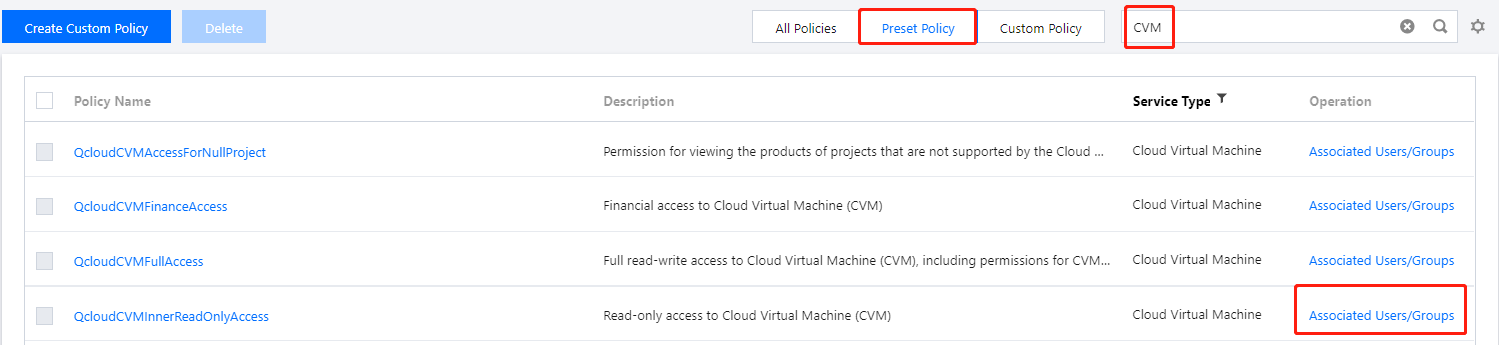
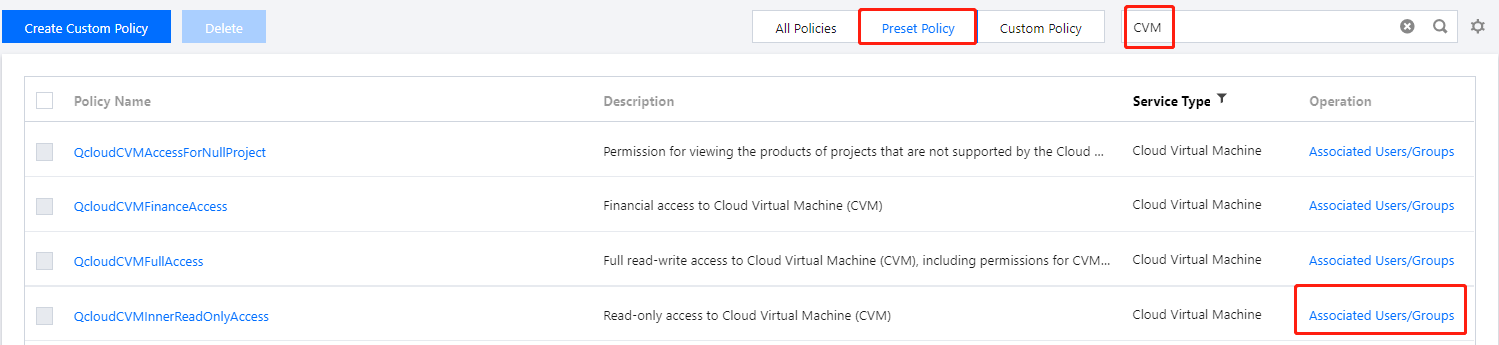
1. On the Policies page in the CAM console, select a policy type.
Note:
This document takes a preset policy as an example. You can also select a custom policy.
2. Search for the preset policy you want to associate and click Associate Users/Groups in the Operation column.


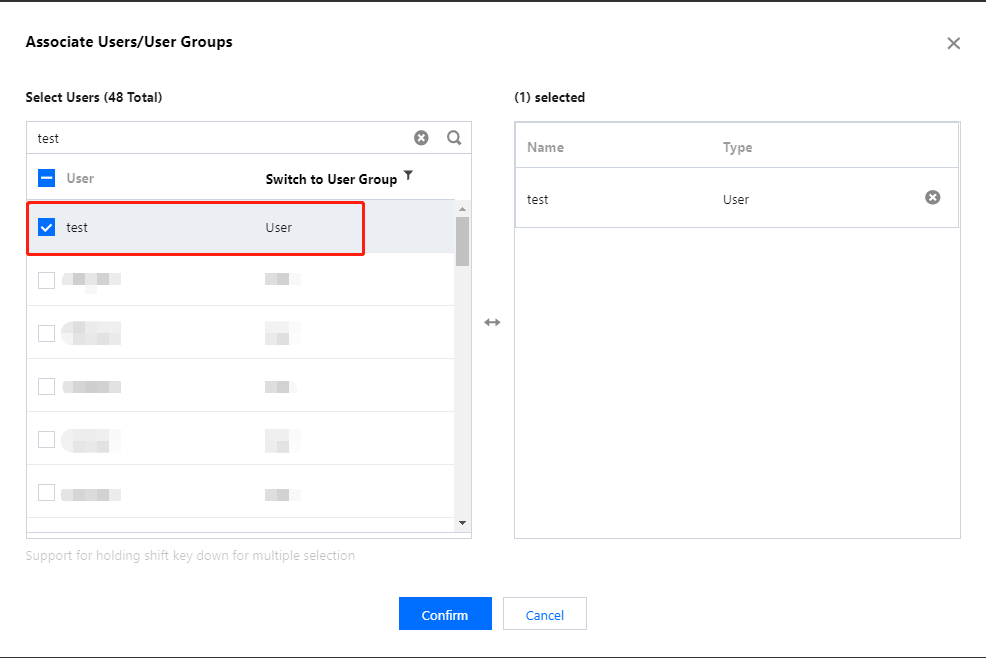
3. In the Associate Users/User Groups pop-up window, select the user you want to associate and click OK to complete the association.


1. On the Policies page in the CAM console, select a policy type.
Note:
This document takes a preset policy as an example. You can also select a custom policy.
2. Search for the preset policy you want to associate and click Associate Users/Groups in the Operation column.


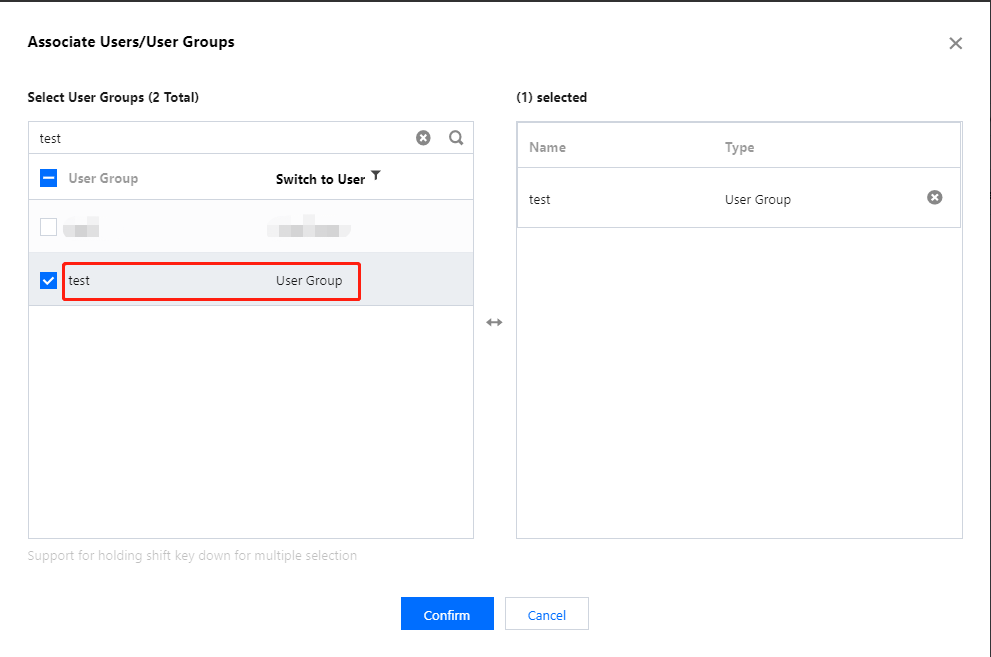
3. In the Associate Users/User Groups pop-up window, click Switch to User Group.
4. Select the user group you want to associate and click OK to complete the association.


Associating user/user group with policy

Associating user with policy
Associating user group with policy
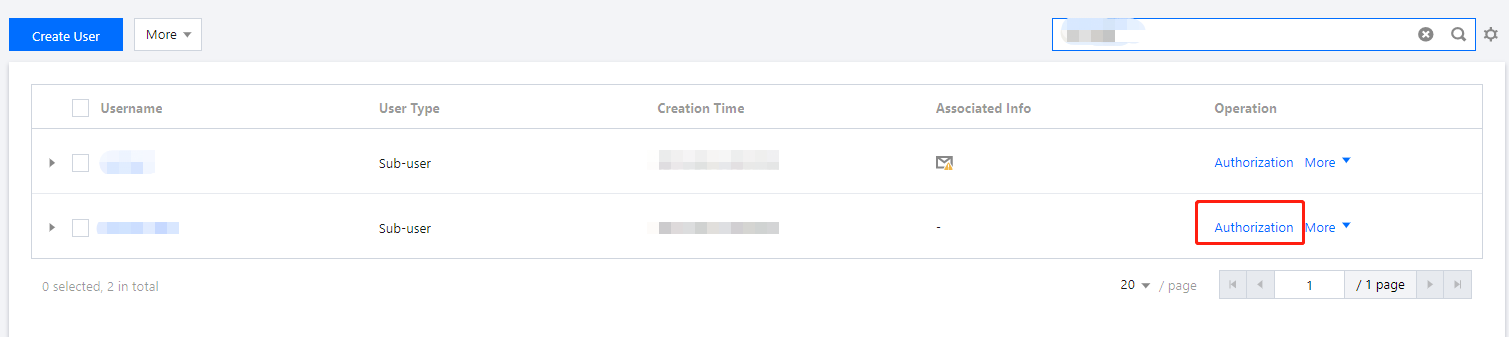
1. On the Users > User List page in the CAM console, find the user to be authorized and click Authorization in the Operation column to enter the Associate Policy page.


2. On the Associate Policy page, select a policy type.
Note:
All policies are displayed by default. You can filter custom or preset policies to find specific policy information.
3. Select the policy you want to associate and click OK to complete the association.


1. On the User Groups page in the CAM console, click the name of the target user group to enter the user group details page.
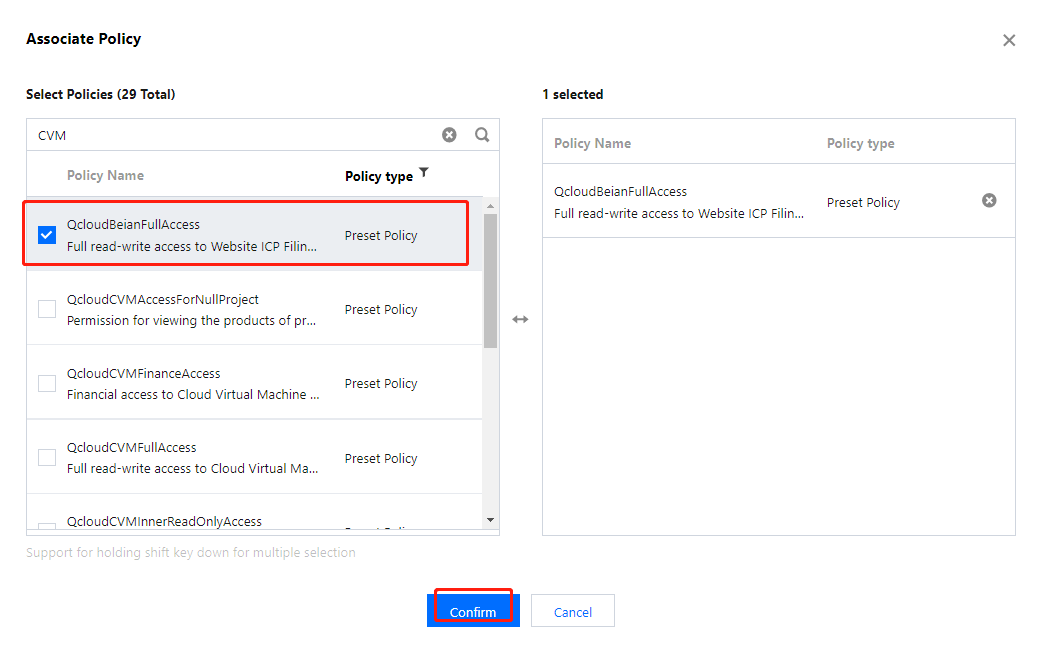
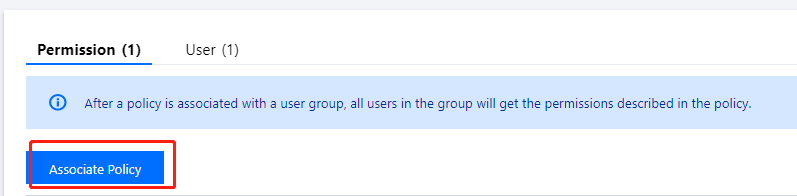
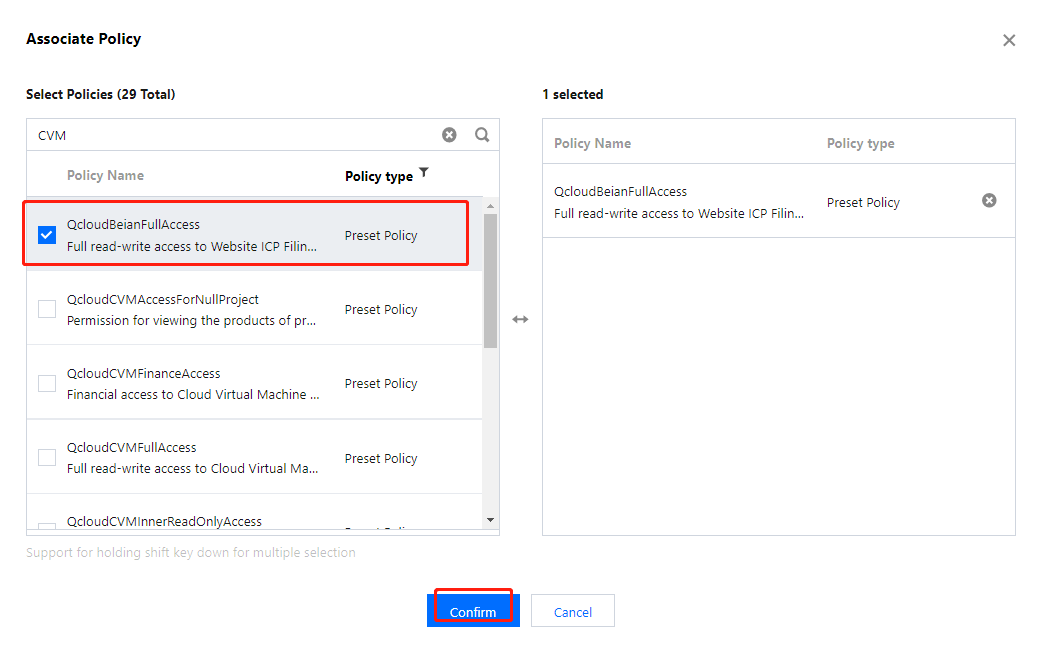
2. On the user group details page, click Associate Policy to enter the Associate Policy page.


3. On the Associate Policy page, select a policy type.
Note:
All policies are displayed by default. You can filter custom or preset policies to find specific policy information.
4. Select the policy you want to associate and click OK to complete the association.


Relevant Documents

For more information on the concept of policy, please see Policy.
Help and Support

Was this page helpful?

Help us improve! Rate your documentation experience in 5 mins.

Feedback