Overview
This document describes how to set login restrictions for sub-accounts in the CAM console, so that they can log in to the Tencent Cloud console only in secure environments. Specifically, you can restrict suspicious logins (from unusual login locations or 30 days after the last successful login) and allow/forbid login from specified IPs.
Directions
IP restriction
Setting IP restriction
You can forbid sub-accounts to log in to the Tencent Cloud console by setting IP restriction. The sub-accounts can manage the resources of the root account under the restricted conditions.
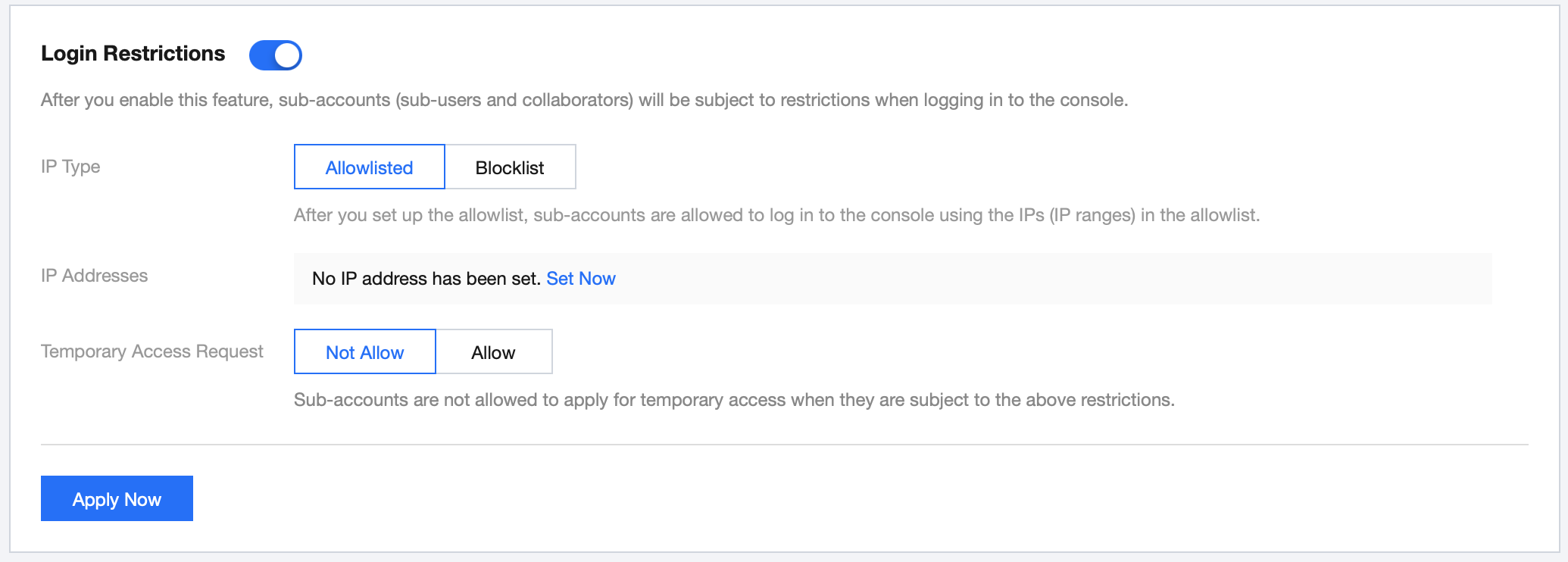
1. Log in to the CAM console and enable Login Restrictions on the Users >User Settings page. 2. Select IP Restriction.
3. Set the IP type.
Allowlist: after you set up the allowlist, sub-accounts are allowed to log in to the console using the IPs (IP ranges) in the allowlist.
Blocklist: after you set up the blocklist, sub-accounts are not allowed to log in to the console using the IPs (IP ranges) in the blocklist.
4. Configure IPs by clicking Add. You can add up to 10 restricted IPs.
5. Set temporary access request. This specifies whether sub-accounts are allowed to apply for temporary access when logging in to the console.
Not Allow: sub-accounts are not allowed to apply for temporary access when they are subject to the above restrictions.
Allow: sub-accounts are allowed to apply for temporary access when they are subject to the above restrictions. The applications will be sent to approvers for review via a valid message channel. If an application is approved, the sub-account will get a two-hour access to the console. If you select Allow, you need to click Set Now to set the approver.
6. Click Apply Now.
Applying for temporary access from restricted IP
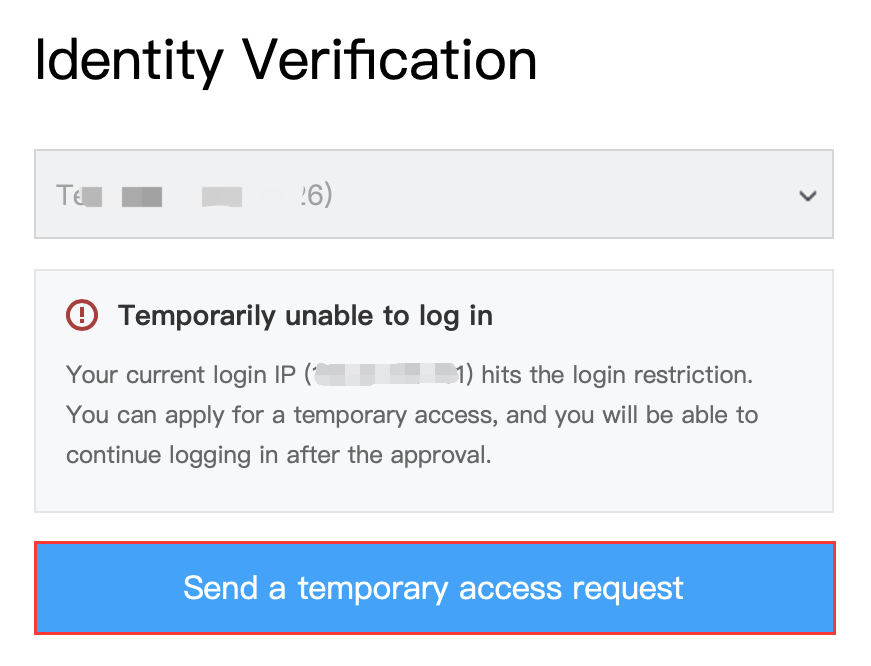
When a sub-account login hits the login IP restriction conditions, if temporary access request is allowed, the sub-account can apply for temporary access, and after the approver approves the request, they will get a two-hour access to the console. 1. When a sub-account login hits the login restrictions, the system will prompt that the sub-account cannot log in temporarily. They can click Send a temporary access request as shown below:
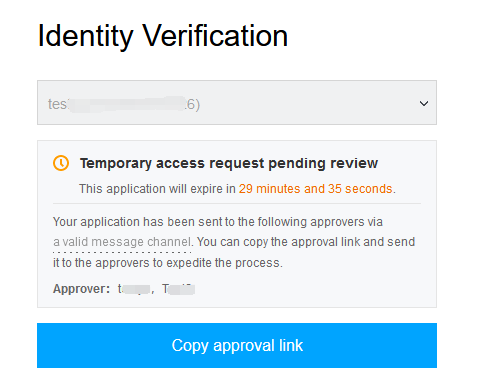
2. The page will prompt that "The temporary access request is waiting for approval". The system will send the submitted request to the following approver through a valid message channel, and the request will be valid for 30 minutes. The sub-account can copy the review link and send it to the approver to expedite the processing, as shown below:
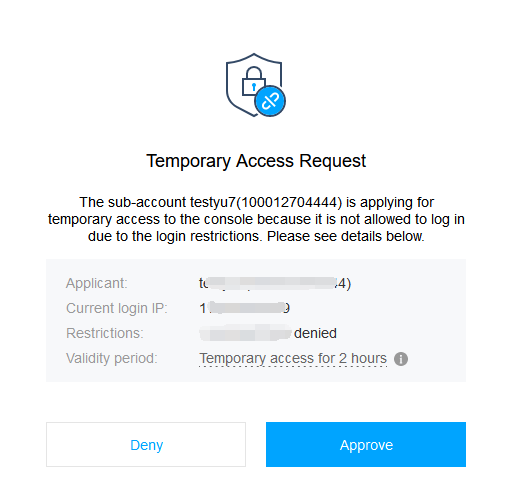
3. The approver set in Login Restrictions will be able to approve or reject this request at the review link as shown below:
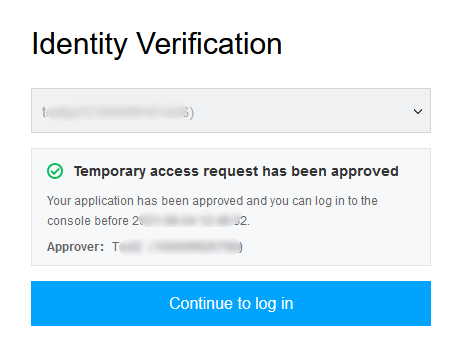
4. If the approver approves the request, the sub-account login UI will prompt that the temporary access request has been approved, and the sub-account can click Continue to log in to get a two-hour access to the console as shown below:
5. If the approver rejects the request, the sub-account login UI will prompt that the temporary access request has been rejected. The sub-account can contact the approver before submitting a new request.