tencent cloud

Tencent Real-Time Communication

Release Notes and Announcements
Release Notes
Recent Product Announcement
TRTC Live (TUILiveKit) Product Launch Announcement
TRTC Conference Official Editions Launched
The commercial version of Conference is coming soon
Terms and Conditions Applicable to $9.9 Starter Package
Rules for the "First Subscription $100 Discount" Promotion
Announcement on the Start of Beta Testing for Multi-person Audio and Video Conference
TRTC Call Official Editions Launched
License Required for Video Playback in New Version of LiteAV SDK
TRTC to Offer Monthly Packages
Product Introduction
Overview
Concepts
Features
Strengths
Use Cases
Performance Statistics
Tencent RTC Quickplay: Experience Ultimate Real-Time Audio and Video Interaction!
Purchase Guide
Billing Overview
Free Minutes
Monthly subscription
Pay-as-you-go
TRTC Overdue and Suspension Policy
FAQs
Refund Instructions
User Tutorial
Free Demo
Call
Overview
Activate the Service
Run Demo
Integration
Offline Call Push
Conversational Chat
On-Cloud Recording
AI Noise Reduction
UI Customization
Calls integration to Chat
Additional Features
No UI Integration
Server APIs
Client APIs
Solution
ErrorCode
Release Notes
FAQs
Conference
Overview(TUIRoomKit)
Activate the Service (TUIRoomKit)
Run Demo(TUIRoomKit)
Integration(TUIRoomKit)
Screen Sharing (TUIRoomKit)
Schedule a meeting (TUIRoomKit)
In-meeting Call (TUIRoomKit)
UI Customization(TUIRoomKit)
Virtual Background (TUIRoomKit)
Conference Control (TUIRoomKit)
Cloud Recording (TUIRoomKit)
AI Noise Reduction (TUIRoomKit)
In-Conference Chat (TUIRoomKit)
Robot Streaming (TUIRoomKit)
Enhanced Features (TUIRoomKit)
Client APIs (TUIRoomKit)
Server APIs (TUIRoomKit)
FAQs (TUIRoomKit)
Error Code (TUIRoomKit)
SDK Update Log (TUIRoomKit)
Live
Billing of Video Live Component
Overview
Activating the Service (TUILiveKit)
Run Demo
No UI Integration
UI Customization
Live Broadcast Monitoring
Video Live Streaming
Voice Chat Room
Advanced Features
Client APIs
Server APIs
Error Codes
Release Notes
FAQs
RTC Engine
Activate Service
SDK Download
API Examples
Usage Guidelines
API Reference Manual
Advanced Features
AI Integration
Overview
Configure MCP Server
Install Skills
Integration Guide
FAQ
RTC RESTFUL API
History
Introduction
API Category
Room Management APIs
Stream mixing and relay APIs
On-cloud recording APIs
Data Monitoring APIs
Pull stream Relay Related interface
Web Record APIs
AI Service APIs
Cloud Slicing APIs
Cloud Moderation APIs
Making API Requests
Call Quality Monitoring APIs
Usage Statistics APIs
Data Types
Appendix
Error Codes
Console Guide
Application Management
Package Management
Usage Statistics
Monitoring Dashboard
Development Assistance
Solution
Real-Time Chorus
FAQs
Migration Guide
Billing
Features
UserSig
Firewall Restrictions
How to Downsize Installation Package
Android and iOS
Web
Flutter
Electron
TRTCCalling for Web
Audio and Video Quality
Others
Legacy Documentation
RTC RoomEngine SDK(Old)
Integrating TUIRoom (Web)
Integrating TUIRoom (Android)
Integrating TUIRoom (iOS)
Integrating TUIRoom (Flutter)
Integrating TUIRoom (Electron)
TUIRoom APIs
On-Cloud Recording and Playback (Old)
RTC Analytics Monthly Packages (Previous Version)
Protocols and Policies
Compliance
Security White Paper
Notes on Information Security
Service Level Agreement
Apple Privacy Policy: PrivacyInfo.xcprivacy
TRTC Policy
Privacy Policy
Data Processing And Security Agreement
Glossary

Login and Logout SDK

PDF
Focus Mode
Font Size
Last updated: 2024-12-13 21:57:11

Preparing an SDKAppID

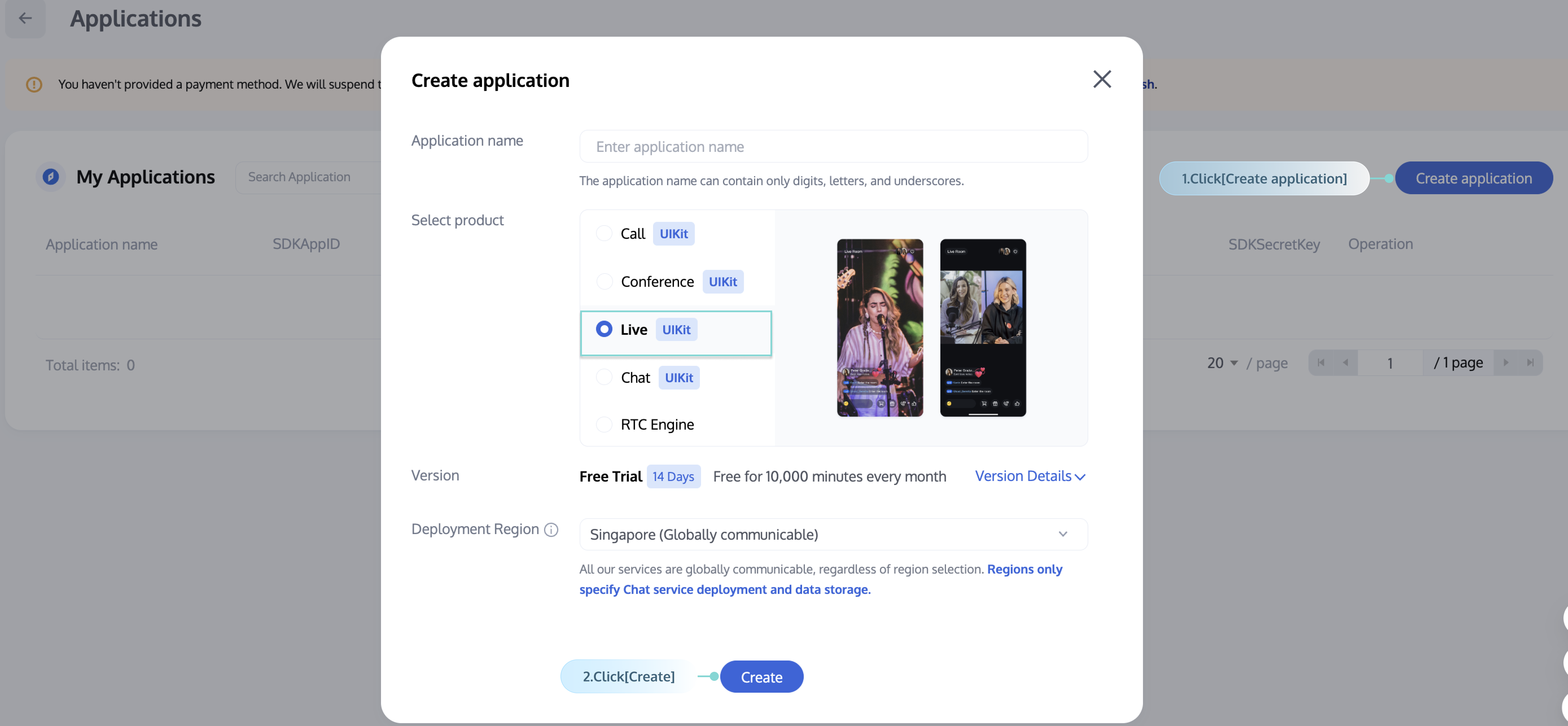
SDKAppID is a unique identifier used to distinguish customer accounts. We recommend applying for a new SDKAppID for each independent app. Messages between different SDKAppIDs are naturally isolated and cannot be communicated. You must have the correct SDKAppID to initialize. You can view all SDKAppIDs in the Console and click the Create Application button to create a new SDKAppID.


Feature Description

You need to call the SDK login API to verify the account identity and obtain the account's feature usage permissions. After successfully logging into the SDK, you can enter the room and perform a series of operations.

Log-in

Your first login to an account doesn't require signup, as the SDK will automatically sign the account up after finding out that you are using a new account. You can call the login API (iOS and macOS / Android) to log in.
The key parameters of the login API are as follows:
Parameters
Meaning
Description
UserID
Unique user ID
It can contain up to 32 bytes of letters (a–z and A–Z), digits (0–9), underscores (_), and hyphens (-).
UserSig
Login ticket
It is calculated by your business server to ensure security. For more information, see User Authentication.
You can call the login API in the following scenarios:
You use the features of the SDK for the first time after your application is started.
A user is kicked offline: When a user is kicked offline, the SDK will notify you through the onKickedOffline callback (iOS and macOS /Android). In this case, you can prompt the user and call login to log in again.
You don't need to call the login API in the following scenarios:
When your network is disconnected and then reconnected. In this case, the SDK automatically goes online.
When a login process is already running. In this case, repeated login is unnecessary.
Note:
1. After you call the SDK API and log in successfully, MAU calculation will start; therefore, call the login API as needed to avoid a high MAU.
2. Note: You cannot log in to multiple SDK accounts of the same application at the same time; otherwise, only the last logged in account will be online.
Below is the sample code:
iOS
Android
let sdkAppId = 1400000000 // Please set your own sdkAppID
let userId = "your user id"
let userSig = "userSig from your server"

TUIRoomEngine.login(sdkAppId: sdkAppId, userId: userId, userSig: userSig) {
print("success")
} onError: { code, message in
// The following error codes indicate an expired userSig, and you need to generate a new one for log-in again.
// 1. ERR_USER_SIG_EXPIRED(6206)
// 2. ERR_SVR_ACCOUNT_USERSIG_EXPIRED(70001)
// Note: Do not call the log-in API in case of other error codes. Otherwise, the SDK may enter an infinite loop of log-in.
print("failure, code:\\(code), message:\\(message)")
}
Context context = getApplicationContext();
int sdkAppId = 1400000000; // Please set your own sdkAppID
String userId = "your user id";
String userSig = "userSig from your server";

TUIRoomEngine.login(context, sdkAppId, userId, userSig,
new TUIRoomDefine().ActionCallback() {
@Override
public void onSuccess() {
Log.i("sdk", "success");
}

@Override
public void onError(TUICommonDefine.Error error, String message) {
// The following error codes indicate an expired userSig, and you need to generate a new one for log-in again.
// 1. ERR_USER_SIG_EXPIRED(6206)
// 2. ERR_SVR_ACCOUNT_USERSIG_EXPIRED(70001)
// Note: Do not call the log-in API in case of other error codes. Otherwise, the SDK may enter an infinite loop of log-in.
Log.i("sdk", "failure code:" + error + ",message:" + message);
}
});

Getting Basic Information of the Logged-in User

After a successful login, call getSelfInfo(iOS and macOS / Android) to get the basic information of the logged-in user. If the login fails, the UserID of the logged-in user will be empty.
Below is the sample code:
iOS
Android
// Get the basic information of the logged-in user
let selfUserInfo = TUIRoomEngine.getSelfInfo()
TUIRoomDefine.LoginUserInfo loginUserInfo = TUIRoomEngine.getSelfInfo();

Log out

Generally, if your application's lifecycle is the same as the SDK's lifecycle, there is no need to log out before exiting the application. In special cases, for example, if you use the SDK only after entering a specific UI and no longer use it after exiting the UI, you can call the logout API (iOS and macOS / Android) to log out of the SDK.
Below is the sample code:
iOS
Android
TUIRoomEngine.logout {
print("success")
} onError: { code, message in
print("failure, code:\\(code), message:\\(message)")
}
TUIRoomEngine.logout(new TUIRoomDefine.ActionCallback() {
@Override
public void onSuccess() {
Log.i("sdk","success");
}

@Override
public void onError(TUICommonDefine.Error error, String message) {
Log.i("sdk","error" + error + ",message" + message);
}
});

Account Switch

Call login to switch between accounts in the application.
For example, if you are logged in as Alice and want to switch to Bob, simply call login Bob. There is no need to explicitly call logout Alice before login Bob, as the SDK will handle it internally.
Help and Support

Was this page helpful?

Help us improve! Rate your documentation experience in 5 mins.

Feedback