Overview
In actual use, you may find that the configurations of the nodes in your cluster need to be upgraded, especially when the CPU or memory resources of the master nodes are insufficient. This document describes how to change the instance configuration in the EMR console. Caution
The node will be shut down during the change. Note that the shutdown may affect the normal use of the cluster and even interrupt your business. Proceed with caution.
The size of data disks and system disks cannot be changed.
Prerequisites
1. After the configurations of pay-as-you-go nodes are changed, the billing tier will restart from the first tier. For monthly subscribed clusters, you need to make up the difference.
2. The configurations of local disk models, Pod resources, and spot instance models cannot be changed.
3. If you batch adjust configurations, the system will automatically deduct fees one by one. Make sure your account has sufficient balance.
4. The refund will be credited to your Tencent Cloud account at the ratio of cash to trial credit paid upon purchase, but the discount amount or voucher (if any) will not be refunded.
Directions
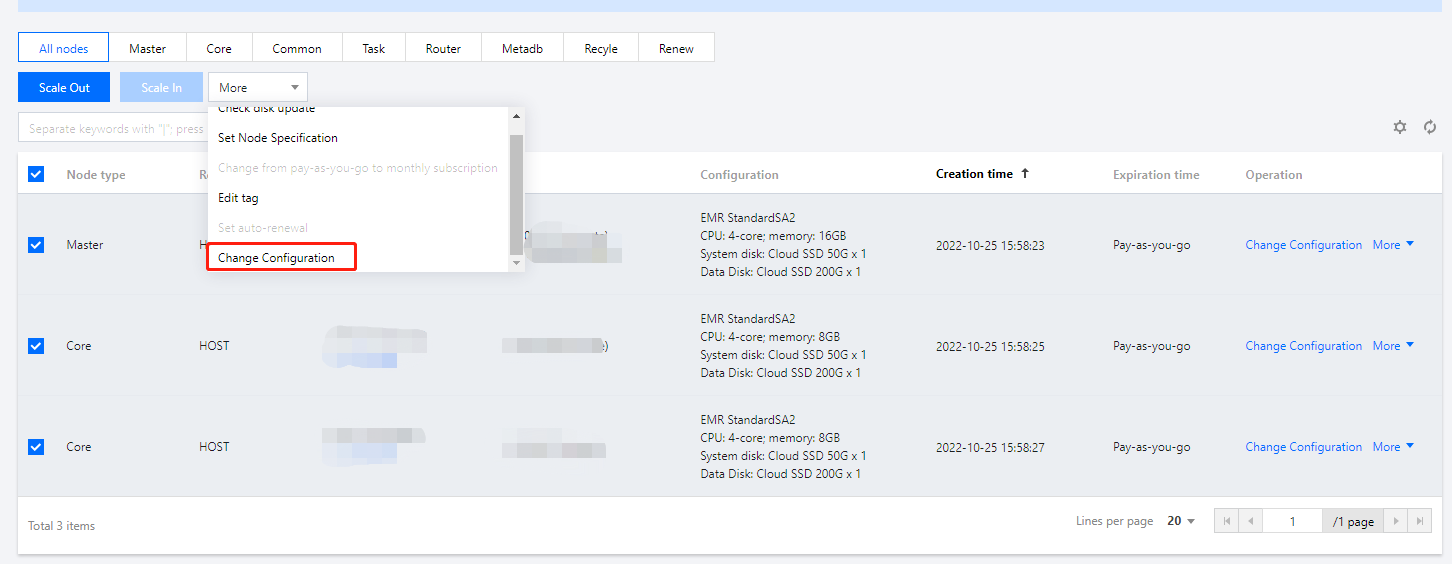
1. Log in to the EMR console and click the ID/Name of the target cluster in the cluster list to enter the cluster details page. 2. Select Cluster Resource on the cluster details page to enter the Resource Management page. Select the target node and change the configuration. Batch change is supported, but you can only change the configurations of nodes in the same billing mode to the same configuration.
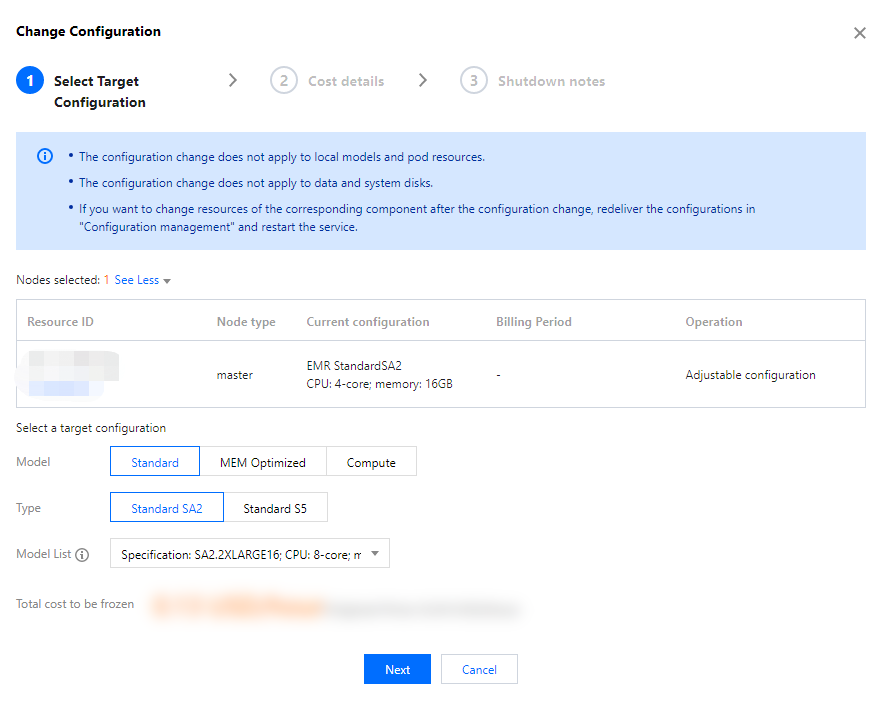
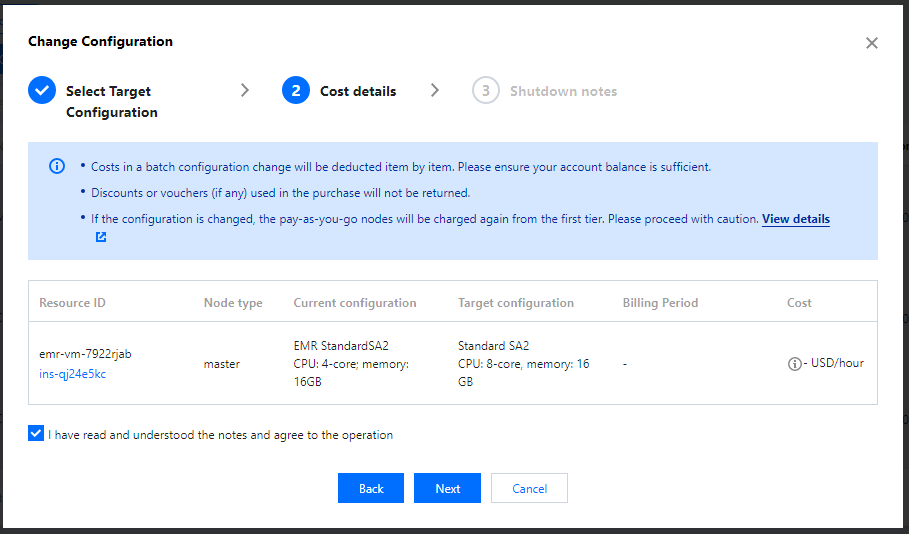
3. On the configuration adjustment page, confirm the relevant information, read carefully the notes, and select I have read and understood the notes and agree to the operation.
4. On the Select Target Configuration tab, select the model, instance type, model list, and other configuration items. After confirming the cost, click Start Adjustment.
5. The fees incurred by adjusting the configurations of different nodes to the same configuration will be displayed on the billing details page.
6. (Optional) To adjust the resources of the component after configuration adjustment, you need to deliver the configuration again in Configuration Management and restart the service.
Caution
The YARN resources will be automatically adjusted according to the model and specification by default. After configuration adjustment, the size of the resources will change as the specification changes and does not need to be adjusted manually.
If you have manually adjusted the configuration of YARN resources, then after configuration adjustment, you need to modify the parameter values of the yarn.nodemanager.resource.cpu-vcores and yarn.nodemanager.resource.memory-mb configuration items in Configuration Management, click Save configuration to deliver the configuration, and restart the NodeManager service for the configuration of YARN resources to be updated.