You can configure CAM user synchronization, create a CAM user in the target account with the same name as the Identity Center user, and then access resources in the account via the CAM user.
This document provides an example of how to configure CAM user synchronization, create a CAM user (user1@tencent) in the member account (Account1) with the same name as the Identity Center user (user1), and then grant administrative permissions for CVM to the CAM user (user1@tencent), enabling access to CVM resources in the member account (Account1) via the CAM user (user1@tencent).
Directions
Step 1: Configuring CAM User Synchronization
Use the administrative account to configure CAM user synchronization in the Identity Center.
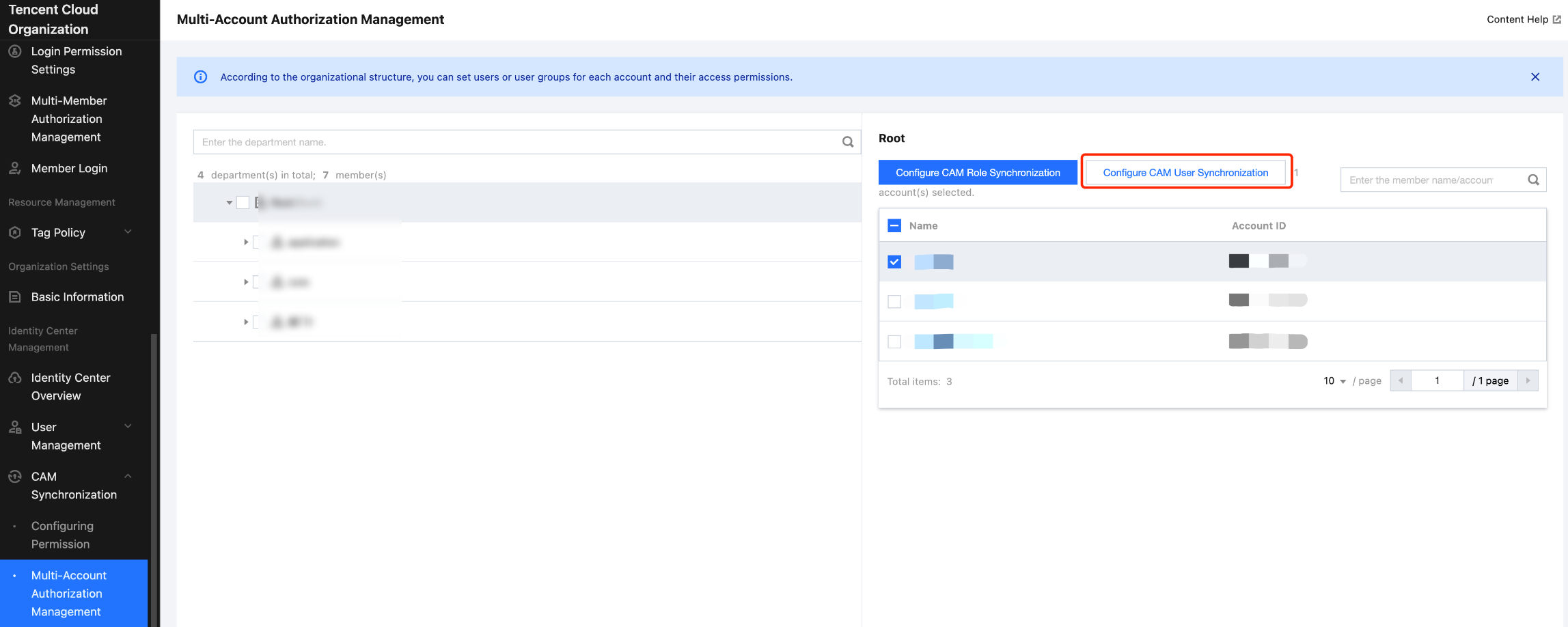
2. In the left sidebar, click CAM Synchronization > Multi-Account Authorization Management.
3. On the Multi-Account Authorization Management page, select the target account.
In this example, select the member account (Account1).
4. Click Configure CAM User Synchronization.
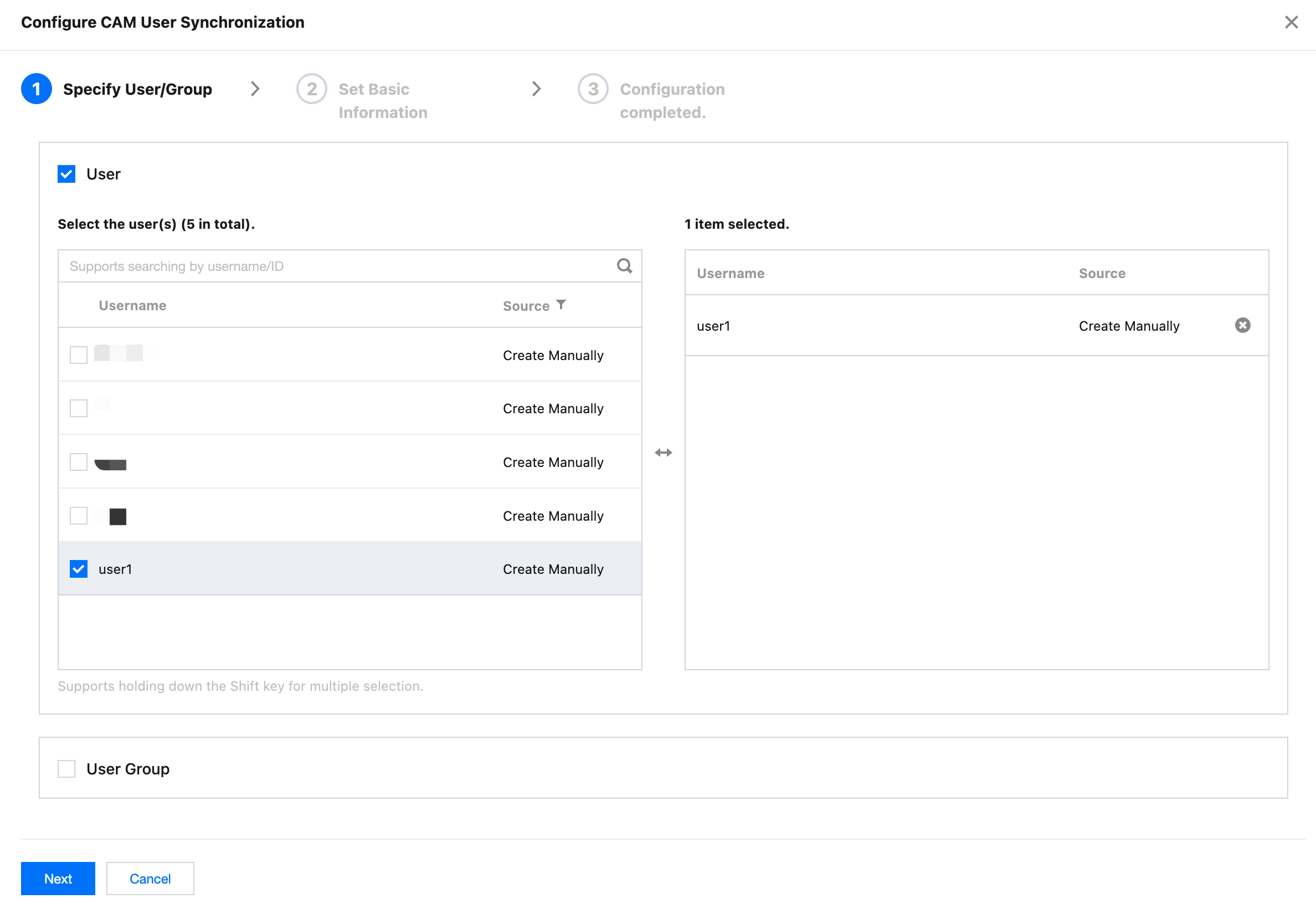
5. On the Configure CAM User Synchronization panel, select the target user or user group, and then click Next.
In this example, select the Identity Center user (user1).
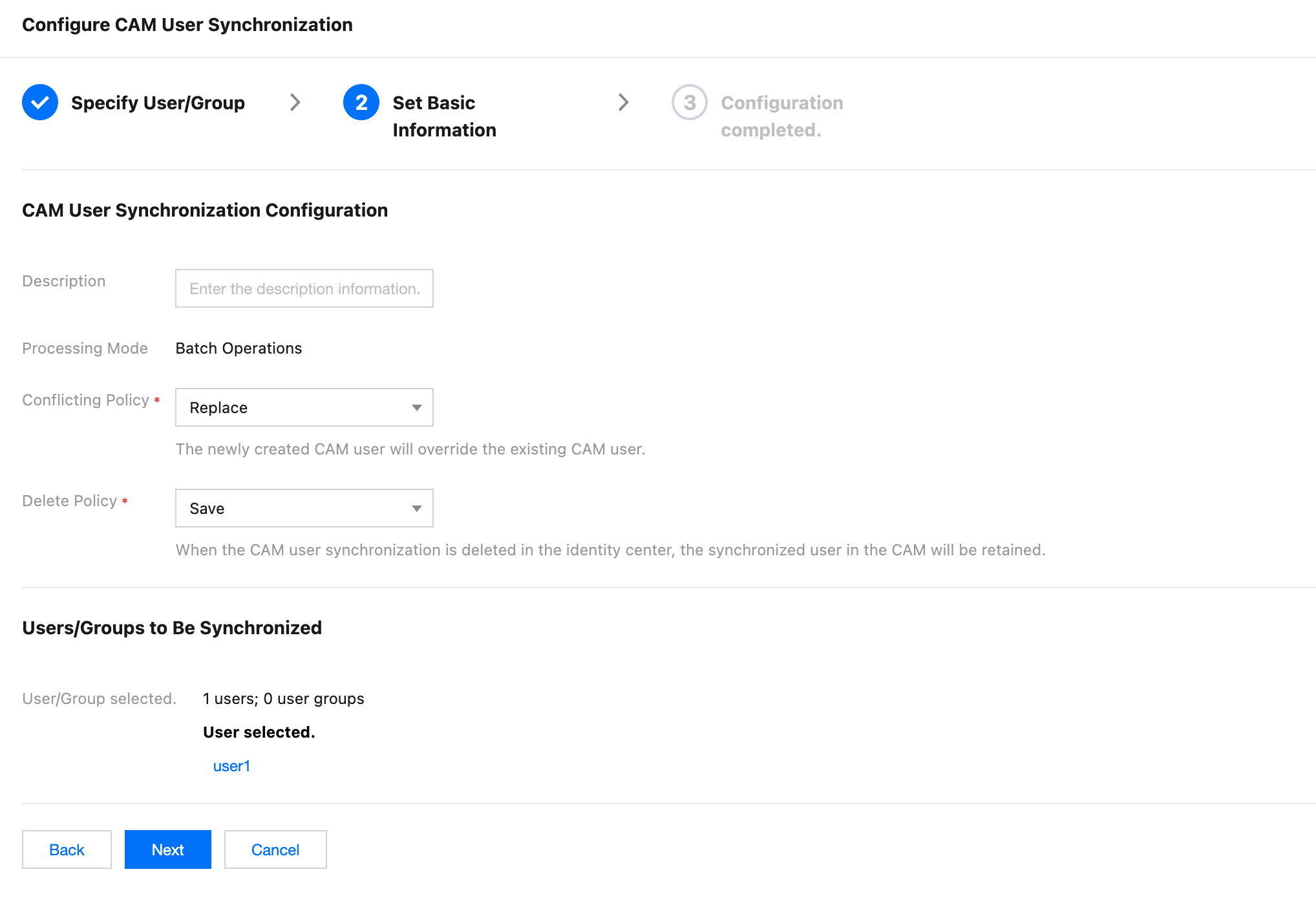
6. Configure the following basic information, and then click Next.
6.1 Enter a description of CAM user synchronization.
6.2 Configure Conflicting Policy.
Conflicting Policy: the handling policy when a CAM user with the same name exists in the target account.
Replace: The newly created CAM user will overwrite the existing CAM user.
Save Both: The newly created CAM user will be renamed by the system, and both the new and old CAM users will be retained.
6.3 Configure Delete Policy.
Delete Policy: the handling policy for already synchronized CAM users when CAM user synchronization is deleted.
Save: When CAM user synchronization is deleted, the already synchronized CAM user will be retained.
Delete: When CAM user synchronization is deleted, the already synchronized CAM user will be deleted.
7. Click Completed.
After successful configuration, a CAM user with the same name will be created in the target account. In this example, a CAM user (user1@tencent) with the same name as the Identity Center user (user1) will be synchronously created in the member account (Account1).
Step 2: Authorizing the CAM User
Through Identity Center> Configure CAM User Synchronization, the synchronized sub-user in CAM is not granted any permissions. You need to authorize the user on the CAM console. If you need to preset permissions through the Identity Center, choose to configure CAM role synchronization.
1. Log in to the member account (Account1).
2. Authorize the CAM user (user1@tencent).
In this example, the CAM user (user1@tencent) will be granted administrative permissions for CVM. For specific operations, refer to Sub-user Permission Settings.
Step 3: The Identity Center User Accesses Tencent Cloud
The Identity Center user (user1) accesses CVM resources in the member account (Account1) via the CAM user (user1@tencent).
1. The Identity Center user (user1) logs in to the Identity Center User Portal.