Feature Overview
For files already existing in the Bucket, you can create tasks to perform operations such as CR. Task creation is based on the Template feature; you can directly use the system preset Templates provided by Cloud Infinite, or customize Templates. For Template details, see Template documentation. Note:
When initiating an AI CR task, you must enter the complete file name and file format; otherwise, the system cannot recognize the format and process it.
Currently, the task feature can only operate on existing files. If you need to process files during upload, use the Workflow feature. When using AI CR, please first confirm the relevant restrictions and Region. For details, see Usage Restrictions. Video Portrait Segmentation (Video Matting)
Automatically identifies human body regions in videos and outputs a sequence video of the corresponding regions.
Operation Steps
2. In the left sidebar, click Bucket Management to go to the Bucket Management page.
3. Click the Bucket Name or Manage in the right operation bar to go to the corresponding Bucket page.
4. In the left sidebar, select Tasks and Workflows > Task Management, and select the CR tab at the top of the page.
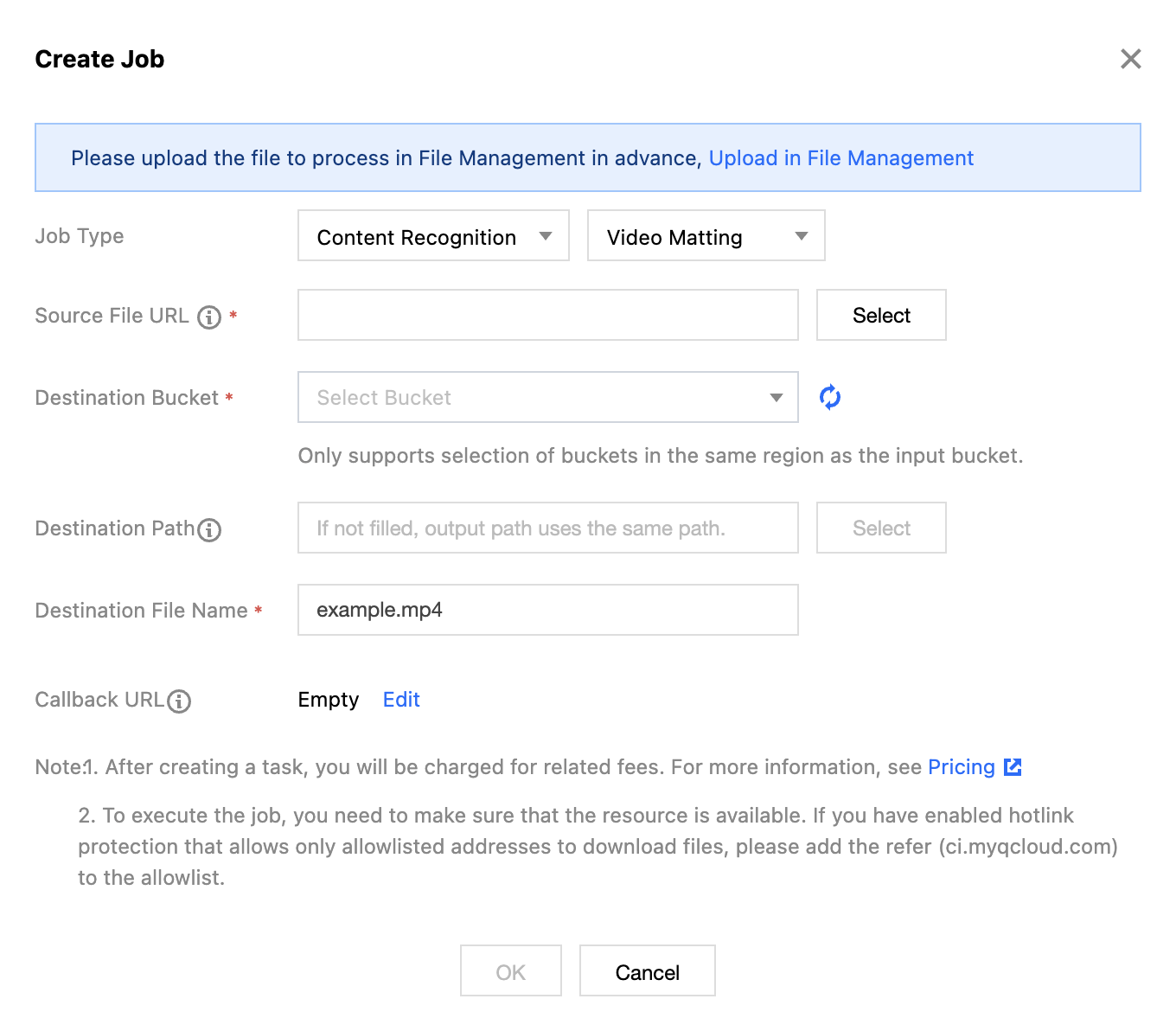
5. Select Video Matting for the task type, click Create Task, configure according to the following settings, and then click OK.
Task Type: Select CR - Video Matting.
Source file path: Enter the path of the file to be processed. Note that the file path must not begin or end with /.
Target Bucket: Supports selecting Buckets in the same Region that have CR enabled.
Target Path: The storage path for Image Processing results.
Target file name: You can specify the file name of the target file here.
Callback URL: The callback address information bound to the Queue. For details, see Queues and Callbacks. General OCR
The General OCR feature (Optical Character Recognition, OCR), based on industry-leading deep learning technologies, intelligently recognizes text content on images into editable text. It can be applied to various scenarios such as snap-and-scan, digitization of paper documents, e-commerce ad review, and more, significantly improving information processing efficiency.
Operation Steps
2. In the left sidebar, click Bucket Management to go to the Bucket Management page.
3. Click the Bucket Name or Manage in the right operation bar to go to the corresponding Bucket page.
4. In the left sidebar, select Tasks and Workflows > Task Management, and select the CR tab at the top of the page.
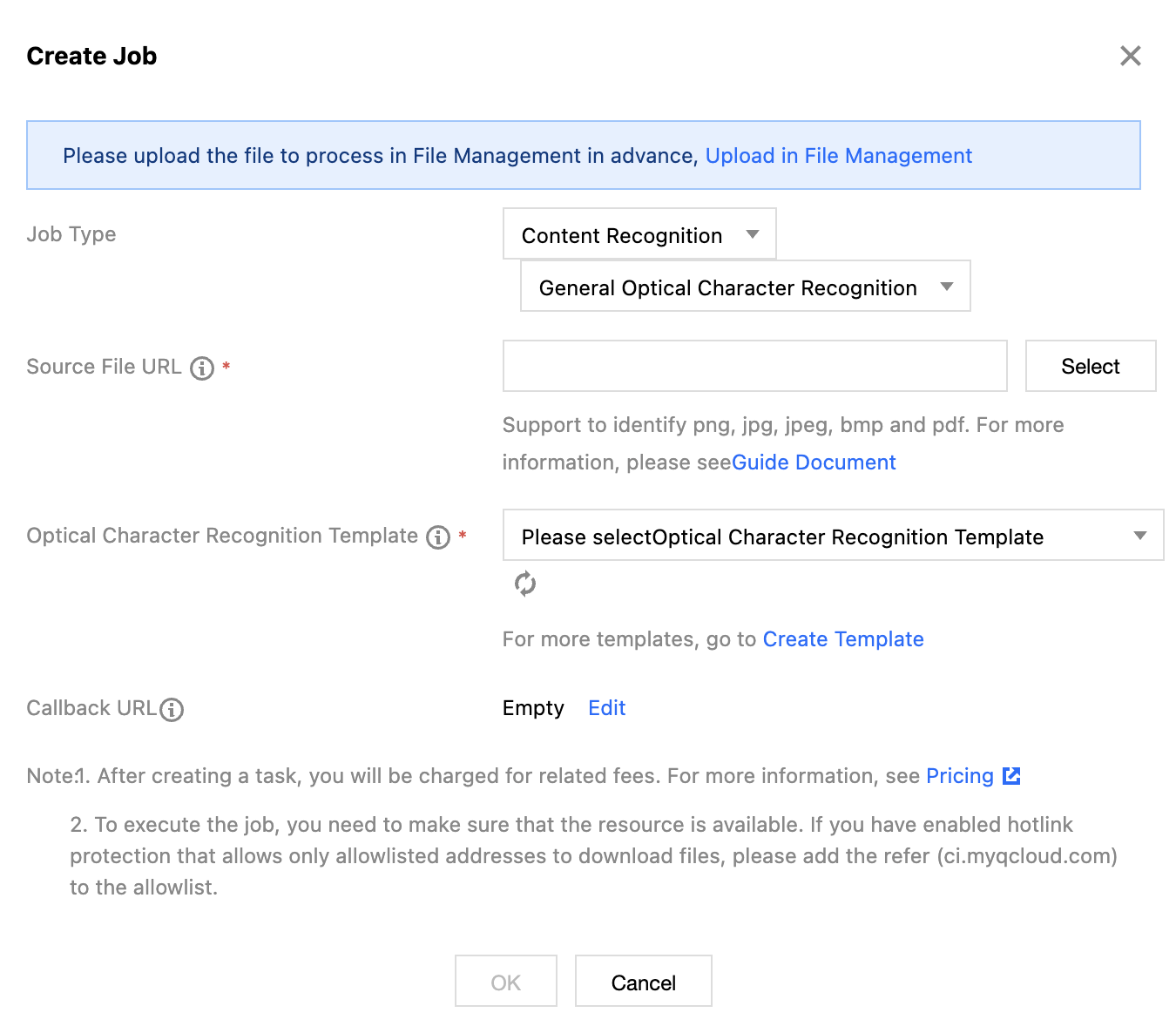
5. Select General OCR for the task type, click Create Task, configure according to the following settings, and then click OK.
Task Type: Select CR - General OCR.
Source file path: Enter the path of the image to be recognized. Note that the file path must not begin or end with /.
Select Template: Specify the model, recognition accuracy, and other parameters required for OCR.
Callback URL: The callback address information bound to the Queue. For details, see Queues and Callbacks. Video Object Detection
Video content is analyzed using computer vision technology to extract objects such as people, cars, pets, and perform analysis and recognition.
Operation Steps
2. In the left sidebar, click Bucket Management to go to the Bucket Management page.
3. Click the Bucket Name or Manage in the right operation bar to go to the corresponding Bucket page.
4. In the left sidebar, select Tasks and Workflows > Task Management, and select the CR tab at the top of the page.
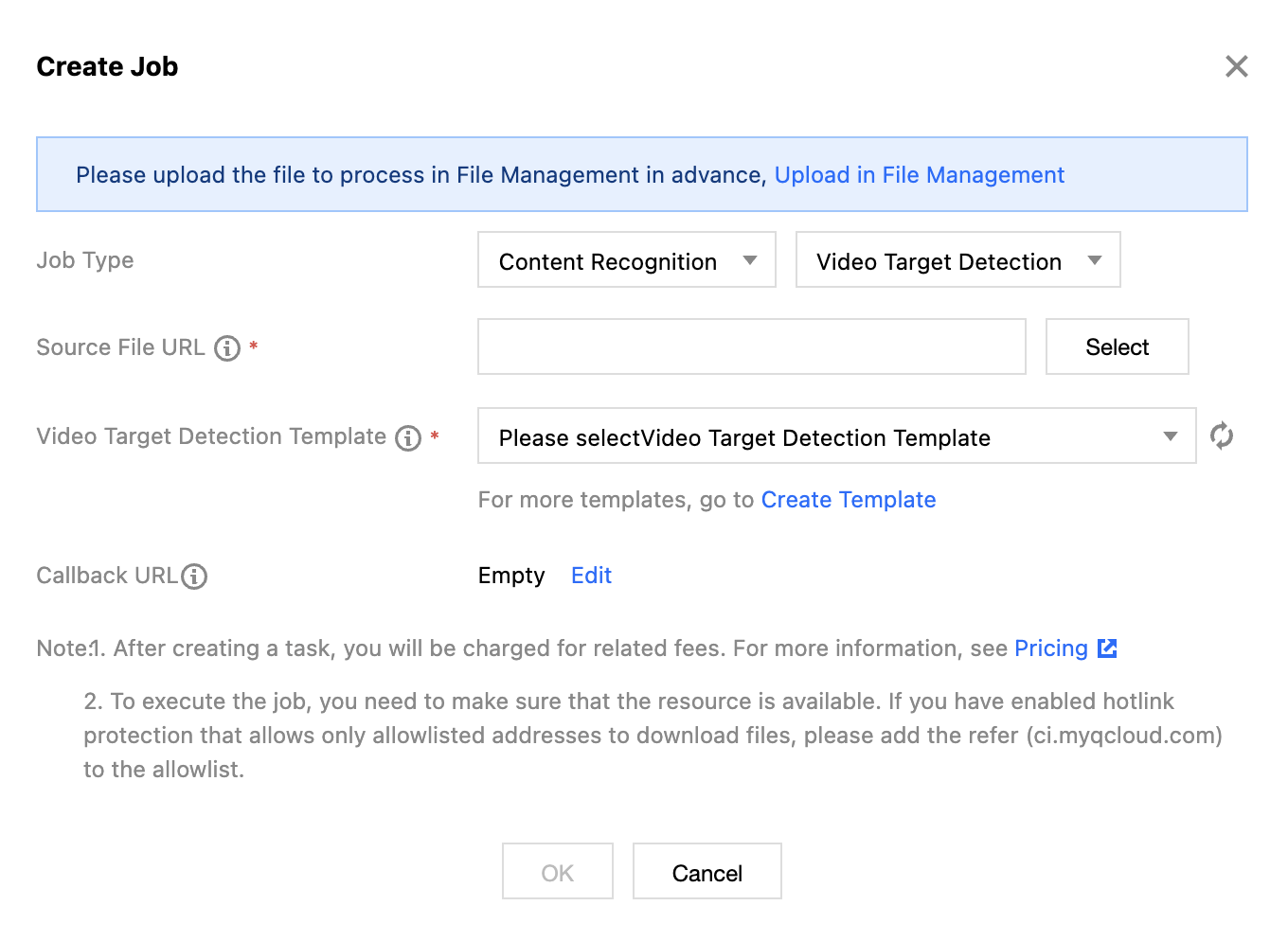
5. Select Video Object Detection for the task type, click Create Task, configure according to the following settings, and then click OK.
Task Type: Select CR - Video Object Detection.
Source file path: Enter the path of the video to be recognized. Note that the file path must not begin or end with /.
Video Object Detection Template: Specify the objects to be recognized in the video and the operations after recognition.
Callback URL: The callback address information bound to the Queue. For details, see Queues and Callbacks.