To push/pull container images, you need to log in to the instance first with the access credential. TCR supports credentials of user accounts and service accounts. This document describes how to manage service accounts, which is applicable to CI/CD automation scenarios.
A user account is bound with your Tencent Cloud account. The username must be the same as the Tencent Cloud account ID, and the password is generated randomly. The permission of the user account is controlled by the CAM permission of the associated Tencent Cloud account. When the associated Tencent Cloud account is deleted or disabled, the user account goes invalid. This can cause image push/pull failures in Kubernetes clusters or CI/CD scenarios. For more information, see Managing User Accounts.
For CI/CD scenarios or you want to configure permissions on the namespace level, we recommend using the service account. Service Account supports the following features:
Custom validity period. You can disable a service account temporarily.
Note:
1. Service-level accounts support the operation audit. The service-level accounts used for upload and download operations are recorded in operation audit logs, but the actual user identities of the accounts cannot be verified or traced by the platform. Be cautious when distributing service-level accounts externally. User-level accounts are recommended if the image pulling or pushing operators or account holders need to be audited strictly.
2. The permission configuration of a service account prevails the CAM permissions. It means that service account can perform namespace-specific operations that do not allowed by the associated Tencent Cloud account. This brings the risk of broken access control. We recommend only assign the service account to the administrators of the instance.
To obtain the access credential via API, obtain the API key for calling API 3.0.
Directions
Creating a service account
1. Log in to the TCR console and choose Access credential > Service accounts in the left sidebar.
2. On the Service accounts page, select a region and an instance, and click Create.
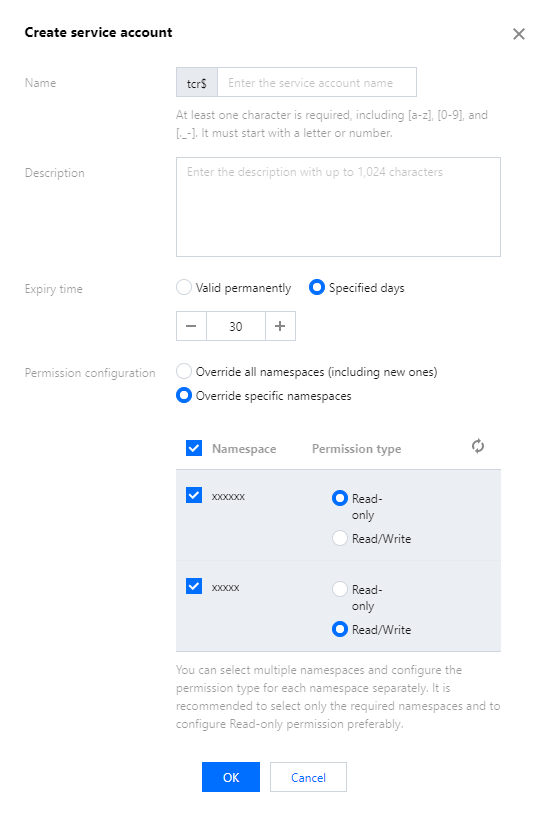
3. On the Create service account page, set the parameters as instructed below:
Name (Required): Custom name of the account. It supports [a-z], [0-9] and [._-], and must start with a letter or digit. The prefix tcr$ is automatically added to the name to mark it as a service account. For example, if you enter robot-demo, the actual username is tcr$robot-demo.
Note:
Certain open-source Continuous Integration (CI)/Continuous Deployment (CD) platforms may not correctly process the tcr$ prefix. The backend supports the tcr@ prefix by default. For example, you can use tcr@robot-demo as the username for replacing tcr$robot-demo. If you encounter any issues, please submit a ticket for consultation.
Description: Enter the account description.
Validity: Select Permanent or specify a validity period (in days). The default value is 30 days.
Permission configuration: Configure the namespace-specific permission. Select namespaces based on the principle of least privilege.
Namespace: Select target namespaces
Permission type: Select Read-only or Read/Write. In the Read-only mode, image push is not supported.
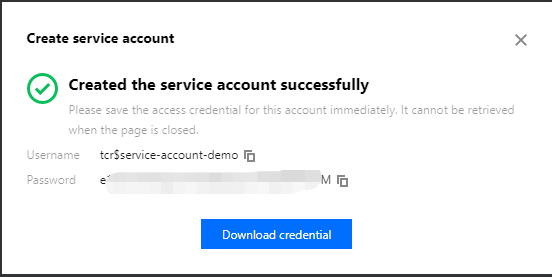
4. Note down the username and password immediately after the account is created. This page will be displayed only once and the credential information cannot be retrieved after the page is closed.
Managing service accounts
1. Log in to the TCR console and choose Access credential > Service accounts in the left sidebar.
2. On the Service account page, select the region and instance name.
Check existing service accounts
Check the permissions of service accounts
Modify the service account configuration (except the account name)
Enable/Disable service accounts. Note that after an account is disabled, you cannot use it to push or pull images.
Delete service accounts. Note that after an account is deleted, you cannot use it to push or pull images.