tencent cloud

Tencent VooV Meeting

Release Notes and Announcements
Release Notes
Announcements
Product Introduction
Overview
Strengths
Purchase Guide
Quick Start
User Guide
Operation Guide
Starting a Meeting
Joining a Meeting
Mobile Client
PC Client
Meeting Control and Management
Collaboration and Interaction
Audio and Video Management
Account and Management
VooV Meeting Outlook Plugin
Joining a Meeting from Browser
FAQs
Joining Online Meetings
Exceptions
Screen Sharing
Upgrade
Audio
Video
Other Legal Information
Open Source Information
Transparency Report

Floating Window Display

PDF
Mode fokus
Ukuran font
Terakhir diperbarui: 2023-12-19 16:50:27

Feature Overview

VooV Meeting supports floating window, making it easy for you to switch between tasks.

Prerequisites

Logged-in user: Free or Enterprise Edition user
Logged-in device: Windows, macOS, iOS, or Android
Version: v3.0.0 or later

Enabling Floating Window

Windows/macOS

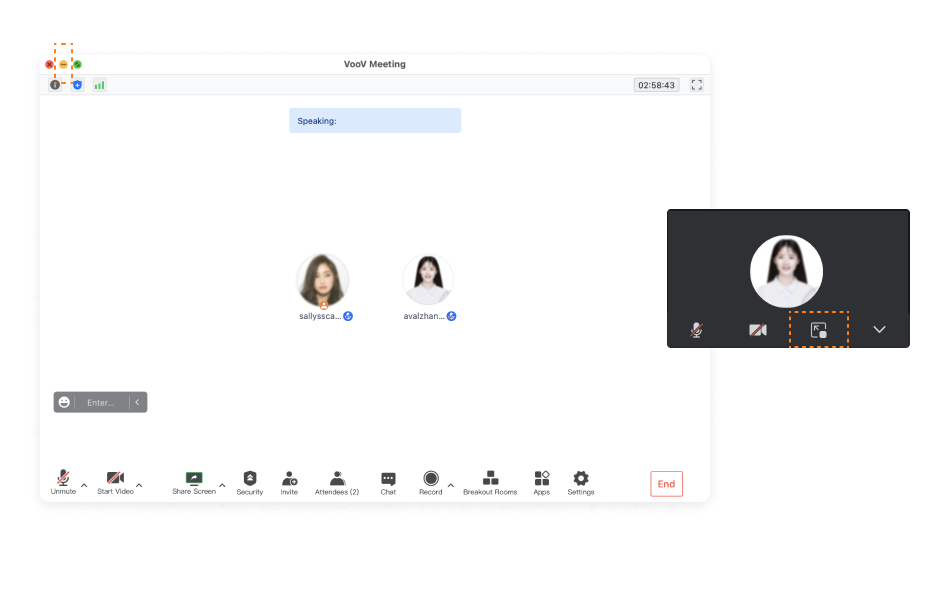
During a meeting, click the Minimize icon to display the floating window, where you can choose to return to the main panel or collapse the floating window.
WindowsmacOS1.png


Android/iOS

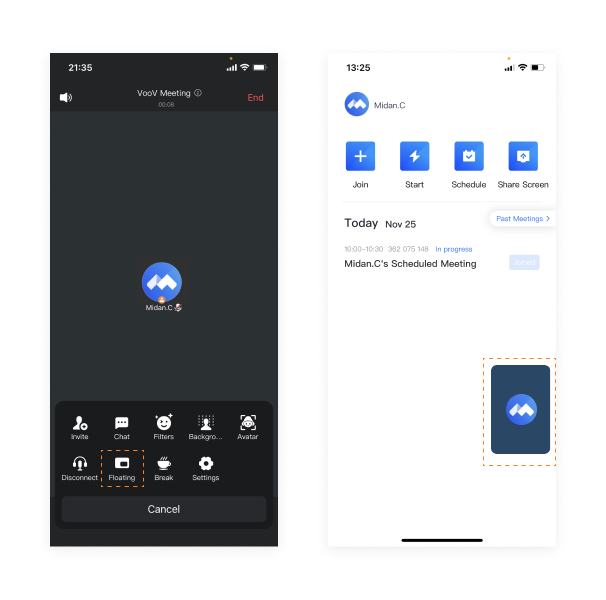
During a meeting, tap More > Floating to display the floating window. After getting the relevant system permissions, you can display the floating window both in and outside the app on Android, while iOS supports floating window display only in the app.
Android/iOS1.png


Bantuan dan Dukungan

Apakah halaman ini membantu?

masukan