You can share partial screen, such as part of the application window or specific slide content area.
Prerequisites
Logged-in user: Free or Enterprise Edition users
Version: v2.20.0 or later
Logged-in device: Windows 7 or later or macOS 10.11 or later
Notes
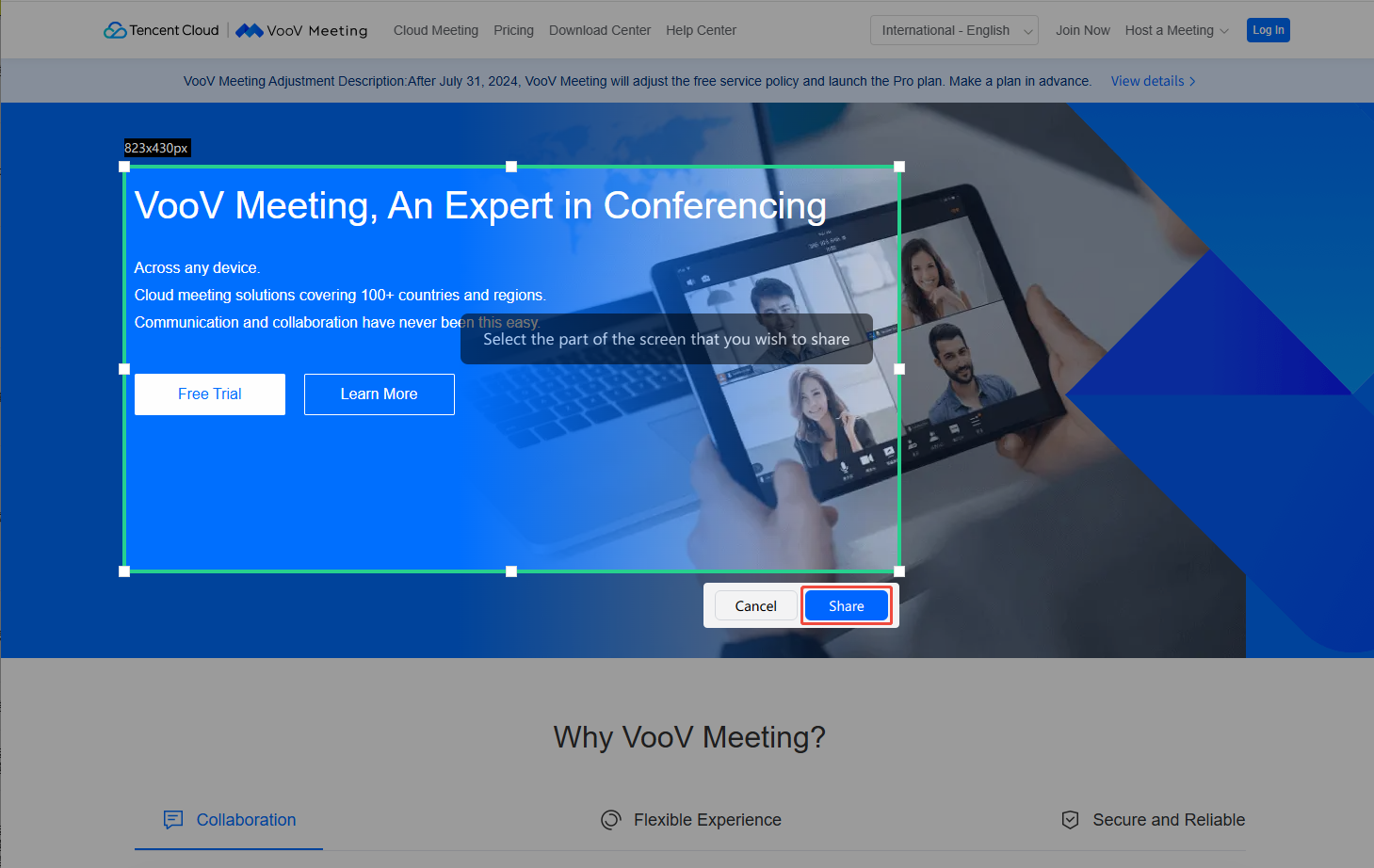
When you select a screen area, VooV Meeting will automatically detect the window based on the cursor position and use it as the candidate area. You can also drag the cursor to select an area.
Before starting sharing, you can adjust the position and size of the area for sharing, which cannot be adjusted after sharing starts. If you want to adjust the area position or size during sharing, you can select New Share to select an area again.
To avoid affecting the watch experience of other attendees, the size of the selected screen sharing area must be above 80 x 80 pixels.
If you use multiple monitors and select partial sharing, you cannot select an area across screens.
During sharing, all displayed content in the selected area will be shared. Avoid sharing an image area containing private information such as information input, notification message, and personal account.
Selecting Screen Sharing Area
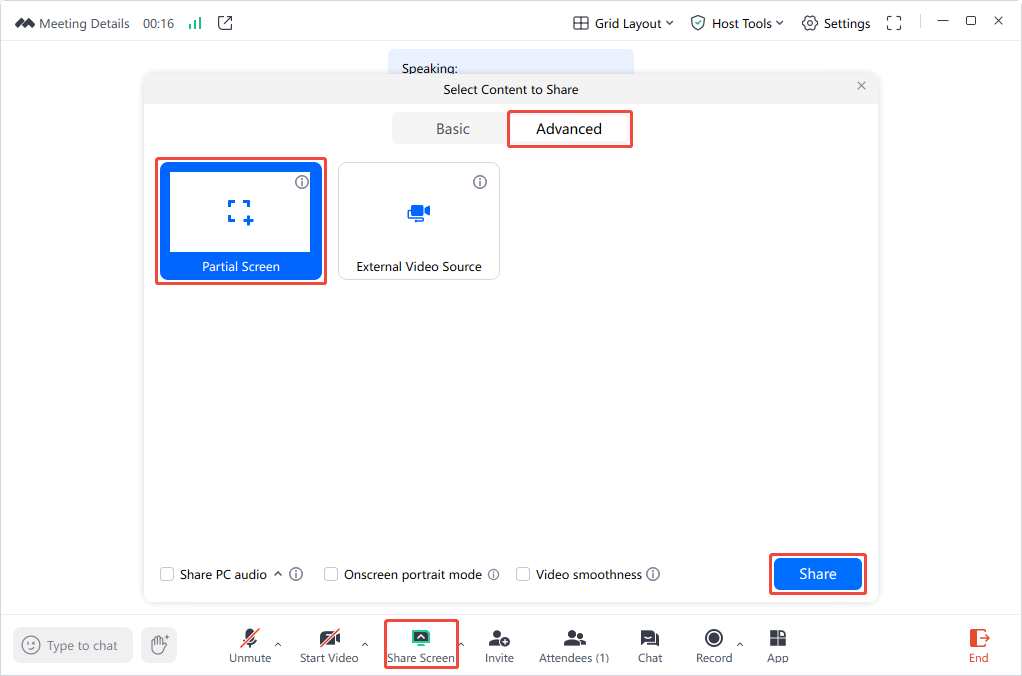
1. Click Share Screen to enter the Select Content to Share page.
2. Click Advanced, select Partial Screen and click Share to select the shared area.
3. After the shared area is selected, the Cancel and Share buttons will be displayed. You can click Share to start sharing the selected area or click Cancel to exit sharing.