You can create a custom image in addition to using Lighthouse application images and system images. The custom image can be used to quickly create Lighthouse instances with the same configurations as the image in the Lighthouse console.
Notes
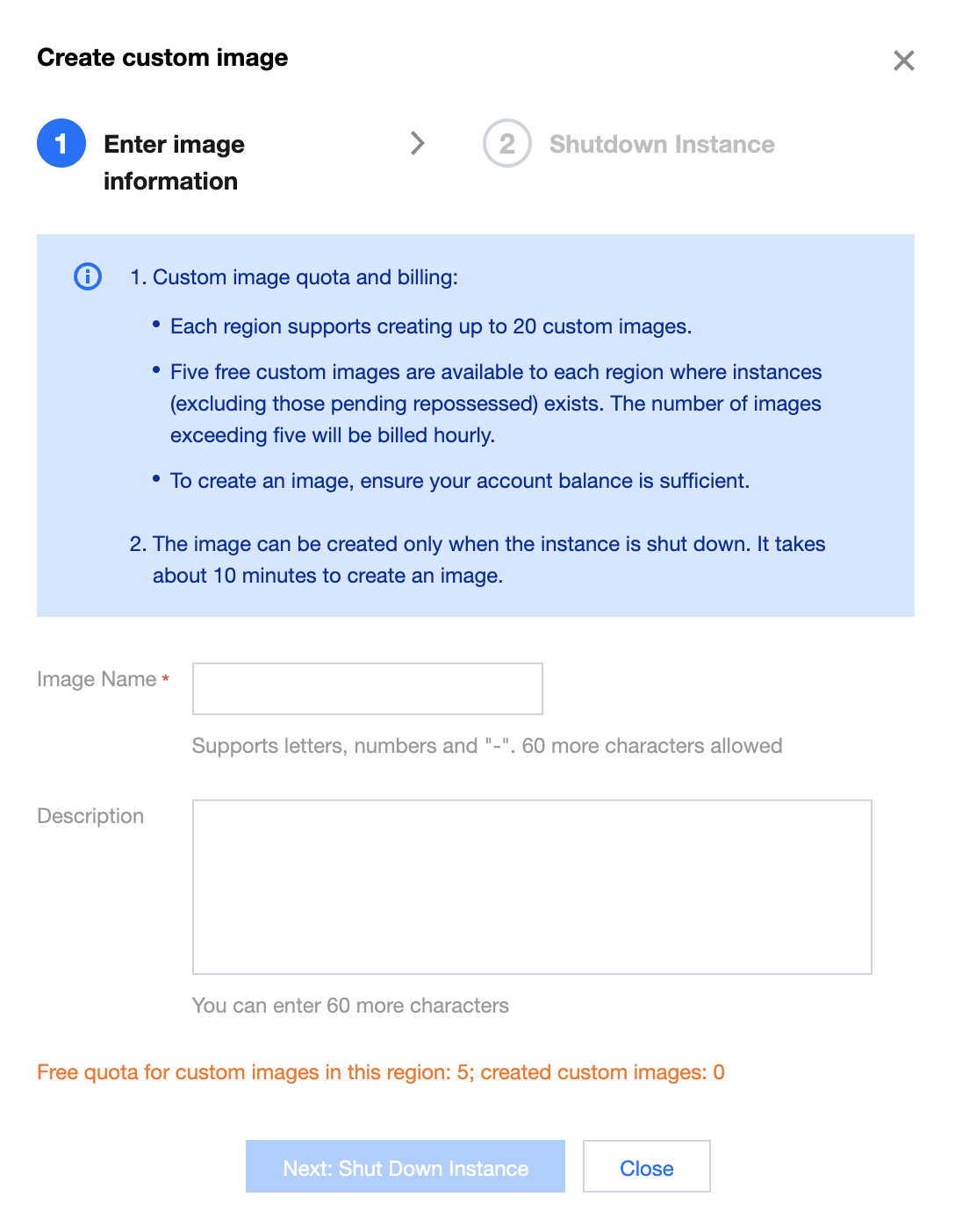
Up to 20 custom images can be created in each region. To increase the quota limit, submit a ticket for application.
A free tier of five custom images is provided in each region, and excessive images will incur fees. For more information, see Billing Overview.
If your account has overdue payments:
The custom image feature will be disabled, and you cannot create more custom images.
All custom images (including those within the free tier) under your account will be isolated in the To be repossessed status and become unavailable. The images that exceed the free tier will continue to be billed until they are deleted. If you don't top up your account within 15 days, the custom images will be deleted automatically.
The creation process takes ten minutes or more, which depends on the data size of the instance. Prepare in advance to avoid business impacts.
Currently, cross-region replication of custom images is not supported. You can regularly check out the Tencent Cloud Lighthouse page to get the latest information.
2. On the instance list page, select the target instance to enter the instance details page.
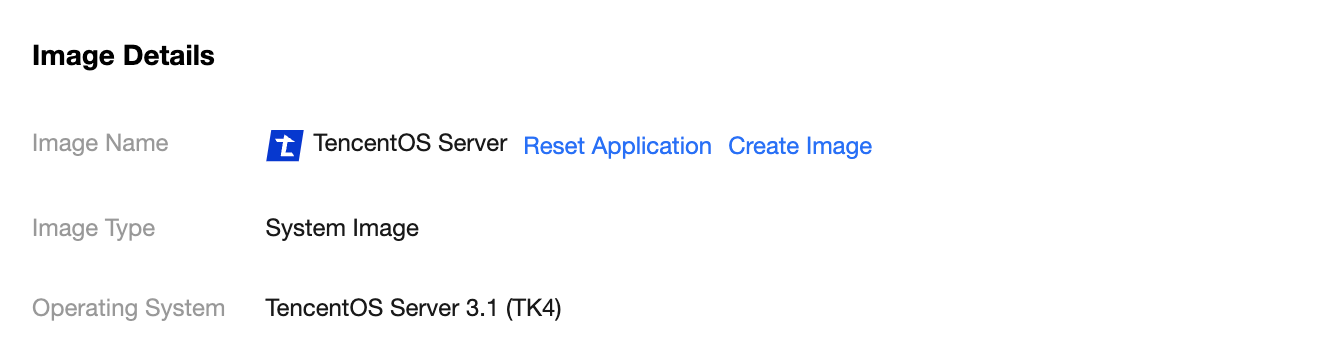
3. In Application information on the instance details page, select Create image.
4. In the Enter image information step in the Create custom image pop-up window, enter the Image name and Description, and click Next: Shut down the instance.
5. In the Shutdown instance step, select "Agree to a forced shutdown" and click Create image.
After the custom image is created, you can go to the custom image list page to view it.
Deleting a custom image
1. Log in to the Lighthouse console and select Custom image on the left sidebar.
2. At the top of the Custom image page, select the region of the target image.
3. Select More > Delete on the right of the target image in the list.
4. In the Delete image pop-up window, click OK to delete the image.
Related Operations
Using a custom image to create an instance
You can use a custom image to quickly create a Lightweight instance in the following steps:
1. Log in to the Lighthouse console and select Custom image on the left sidebar.
2. At the top of the Custom image page, select the region of the target image.
3. Select Create instance on the right of the target image in the list to enter the Lighthouse instance purchase page.
4. On the Lightweight instance purchase page, select other configuration items of the instance as instructed in Purchase Methods.
Note:
As custom images don't have a unified template and are created based on your own data, the instances created by using them don't have the Pre-installed Application tab.
Viewing the information of the custom images in the current region
You can view the information of existing custom images in a specific region in the following steps:
1. Log in to the Lighthouse console and select Custom image on the left sidebar.
2. At the top of the Custom image page, select the region of the target image.
3. Then, you can view the total number of custom images, free tier, and estimated price information in the current region on the page.
Note:
A free tier of five custom images is provided in each region.
Once your account has overdue payments, all custom images (including those within the free tier) under your account will be isolated in the To be repossessed status and become unavailable. If you don't top up your account within 15 days, the custom images will be deleted automatically.