tencent cloud

Tencent Cloud Lighthouse

Release Notes and Announcements
Image Release Notes
Announcements
Product Introduction
Overview
Basic Concepts
Strengths
Scenarios
Use Limits
Region and Network Connectivity
Product Comparison
User Guide
Billing
Billing Overview
Instance Package
Pricing Details
Purchase Methods
Configuration Adjustment (for Upgrade Only)
Overdue Payments
Refund
Getting Started
One-Click Application Creation Using Lighthouse
Quick Instance Creation
User Guide
Instances
Cloud Disks
Images
Firewall
Private Network Interconnection
Data Backup and Restoration Using Snapshots
Cloud Access Management
OPS and Monitoring
File Transfer
Use Cases
Website Building
Development Environment Building
Cloud Storage System Building
E-commerce Platform Building
Personal Live Streaming Room Building
FTP Service Building
SSL Certificate Installation
Troubleshooting
Windows Instance: RDP Connection to the Remote Computer Fails
Windows Instance: Offline Password Resetting Fails or Invalid
Linux/Windows Instance: Online Password Resetting Fails or Invalid
API Documentation
History
Introduction
API Category
Making API Requests
Image APIs
Firewall APIs
Key APIs
Instance APIs
Snapshot APIs
CCN APIs
Other APIs
Cloud Disk APIs
Scene APIs
Package APIs
Quota APIs
Region APIs
Data Types
Error Codes
FAQs
Agreements
Privacy Policy
Data Processing And Security Agreement
Contact Us

Connecting to a Linux Instance via VNC

PDF
Mode fokus
Ukuran font
Terakhir diperbarui: 2022-05-12 12:24:11

Overview

VNC login allows for remote login of Lighthouse instances by using a web browser. If the remote login client is not available and all the other login methods failed, you can log in to an instance via VNC to check the instance status and perform basic management operations.

Usage Limits

VNC does not support copy and paste, and file upload or download.
Use a mainstream browser, such as Chrome, Firefox, and IE 10 or later.
Only one user can log in to an instance by using VNC at a time.

Prerequisites

You must have the admin account and password for logging in to a Linux instance remotely.
Note:
Make sure you’ve set the login password. For more information, see Resetting Password.

Directions

1. Log in to the Lighthouse console.
2. Find the target instance and enter its details page.
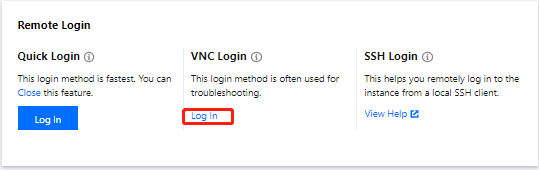
3. Select Remote login and click Log in under VNC Login.


4. In the pop-up window, enter the username after login and press Enter.
5. Enter the password after Password and press Enter. The entered password is invisible by default.

Once logged in, you can see the information of the instance on the left of the command prompt.
Note:
Click Send remote command in the top-left corner and select the command you want.


Bantuan dan Dukungan

Apakah halaman ini membantu?

masukan