tencent cloud

Tencent Cloud Lighthouse

Release Notes and Announcements
Image Release Notes
Announcements
Product Introduction
Overview
Basic Concepts
Strengths
Scenarios
Use Limits
Region and Network Connectivity
Product Comparison
User Guide
Billing
Billing Overview
Instance Package
Pricing Details
Purchase Methods
Configuration Adjustment (for Upgrade Only)
Overdue Payments
Refund
Getting Started
One-Click Application Creation Using Lighthouse
Quick Instance Creation
User Guide
Instances
Cloud Disks
Images
Firewall
Private Network Interconnection
Data Backup and Restoration Using Snapshots
Cloud Access Management
OPS and Monitoring
File Transfer
Use Cases
Website Building
Development Environment Building
Cloud Storage System Building
E-commerce Platform Building
Personal Live Streaming Room Building
FTP Service Building
SSL Certificate Installation
Troubleshooting
Windows Instance: RDP Connection to the Remote Computer Fails
Windows Instance: Offline Password Resetting Fails or Invalid
Linux/Windows Instance: Online Password Resetting Fails or Invalid
API Documentation
History
Introduction
API Category
Making API Requests
Image APIs
Firewall APIs
Key APIs
Instance APIs
Snapshot APIs
CCN APIs
Other APIs
Cloud Disk APIs
Scene APIs
Package APIs
Quota APIs
Region APIs
Data Types
Error Codes
FAQs
Agreements
Privacy Policy
Data Processing And Security Agreement
Contact Us

Building a LAMP Development Environment

PDF
Modo Foco
Tamanho da Fonte
Última atualização: 2022-06-16 16:39:53

Overview

Linux, Apache, MySQL, PHP (LAMP) is an internationally popular web application framework. It encompasses the Linux OS, Apache web server, MySQL/MariaDB database, PHP environment, and related components.
Note:
The LAMP application image is based on CentOS 7.6 64-bit.

Directions

1. Log in to the Lighthouse console.


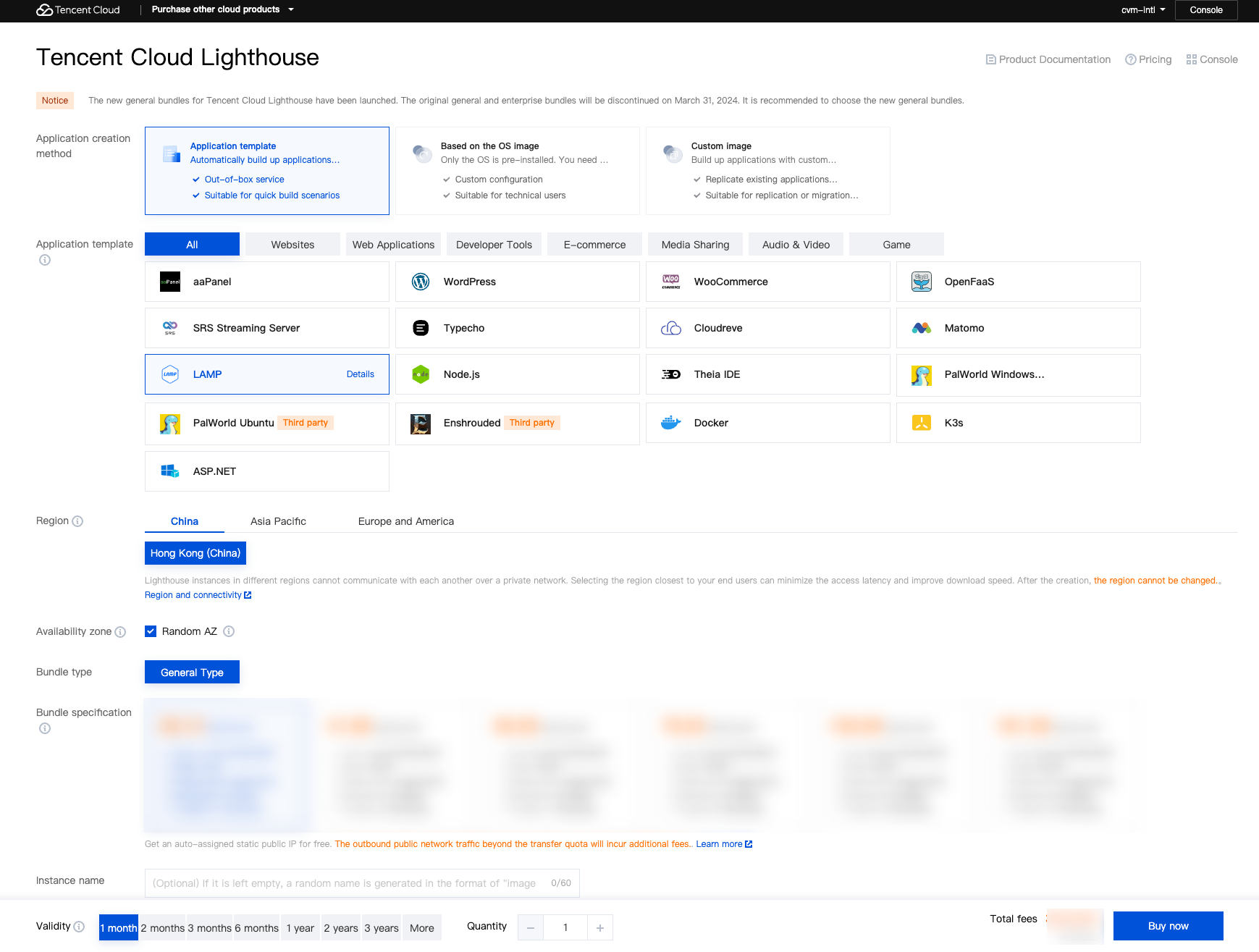
Region: Select a region near your target users to reduce the network latency and improve their access speed.
Availability zone: Randomly assigned is selected by default. You can select one as well.
Image: Select the LAMP 7.4.16 application image.
Instance bundle: Select an instance bundle according to the required instance configuration (including CPU, memory, system disk, bandwidth, and monthly traffic).
Instance name: Enter a custom instance name. If it is left empty, the selected image name will be used as the name by default. When multiple instances are created in a batch, their names will be consecutive with auto-incrementing suffixes. For example, if you enter "LH" as the name and create three instances, the three instances are named "LH1", "LH2", and "LH3".
Purchase period: Default to 1 month.
Quantity: Default to 1.
2. Click Buy now to submit your order and make the payment as prompted.
Relevant Operations

Viewing LAMP configuration items

1. Log in to the Lighthouse console.
2. In the instance list, select the target instance created with the LAMP application image to enter its details page.
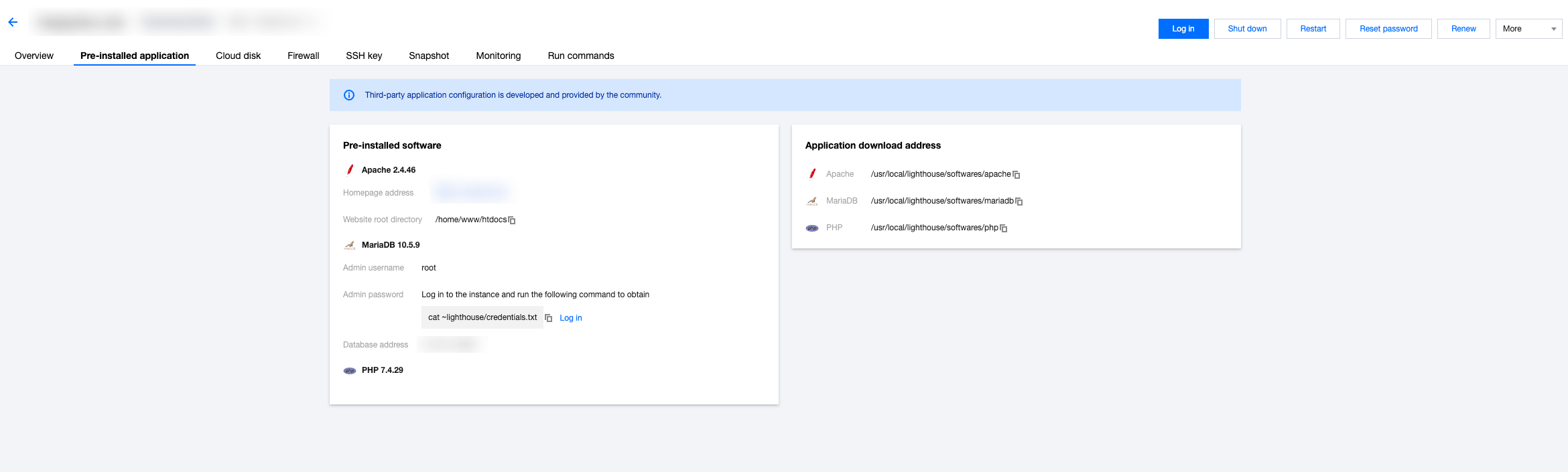
3. Select the Pre-installed application tab to enter the application details page.


4. You can view the configuration items of the LAMP application.
Apache's homepage address and website root directory.
MariaDB's admin account (root) and password, database address, and database name.
Note:
You can get the admin password by logging in to the instance via webshell and running the cat ~lighthouse/credentials.txt command.
Apache, MariaDB, and PHP software installation paths on CentOS.
Note:
Access http://LAMP instance public IP/phpinfo.php to view the PHP configuration information.

Enabling HTTPS access

Install the SSL certificate and enable HTTPS access for your LAMP instance as instructed in Apache Server Certificate Installation.

Ajuda e Suporte

Esta página foi útil?

comentários