This document describes how to bind the specified key to an instance on the instance details page in the Lighthouse console.
Prerequisites
You can bind a key to only a Linux instance.
You have created and saved a key. For more information, see Creating SSH key.
Directions
1. Log in to the Lighthouse console and click the card of the target instance.
2. On the instance details page, select the SSH key pair tab and click Bind Key Pair.
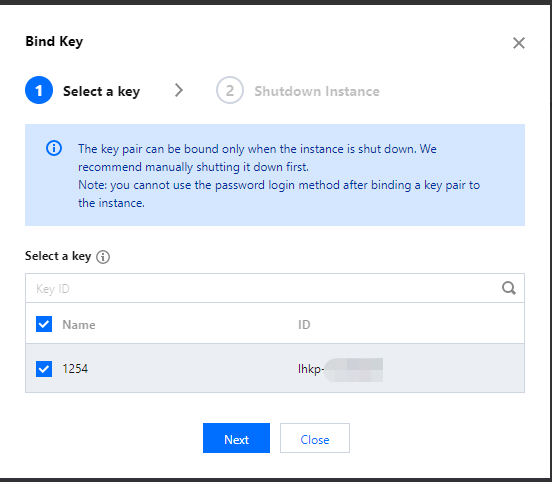
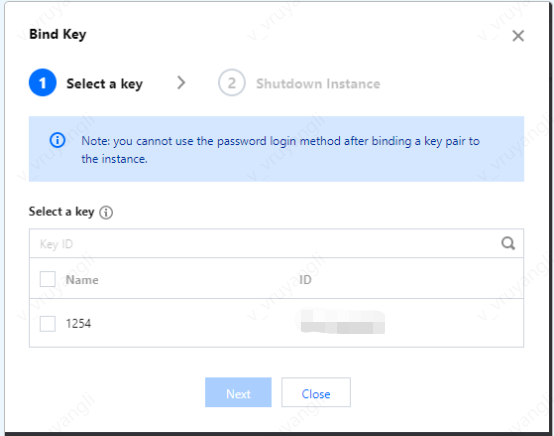
3. In the Bind key pop-up window, perform the following operations based on the instance status:
Running instance
Shutdown instance
1. In the Select a key step, select the target key and click Next as shown below:
2. In the Shutdown instance step, select Agree to a forced shutdown and click OK.
Note:
During the binding process, the instance will shut down first and then start up, and the business will be interrupted momentarily. We recommend you do so during off-peak hours.
If the instance fails to shut down normally, it will be forced to shut down. Forced shutdown may cause data losses or file system corruption. Therefore, perform forced shutdown with caution.
Forced shutdown may take a while. Please be patient.
1. In the Select a key step, select the target key and click Next as shown below:
2. In the Shutdown instance step, click OK.
Note:
To improve the Lighthouse instance security, after a Linux instance is bound to a key, login to the root account with a password will be forbidden by default. If you want to keep the password login method, modify the configuration as instructed in Modifying SSH configuration.
Related Operations
Unbinding key
1. Log in to the Lighthouse console and click the card of the target instance.
2. On the instance details page, select the SSH key pair tab.
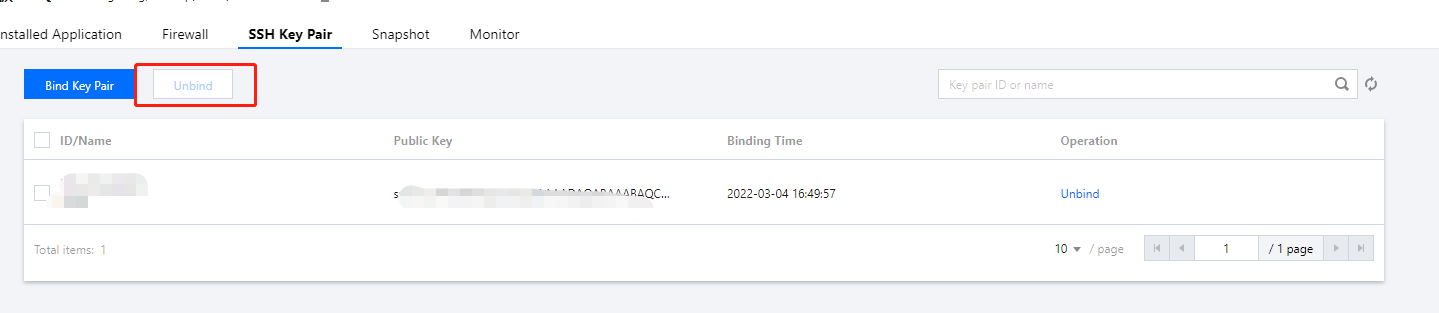
3. Select the target key pair and click Unbind above the list as shown below:
4. In the Unbind key pop-up window, perform the following operations based on the instance status:
Running instance
Shutdown instance
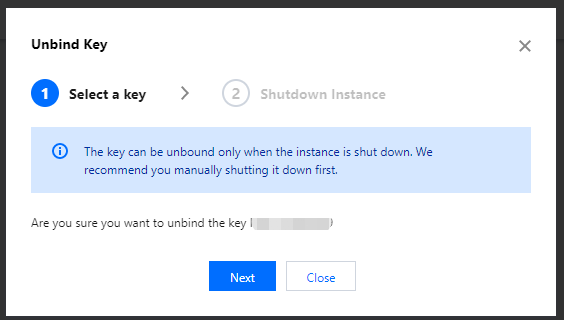
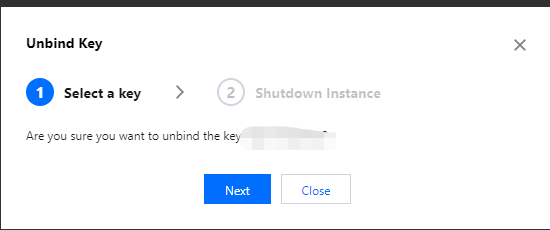
1. In the Select a key step, confirm the target key and click Next as shown below:
2. In the Shutdown instance step, click OK.
1. In the Select a key step, confirm the target key and click Next as shown below: