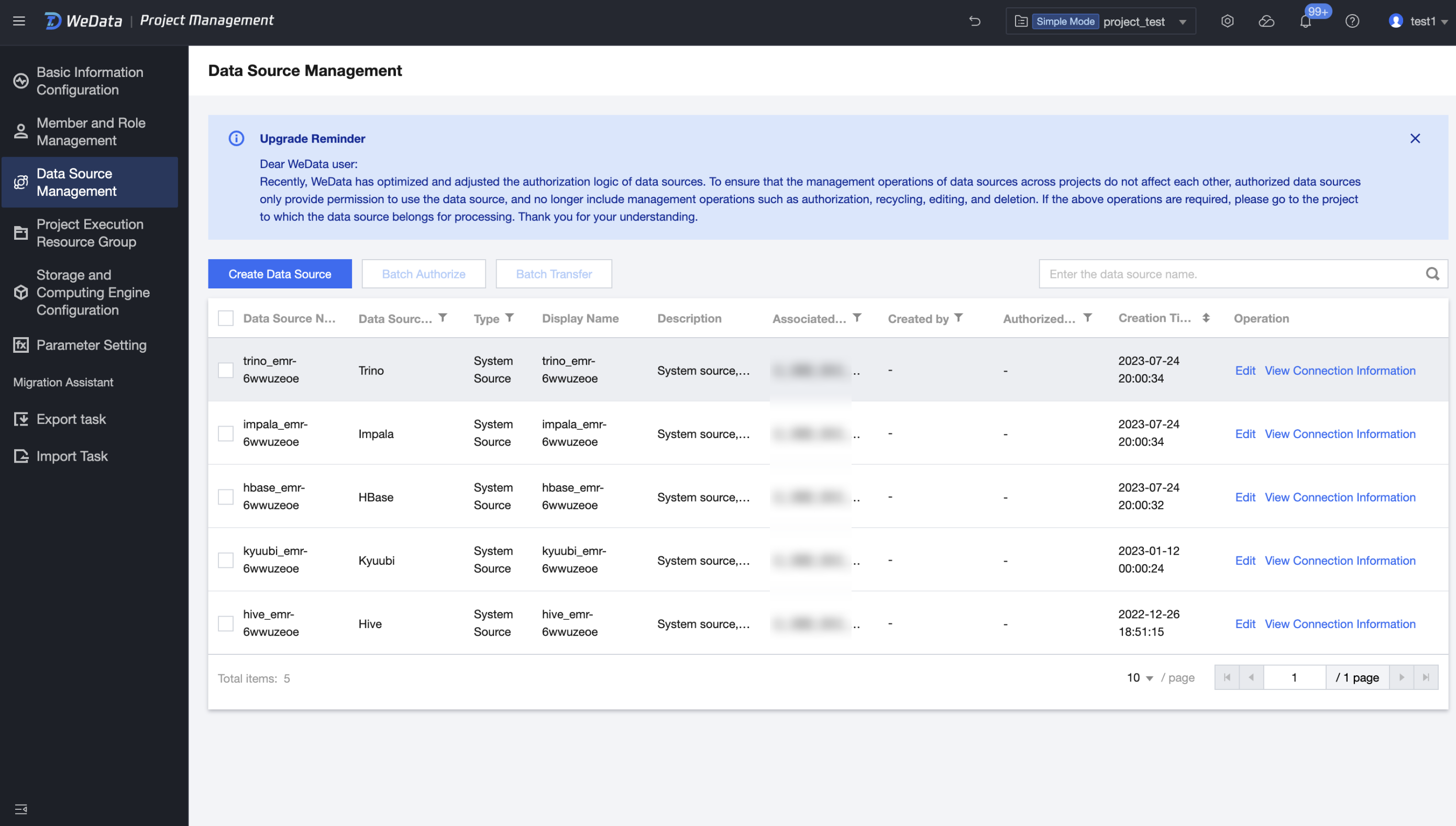
Log in to the WeData console, click on the left menu Data Source Management, and on the Data Source Management page, you can view and manage the data source information under this project.
The project includes two types of data sources: system sources and custom sources. System sources are automatically generated after binding the storage and computing engine; custom sources are created by users themselves.
System Source
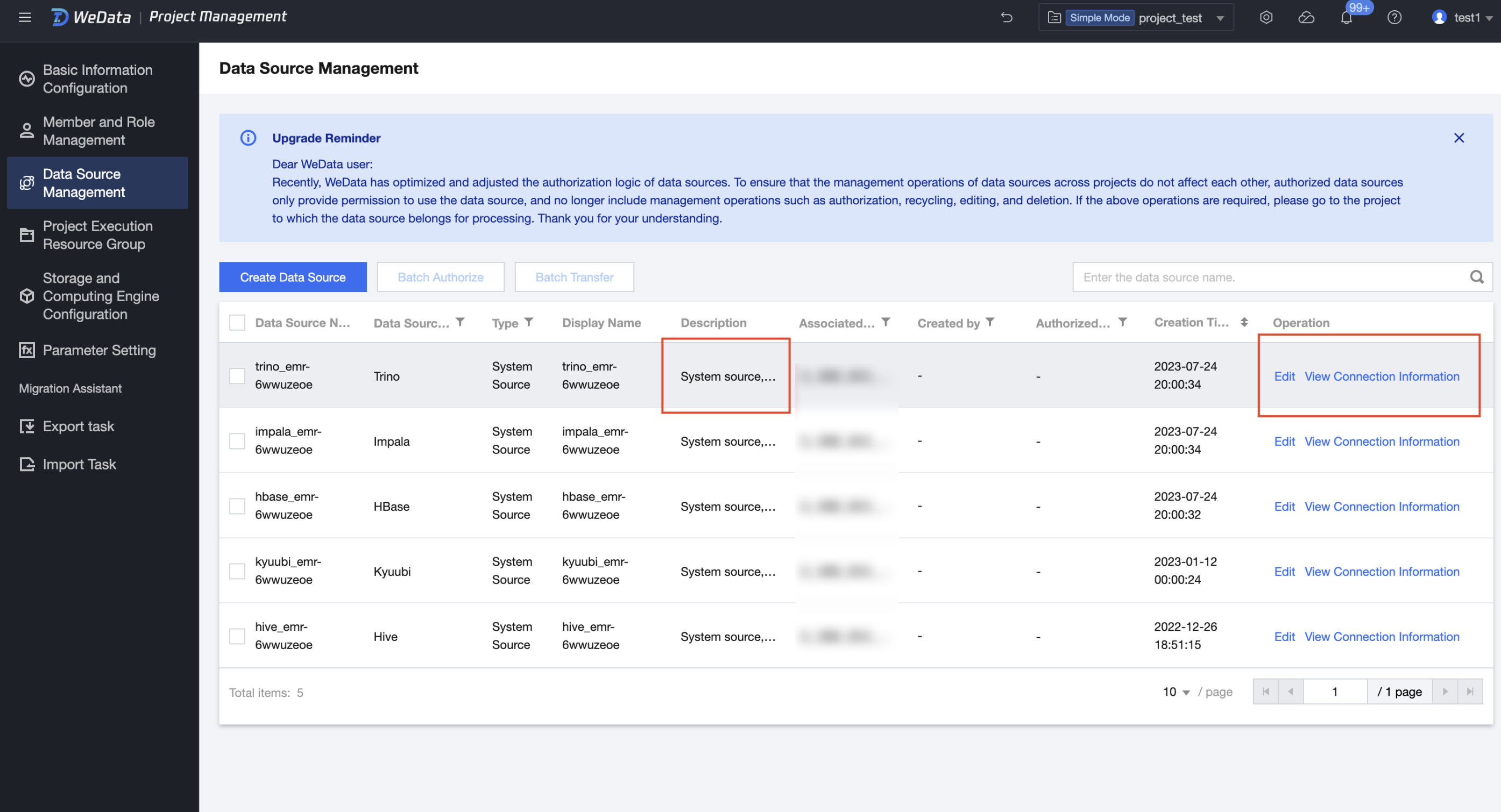
System sources are data sources automatically created when users bind a computing engine in a project. Currently, system sources only support users viewing data source connection information and editing, but do not support deletion, authorization, and recovery operations.
Binding the EMR engine will automatically create EMR Hive data source, EMR HBase data source, EMR Kyuubi data source, EMR Impala data source, EMR Trino data source;
Binding the DLC engine will automatically create a DLC data source;
Binding the TCHouse-P engine will automatically create a TCHouse-P data source.
View connection information: Select the row where the data source is located and click View connection information.
Edit: Select the row where the data source is located and click Edit. Only the root account is allowed to edit the display name.
Custom Source
Custom sources are data sources introduced by users in WeData, currently supporting a total of 20+ data source types including MySQL, Kafka, HDFS, etc. Custom sources support viewing connection information, editing, deleting, authorization, and recovery operations.
View connection information: Select the row where the data source is located and click View connection information.
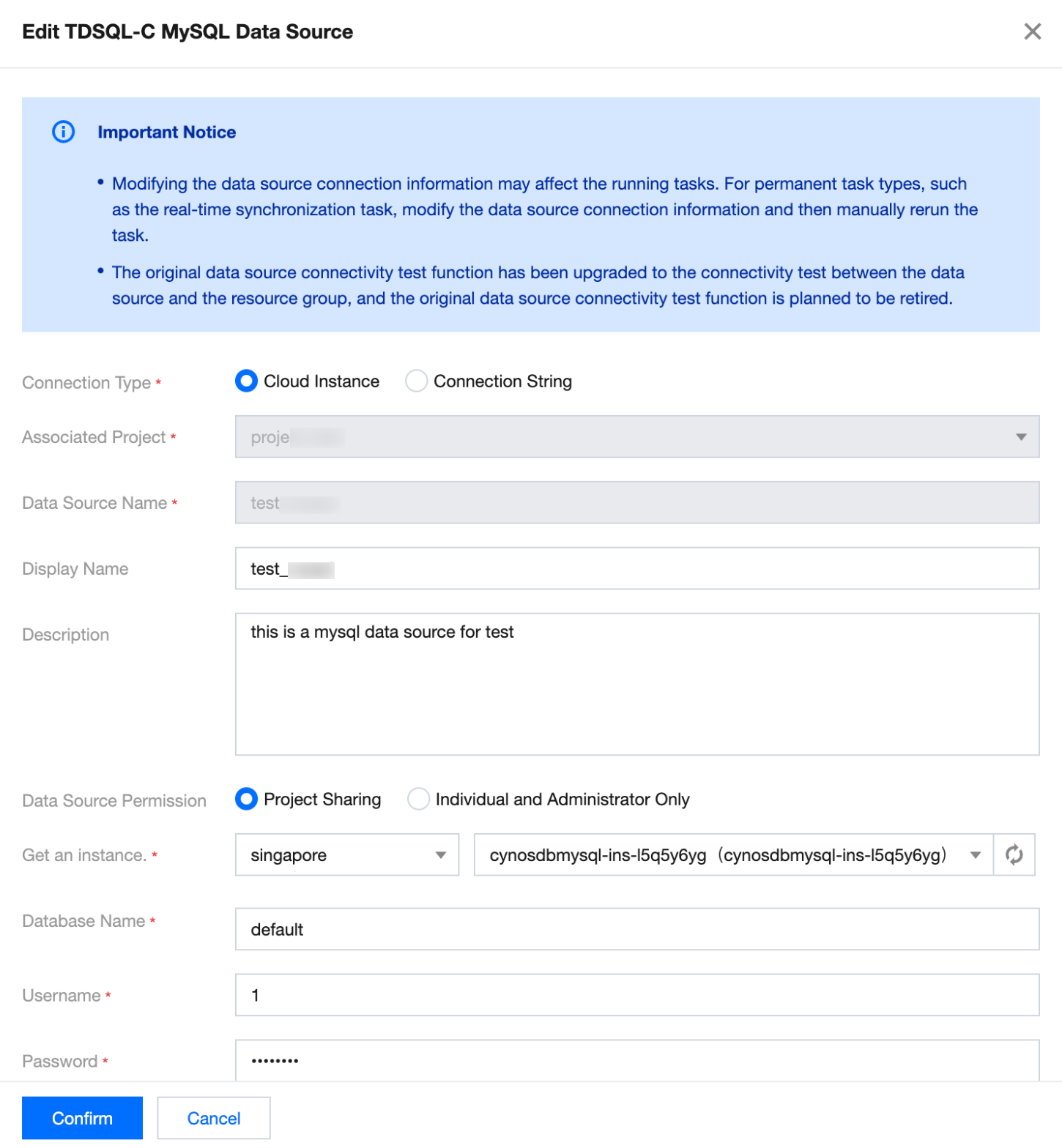
Edit: Select the row where the data source is located and click Edit.
Except for connection type, data source name, and project, other configuration items can be edited.
Cloud instance: For data sources introduced via the cloud instance method, you can modify the data source description, username, and password.
Connection string: For data sources introduced via the connection string method, you can modify the description, JDBC URL parameters, username, and password.
After editing the data source, click Start Test to test the connectivity of the edited data source. Then click Confirm to save the edit content.
Delete
Select the data source and click Delete in the operation column.
Confirm the data source information, click Delete.
Authorization/Batch Authorization
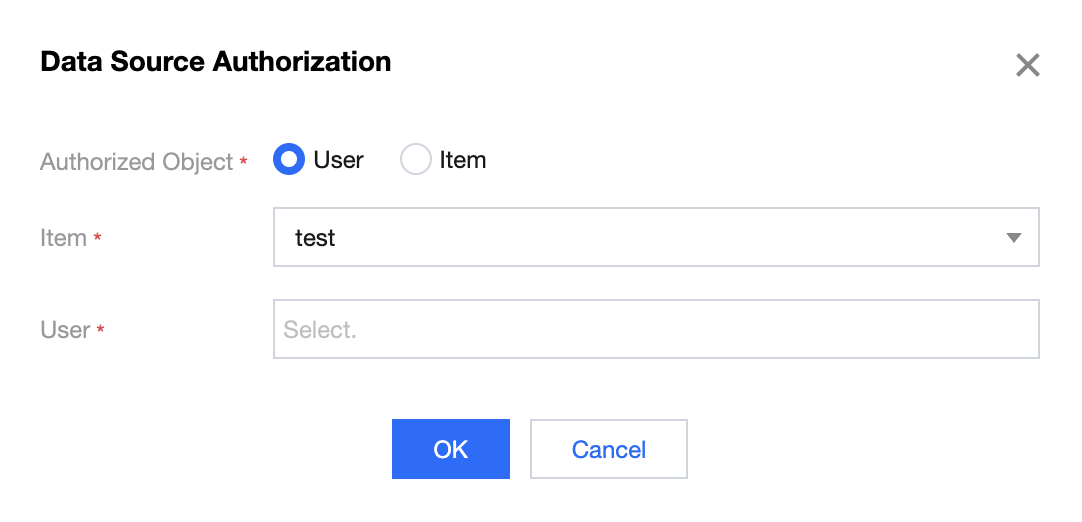
Select the data source and click Authorization in the operation column.
Select Authorization Object, user or project.
Select the target user or project, and click OK.
Recycle
Select the data source and click Recycle in the operation column.
Select the target user or project for whom permissions need to be recycled, click Recycle and confirm in the pop-up by clicking OK.
Batch transfer
Select the data source and click Batch Transfer in the upper left corner.
Select the target user to whom permissions need to be transferred, click OK. After the transfer, the person in charge of the data source will become the transferor.
Creating a Relational Database Data Source
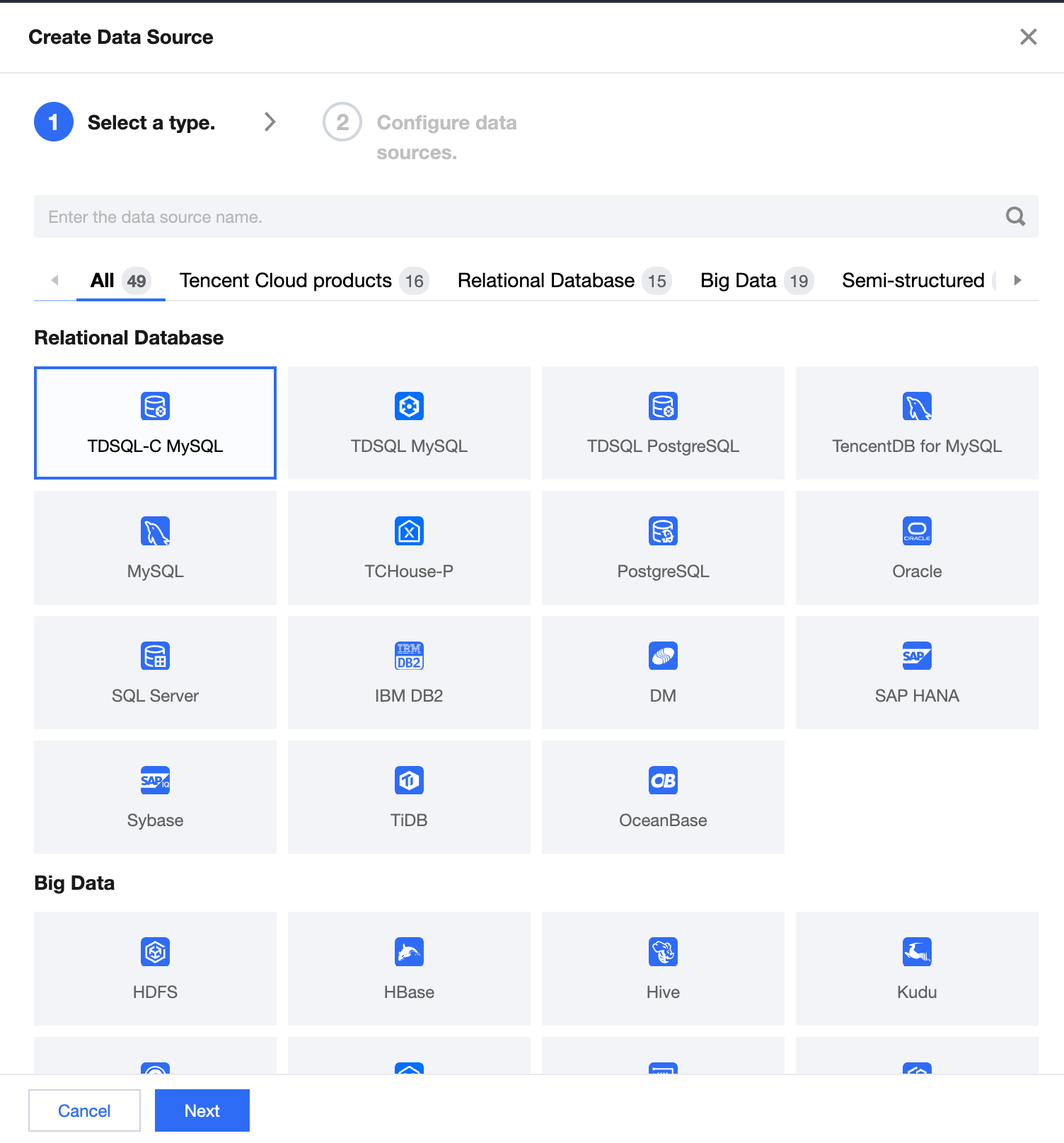
Tencent Cloud WeData currently supports the creation of more than ten types of relational databases. Among them, Tencent Cloud relational database products (such as TDSQL-C MySQL, TDSQL MySQL, TDSQL PostgreSQL, Tencent Cloud MySQL, etc.) can be connected using cloud instances, while general relational database data sources (such as MySQL, PostgreSQL, Oracle, SQL Server, etc.) can be connected using connection strings.
Select Data Source Type
Click Create Data Source and select the data source type, then click Next.
Configure Data Source: TDSQL-C MySQL
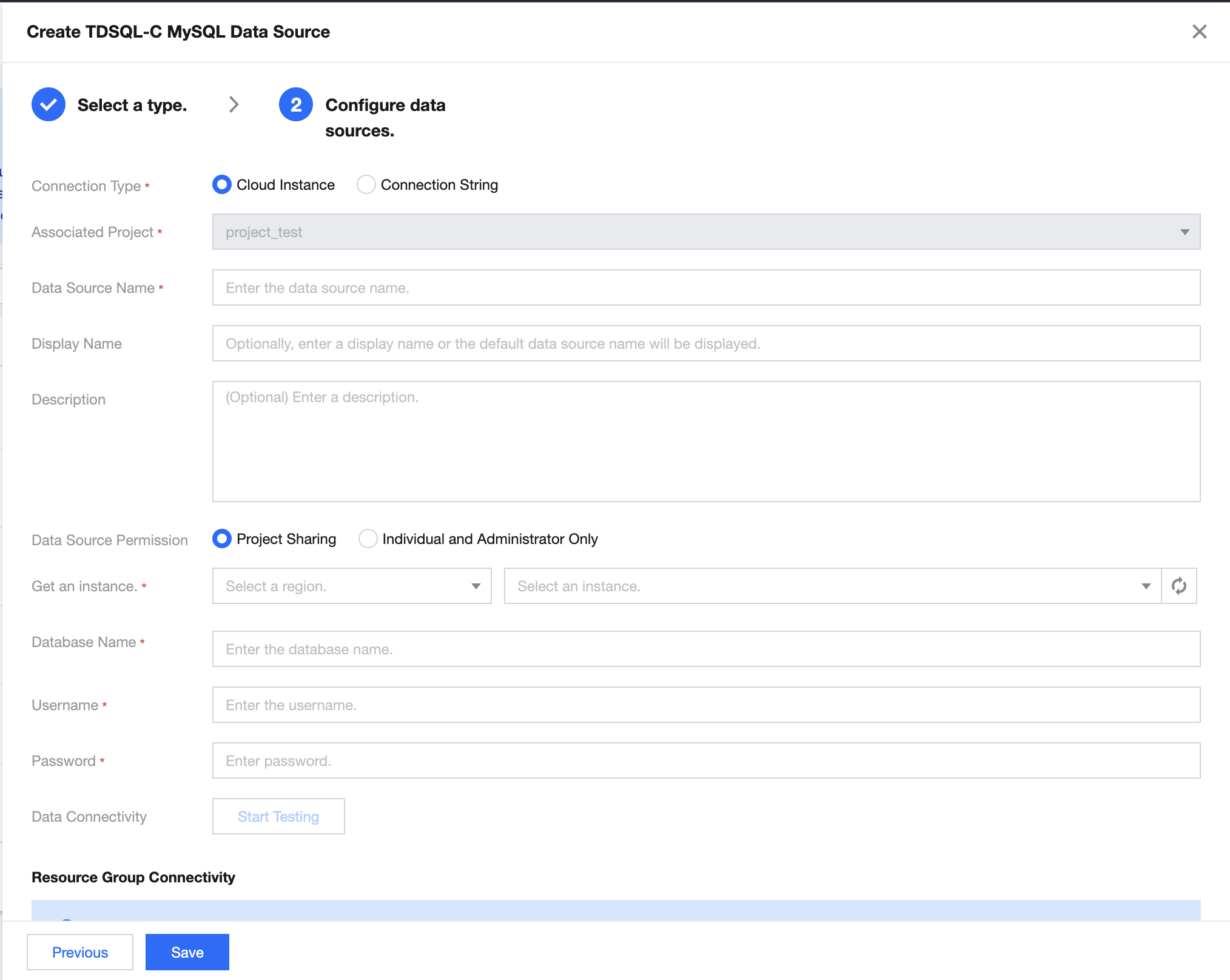
Taking TDSQL-C MySQL data source as an example, Tencent Cloud relational database products are explained, and the same applies to other data sources. TDSQL-C MySQL data source supports two connection methods: cloud instance and connection string.
Create a data source through the cloud instance method.
Parameter
Description
Connection Type
Select the data source connection form of cloud instance or connection string
Associated Project
The associated project when the current data source was created
Data Source Name
The name of the created data source is user-defined and cannot be empty. It starts with a letter and can contain letters, digits, and underscores. The length is within 20 characters.
Displayed Name
The displayed name of a data source when it is used in a product. If it is not filled in, the name of the data source will be displayed by default.
Description(Optional)
Optional: Description of this data source
Data Source Permission
Project Shared means that all members of the current data source project can use it, and Individual and Administrator Only means that the data source is only available to the creator and project administrators.
Get Instance
Select the region, instance name, and ID information of the CloudDB instance under your account.
Database Name
The name of the database to be connected.
Username
Database username
Password
The password used to connect to the database.
Data Connectivity
Test whether the configured database can be connected.
Note:
If the connectivity test fails, the data source can still be saved, but it will be inaccessible.
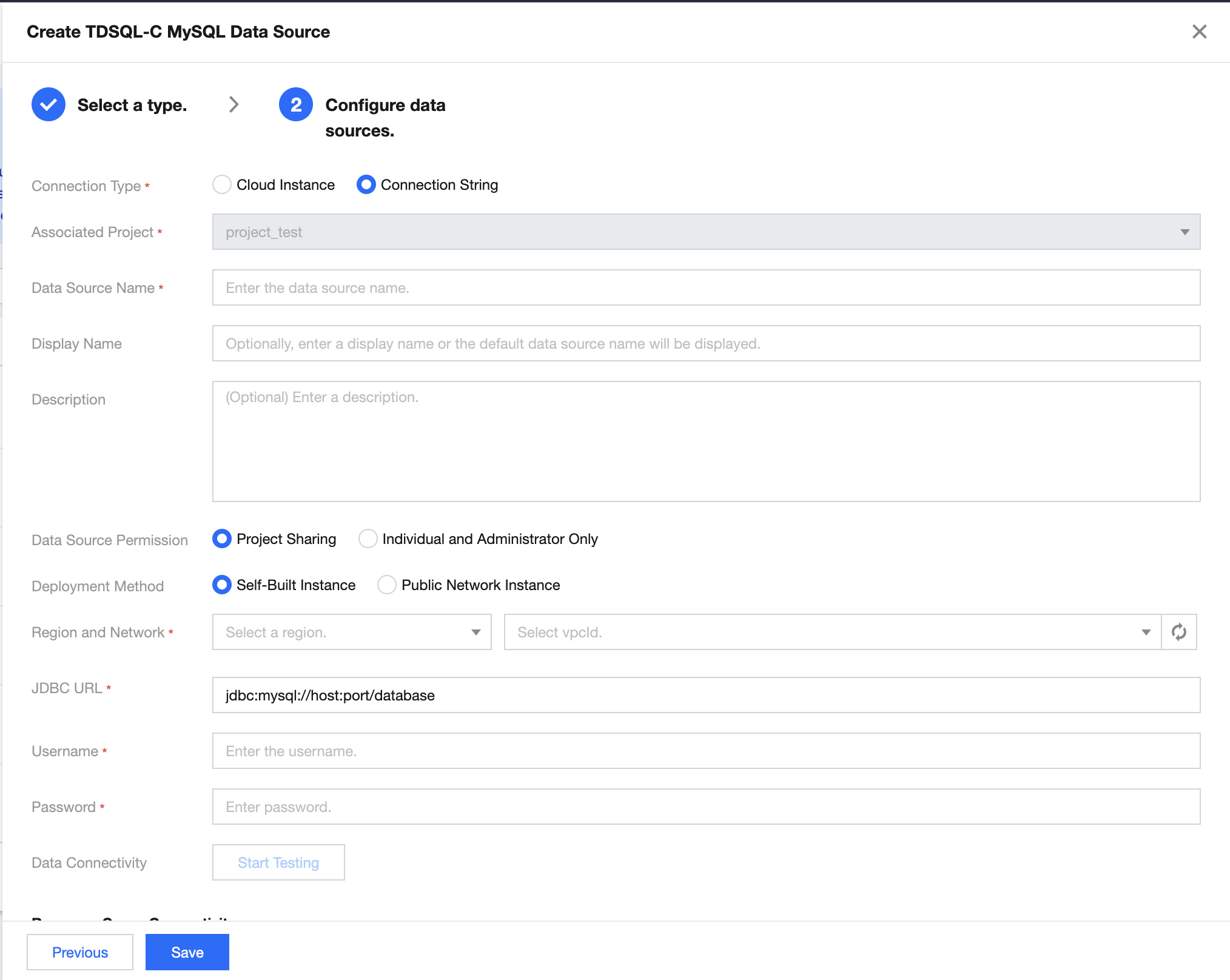
Create a data source via the connection string.
Parameter
Description
Data Source Name
The name of the created data source is user-defined and cannot be empty. It starts with a letter and can contain letters, digits, and underscores. The length is within 20 characters.
Displayed Name
The displayed name of a data source when it is used in a product. If it is not filled in, the name of the data source will be displayed by default.
Description(Optional)
Optional: Description of this data source
Data Source Permission
Project Shared means that all members of the current data source project can use it, and Individual and Administrator Only means that the data source is only available to the creator and project administrators.
Deployment Method
Supports two deployment modes: Self-Built Instance and Public Network Instance.Self-Built Instance is deployed on Tencent CVM, while Public Network Instanceis is in the client’s local IDC or other cloud resources, accessible via public network.
Region and Network
When a self-built instance is selected, it is necessary to select the region and vpcID where the data source instance is located.
JDBC URL
The connection string information for connecting to a TDSQL-C MySQL data source instance, including host IP, port, database name, etc.
Database Name
The name of the database to be connected.
Username
Database username
Password
The password used to connect to the database.
Data Connectivity
Test whether the configured database can be connected.
Note:
If the connectivity test fails, the data source can still be saved, but it will be inaccessible.
Configure Data Source: PostgreSQL
Taking PostgreSQL data source as an example, general-purpose relational database data sources are explained, and the same applies to other data sources. PostgreSQL data source only supports one connection method: connection string.
Parameter
Description
Data Source Name
The name of the created data source is user-defined and cannot be empty. It starts with a letter and can contain letters, digits, and underscores. The length is within 20 characters.
Displayed Name
Select a display name. If it is not filled in, the data source name will be displayed.
Description(Optional)
Optional: Description of this data source
Data Source Permission
Project Shared means that all members of the current data source project can use it, and Individual and Administrator Only means that the data source is only available to the creator and project administrators.
Deployment Method
Supports two deployment modes: self-built instance and public network instance. The self-built instance is a data source instance deployed on Tencent CVM, while the public network instance is in the client's local IDC or other cloud resource instances, and supports access connection via the public network.
Region and Network
When a self-built instance is selected, you need to choose the region and vpcID where the data source is located.
JDBC URL
The connection string information for connecting to a PostgreSQL data source instance, including host IP, port, database name, etc.
Username
The username used to connect to the database.
Password
The password used to connect to the database.
Data Connectivity
Test whether the configured database can be connected.
Configure Data Source: IBM DB2
Parameter
Description
Data Source Name
The name of the created data source is user-defined and cannot be empty. It starts with a letter and can contain letters, digits, and underscores. The length is within 20 characters.
Displayed Name
Select a display name. If it is not filled in, the data source name will be displayed.
Description(Optional)
Optional: Description of this data source
Data Source Permission
Project Shared means that all members of the current data source project can use it, and Individual and Administrator Only means that the data source is only available to the creator and project administrators.
Region and Network
Select the region, instance name, and ID of the CloudDB instance under your account.
DB2 model
Select the corresponding DB2 model. The current version supports three models: DB2 iSeries/AS 400, DB2 for LUW, and DB2 z/OS.
IP and port number
Enter the IP and port number information for the DB2 data source respectively.
Username
Database username
Password
The password used to connect to the database.
Data Connectivity
Test whether the configured database can be connected.
Configure Data Source: Sybase
Sybase data source only supports one connection method, which is the connection string.
Parameter
Description
Data Source Name
The name of the created data source is user-defined and cannot be empty. It starts with a letter and can contain letters, digits, and underscores. The length is within 20 characters.
Displayed Name
Select a display name. If it is not filled in, the data source name will be displayed.
Description(Optional)
Optional: Description of this data source
Data Source Permission
Project Shared means that all members of the current data source project can use it, and Individual and Administrator Only means that the data source is only available to the creator and project administrators.
Deployment Method
Select the source as a self-built instance or a public network instance.
Region and Network
Select the region, instance name, and ID of the CloudDB instance under your account.
IP and port number
Enter the IP and port number information for the Sybase data source respectively.
Database Name
The name of the database to be connected.
Username
The username used to connect to the database.
Password
The password used to connect to the database.
Data Connectivity
Test whether the configured database can be connected.
Creating a Big Data Data Source
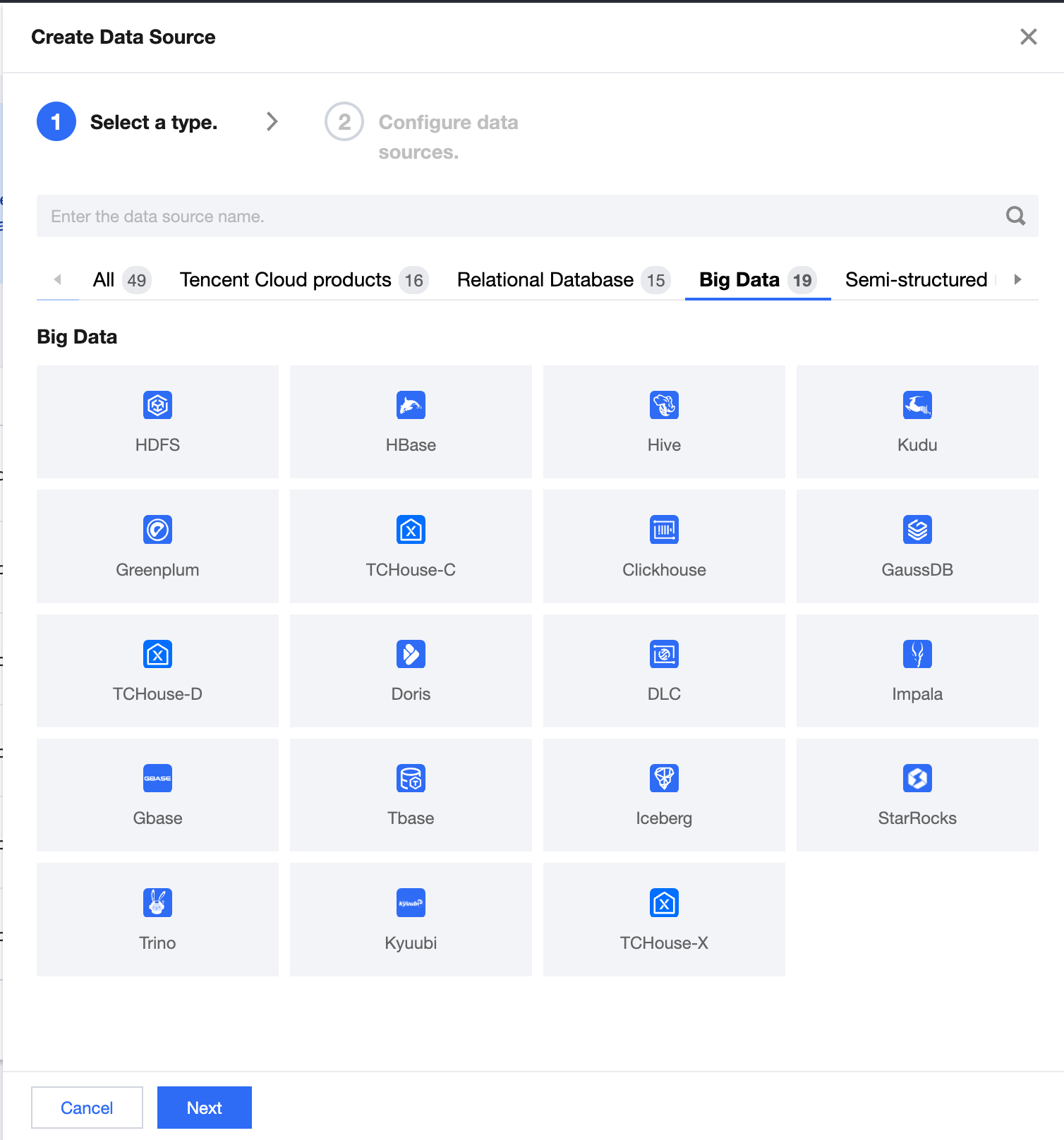
The current version of Tencent Cloud WeData supports the creation of more than 10 types of big data sources, including TCHouse-C and TCHouse-D, which are Tencent Cloud big data products.
Select Data Source Type
Click Create Data Source and select the data source type, then click Next.
Configure Data Source: HDFS
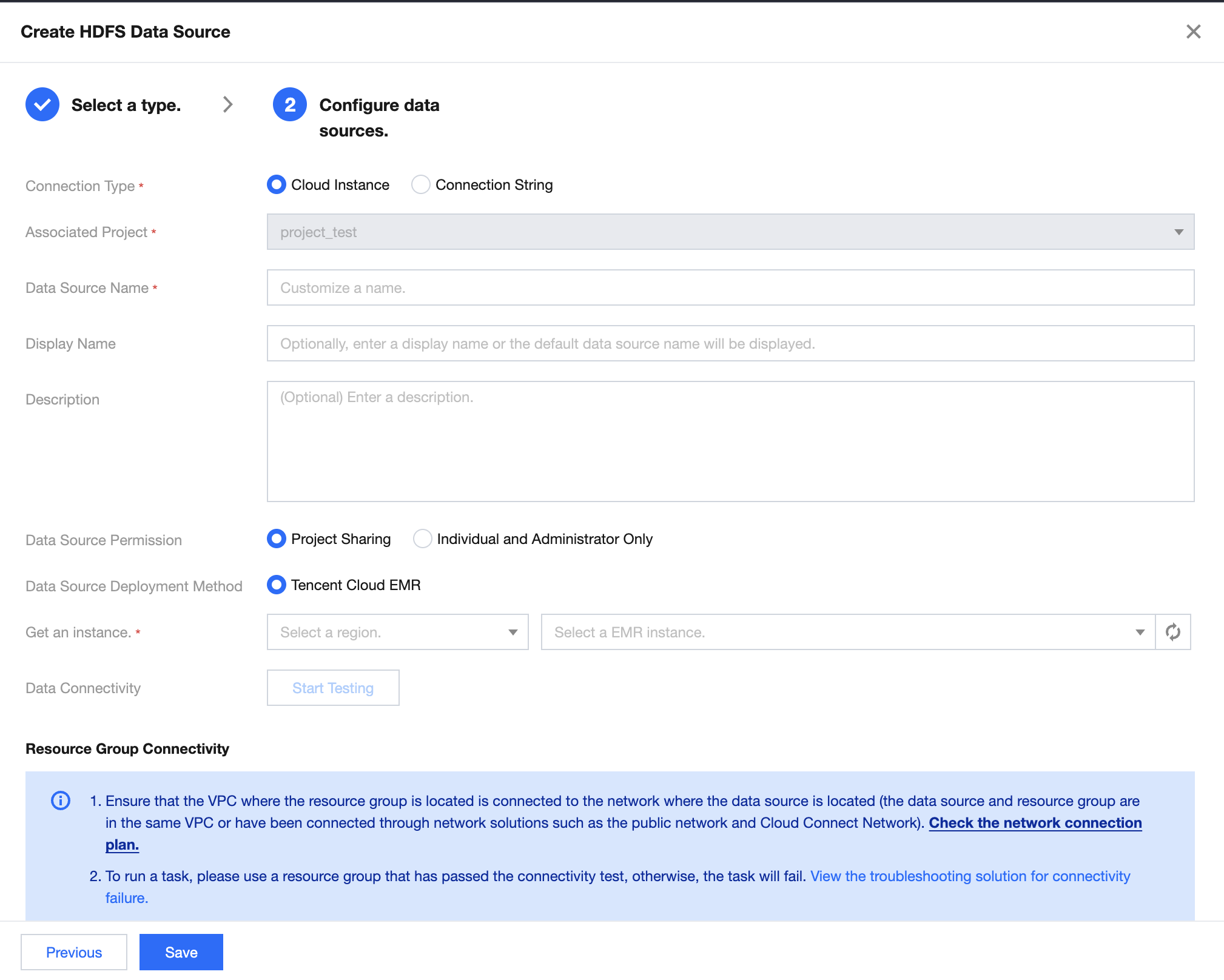
WeData currently supports introducing HDFS data sources through Tencent Cloud EMR cloud instances and connection strings.
Introduce a data source through the cloud instance method.
Parameter
Description
Data Source Name
The name of the created data source is user-defined and cannot be empty. It starts with a letter and can contain letters, digits, and underscores. The length is within 20 characters.
Displayed Name
Select a display name. If it is not filled in, the data source name will be displayed.
Description(Optional)
Optional: Description of this data source
Data Source Permission
Project Shared means that all members of the current data source project can use it, and Individual and Administrator Only means that the data source is only available to the creator and project administrators.
Deployment Method
Only supports Tencent Cloud EMR
Get Instance
Select the region, instance name, and ID information of the EMR instance under your account.
Data Connectivity
Test whether the configured database can be connected (if the connectivity test fails, an error prompt will be given for troubleshooting. At the same time, the data source can still be saved, but an exception will occur when using this data source).
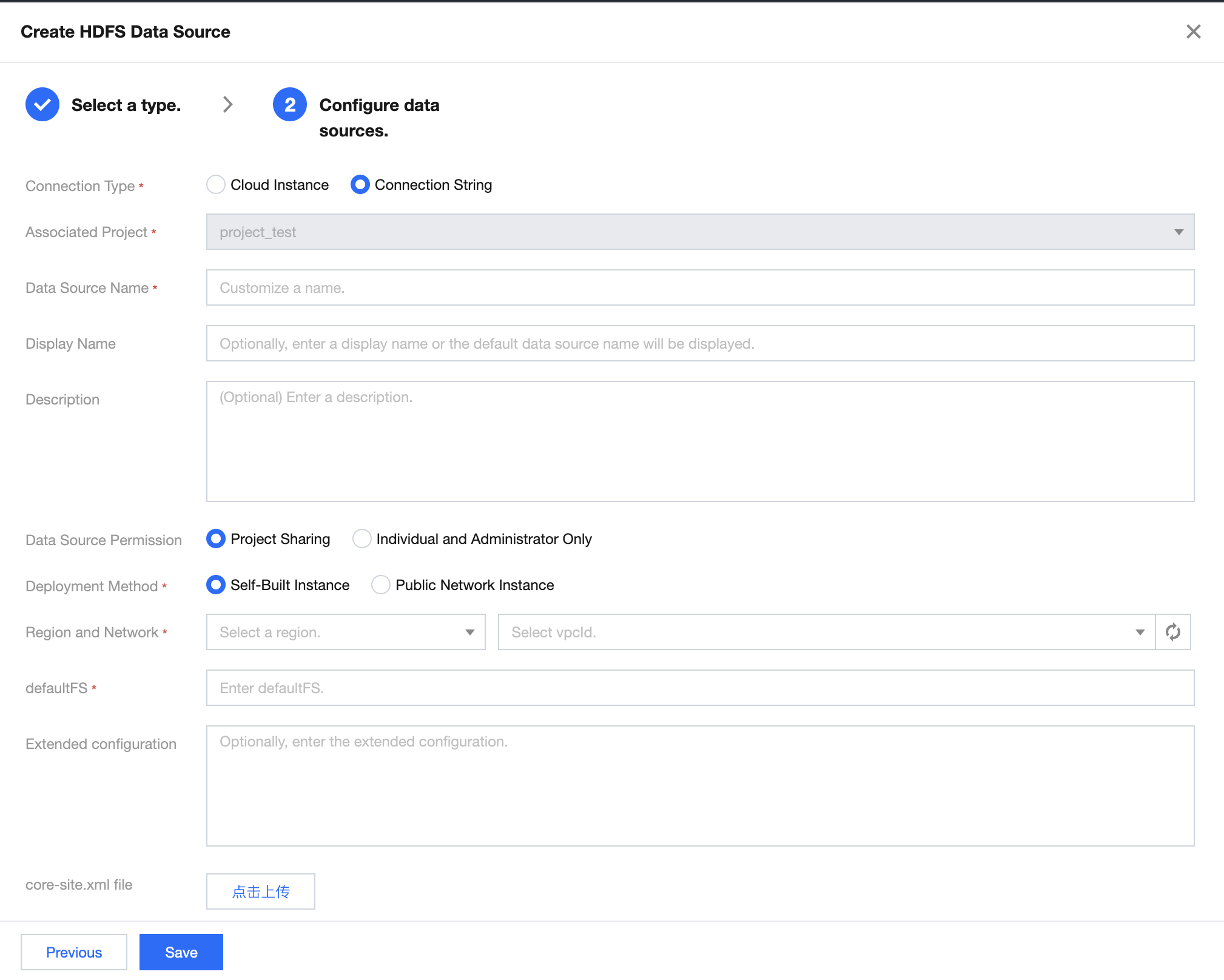
Introduce a data source via the connection string method.
Parameter
Description
Data Source Name
The name of the created data source is user-defined and cannot be empty. It starts with a letter and can contain letters, digits, and underscores. The length is within 20 characters.
Description(Optional)
Optional: Description of this data source
Deployment Method
Currently, only adding HDFS in Tencent Cloud EMR is supported.
Region and Network
First select a region, then select the EMR instance under that region, and click the refresh button on the right to re-obtain the instances under that region.
defaultFS
Used to specify the default file system, which defaults to the local file system.
Expansion Configuration
Optional expansion regarding the configuration of HDFS connection string method.
core-site.xml file
The core-site.xml file of HDFS
hdfs-site.xml file
The hdfs-site.xml file of HDFS
Authentication Method
Whether there is Kerberos authentication method for HDFS connection
keytab file
The keytab file required for Kerberos authentication
Configuration file
The configuration file required for Kerberos authentication
principal
The principal required for Kerberos authentication
Data Connectivity
Test whether the configured database can be connected (if the connectivity test fails, an error prompt will be given for troubleshooting. At the same time, the data source can still be saved, but an exception will occur when using this data source).
Configure Data Source: HBase
WeData currently supports introducing HBase data sources through Tencent Cloud EMR cloud instances and connection strings.
Introduce a data source through the cloud instance method.
Parameter
Description
Data Source Name
The name of the created data source is user-defined and cannot be empty. It starts with a letter and can contain letters, digits, and underscores. The length is within 20 characters.
Displayed Name
Select a display name. If it is not filled in, the data source name will be displayed.
Description(Optional)
Optional: Description of this data source
Data Source Permission
"Project Shared" means all members of the current data source project can use it, and "Individual and Administrator Only" means the data source is only available to the creator and project administrators.
Deployment Method
The current version only supports Tencent Cloud EMR.
Get Instance
Select the region, instance name, and ID information of the EMR instance under your account.
Data Connectivity
Test whether the configured database can be connected (if the connectivity test fails, an error prompt will be given for troubleshooting. At the same time, the data source can still be saved, but an exception will occur when using this data source).
Introduce a data source via the connection string method.
Parameter
Description
Data Source Name
The name of the created data source is user-defined and cannot be empty. It starts with a letter and can contain letters, digits, and underscores. The length is within 20 characters.
Description(Optional)
Optional: Description of this data source
Deployment Methods of Data Source
Currently, only adding HBase in Tencent Cloud EMR is supported.
Get Instance
First select a region, then select the EMR instance under that region, and click the refresh button on the right to re-obtain the instances under that region.
Data Connectivity
Test whether the configured database can be connected (if the connectivity test fails, an error prompt will be given for troubleshooting. At the same time, the data source can still be saved, but an exception will occur when using this data source).
Configure Data Source: Hive
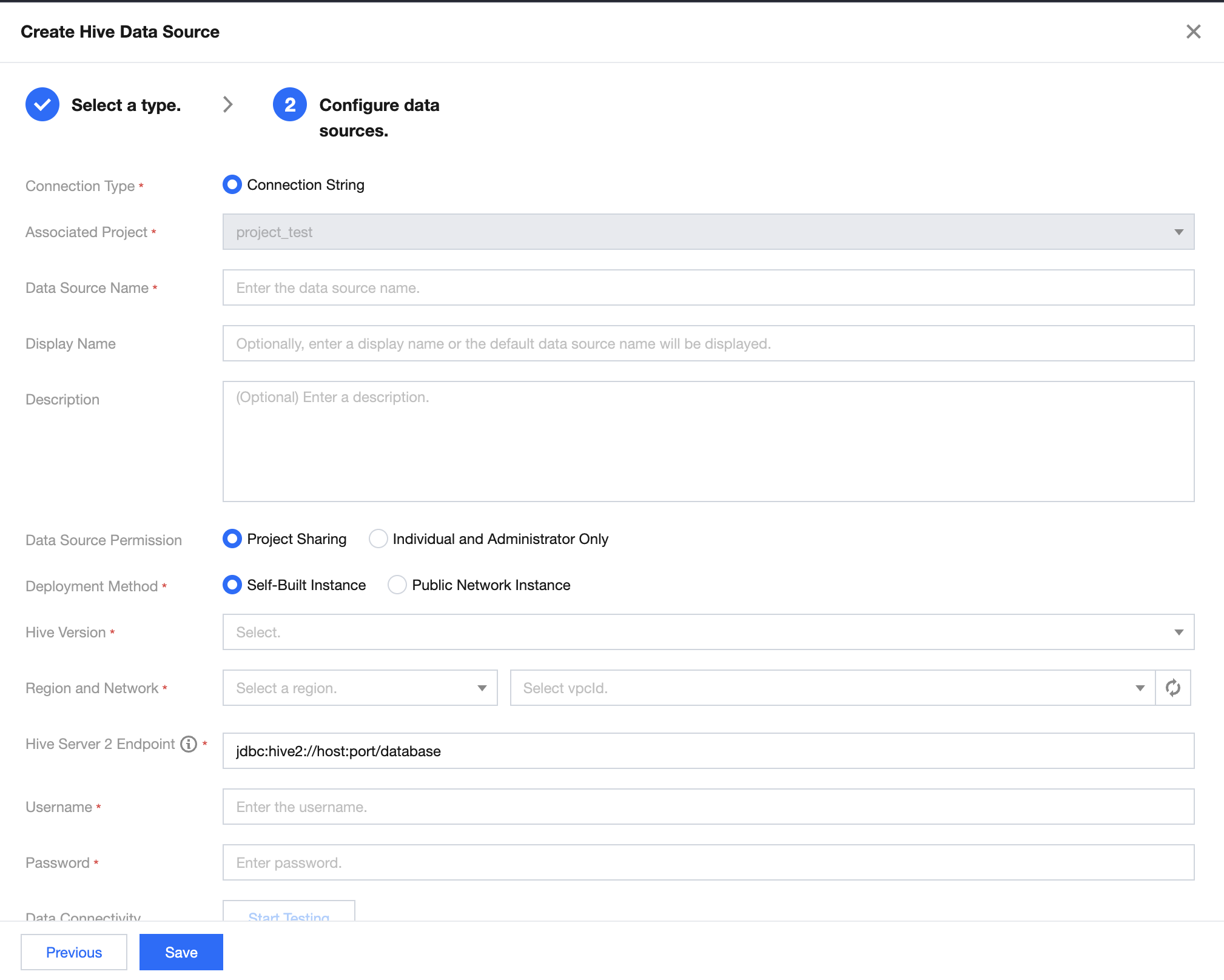
WeData currently supports introducing Hive Data Sources via connection strings.
Parameter
Description
Data Source Name
The name of the created data source is user-defined and cannot be empty. It starts with a letter and can contain letters, digits, and underscores. The length is within 20 characters.
Description(Optional)
Optional: Description of this data source
Data Source Permission
"Project Shared" means all members of the current data source project can use it, and "Individual and Administrator Only" means the data source is only available to the creator and project administrators.
JDBC URL
Connection string information for connecting to the Hive data source.
Username
The username for connecting to the data source.
Password
The password used to connect to the data source.
Metadata collection
After selection, metadata collection tasks will be automatically created for the current data source in the data discovery module.
Data Connectivity
Test whether the configured database can be connected.
Configure Data Source: Kudu
WeData currently supports introducing Kudu data sources through Tencent Cloud EMR and connection strings.
Introduce a data source through the cloud instance method.
Parameter
Description
Data Source Name
The name of the created data source is user-defined and cannot be empty. It starts with a letter and can contain letters, digits, and underscores. The length is within 20 characters.
Displayed Name
Select a display name. If it is not filled in, the data source name will be displayed.
Description(Optional)
Optional: Description of this data source
Data Source Permission
Project Shared means that all members of the current data source project can use it, and Individual and Administrator Only means that the data source is only available to the creator and project administrators.
Deployment Method
The current version only supports Tencent Cloud EMR.
Get Instance
Select the region, instance name, and ID information of the EMR instance under your account.
Data Connectivity
Test whether the configured database can be connected (if the connectivity test fails, an error prompt will be given for troubleshooting. At the same time, the data source can still be saved, but an exception will occur when using this data source).
Introduce a data source via the connection string method.
Parameter
Description
Data Source Name
The name of the created data source is user-defined and cannot be empty. It starts with a letter and can contain letters, digits, and underscores. The length is within 20 characters.
Description(Optional)
Optional: Description of this data source
Data Source Permission
Project Shared means that all members of the current data source project can use it, and Individual and Administrator Only means that the data source is only available to the creator and project administrators.
Kudu Server List
Address information for connecting to the Kudu server
Username
The username for connecting to the data source.
Password
The password used to connect to the data source.
Data Connectivity
Test whether the configured database can be connected.
Configure Data Source: Doris
WeData currently supports introducing Doris DB and StarRocks data sources via connection strings.
Parameter
Description
Data Source Name
The name of the created data source is user-defined and cannot be empty. It starts with a letter and can contain letters, digits, and underscores. The length is within 20 characters.
Description(Optional)
Optional: Description of this data source
Data Source Permission
Project Shared means that all members of the current data source project can use it, and Individual and Administrator Only means that the data source is only available to the creator and project administrators.
Deployment Method
You can select a self-built instance or a public network instance. For a user-built instance, you need to enter the region and network, while a public network instance does not require region and network information.
Region and Network
Select the region, instance name, and ID of the CloudDB instance under your account.
JDBC URL
Connection string information for connecting to the Hive data source.
FE URL
Enter the FE HTTP address in the format: IP:HTTP port, separate multiple addresses with commas, for example: 172.17.16.3:8030,172.17.16.4:8030
Username
Connection Username for Data Source
Password
The password used to connect to the data source.
Data Connectivity
Test whether the configured database can be connected.
Configure Data Source: Iceberg
WeData currently supports introducing Iceberg data sources via connection strings.
Parameter
Description
Data Source Name
The name of the created data source is user-defined and cannot be empty. It starts with a letter and can contain letters, digits, and underscores. The length is within 20 characters.
Description(Optional)
Optional: Description of this data source
Data Source Permission
Project Shared means that all members of the current data source project can use it, and Individual and Administrator Only means that the data source is only available to the creator and project administrators.
Region and Network
Select the region, instance name, and ID of the CloudDB instance under your account.
catalog
You can choose HIVE or HDFS
Metastore URL
Please enter the Metastore URL
JDBC URL
Connection string information for connecting to the Hive data source.
Username
Connection Username for Data Source
Password
The password used to connect to the data source.
Warehouse Path
Please enter the warehouse path
core-site.xml
Support uploading core-site.xml
hdfs-site.xml
Support uploading hdfs-site.xml
hive-site.xml
Support uploading hive-site.xml
Authentication Method
You can select the Kerberos authentication method.
Data Connectivity
Test whether the configured database can be connected.
Configure Data Source: DLC
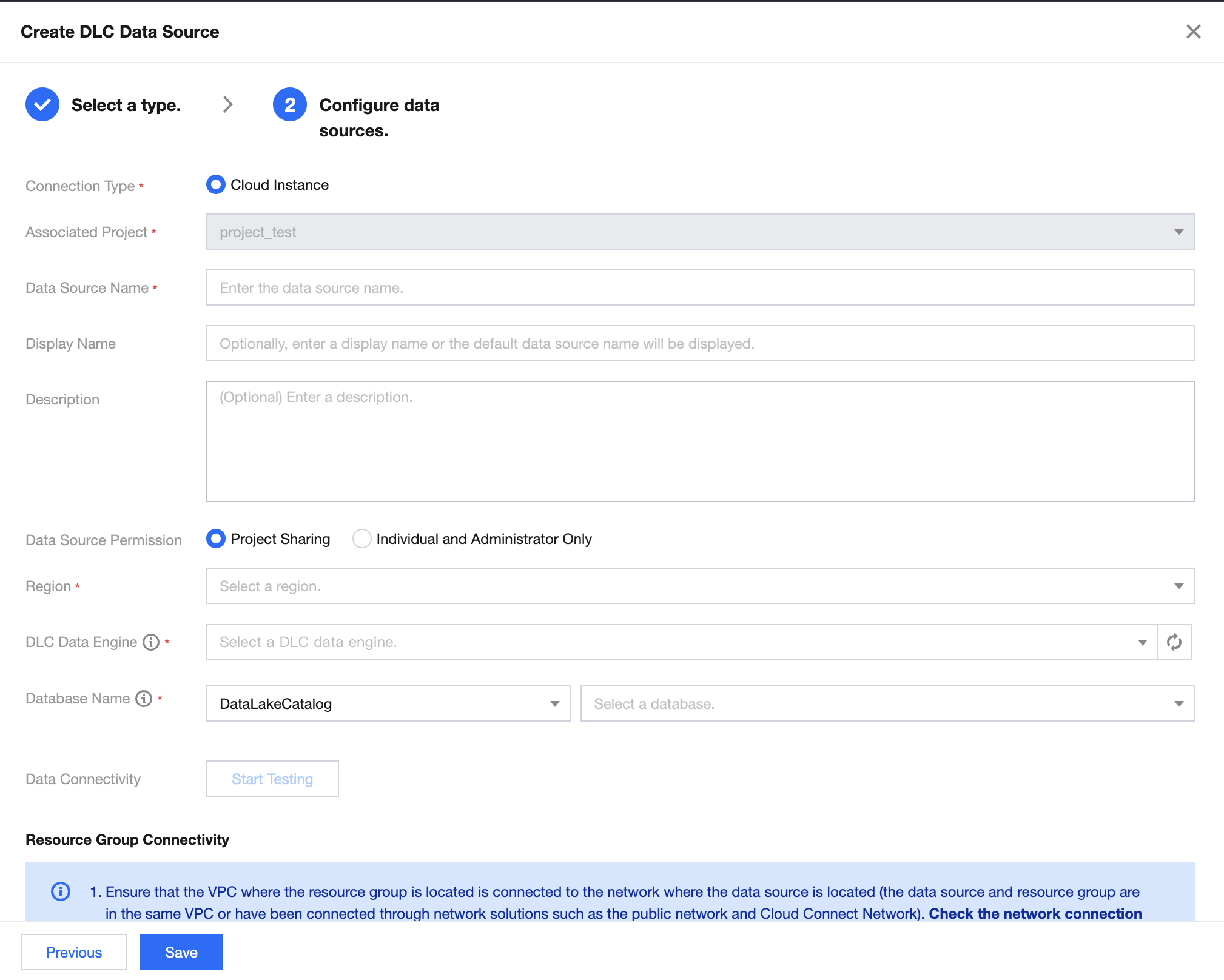
WeData currently supports accessing DLC data sources via connection strings.
Parameter
Description
Data Source Name
The name of the created data source is user-defined and cannot be empty. It starts with a letter and can contain letters, digits, and underscores. The length is within 20 characters.
Description(Optional)
Optional: Description of this data source
Data Source Permission
Project Shared means that all members of the current data source project can use it, and Individual and Administrator Only means that the data source is only available to the creator and project administrators.
JDBC URL
Connection string information for connecting to the DLC data source.
Username
The username for connecting to the data source.
SecretId
The username for connecting to the data source.
SecretKey
The password used to connect to the data source.
Data Connectivity
Test whether the configured database can be connected.
Configure Data Source: ClickHouse, Kyuubi, TChouse-X
WeData currently supports introducing ClickHouse, Kyuubi, and TCHouse-X data sources through Cloud Instances or connection strings.
Introduce a data source through the cloud instance method.
Parameter
Description
Data Source Name
The name of the created data source is user-defined and cannot be empty. It starts with a letter and can contain letters, digits, and underscores. The length is within 20 characters.
Displayed Name
Select a display name. If it is not filled in, the data source name will be displayed.
Description(Optional)
Optional: Description of this data source
Data Source Permission
Project Shared means that all members of the current data source project can use it, and Individual and Administrator Only means that the data source is only available to the creator and project administrators.
Deployment Method
The current version only supports Tencent Cloud EMR.
Get Instance
Select the region, instance name, and ID information of the CloudDB instance under your account.
Database Name
Target Database Name
Username
The username for connecting to the data source.
Password
The password used to connect to the data source.
Data Connectivity
Test whether the configured database can be connected (if the connectivity test fails, an error prompt will be given for troubleshooting. At the same time, the data source can still be saved, but an exception will occur when using this data source).
Introduce a data source via the connection string method.
Parameter
Description
Data Source Name
The name of the created data source is user-defined and cannot be empty. It starts with a letter and can contain letters, digits, and underscores. The length is within 20 characters.
Description(Optional)
Optional: Description of this data source
Data Source Permission
Project Shared means that all members of the current data source project can use it, and Individual and Administrator Only means that the data source is only available to the creator and project administrators.
JDBC URL
Connection string information for connecting to the Hive data source.
Username
The username for connecting to the data source.
Password
The password used to connect to the data source.
Data Connectivity
Test whether the configured database can be connected.
Configure Data Source: Trino
Tencent Cloud WeData currently supports introducing Trino data sources through connection strings.
Parameter
Description
Data Source Name
The name of the created data source is user-defined and cannot be empty. It starts with a letter and can contain letters, digits, and underscores.
Displayed Name
Select a display name. If it is not filled in, the data source name will be displayed.
Description(Optional)
Optional: Description of this data source
Data Source Permission
Project Shared means that all members of the current data source project can use it, and Individual and Administrator Only means that the data source is only available to the creator and project administrators.
Deployment Method
Supports two deployment methods: self-built instance and public network instance.
Region and Network
Select the region, instance name, and ID of the CloudDB instance under your account.
IP and port number
Optional, enter the IP address and port number of the current data source.
catalog
Selectable catalog
Schema
Please enter Sybase
Username
Connection Username for Data Source
Password
The password used to connect to the data source.
Data Connectivity
Test whether the configured database can be connected.
Configure Data Source: Greenplum, GaussDB, Impala, Tbase, Gbase
Tencent Cloud WeData currently supports accessing Greenplum, GaussDB, Impala, Tbase, and Gbase through connection strings.
Parameter
Description
Data Source Name
The name of the created data source is user-defined and cannot be empty. It starts with a letter and can contain letters, digits, and underscores. The length is within 20 characters.
Description(Optional)
Optional: Description of this data source
Data Source Permission
Project Shared means that all members of the current data source project can use it, and Individual and Administrator Only means that the data source is only available to the creator and project administrators.
JDBC URL
Connection string information for connecting to the Hive data source.
Username
The username for connecting to the data source.
Password
The password used to connect to the data source.
Data Connectivity
Test whether the configured database can be connected.
Create a Semi-Structured Data Source
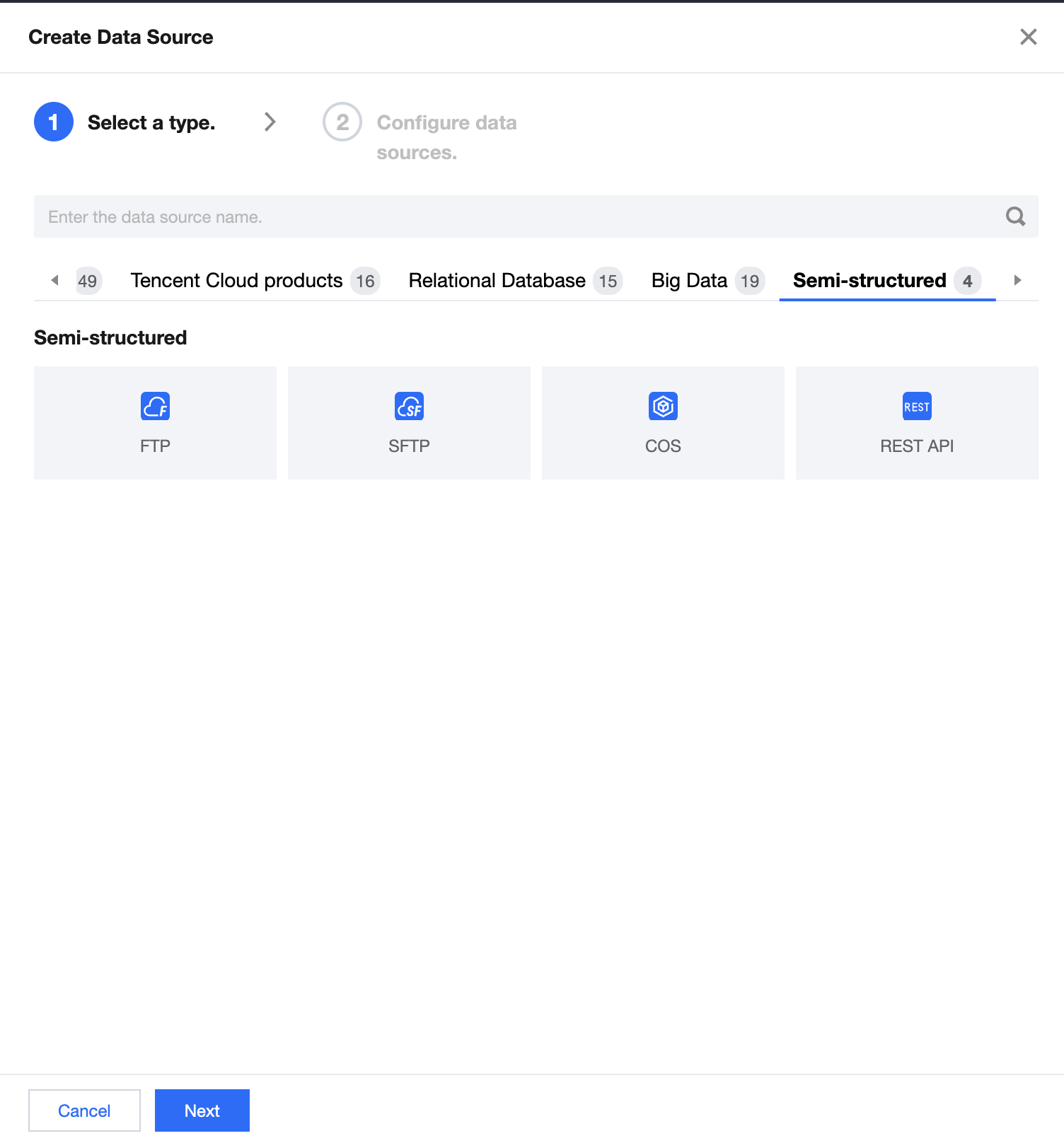
Tencent Cloud WeData currently supports four types of semi-structured data sources: FTP, SFTP, COS, and REST API. Among them, COS is a Tencent Cloud product.
Select Data Source Type
Click Create Data Source and select the data source type, then click Next.
Configure Data Source: FTP
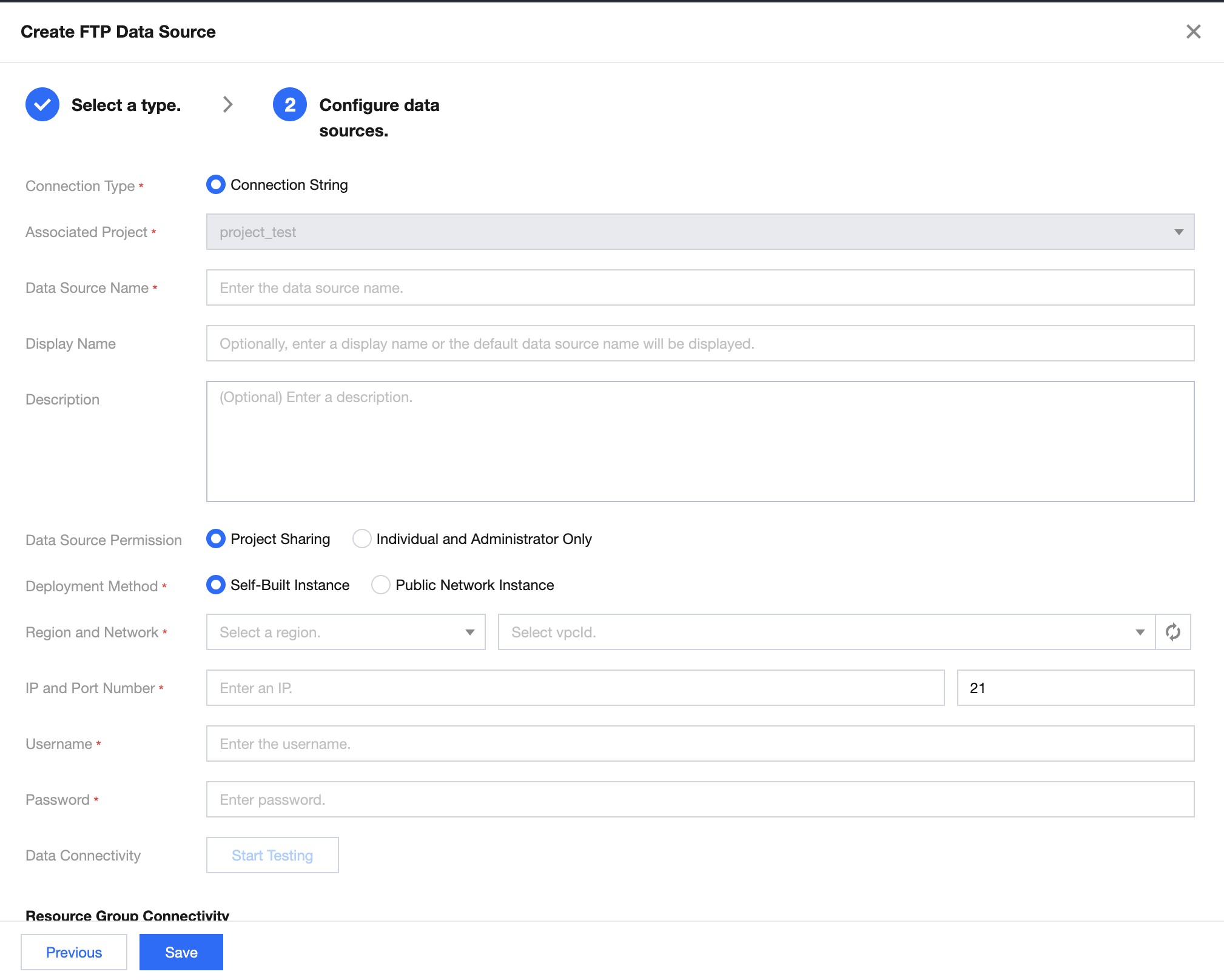
Tencent Cloud WeData currently supports introducing FTP data sources via connection strings.
Parameter
Description
Data Source Name
The name of the created data source is user-defined and cannot be empty. It starts with a letter and can contain letters, digits, and underscores. The length is within 20 characters.
Description(Optional)
Optional: Description of this data source
Data Source Permission
Project Shared means that all members of the current data source project can use it, and Individual and Administrator Only means that the data source is only available to the creator and project administrators.
Deployment Method
You can select a self-built instance or a public network instance. For a user-built instance, you need to enter the region and network, while a public network instance does not require region and network information.
Region and Network
Select the region and the corresponding vpcid in the current region.
IP and port number
Enter the IP address and port number of the FTP data source.
Username
The username used to connect to the data source.
Password
The password used to connect to the data source.
Data Connectivity
Test whether the configured database can be connected.
Configure Data Source: SFTP
Tencent Cloud WeData currently supports introducing SFTP data sources via connection strings.
Parameter
Description
Data Source Name
The name of the created data source is user-defined and cannot be empty. It starts with a letter and can contain letters, digits, and underscores. The length is within 20 characters.
Description(Optional)
Optional: Description of this data source
Data Source Permission
Project Shared means that all members of the current data source project can use it, and Individual and Administrator Only means that the data source is only available to the creator and project administrators.
Deployment Method
You can select a self-built instance or a public network instance. For a user-built instance, you need to enter the region and network, while a public network instance does not require region and network information.
Region and Network
Select the region and the corresponding vpcid in the current region.
IP and port number
Enter the IP address and port number of the SFTP data source.
Username
The username used to connect to the data source.
Password
The password used to connect to the data source.
Data Connectivity
Test whether the configured database can be connected.
Configure Data Source: COS
Tencent Cloud WeData currently supports importing COS Data Source via Cloud Instance.
Parameter
Description
Data Source Name
The name of the created data source is user-defined and cannot be empty. It starts with a letter and can contain letters, digits, and underscores. The length is within 20 characters.
Description(Optional)
Optional: Description of this data source
Data Source Permission
Project Shared means that all members of the current data source project can use it, and Individual and Administrator Only means that the data source is only available to the creator and project administrators.
Deployment Method
You can select a self-built instance or a public network instance. For a user-built instance, you need to enter the region and network, while a public network instance does not require region and network information.
Region
Select the region and the corresponding vpcid in the current region.
secretId
The username for connecting to the data source.
SSM password acquisition
Once enabled, the password will be retrieved via Secrets Manager (SSM). Please ensure the related credential is created and is in effective status.
secretKey
The password used to connect to the data source.
Bucket
Fill in the bucket name. Go to the COS console - bucket list to view.
Resource group connectivity
Test whether the configured database can be connected (if the connectivity test fails, an error prompt will be given for troubleshooting. At the same time, the data source can still be saved, but an exception will occur when using this data source).
Configure Data Source: REST API
Tencent Cloud WeData currently supports introducing REST API data sources through connection strings.
Parameter
Description
Data Source Name
The name of the created data source is user-defined and cannot be empty. It starts with a letter and can contain letters, digits, and underscores. The length is within 20 characters.
Description(Optional)
Optional: Description of this data source
Data Source Permission
Project Shared means that all members of the current data source project can use it, and Individual and Administrator Only means that the data source is only available to the creator and project administrators.
Deployment Method
You can select a self-built instance or a public network instance. For a user-built instance, you need to enter the region and network, while a public network instance does not require region and network information.
Region and Network
Select the region and the corresponding vpcid in the current region.
URL
Connection string information for connecting to a data source.
Default Request Header
Optional; request headers.
Authentication Method
You can select the Basic or Token authentication method.
Data Connectivity
Test whether the configured database can be connected (if the connectivity test fails, an error prompt will be given for troubleshooting. At the same time, the data source can still be saved, but an exception will occur when using this data source).
Create a NoSQL Data Source
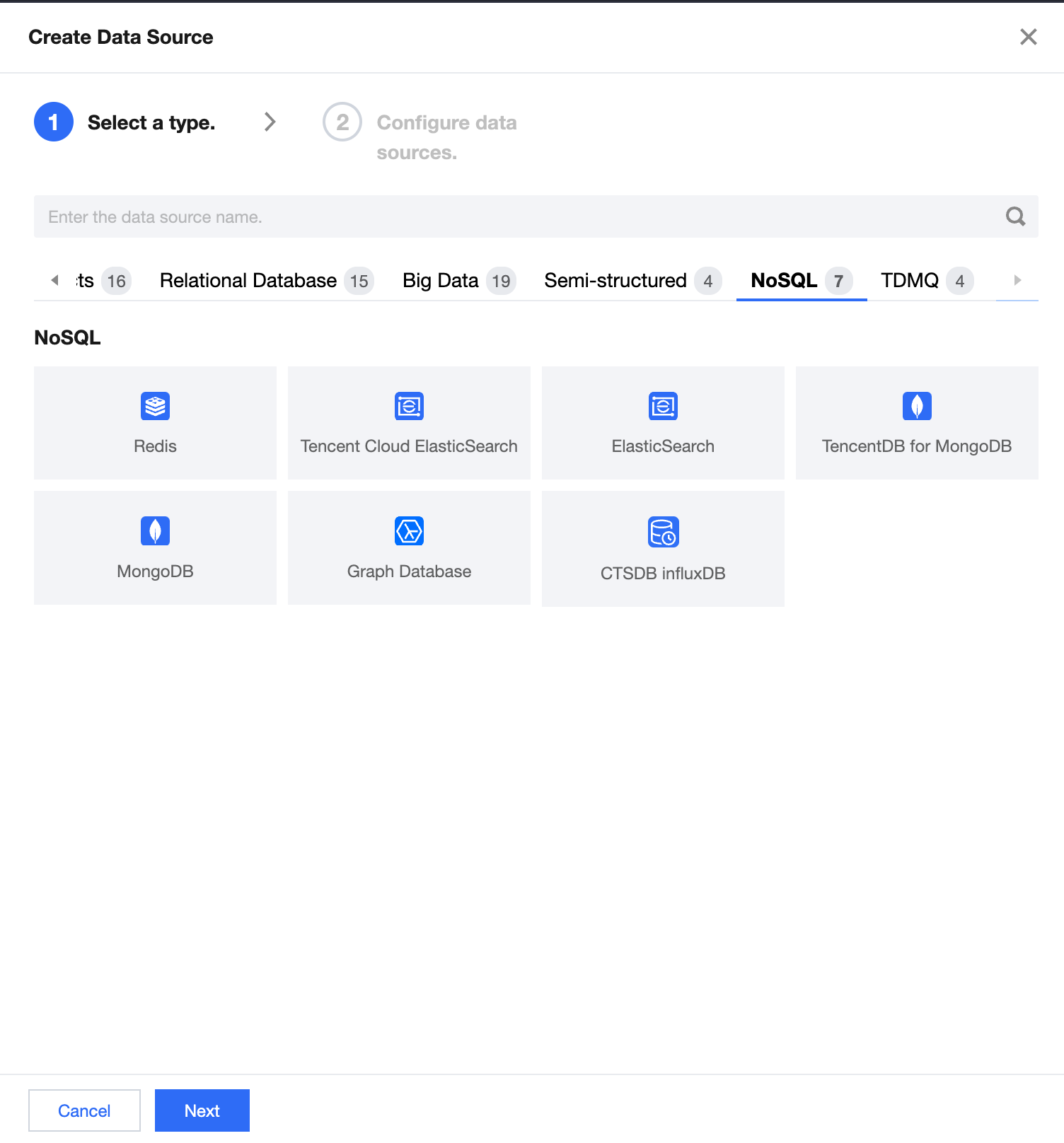
Tencent Cloud WeData currently supports NoSQL type data sources including Redis, Tencent Cloud Elasticsearch, Elasticsearch, TencentDB for MongoDB, MongoDB, and Graph Database. Among them, Tencent Cloud Elasticsearch and TencentDB for MongoDB are Tencent Cloud NoSQL database products.
Select Data Source Type
Click Create Data Source and select the data source type, then click Next.
Configure Data Source: Tencent Cloud Elasticsearch
Tencent Cloud Elasticsearch data source and MongoDB Data Source support accessing via Cloud Instance. Take Tencent Cloud Elasticsearch as an example to explain, likewise for Tencent Cloud MongoDB data source.
Parameter
Description
Data Source Name
The name of the created data source is user-defined and cannot be empty. It starts with a letter and can contain letters, digits, and underscores. The length is within 20 characters.
Displayed Name
Select a display name. If it is not filled in, the data source name will be displayed.
Description(Optional)
Optional: Description of this data source
Data Source Permission
Project Shared means that all members of the current data source project can use it, and Individual and Administrator Only means that the data source is only available to the creator and project administrators.
Get Instance
Select the region, instance name, and ID information of the Tencent Cloud Elasticsearch Instance under your account.
Security Authentication
If you choose anonymous login, you do not need to fill in the username and password. After choosing username and password login, you need to fill in the username and password information to complete security authentication.
Username
Connection Username for Data Source
Password
The password used to connect to the data source.
Data Connectivity
Test whether the configured database can be connected (if the connectivity test fails, an error prompt will be given for troubleshooting. At the same time, the data source can still be saved, but an exception will occur when using this data source).
Configure Data Source: Redis
Redis, Elasticsearch, MongoDB, and Graph Database data sources currently only support integration via connection string. Take Redis data source as an example to explain, likewise for other data sources.
Parameter
Description
Data Source Name
The name of the created data source is user-defined and cannot be empty. It starts with a letter and can contain letters, digits, and underscores. The length is within 20 characters.
Description(Optional)
Optional: Description of this data source
Data Source Permission
Project Shared means that all members of the current data source project can use it, and Individual and Administrator Only means that the data source is only available to the creator and project administrators.
Deployment Method
Supports two deployment modes: self-built instance and public network instance. The self-built instance is a data source instance deployed on Tencent CVM, while the public network instance is in the client's local IDC or other cloud resource instances, and supports access connection via the public network.
Region and Network
When a self-built instance is selected, you need to choose the region and vpcID where the data source is located.
IP and port number
Optional, enter the IP address and port number of the current data source.
Account Type
Username can be left blank if not applicable.
For Tencent Cloud Redis custom account, please fill in the account.
For Tencent Cloud Redis instances purchased before January 2018, please fill in the instance ID.
Password
The password used to connect to the data source.
Data Connectivity
Test whether the configured database can be connected.
Create a Message Queue Data Source
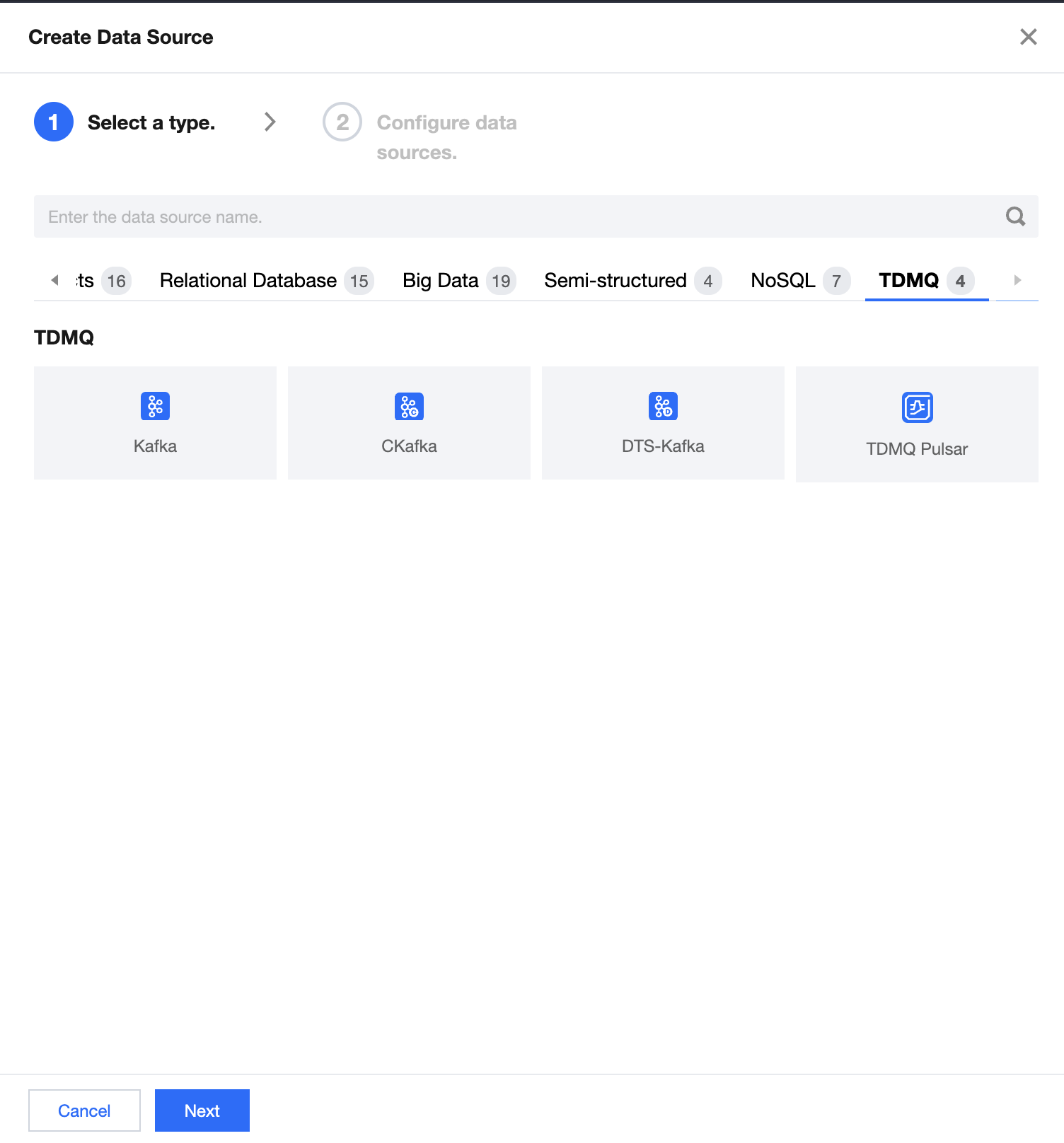
The current version of Tencent Cloud WeData supports three types of message queue data sources: Tencent Cloud CKafka, DTS-Kafka, and Kafka, where CKafka and DTS-Kafka are Tencent Cloud's message queue products.
Select Data Source Type
Click Create Data Source and select the data source type, then click Next.
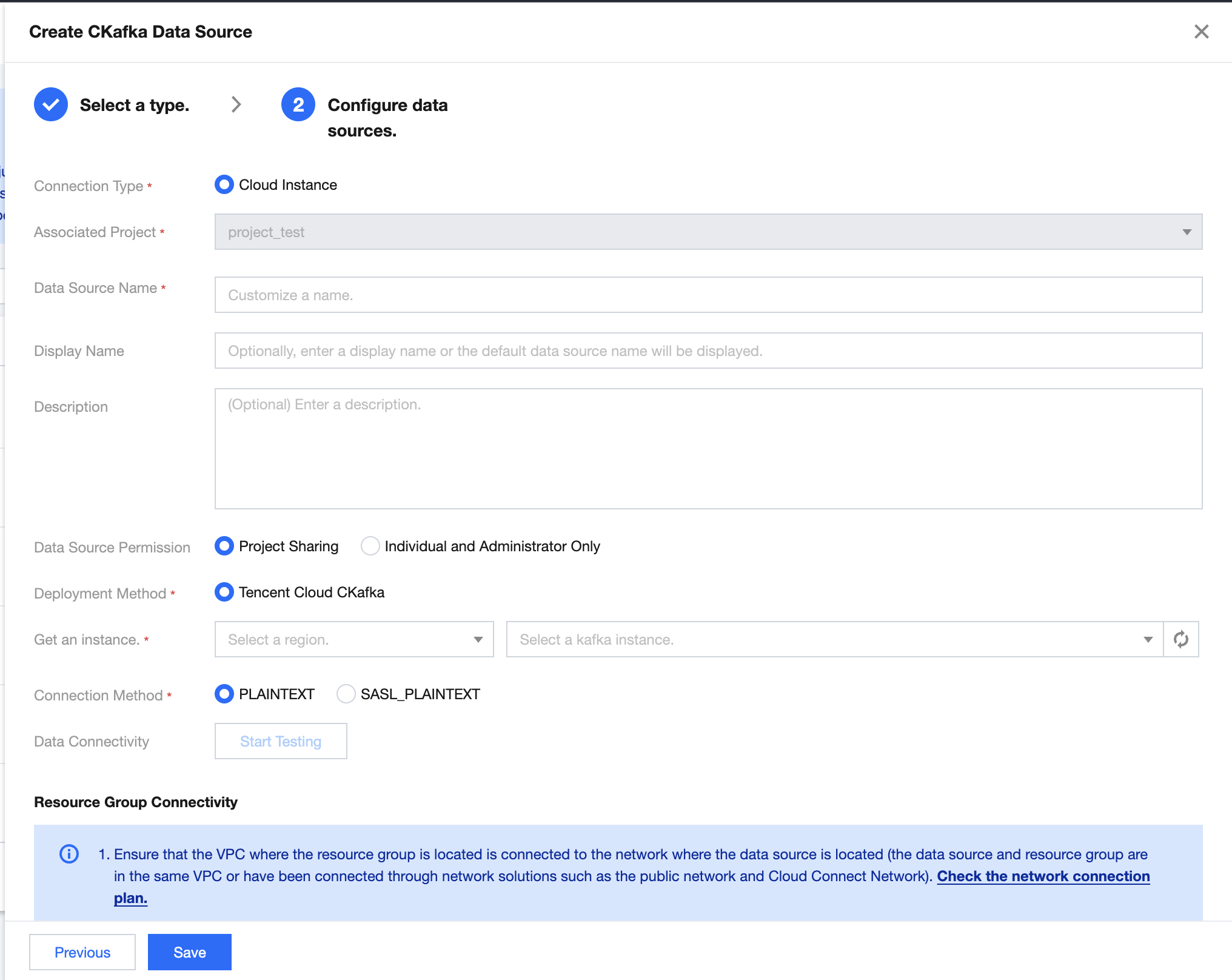
Configure Data Source: Tencent Cloud CKafka
WeData supports connecting CKafka type data sources through Cloud Instances.
Parameter
Description
Data Source Name
The name of the created data source is user-defined and cannot be empty. It starts with a letter and can contain letters, digits, and underscores. The length is within 20 characters.
Displayed Name
Select a display name. If it is not filled in, the data source name will be displayed.
Description(Optional)
Optional: Description of this data source
Data Source Permission
Project Shared means that all members of the current data source project can use it, and Individual and Administrator Only means that the data source is only available to the creator and project administrators.
Get Instance
Select the region, instance name, and ID information of the CKafka instance under your account.
Connection Method
Tencent Cloud CKafka supports two access methods: PLAINTEXT and SASL_PLAINTEXT. For details, see CKafka User Access Control
Data Connectivity
Test whether the configured database can be connected (if the connectivity test fails, an error prompt will be given for troubleshooting. At the same time, the data source can still be saved, but an exception will occur when using this data source).
Configure Data Source: DTS-Kafka
WeData supports accessing DTS-Kafka data sources through cloud instances.
Parameter
Description
Data Source Name
The name of the created data source is user-defined and cannot be empty. It starts with a letter and can contain letters, digits, and underscores. The length is within 20 characters.
Displayed Name
The displayed name of a data source when it is used in a product. If it is not filled in, the name of the data source will be displayed by default.
Description(Optional)
Optional: Description of this data source
Data Source Permission
Project Shared means that all members of the current data source project can use it, and Individual and Administrator Only means that the data source is only available to the creator and project administrators.
Cluster address
For cluster address, go to DTS Console > Subscription Information > Private Network Address Copy
Topic
The name of the Topic to be connected.
Consumer Group Name
Consumer Group Name
Account/Password
Enter account/password.
Data Connectivity
Test whether the configured database can be connected (if the connectivity test fails, an error prompt will be given for troubleshooting. At the same time, the data source can still be saved, but an exception will occur when using this data source).
Configure Data Source: Kafka
WeData supports accessing Kafka data sources through connection strings.
Parameter
Description
Data Source Name
The name of the created data source is user-defined and cannot be empty. It starts with a letter and can contain letters, digits, and underscores. The length is within 20 characters.
Description(Optional)
Optional: Description of this data source
Data Source Permission
Select project sharing or only individuals and administrators can use
Deployment Method
Supports two deployment modes: self-built instance and public network instance. The self-built instance is a data source instance deployed on Tencent CVM, while the public network instance is in the client's local IDC or other cloud resource instances, and supports access connection via the public network.
Region and Network
When a self-built instance is selected, you need to choose the region and vpcID where the data source is located.
Kafka service list
Please enter the service list, such as ip1:9092, ip2:9092
Kafka authentication method
Supports four authentication methods: PLAINTEXT, SASL_PLAINTEXT, SASL_SSL, JAAS
If you choose the SASL_PLAINTEXT authentication method, you need to enter the username and password.
If you choose the SASL_SSL authentication method, you need to fill in the TrustStore certification file, TrustStore password, username, and password;
If you choose the JAAS authentication method, you need to fill in the Kafka SASL JAAS configuration.
Data Connectivity
Test whether the configured database can be connected (if the connectivity test fails, an error prompt will be given for troubleshooting. At the same time, the data source can still be saved, but an exception will occur when using this data source).
Viewing Data Source Association Tasks
Operation Entry
Project Management > Data Source Management > (Data Source List) More > View Related Task Situation
Viewing Related Tasks
Click View Related Task Situation and a "View Related Task" pop-up will show the total number of tasks associated with the data source in the current project and authorized projects. Click the number in the "Task" column to unfold the "Task Detail" drawer from the right.
Viewing Task Details
To ensure data validity, the system only counts "active" tasks and data service APIs. Click the task name to navigate to the corresponding module and modify it.