Modifying Audit Services
Download
Mode fokus
Ukuran font
This document introduces how to modify the audit service through the console.
Note
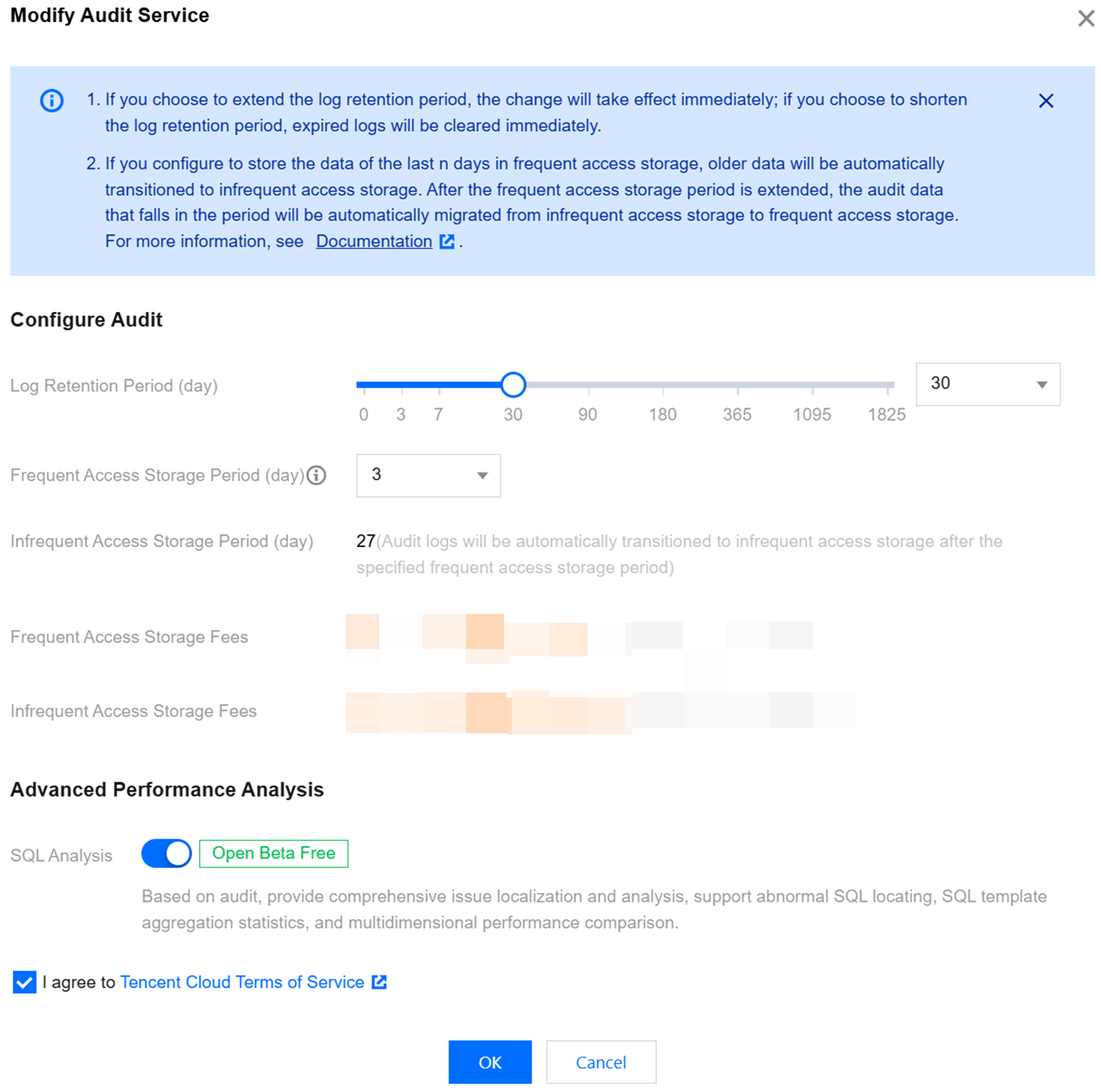
If you choose to extend the log retention period, the change will take effect immediately. If you choose to shorten the log retention period, historical logs that exceed the new storage duration will be purged immediately.
If you set data from the last n days to be stored in high-frequency storage, data older than the last n days will automatically be moved to low-frequency storage. After the high-frequency storage duration is extended, audit data that meets the retention period will automatically be migrated from low-frequency storage to high-frequency storage.
SQL Analysis Option Description: DBbrain leverages the comprehensive problem identification and analysis capabilities provided by SQL Insight (formerly Database Audit) to support abnormal SQL identification, SQL template aggregation statistics, and multi-dimensional performance comparison. This option is enabled by default, supports manual disabling, and indicates that the SQL analysis capability is not enabled.
Prerequisites
Modify Audit Service For Single Instance
1. Log in to the TencentDB for MySQL console.
2. Select SQL Insight (Database Audit) in the left sidebar.
3. Select a region at the top, click the Audit Log Storage Status field on the Audit Instance page, and select Enabled to filter instances with the audit service enabled.
4. Locate the target instance in the Audit Instance list (you can also quickly find it by filtering with resource attributes in the search box), then choose More > Modify Audit Service in its Operation column.
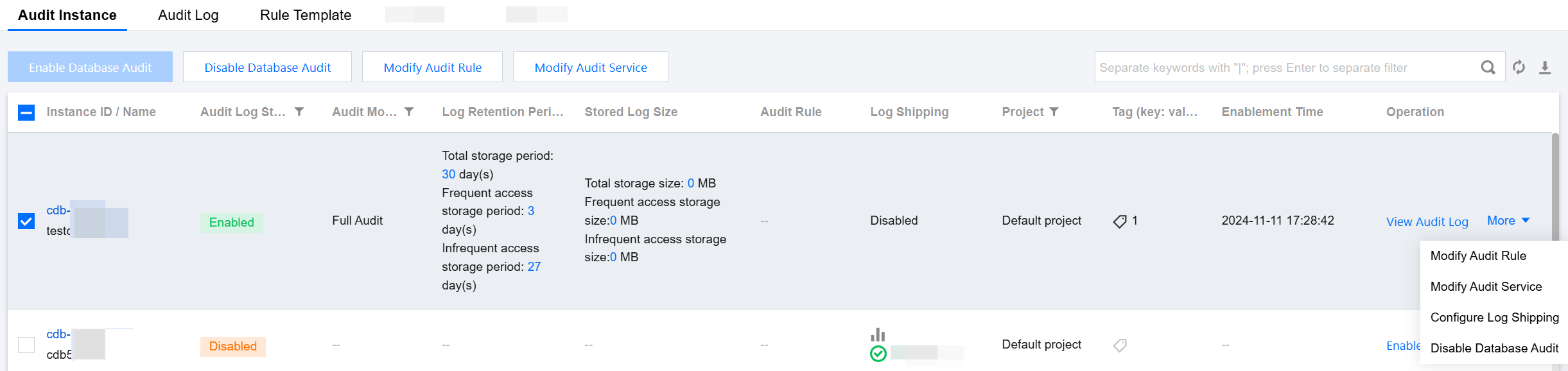
5. On the Modify Audit Service page, after the Log Retention Period or Frequent Access Storage Period are modified, click OK.
Batch Modification of Audit Service
1. Log in to the TencentDB for MySQL console.
2. Select SQL Insight (Database Audit) in the left sidebar.
3. After selecting a region at the top, on the Audit Instance page, click Audit Log Storage Status and select the Enabled option to filter out instances that do not have audit enabled.
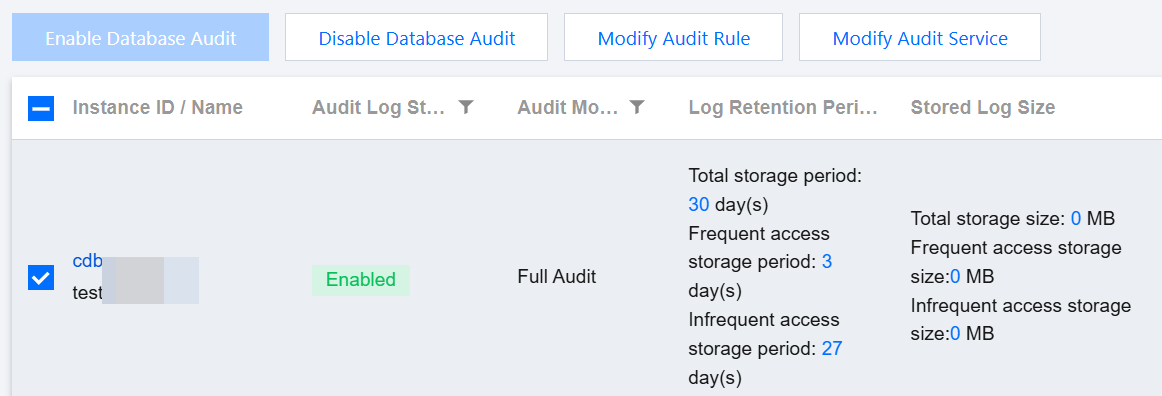
4. Locate the target instance in the Audit Instance list (you can also quickly find it by filtering with resource attributes in the search box). On the Audit Instance list page, select multiple target instances, then click Modify Audit Service at the top.
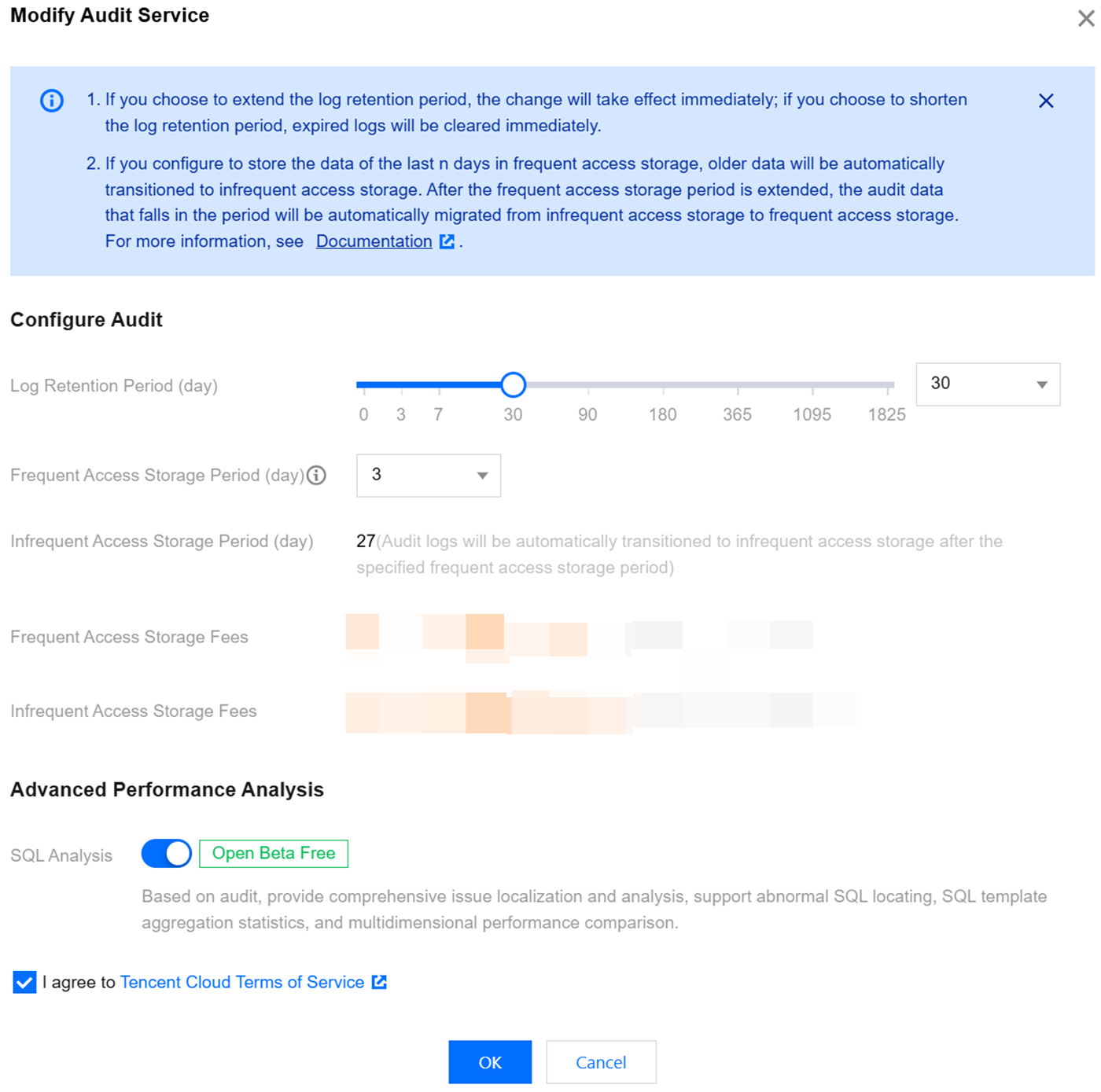
5. On the Modify Audit Service page, after the Log Retention Period or Frequent Access Storage Period is modified, click OK.
Note:
For easy comparison, the batch modification audit service page displays the log retention period before and after modification. After modification, the selected instances will uniformly start adjusting to the new log retention period. Please confirm everything is correct before proceeding with the modification.
Bantuan dan Dukungan
Apakah halaman ini membantu?
Anda juga dapat Menghubungi Penjualan atau Mengirimkan Tiket untuk meminta bantuan.
masukan