Disabling Audit Service
Download
Mode fokus
Ukuran font
This document describes how to disable the audit service via the console.
Note:
After the audit service is disabled, it will stop auditing instances and historical audit logs will be cleared. DBbrain's full-link analysis capability will also be unavailable.
Prerequisites
Operation Steps
1. Log in to the TencentDB for MySQL console.
2. Select SQL Insight (Database Audit) in the left sidebar.
3. Select a region at the top. On the Audit Instance page, click Audit Log Storage Status and select the Enabled option to filter for instances with the audit service enabled.
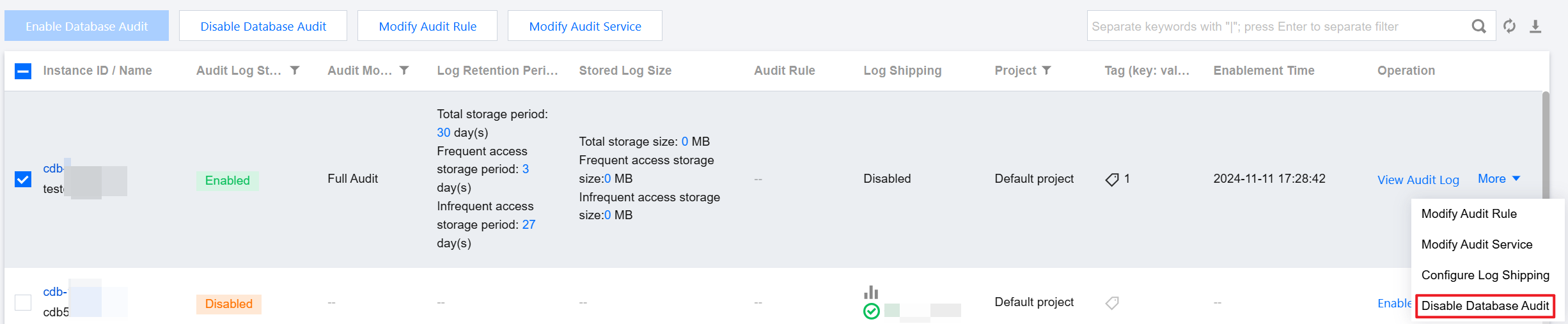
4. In the Audit Instance list, locate the target instance (you can also quickly find it by filtering by resource attributes in the search box), then in its Operation column, choose More > Disable Database Audit.
Note:
Supports batch disabling of the audit service. On the audit instance list page, select multiple target instances and click Disable Database Audit at the top.
5. In the Disable Database Audit window, click OK after verification.
6. After confirmation, the result prompt column will display the disable result. Click View Task to jump to the task list for details.
Bantuan dan Dukungan
Apakah halaman ini membantu?
Anda juga dapat Menghubungi Penjualan atau Mengirimkan Tiket untuk meminta bantuan.
masukan