This document describes how to create a notification template in the Cloud Monitor alarming module.
Use Cases
One template can be quickly reused for multiple policies, eliminating the need to repeatedly configure user notifications.
User notification methods can be configured in a more personalized way. For example, you can configure the alarm receiving channel as SMS/email by day and phone by night.
Prerequisites
View notification templates: the sub-account must have the read permission of Cloud Monitor.
Create and edit notification templates: the sub-account must have the write permission of Cloud Monitor.
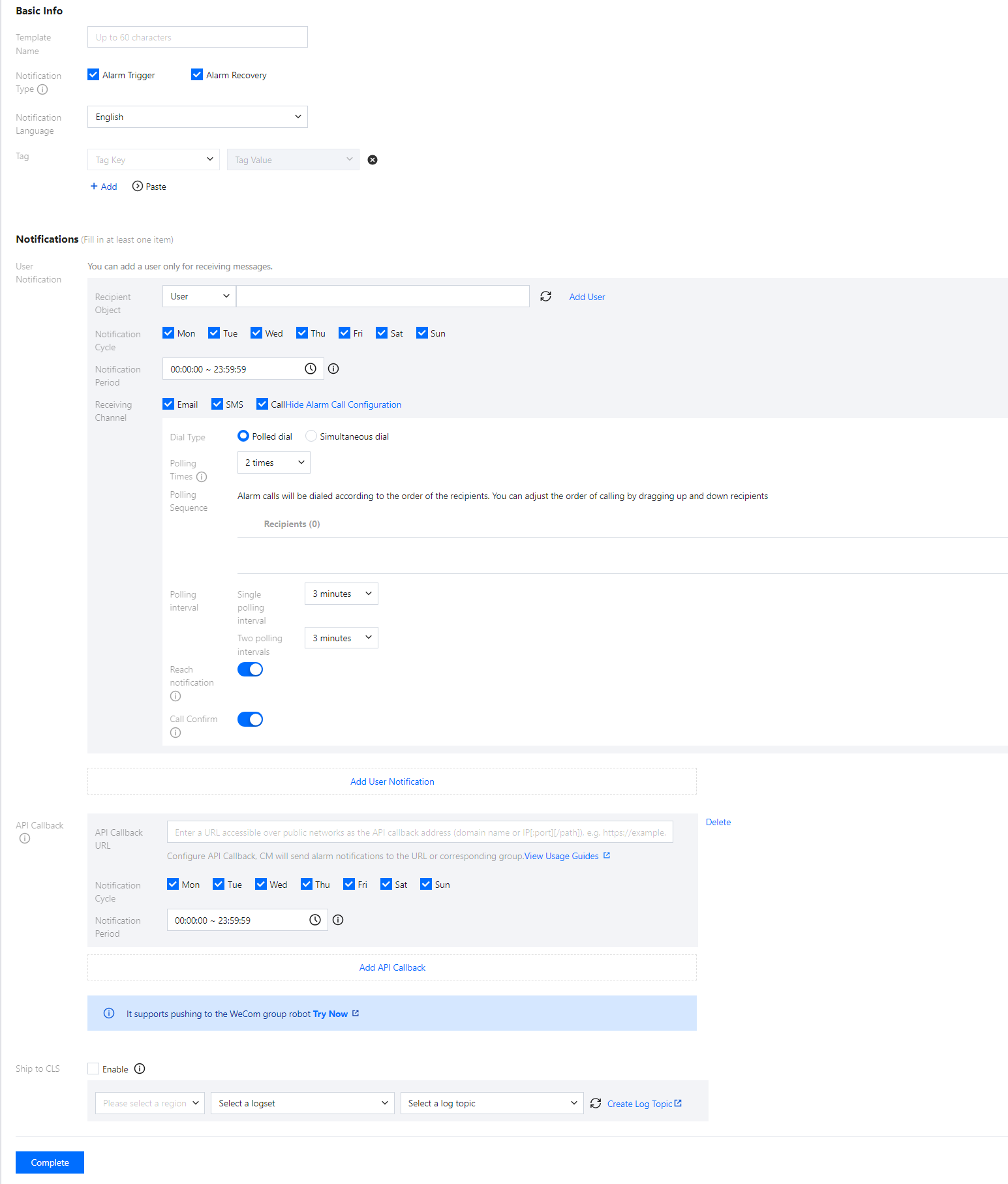
2. Click Create Notification Template and fill in the information on the New Notification Template page.
Template Name: enter a custom template name.
Notification type:
Alarm triggered: a notification will be sent when an alarm is triggered.
Alarm cleared: a notification will be sent when an alarm is resolved.
User notification:
Recipient Object: You can choose users/user groups/on-call schedules.
Notification Period: define the time period for receiving alarms.
Receiving Channel: Supports three alert channels: Email, SMS, and Call. Phone alert configuration instructions:
Dial Type:
Simultaneous dial: Supports all users under the recipient to receive phone alerts simultaneously.
Polled dial: Phone alerts are polled to users under the recipient.
Polling Times: the maximum number of dials for each polled recipient when there is no valid reach.
Polling Sequence: alarm calls will be dialed according to the order of the recipients. You can adjust the order of calling by dragging up and down recipients.
Polling interval: time interval at which alarm calls will be dialed according to the order of the recipients.
Reach Notification: notifications will be to all recipients after successful reception of the call or calling all recipients. SMS messages are counted against the quota.
API Callback: you can enter a URL accessible over the public network as the callback API address, and TCOP will push alarm messages to it promptly. If the HTTP response returns code 200, the verification is successful. For more information on alarm callback fields, please see Alarm Callback.
Note:
After you save the callback URL, the system will automatically verify your URL once. The timeout threshold for this verification is 5 seconds. When an alarm policy created by the user is triggered or the alarm is resolved, the alarm messages will be pushed through the API callbacks. An alarm message can be pushed up to three times, and the timeout threshold for each request is 5 seconds.
When an alarm policy created by the user is triggered or the alarm is resolved, the alarm messages will be pushed through the API callbacks. API callbacks also support repeated alarms.
The outbound IP of the Cloud Monitor callback API is dynamically and randomly allocated, so no specific IP information can be provided to you, but the IP port is fixed at 80. We recommend you configure a weighted opening policy in the security group based on port 80.
Default notification template
The system automatically creates a default notification template for you as detailed below:
Feature
Default Configuration
Template name
Preset notification template
Notification type
Alarm trigger, alarm recovery
Alarm recipient
Root account admin
Notification period
00:00:00–23:59:59 (all day)
Receiving channel
Email, SMS
Deleting template
Note:
The default notification template cannot be deleted.
1. Find the name of the template to be deleted and click Delete in the Operation column.
2. In the pop-up window, click OK.
Replicating template
1. Find the name of the template to be replicated and click Replicate in the Operation column.
2. Modify the information in the redirected page or click Complete directly.