Release Notes
Reporting over SkyWalking Protocol
This document describes how to report the data of a Java application over the SkyWalking protocol.
Note:
This solution is suitable for quickly migrating open-source SkyWalking to Tencent Cloud application performance monitoring APM to build the most basic application observability capability. It is advisable to switch to the Tencent Cloud Enhanced OpenTelemetry Java Agent solution in subsequent stages to get full-stack observability with one-click access for K8s environment, application diagnosis, probe configuration push, and application security. For more details, see Automatic onboarding of the K8s environment for Java applications (recommend) and Connecting via Tencent Cloud OpenTelemetry Java Agent Enhanced Edition (recommend).
Prerequisites
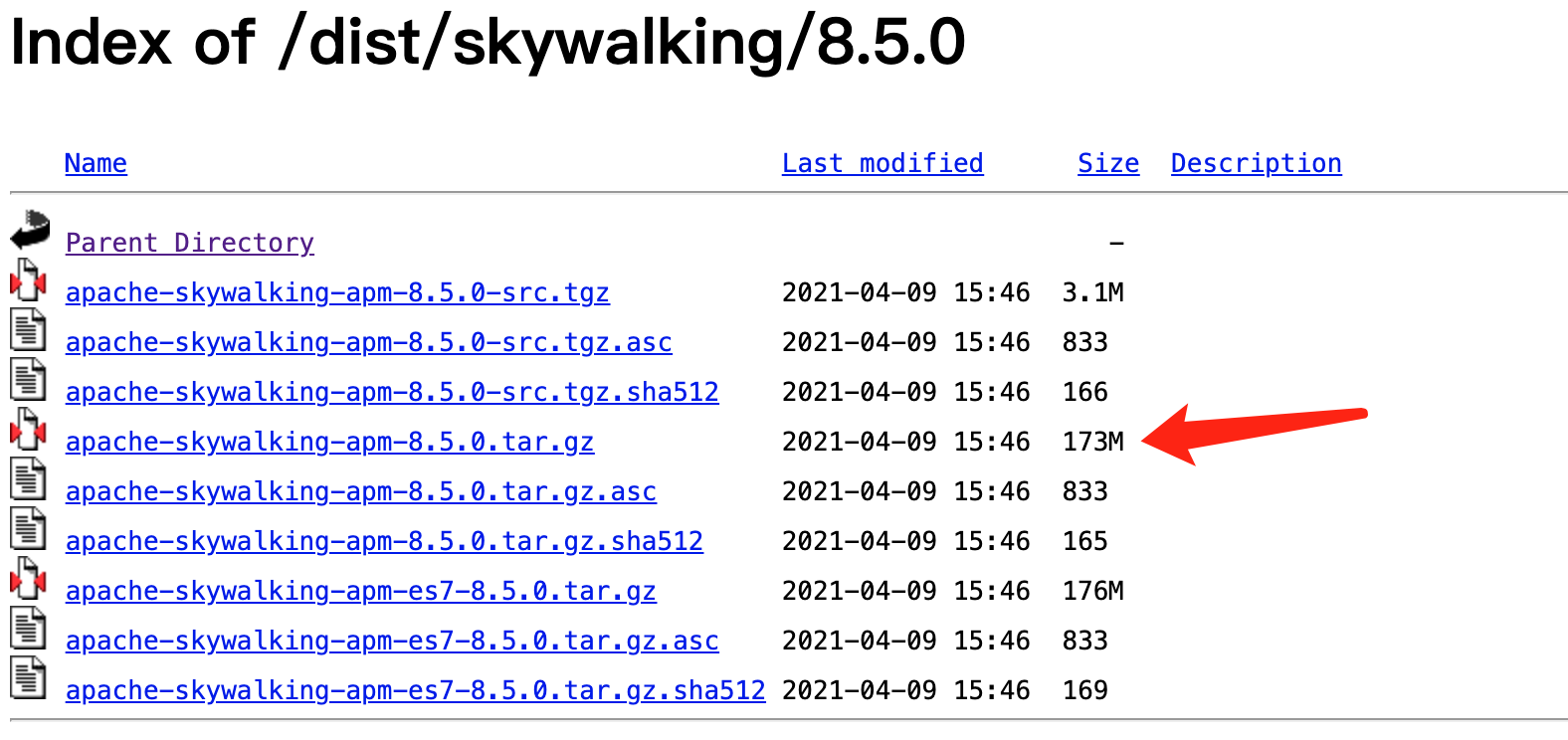
Download SkyWalking 8.5.0 or later and place the extracted agent folder to a directory accessible to the Java process.
Plugins are in the
/plugins directory. Put a new plugin in this directory during the startup phase to enable it, or remove it from this directory to disable it. Log files are output to the /logs directory by default.The directory of the new Agent folder is as follows:
New Agent Folder Directory
+-- agent
+-- activations
apm-toolkit-log4j-1.x-activation.jar
apm-toolkit-log4j-2.x-activation.jar
apm-toolkit-logback-1.x-activation.jar
.......
+-- config
agent.config
+-- plugins
apm-dubbo-plugin.jar
apm-feign-default-http-9.x.jar
apm-httpClient-4.x-plugin.jar
.......
+-- optional-plugins
apm-gson-2.x-plugin.jar
.......
+-- bootstrap-plugins
jdk-http-plugin.jar
......
+-- logs
skywalking-agent.jar
Access Steps
Step 1. Getting the Access Point and Token
1. Log in to the TCOP console.
2. Select Application Performance Management > Application List in the left menu bar, and click App Access.
3. In the Access application drawer frame that pops up on the right, click Java language.
4. On the Access Java application page, select the region and business system you want to integrate.
5. Select SkyWalking as Access protocol type.
6. Select a Reporting method you want, and obtain your Access Point and Token.
Note:
Private network reporting: Using this reporting method, your service needs to run in the Tencent Cloud VPC. Through VPC connecting directly, you can avoid the security risks of public network communication and save on reporting traffic overhead.
Public network reporting: If your service is deployed locally or in non-Tencent Cloud VPC, you can report data in this method. However, it involves security risks in public network communication and incurs reporting traffic fees.
Step 2. Download SkyWalking
If you have already used SkyWalking, skip this step.
Otherwise, download the latest version as instructed in Prerequisites.
Step 3. Configure parameters and names
The SkyWalking Agent supports multiple methods to complete parameter configuration. Different configuration methods can combine with each other. Below are configuration methods and examples.
Method 1: Configure Using the Agent.Config File
Open the
agent/config/agent.config file to configure the endpoint, token, and custom service name.collector.backend_service=<endpoint>agent.authentication=<Token>agent.service_name=<reporting service name>
Note:
After modifying
agent.config, remove the # before configuration items; otherwise, the changed information will not take effect.Method 2: Java VM Options
When starting the Java application, add the respective parameters beginning with
-DSkywalking in the command line. The following gives an equivalent example for method one.java -javaagent:<skywalking-agent-path>/skywalking-agent.jar-Dskywalking.collector.backend_service=<access point>-Dskywalking.agent.authentication=<Token>-Dskywalking.agent.service_name=<reported service name> program to start
Method 3: Set Relevant Environment Variables
You can complete the configuration of the SkyWalking client by setting relevant environment variables in the system. The following are examples of Linux commands.
export SW_AGENT_AUTHENTICATION=<Token> (equivalent to agent.authentication=Token)export SW_AGENT_NAME=<reported service name> (equivalent to agent.service_name=<reported service name>)export SW_AGENT_COLLECTOR_BACKEND_SERVICES=<access point> (equivalent to collector.backend_service=<access point>)
Note:
The priority relationship of the above three methods of reading is: server configuration > environment variable > configuration file. The configuration with higher priority will override the configuration with lower priority.
When replacing the corresponding parameter value, delete the "< >" symbol and only retain the text.
Step 4. Specify the plugin path
Select an appropriate method based on the runtime environment of your application to specify the path of the SkyWalking agent.
Linux Tomcat 7/Tomcat 8
Add the following to the first line in
tomcat/bin/catalina.sh:CATALINA_OPTS="$CATALINA_OPTS -javaagent:<skywalking-agent-path>"; export CATALINA_OPTS
Jetty
Add the following to the
{JETTY_HOME}/start.ini configuration file:--exec # Remove the preceding pound sign to uncomment.-javaagent:<skywalking-agent-path>
JAR file or Spring Boot
Add the
-javaagent parameter to the startup command line (the -javaagent parameter must be placed before the -jar parameter), with the following content:java -javaagent:<skywalking-agent-path> -jar yourApp.jar
IDEA
When running in IDEA, you can configure the application's VM option in Configuration by adding the
-javaagent parameter, with the same configuration of parameters as above.Step 5. Restart the application
After completing the above deployment steps, restart the application as instructed in Install javaagent FAQs.
Bantuan dan Dukungan
Apakah halaman ini membantu?
Anda juga dapat Menghubungi Penjualan atau Mengirimkan Tiket untuk meminta bantuan.
masukan